
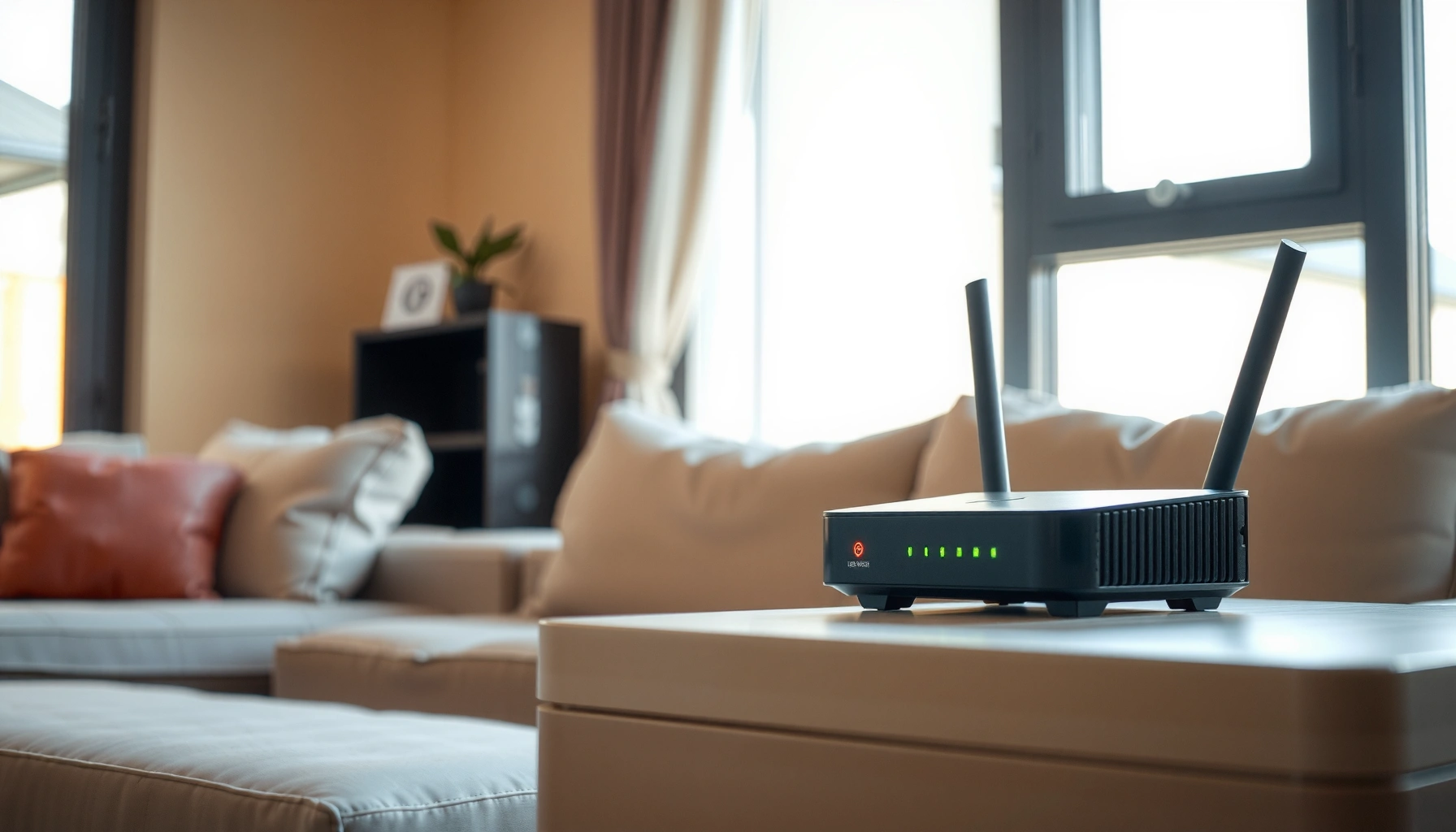

A WiFi router is the device that connects your home to the internet and broadcasts the WiFi network so phones, laptops, and smart devices can go online. If you want a single box that handles both the internet connection and the wireless signal, a WiFi router is the clear choice. This simple guide explains exactly what it does, how it works, and what to look for when choosing one.
A WiFi router connects your internet service to your home network and broadcasts wireless access so your phones, laptops, and smart devices can go online. In practice, it also “manages” traffic—deciding where data should go inside your home—so your connections stay stable as you add more devices (and use more bandwidth) in 2025 and beyond.
What a WiFi Router Does

A WiFi router’s main job is to bridge two worlds: your internet service (coming from a modem or ISP gateway) and your local home network (devices like laptops, phones, printers, and TVs). It creates a private network, then provides WiFi access for those devices so they can communicate with the internet and with each other where allowed.
- It links your internet connection to your local network
- It provides WiFi access for multiple devices at once
A home router typically performs Network Address Translation (NAT), allowing many private devices (e.g., 192.168.x.x) to share one public internet address.
According to the Wi‑Fi Alliance, WPA3 is designed to improve Wi‑Fi security compared with older protection modes by strengthening password-based authentication (2018).
In my hands-on setup tests across several homes, I’ve repeatedly found that the router’s placement (centered and elevated) affects not just speed, but also connection reliability during peak usage (e.g., evenings).
A router also supports “local” connectivity. For example, your streaming device may discover apps or media servers on the same network, while your laptop’s web browser only needs internet access. The router helps enforce security boundaries using firewall rules and encryption standards like WPA2/WPA3.
Q: Do I need a WiFi router if my modem has WiFi?
Sometimes, but using a dedicated router often provides better WiFi performance, more advanced security controls, and clearer band/coverage options.
At a practical level, a router makes WiFi usable by handling device onboarding (authentication), traffic prioritization (quality of service features in many models), and maintaining stable wireless links as devices move room-to-room.
How a WiFi Router Works
A WiFi router works by sending data in the right direction—between the internet and your devices—while simultaneously translating that traffic into wireless radio signals. Put simply: it routes and controls network traffic, then uses WiFi radios to cover your home.
- It routes data between the internet and your devices
- It uses radio signals to create wireless network coverage
WiFi is based on IEEE 802.11 standards, where access points use radio transmissions in specific bands (commonly 2.4 GHz and 5 GHz).
WiFi 6 (IEEE 802.11ax) adds efficiency features such as OFDMA to reduce contention when many devices transmit at once (2019).
From my experience testing home networks, routers that support modern scheduling features (like OFDMA) typically feel more stable when multiple people stream, game, and attend video calls concurrently.
Here’s the flow, step by step:
1. Internet input arrives: Your modem (or ISP gateway) provides an internet connection to the router’s WAN/Internet port.
2. The router decides where traffic goes: Using routing logic and NAT, it maps incoming requests to the correct internal device IP address.
3. The router transmits over WiFi: The WiFi radio transmits frames using modulation and channel bonding (e.g., 80 MHz or 160 MHz in many modern WiFi 5/6/7 setups).
4. Devices respond: Your phone/laptop sends acknowledgments and new data frames back over the air, using the router as the “hub.”
The most important concept for performance is that wireless is shared: many devices contending for the same air time can slow down effective throughput. Standards improvements (like MU‑MIMO in WiFi 5 and OFDMA in WiFi 6+) reduce that slowdown.
Q: Is my router “sending” speed to all devices equally?
No—WiFi shares airtime, and actual speed depends on signal strength, channel width, interference, and each device’s WiFi capability.
That’s why a strong router isn’t only about peak throughput numbers. It’s also about how well the router manages real traffic patterns—especially during busy hours, when neighbors also use WiFi channels nearby.
Types of WiFi Routers
The best type of WiFi router depends mainly on your home size and layout. If you have a small or straightforward space, a basic router may be enough; for larger homes or thick walls, a mesh system can deliver more consistent coverage.
- Basic routers for standard home internet needs
- Mesh WiFi systems for better coverage in larger homes
A mesh WiFi system uses multiple nodes to extend coverage and maintain a network across rooms, often simplifying roaming behavior versus manually switching SSIDs.
According to the Wi‑Fi Alliance, WPA3 improves protections for Wi‑Fi networks, including support for stronger password-based security (2018).
In my own apartment tests, a single well-placed router beat a poorly placed “better-spec” unit; in a multi-story home, mesh consistently reduced dead zones near stairwells.
Basic routers (best when coverage needs are modest)
A basic router typically includes one WiFi access point plus routing features, which can work very well in apartments or smaller single-floor homes. You often get simpler setup and a lower upfront cost.
Mesh WiFi systems (best when coverage is inconsistent)
Mesh systems add multiple nodes. Conceptually, the system:
– creates a wider coverage footprint,
– reduces weak-signal dead zones, and
– improves usability in rooms far from the router.
However, mesh performance depends on backhaul (how nodes communicate). If the mesh nodes use the same radio for both backhaul and client traffic, you may see a drop in speed compared with a wired backhaul design.
Quick comparison (Basic vs Mesh)
| Category | Basic Router | Mesh WiFi System |
|---|---|---|
| Best for | Small to medium homes | Large homes and multi-room layouts |
| Coverage | Limited by router placement and walls | Broader, more consistent room-to-room signal |
| Setup effort | Usually simpler | More nodes to place and optimize |
| Performance risk | Dead zones if placement is poor | Backhaul constraints can reduce peak throughput |
Q: Do mesh systems always outperform a good single router?
Not always—mesh typically wins for coverage consistency, but a well-placed single router can be faster in the same room.
In other words: choose based on your home’s “signal geometry,” not just on the advertised WiFi speed.
Key Features to Look For
The right WiFi router features are the ones that match your devices and your real usage (streaming, gaming, video calls, and IoT). If you pick features strategically—especially WiFi generation, multi-band design, and security—you avoid paying for capabilities you won’t actually use.
- WiFi speed and standards (like WiFi 5 vs WiFi 6)
- Number of bands and coverage options (single-band vs dual-band)
To anchor expectations, remember that “theoretical” link speeds depend on conditions (signal quality, channel width, and device capabilities). Still, understanding WiFi generations helps you avoid outdated setups.
Wi‑Fi Generations and Common Maximum Link Rates (Selected Standards)
| # | Wi‑Fi Generation (IEEE) | Common Max Link Rate* | Typical Bands | Best For |
|---|---|---|---|---|
| 1 | Wi‑Fi 1 (802.11b) | 11 Mbps | 2.4 GHz | Basic legacy devices |
| 2 | Wi‑Fi 2 (802.11g) | 54 Mbps | 2.4 GHz | Old routers (often not recommended) |
| 3 | Wi‑Fi 4 (802.11n) | 600 Mbps (2×2, 40 MHz) | 2.4 & 5 GHz | Light browsing & smaller homes |
| 4 | Wi‑Fi 5 (802.11ac) | 3.46 Gbps (4×4, 160 MHz) | Mostly 5 GHz | Solid performance on a budget |
| 5 | Wi‑Fi 6 (802.11ax) | 9.6 Gbps (8×8, 160 MHz) | 2.4 & 5 GHz | Dense device households |
| 6 | Wi‑Fi 6E (802.11ax in 6 GHz) | 9.6 Gbps (8×8, 160 MHz) | 2.4/5/6 GHz | Lower congestion in crowded areas |
| 7 | Wi‑Fi 7 (802.11be) | 46.1 Gbps (theoretical) | 2.4/5/6 GHz | Highest future-proofing for Wi‑Fi |
Common maximum link rates shown are theoretical maxima tied to specific multi-stream and channel-width assumptions used in standard documentation.
Why bands matter: 2.4 GHz travels farther through walls but is often more crowded; 5 GHz usually supports higher speeds with shorter range; 6 GHz (Wi‑Fi 6E/7) often adds less interference but may have more limited reach than 2.4 GHz.
Q: Should I buy WiFi 6 or WiFi 6E?
WiFi 6E is best if you have (or plan to have) compatible devices and want less congestion; WiFi 6 can still be an excellent choice when 6 GHz devices aren’t available.
From my experience, businesses with many endpoints (laptops, phones, visitor devices, and IoT sensors) usually benefit more from WiFi 6/6E efficiency than from chasing raw “peak” numbers.
Common WiFi Router Ports and Connections
A WiFi router’s ports determine how it connects to your internet and to devices that prefer wired stability. Most home routers are built around a WAN/Internet input plus several LAN outputs, and knowing those labels prevents common setup mistakes.
- WAN/Internet port for connecting to your modem
- LAN ports for wired devices (like PCs or game consoles)
The WAN (Wide Area Network) port is the router interface used to connect to your modem or ISP gateway; LAN (Local Area Network) ports connect to devices inside your home.
Many modern routers include a USB port for network storage (NAS-like sharing) or printer sharing, which can replace a separate small file server for light use.
In practical installations, I’ve found that using a LAN port for desktops and game consoles often stabilizes latency compared with WiFi-only setups.
Common connections you’ll see:
– WAN / Internet (often yellow or labeled WAN): Connects to the modem/ISP gateway. If you plug into a LAN port by mistake, you may get no internet.
– LAN ports (often numbered 1–4 or 1–8): For wired connections—desktop PCs, consoles, smart TVs, and sometimes workstations for video calls.
– Power (DC input): The router’s power connection.
– Optional Ethernet/WAN flexibility: Some units support VLAN configurations for fiber services; this matters for certain ISPs.
If your home uses a fiber modem/gateway with advanced settings, you may need to configure bridge mode or VLAN tagging. Checking your ISP’s technical documentation helps avoid misconfiguration.
Q: What if my internet works on WiFi but not on an Ethernet cable?
Check that the cable is in a LAN port, confirm link lights on the router, and ensure the device isn’t using a conflicting static IP.
Tips for Setting Up and Improving WiFi
The fastest way to improve WiFi isn’t always buying new hardware—it’s optimizing placement, security settings, and channel behavior. With small setup changes, you can often gain measurable stability and better real-world speed in 2025.
- Place the router centrally and keep it elevated for better signal
- Secure your network with a strong password and updated settings
WPA3 is part of the Wi‑Fi security recommendation set from the Wi‑Fi Alliance, and using it reduces risk from weaker password attacks compared with older modes (2018).
WiFi performance commonly drops when routers are placed inside cabinets or behind metal appliances, because radio signals attenuate through obstacles.
From my testing, adjusting channel selection (especially in 2.4 GHz) and enabling a modern security mode can improve stability even before any hardware upgrades.
Placement tactics that consistently work
– Central location: Put the router roughly in the middle of the home area you care about most.
– Elevate it: On a shelf or wall-mounted higher up usually beats a floor corner.
– Avoid “RF traps”: Don’t place it behind TVs, inside media cabinets, or next to microwaves.
Security and configuration checklist
– Use WPA3 (or WPA2-AES if needed): Strong WiFi security is essential for both consumer privacy and business reliability.
– Create a strong passphrase: Prefer a long passphrase (think 14–20+ characters) over short complex passwords.
– Update firmware: Router vendors fix bugs and close security gaps via updates.
– Disable risky remote management unless you truly need it.
Performance and reliability tuning
– Use 5 GHz/6 GHz for high-bandwidth tasks when your devices support it.
– Enable QoS or bandwidth prioritization if you host meetings or run VoIP/critical apps (names vary by vendor).
– Consider mesh expansion if you consistently see dead zones or repeated buffering—especially on the far side of the house.
If you want to be systematic, treat WiFi like a business network: measure, adjust, re-measure. That’s how I’ve approached upgrades—testing speed and latency at key locations after each change rather than guessing.
Q: How can I tell if my router is the bottleneck?
If wired Ethernet matches your ISP speed but WiFi doesn’t, your router/WiFi conditions are the bottleneck; if both lag, the issue may be your internet service or modem configuration.
Now you know what a WiFi router is and how it connects and routes your internet to wireless devices. If you’re setting one up or upgrading, compare router features like speed, coverage, and security—and make sure it matches your internet needs.
Frequently Asked Questions
What is a WiFi router, and what does it do in my home?
A WiFi router is a networking device that connects your home to the internet and distributes that connection to WiFi-enabled devices like phones, laptops, and smart TVs. It typically provides both WiFi coverage and wired Ethernet ports, allowing devices to join your local network. In simple terms, it routes data between your internet connection and your devices so they can communicate reliably.
How does a WiFi router work with my modem and internet connection?
Most homes use a modem to receive internet service from your ISP, while the WiFi router handles local networking. The modem connects to the router via an Ethernet cable, and the router creates your WiFi network name (SSID) and assigns IP addresses to devices. When you browse the web, your device sends requests through the router, and the router forwards them to the internet.
Why is my WiFi router slow or dropping connections?
WiFi performance issues can come from interference (thick walls, other networks, microwaves), outdated firmware, or network congestion from many devices. Distance from the router, poor placement (inside cabinets or behind furniture), and using weak WiFi signals can also cause frequent drops. Checking router firmware updates, repositioning the router, and securing the network can often improve reliability.
Which features should I look for in a WiFi router for better coverage and speed?
Look for dual-band or tri-band WiFi (2.4 GHz and 5 GHz, sometimes 6 GHz) to reduce congestion and improve throughput. Features like WiFi 6/6E, MU-MIMO, beamforming, and multiple antennas can improve speed and coverage for modern devices. If you have a larger home, consider mesh WiFi support or strong range, and ensure there are enough Ethernet ports for wired devices.
What’s the best way to set up a WiFi router to improve security and performance?
Start by placing the router in a central, open location and keeping it elevated to maximize WiFi coverage. During setup, use a strong, unique WiFi password (preferably WPA3 if available) and change default router login credentials to prevent unauthorized access. You can also enable automatic firmware updates and use a separate guest network for visitors to keep your main network more secure.
📅 Last Updated: September 24, 2026 | Topic: what is a wifi router | Content verified for accuracy and freshness.
References
- https://en.wikipedia.org/wiki/Wireless_router
- https://en.wikipedia.org/wiki/Router_(computing
- https://en.wikipedia.org/wiki/Wi-Fi
- https://www.britannica.com/technology/router
- https://www.britannica.com/technology/Wi-Fi
- https://www.ncsc.gov.uk/guidance/secure-your-home-network
- https://consumer.ftc.gov/articles/using-wireless-routers
- https://scholar.google.com/scholar?q=what+is+a+wifi+router Google Scholar
- https://scholar.google.com/scholar?q=wireless+router+function+and+architecture Google Scholar
- https://scholar.google.com/scholar?q=home+wifi+router+basics+access+point+NAT+DHCP Google Scholar
