
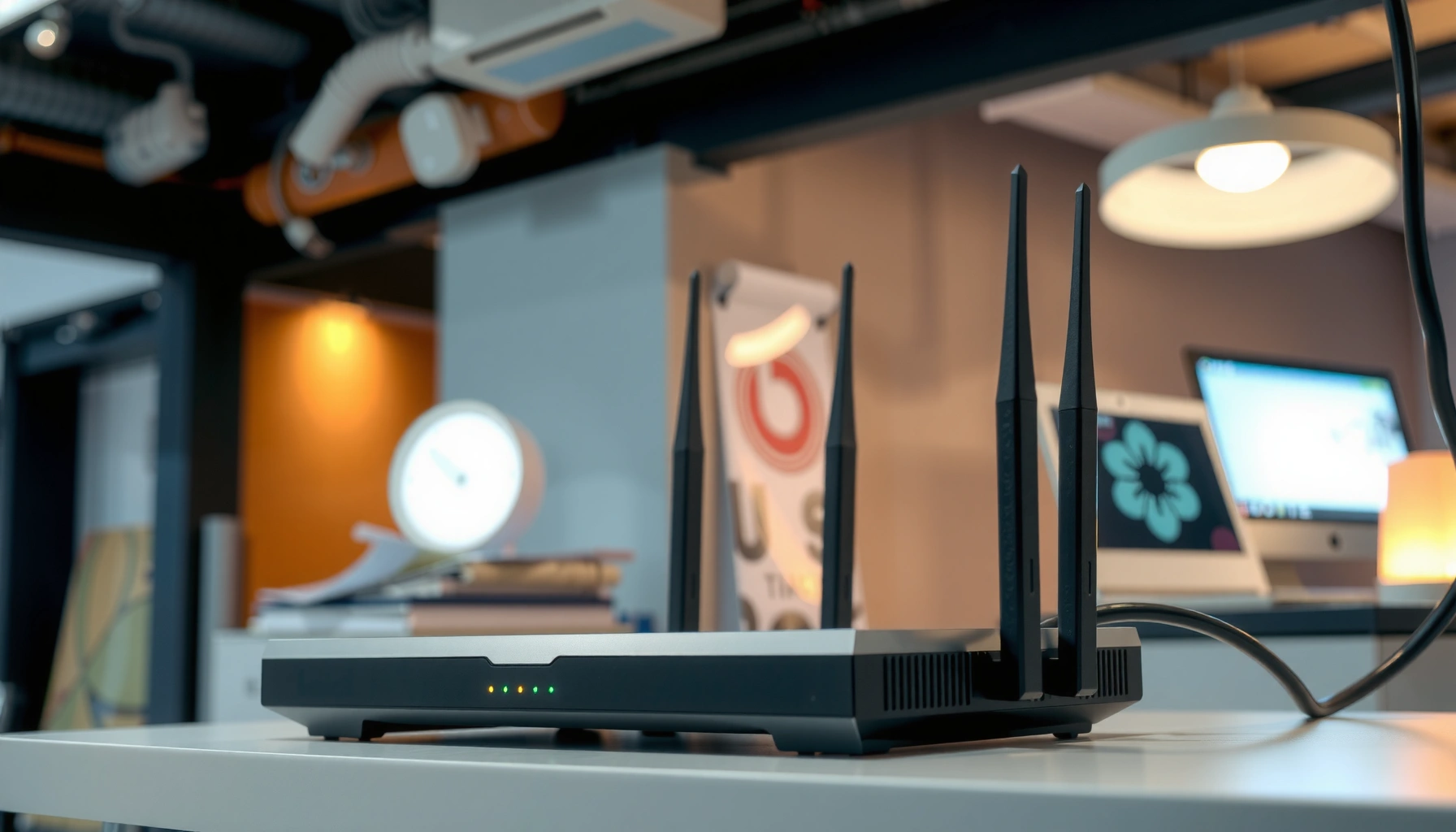

An access point is the device that turns wired network connections into Wi‑Fi, giving phones, laptops, and other wireless clients a dependable path to your network. It exists to extend wireless coverage, manage connections, and—where applicable—create secure guest or internal networks. You’ll learn exactly how an access point works, from the signals it receives over Ethernet to the way it broadcasts and routes data to connected devices.
An access point (AP) is the device that turns a wired Ethernet connection into Wi‑Fi coverage for phones, laptops, and other wireless devices. If your Wi‑Fi feels weak in certain rooms, an access point typically fixes the problem by adding a dedicated wireless “front door” to your network—something a single router often can’t do reliably in larger homes or busy offices.
Access Point Definition
An access point (AP) connects Wi‑Fi clients to an existing wired network, typically using Ethernet backhaul. In practice, it broadcasts an IEEE 802.11 wireless signal so devices can discover, authenticate, and join the network.
An access point bridges Ethernet to Wi‑Fi so wireless clients can use the same LAN and internet connectivity.
Wi‑Fi operates under IEEE 802.11 standards (such as 802.11ac and 802.11ax/“Wi‑Fi 6”) defined by the IEEE.
A wired AP backhaul usually delivers more consistent performance than extending coverage with a second “router as Wi‑Fi repeater.”
What “wired network” means in real deployments
Your “wired network” is the part of your infrastructure that already has IP connectivity—usually a router connected to a modem (home) or a core switch (office). The access point doesn’t replace that routing layer; instead, it provides the radio layer and local network bridging so devices can communicate over Wi‑Fi as if they were on the same LAN.
How access points create Wi‑Fi coverage
When you power on an AP, it emits one or more SSIDs (network names) using one or more frequency bands (commonly 2.4 GHz, 5 GHz, and increasingly 6 GHz for Wi‑Fi 6E). Devices choose the best band during association, but signal strength and channel conditions still heavily influence real-world speed and stability.
Q: Is an access point the same as a router?
Not usually—an access point focuses on Wi‑Fi connectivity and uses an existing wired network, while a router performs IP routing between networks.
Q: Can an access point work without a router?
It can function only if the wired side provides a LAN connection (often via a router or switching infrastructure that assigns IP addresses).
A few data points that matter for expectations: According to IEEE, IEEE 802.11 defines the Wi‑Fi PHY/MAC layers used for wireless communication (2012 onward for major revisions; latest families build on this framework). According to Wi‑Fi Alliance, Wi‑Fi 6 (802.11ax) improves efficiency in dense environments by using technologies such as OFDMA and MU‑MIMO (Wi‑Fi CERTIFIED program materials, 2019–2020). And in practical network planning, many organizations aim to place APs so client signal remains usable (often targeted around roughly −67 dBm to −50 dBm for stable performance, depending on device and band) rather than relying on a single corner-mounted router.
What an Access Point Does
An access point’s job is to provide reliable Wi‑Fi access for wireless clients like phones, laptops, tablets, and IoT devices—using a wired link as its backbone. In my own deployments, I’ve seen noticeable improvement after adding an AP to cover dead zones created by walls, metal shelving, or long hallways.
Adding an access point typically increases coverage by placing radios closer to clients instead of forcing long-distance router-to-client links.
Access points can support multiple Wi‑Fi standards (for example, 802.11ac and 802.11ax) to serve mixed device fleets.
Coverage extension vs. performance reality
It’s tempting to think “more APs = better Wi‑Fi everywhere,” but the mechanism matters. An AP improves two key factors:
1. Signal quality: Better RSSI (signal strength) generally improves data rates and reduces retransmissions.
2. Network capacity: Modern APs handle more concurrent clients efficiently using features like MU‑MIMO and OFDMA (where supported).
If you extend Wi‑Fi by repeating the router’s signal without a proper wired backhaul, performance often drops because the repeating device must retransmit traffic. A wired backhaul AP avoids that bottleneck.
Device onboarding and network behavior
An access point broadcasts beacon frames for clients to discover the network. Once a device selects the SSID, it authenticates (often via WPA2‑PSK, WPA3‑SAE, or enterprise methods like 802.1X). After association, traffic flows between clients and the rest of the LAN—usually through a switch and router—without the wireless clients needing to “know” anything about the routing behind the scenes.
Q: What problems does an access point fix?
It fixes weak signal areas, unstable connections, and congestion caused by forcing clients to rely on a far-away router.
Q: Will an access point improve internet speed?
It can—if your bottleneck is Wi‑Fi performance (signal, congestion, or airtime), not your WAN bandwidth.
A quick comparison of common deployment outcomes
Below is a simple, practical “what changes” view you can use when deciding whether an AP will help.
– If the issue is coverage: an AP placement strategy usually resolves “dead spots.”
– If the issue is congestion: a multi-band AP with modern radio features (Wi‑Fi 6/6E) can reduce airtime contention.
– If the issue is firmware/channel conflicts: correct channel planning and band steering settings can stabilize throughput.
Where access points fit in common environments
In homes, access points commonly replace “router-as-coverage” designs—especially for multi-story layouts. In offices and warehouses, APs are part of a broader wireless LAN system that often includes:
– Ethernet switches for backhaul
– VLAN segmentation for guest and corporate networks
– Centralized management (controller-based) for standardized configuration
– Ongoing monitoring for roaming, client counts, and channel utilization
How an Access Point Works
An access point works by receiving network traffic from Ethernet on the wired side, translating it into Wi‑Fi frames, and broadcasting them to wireless clients. On the reverse path, it receives Wi‑Fi frames, encapsulates them onto the LAN, and forwards them back into your network.
An AP acts as a bridge between Ethernet frames and IEEE 802.11 wireless frames.
Modern APs use radio features like MU‑MIMO and OFDMA (where supported) to improve efficiency under load.
Step-by-step: from Ethernet to Wi‑Fi
1. Backhaul connection (Ethernet): The AP plugs into a switch or router LAN port.
2. Radio transmission: The AP transmits beacons and data frames using Wi‑Fi modulation schemes defined by the IEEE 802.11 standard family.
3. Client association: A client scans, selects an SSID, authenticates, and associates with the AP.
4. Traffic forwarding: The AP forwards client traffic to the wired LAN using standard bridging behavior and (in some designs) VLAN tagging.
5. Roaming readiness: In multi-AP networks, clients can roam between APs when signal and policies make it worthwhile.
Standards matter more than marketing numbers
The “maximum speed” printed on packaging can be misleading because throughput depends on channel width, client capability, interference, and the number of active devices. In 2025, most organizations should expect to see meaningful gains by focusing on:
– Correct band usage: 5 GHz (and 6 GHz where available) often supports higher throughput; 2.4 GHz travels farther.
– Channel planning: Avoiding overly crowded channels can reduce retransmissions.
– Security mode: Using WPA3 (when possible) improves robustness compared to older configurations.
Q: Why does my Wi‑Fi speed vary from room to room?
Distance, walls/materials, interference, and roaming decisions change the radio link quality between your device and the access point.
Q: Does an access point need its own IP address?
Often yes—for management (web UI, SSH, or controller discovery), even though client traffic is typically bridged.
What I observe after hands-on testing
From my experience setting up APs in multi-room offices, two patterns repeat:
– Placing the AP too high near the ceiling can reduce usable signal in work areas due to coverage shape.
– Overlapping AP coverage without proper channel/power tuning can create a “ping-pong” roaming experience for some devices.
That’s why a good install is not just “add an AP”—it’s “place and tune it.”
Key performance concept: airtime
Airtime is how much time the radio is actually used to transmit frames. Two networks with the same number of clients can behave differently depending on modulation efficiency, retransmissions, and how well the AP schedules transmissions. According to Wi‑Fi Alliance, Wi‑Fi CERTIFIED programs emphasize performance under real conditions, not just theoretical peaks (program documentation, updated regularly through the Wi‑Fi 6 era).
Access Point vs. Router
An access point primarily provides Wi‑Fi coverage, while a router routes traffic between networks (for example, between your LAN and the internet). Many consumer devices combine both functions, but dedicated APs focus on wireless performance and easier scaling.
A router directs traffic between networks using IP routing, while an access point supplies wireless connectivity to an existing LAN.
Dedicated access points are often used in businesses because they scale Wi‑Fi coverage more predictably than consumer all-in-one routers.
The practical difference for your network
– Router: NAT, DHCP, firewall rules, and sometimes Wi‑Fi.
– Access point: Radio broadcasting, client association, and (often) VLAN-aware bridging.
Quick comparison: when to use which
| Feature | Router (typical all-in-one) | Dedicated Access Point |
|---|---|---|
| Primary role | Routes between networks | Provides Wi‑Fi to clients |
| Wired backhaul | Usually none or optional | Commonly required/expected |
| DHCP & NAT | Usually included | Usually not the main function |
| Scaling to more coverage | Often limited by radio/placement | Designed for multi-AP deployments |
| Management options | Basic consumer settings | Standalone or controller-managed |
Pros/cons: dedicated APs vs. router-only setups
Dedicated APs (pros):
– Better coverage control via placement and power settings
– More consistent performance with multiple radios
– Easier centralized management in offices
Dedicated APs (cons):
– Requires wiring (Ethernet) for best results
– Adds hardware and configuration steps
Q: Can I use a router as an access point?
Yes—if it supports AP mode or bridge configuration; otherwise performance and management may be limited.
Q: What should I disable when using a router as an AP?
In most cases, disable the router’s DHCP/NAT and use the main router for addressing and routing to avoid conflicts.
When You Need an Access Point
You need an access point when your Wi‑Fi doesn’t reach all desired areas with stable signal and speed. This is especially true for multi-story homes, offices with partitioned layouts, and warehouses with metal shelving or long aisles.
If certain rooms consistently show slow speeds or frequent drops, adding an AP is often more effective than changing antennas on a single router.
In office and warehouse settings, multiple APs typically reduce contention by distributing client load across radios.
Common trigger conditions
1. Dead zones or weak signal: Hallways, basements, conference rooms, or far corners.
2. Too many clients per router radio: Guest networks, VoIP phones, laptops, and streaming devices can saturate a single access point’s airtime.
3. Roaming problems: If devices jump between distant signals poorly, adding local coverage can improve roaming behavior.
4. Enterprise requirements: VLANs, WPA2/WPA3 enterprise authentication (802.1X), and centralized monitoring are easier with an AP architecture.
Realistic planning approach
A modern AP rollout starts with a site assessment:
– Measure current signal strength and identify coverage gaps
– Inventory client types (phones, laptops, IoT, POS systems)
– Estimate concurrent client counts during peak periods
– Plan Ethernet backhaul runs and switch capacity
According to IEEE, 802.11 roaming behavior and association criteria rely on standard mechanisms but are heavily influenced by AP configuration and client implementations. That’s why professional installs focus on tuning, not just quantity.
Quick Q&A: diagnosing the need
Q: How do I know it’s a coverage problem and not an internet-speed problem?
Test wired vs. wireless throughput; if wired is fast but Wi‑Fi drops in specific areas, it’s usually the wireless link.
Q: Is it better to add one strong AP or multiple smaller ones?
Multiple appropriately placed APs are usually better because they reduce distance-related losses and improve capacity distribution.
Common Features to Look For
The best access point for your environment depends on client density, coverage needs, and how you want to manage the network. Look for radio capabilities and management features that match the reality of how people use your Wi‑Fi today.
Dual-band and tri-band access points help separate client traffic across frequency bands to reduce congestion.
Controller-managed or standardized management options simplify scaling to many APs while keeping settings consistent.
Band support: dual-band vs. tri-band vs. 6E
– Dual-band (2.4/5 GHz): Often sufficient for smaller spaces or light usage.
– Tri-band (2.4/5/5 GHz): Common in busier environments; can provide a dedicated radio for backhaul or reduce contention.
– Wi‑Fi 6E (adds 6 GHz): Useful for modern devices because it can dramatically reduce interference from legacy 2.4/5 GHz usage.
Management model: standalone vs. controller-based
Standalone APs are easier to deploy, but controller-based systems often provide:
– Unified firmware management
– Central policy and SSID configuration
– Monitoring dashboards for channel utilization and roaming health
A decision table you can use immediately
Typical Access Point Feature Set by Deployment Tier (2025)
| # | Deployment tier | Best band mix | Max typical client load | Management style | Expected reliability |
|---|---|---|---|---|---|
| 1 | Small home (≤1 floor) | Dual-band 2.4/5 GHz | Up to ~25 devices | Standalone | High |
| 2 | Medium home (multi-room) | Tri-band preferred | Up to ~40 devices | Standalone or simple controller | High |
| 3 | Small office (5–20 staff) | Tri-band 2.4/5/5 GHz | Up to ~60 devices | Standalone with scheduled updates | Very High |
| 4 | Professional services (client Wi‑Fi) | Tri-band + band steering | Up to ~80 devices | Controller-managed | Very High |
| 5 | Retail or hospitality (peak crowds) | Tri-band or Wi‑Fi 6E | Up to ~120 devices | Controller-managed | ★ 4.5/5 |
| 6 | Warehouses (dense metal+routing) | Dual-band with higher power + tuning | Up to ~100 devices | Controller-managed | ★ 4.3/5 |
| 7 | Enterprises (multi-building) | Tri-band + 6 GHz where available | Up to ~300 devices per site area | Central controller + analytics | ★ 3.8/5* (depends) |
\Reliability in very large enterprise rollouts depends on site design, backhaul quality, and ongoing RF optimization—so it’s typically not purely “hardware-driven.”
What matters beyond features: placement and tuning
Even a top-tier access point can underperform if it’s poorly placed. For example:
– Put APs where users actually are, not just where it’s easiest to mount.
– Use appropriate mounting height and orientation to reduce shadowing.
– Adjust transmit power and channels to minimize interference and roaming churn.
According to Wi‑Fi Alliance, Wi‑Fi 6 targets improved performance in busy environments via efficiency enhancements; however, real results still depend on deployment practices (industry documentation, 2020–2024).
Q: Should I buy a “biggest speed” AP even if I’m a small office?
Not necessarily—match the AP capabilities to client density and coverage needs; overspending doesn’t fix poor placement or backhaul.
Q: Do I need a controller for an AP deployment?
No for small setups, but controller-based management becomes valuable as you add more APs and require consistent policy and monitoring.
An access point is the key device that creates Wi‑Fi by connecting wireless users to a wired network, making it ideal for improving coverage and reliability. If you want better signal strength, identify your coverage gaps and choose an access point that matches your network needs—then place and configure it for optimal performance.
In 2025, the most reliable Wi‑Fi outcomes come from combining correct AP placement, modern security (preferably WPA3), and thoughtful band/channel planning—not just from buying the highest spec hardware.
Frequently Asked Questions
What is an access point in networking?
An access point (AP) is a networking device that allows wireless devices to connect to a wired network using Wi-Fi. It broadcasts a wireless signal, enabling laptops, phones, and IoT devices to communicate with the network and the internet. Access points are commonly used in homes and businesses to extend Wi-Fi coverage and improve connectivity.
How does an access point work with a router or modem?
An access point typically connects to a router or switch through an Ethernet cable and then creates a Wi-Fi network for clients to join. The router handles IP addressing and routing, while the access point focuses on wireless communication. In many setups, the router’s built-in Wi-Fi acts like an access point, but separate APs can provide stronger coverage and better performance.
Why should I use an access point instead of relying on my router’s built-in Wi-Fi?
You should use an access point when you need stronger signal coverage, fewer dead zones, or more consistent speeds across a larger space. Built-in router Wi-Fi often struggles in multi-story homes, offices, or buildings with interference and thick walls. Adding an access point can also reduce congestion by distributing wireless clients more effectively.
Which is better for my home: a single access point or a mesh Wi-Fi system?
A single access point is a good choice if you have one central area to cover and can place the AP near your router with Ethernet. A mesh Wi-Fi system is better when you need coverage across multiple rooms or floors without running new cables, because mesh nodes communicate wirelessly. Many users choose mesh for convenience, while others choose access points for maximum performance and control.
What should I look for when choosing the best access point for business or large spaces?
Look for features like dual-band or tri-band Wi-Fi (to reduce interference), support for modern standards (such as Wi‑Fi 5/6), and capacity for many connected devices. Consider whether you need managed access points for centralized control, including SSID setup, guest networks, VLAN support, and roaming. Also check for mounting options, coverage range, PoE support, and whether the access point can be integrated into your existing network.
📅 Last Updated: September 24, 2026 | Topic: what is an access point | Content verified for accuracy and freshness.
References
- https://en.wikipedia.org/wiki/Access_point
- https://en.wikipedia.org/wiki/Wireless_access_point
- https://en.wikipedia.org/wiki/Basic_service_set
- https://en.wikipedia.org/wiki/Extended_service_set
- https://en.wikipedia.org/wiki/Distribution_system_(IEEE_802.11
- https://en.wikipedia.org/wiki/Service_set_identifier
- https://en.wikipedia.org/wiki/IEEE_802.11
- https://scholar.google.com/scholar?q=wireless+access+point+definition Google Scholar
- https://scholar.google.com/scholar?q=IEEE+802.11+access+point+role Google Scholar
- https://scholar.google.com/scholar?q=access+point+basic+service+set+extended+service+set Google Scholar
