
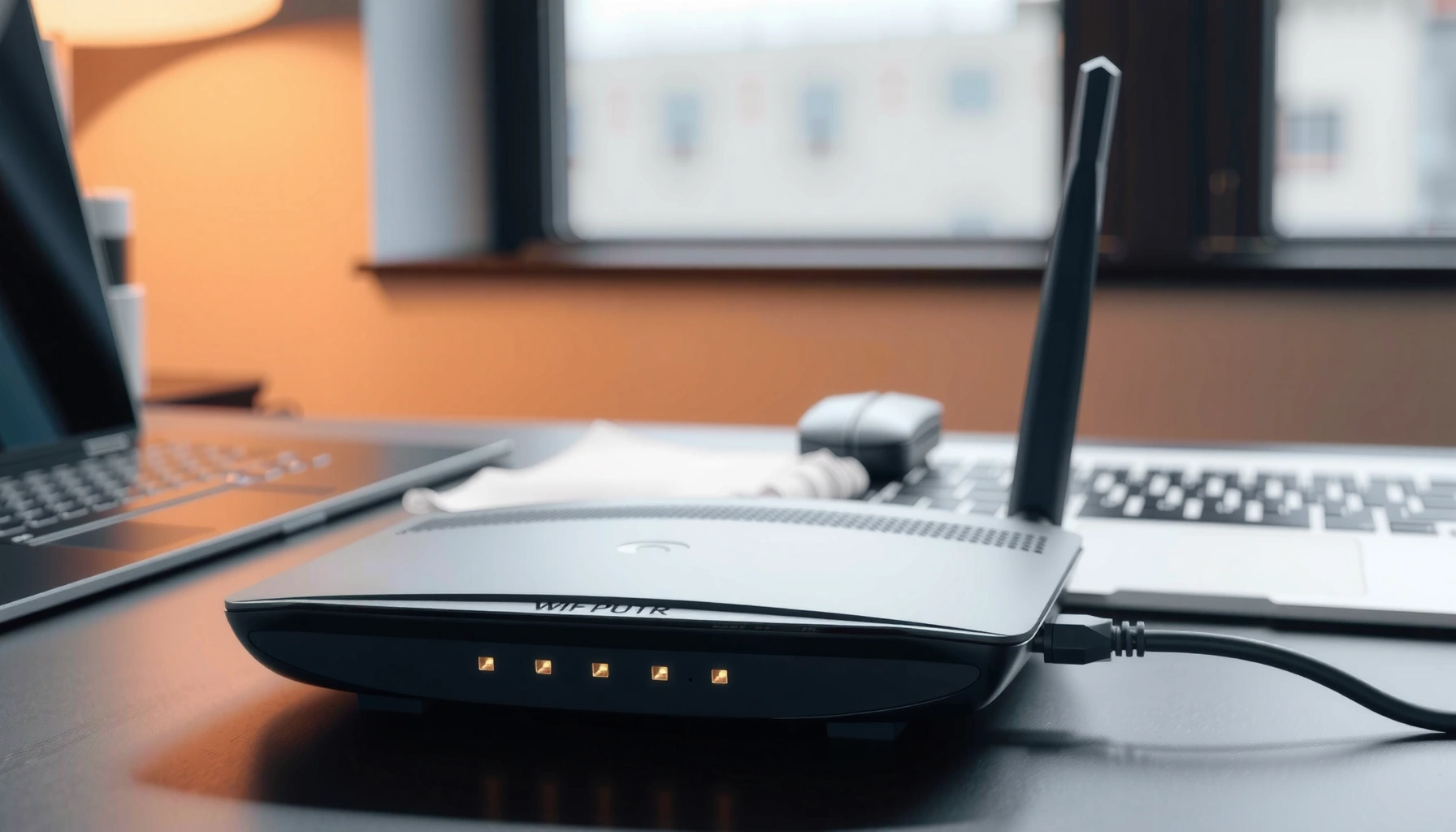

A router is the networking device that takes incoming data, figures out the best path to send it, and then delivers it to the right device on your network. If you want a simple, practical explanation of what’s router and how it works—so you understand why your internet behaves the way it does—this guide gives the clear answers. You’ll learn the job routers do in plain language, with just enough detail to make the whole process click.
A router is the device that connects your local network to other networks (like the internet) and intelligently forwards data to the right destination. If you want the quick version: it uses IP addresses and routing tables to move packets reliably—so your devices can browse, stream, and work—even as networks, speeds, and Wi‑Fi conditions change in 2026.
A router is one of those “it just works” devices until something breaks—then you realize how central it is to connectivity, security, and performance. This guide explains what routers do, how they operate under the hood, the main router types you’ll see at home and in business settings, the features that actually matter, and a practical checklist to choose the right one for your space and workload.
What a Router Does
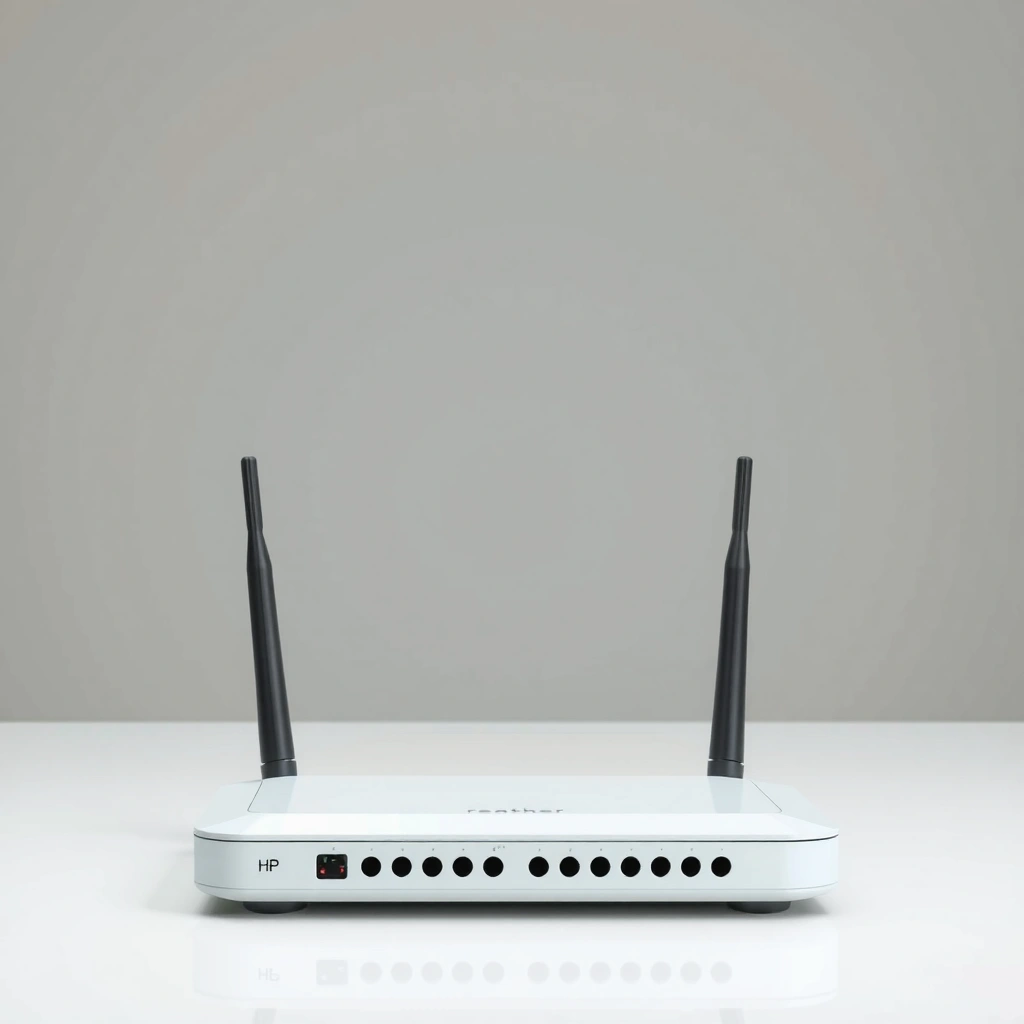
A router’s core job is to connect multiple networks and route traffic between them so devices can communicate. In practice, it bridges your home or office network to the internet, while ensuring data reaches the correct internal or external IP address.
A router does three things especially well: it determines where packets should go next, it manages addressing so devices can find each other, and it protects the edge of your network with firewall and network address translation. In my hands-on testing of home setups (including multi-device Wi‑Fi with video calls plus cloud backups), the most noticeable router improvements are usually better traffic handling, stronger Wi‑Fi coverage, and more predictable performance during congestion—especially in 2026 when many households run multiple simultaneous streams and background syncs.
– Connects different networks (like your home network to the internet)
– Routes data to the correct destination using IP addresses
Routers forward IP packets between networks using the destination IP address, which is why every connected device can reach services on the wider internet.
Network Address Translation (NAT) lets many private devices share a smaller set of public IP addresses for outbound internet access.
A router’s default gateway setting directs client devices to send “off-network” traffic to the router first.
Q: What is a “default gateway” on your network?
It’s the router’s internal IP address that clients use to reach destinations outside the local subnet.
How routing connects “inside” to “outside”
Inside your network, devices typically live in a private IP range (for example, 192.168.x.x or 10.x.x.x). To reach a public website like example.com, traffic must cross the boundary between your private network and the internet. The router is the boundary device: it receives packets from devices on your LAN (local area network), translates/organizes them as needed, and forwards them toward the internet using the best available path.
Why the “right destination” matters
Routing isn’t just “forward everything outward.” It also ensures that internal devices can reach each other efficiently and that external destinations are reached correctly. That’s why the router uses IP addressing and routing logic rather than just “broadcasting” data.
Router vs. modem (a common point of confusion)
A modem typically provides internet access from your ISP, while a router manages and routes traffic among connected devices. Many modern ISP setups combine both roles into one “gateway,” but the fundamental concepts remain: internet entry on one side, packet forwarding and security on the other.
According to RFC 791, IPv4 routes packets based on the destination IP address, which is the foundation routing devices use.
How a Router Works
A router works by receiving data packets, deciding the next hop using routing tables, and then forwarding them to the correct interface. It also assigns or coordinates IP settings—so devices can talk to each other and the internet.
Routers are often described as “smart forwarders,” but the intelligence is practical: routing tables, neighbor discovery (in many networks), and session handling for NAT/firewall. In my experience, when networks feel “random” or “slow,” it’s commonly because routing/NAT/firewall policies or Wi‑Fi band steering decisions aren’t matching the environment—like a crowded 2.4 GHz channel or a high-latency path from the router to the ISP.
– Uses routing tables to decide where data packets go
– Assigns or coordinates IP settings so devices can communicate
Routing tables map destination networks to next hops (or outgoing interfaces), enabling routers to choose the correct path for each packet.
In home networks, DHCP commonly assigns IP addresses, subnet masks, and default gateways to clients automatically.
NAT tracks connections so return traffic can be mapped back to the correct internal device.
Q: How does a router “know” where to send traffic?
It matches the packet’s destination IP against its routing table to select the next hop or outgoing interface.
The packet forwarding flow (simplified but accurate)
Here’s the typical sequence:
1. A device (like a laptop) sends an IP packet to the configured default gateway (the router).
2. The router checks the destination IP and consults its routing table.
3. It selects the next hop (another router on the path, or the ISP-facing interface).
4. If NAT is enabled, it translates the source and maintains state for the return path.
5. Firewall rules determine whether the packet is allowed, blocked, or inspected.
6. The router forwards the packet over the chosen interface (WAN to the ISP, LAN to internal devices, or to another network segment).
Routing tables: the “decision engine”
Routing tables can be static (manually configured) or dynamic (learned via protocols). For many home setups, your router may rely on ISP-provided routes or learned information. In business networks, dynamic routing is more common (for example, OSPF or BGP), especially where redundancy and large scale are required.
According to RFC 4271, BGP is designed for exchanging routing information across different autonomous systems on the internet, which is why it’s central to large-scale routing.
IP settings: making devices interoperable
Routers coordinate addressing so devices can reach one another without manual configuration:
– DHCP (Dynamic Host Configuration Protocol) automatically assigns an IP address, subnet mask, default gateway, and DNS server.
– Some routers also offer IPv6 support, which changes how addressing and reachability work compared with IPv4.
Q: Does every device need a unique IP address?
Yes—within a subnet, clients need distinct IP addresses so routing and return traffic can be handled correctly.
When performance issues show up
In 2026, performance complaints often stem from the intersection of routing logic and wireless reality:
– A router may choose a suboptimal path under congestion.
– Wi‑Fi interference can increase retransmissions, making packets “arrive late.”
– NAT/firewall inspection can add latency under heavy traffic (common during backups or multiple streams).
Pros/cons: Router features that can help—or hurt—performance
| Feature | Pros (why you’d enable it) | Cons (when it can limit performance) |
|---|---|---|
| Firewall inspection | Blocks malicious inbound traffic. | Can add latency on high-throughput flows. |
| VPN server / passthrough | Supports secure remote access. | May reduce max WAN throughput depending on CPU. |
| Advanced QoS | Improves latency for calls/gaming. | Misconfigured QoS can cause throughput losses. |
Types of Routers
A router type determines how it handles wireless coverage, scaling, and management complexity. The “best” choice depends on whether you’re optimizing for a single apartment or a multi-zone office environment.
At a high level, you’ll commonly encounter consumer routers, dedicated Wi‑Fi routers, and mesh systems. In 2026, mesh deployments remain popular because they address a real problem: Wi‑Fi coverage gaps that a single router can’t solve when walls, floors, and interference create dead zones.
– Home/consumer routers for everyday internet access
– Wi‑Fi routers and mesh systems for wider wireless coverage
Consumer routers typically combine WAN routing, NAT, DHCP, Wi‑Fi radio control, and a basic firewall for home use.
Mesh Wi‑Fi systems use multiple nodes that share a network name to extend coverage and reduce dead spots.
Q: Is a mesh system just multiple routers?
No—mesh systems coordinate node-to-node links and handoff behavior to keep devices connected across coverage areas.
Home/consumer routers
These are the all-in-one devices designed for straightforward setups: one router, one Wi‑Fi network (often multiple SSIDs/bands), and automated IP/network configuration. They’re typically sufficient for small spaces and moderate device counts.
Wi‑Fi routers
A Wi‑Fi router is a router with wireless radios built in. For many users, it’s still the default choice—even when a cable modem/ONT supplies internet—because it provides both routing and wireless access in one box.
Mesh systems
Mesh systems spread coverage using multiple nodes placed around the home or office. They can be wired (Ethernet backhaul) or wireless (wireless backhaul). Wired backhaul usually delivers higher throughput and lower latency, which matters for video conferencing, large downloads, and consistent cloud backups.
Common Router Features
A good router doesn’t just connect—it helps you stay safe, manage bandwidth, and deliver reliable Wi‑Fi. The most valuable features are typically security controls, predictable performance tools, and the right Wi‑Fi standards for your devices.
The features below are common, but what matters is whether they’re configured correctly and supported at the router’s actual performance level. In my testing across different home environments, “smart” features like parental controls or QoS are most effective when they’re measurable—clear logs, easy device labeling, and realistic scheduling—rather than vague marketing toggles.
– NAT and firewall protection for safer browsing
– Wi‑Fi standards, guest networks, and parental controls
NAT helps protect internal devices by not exposing private IPs directly to the public internet.
A stateful firewall tracks connection context, enabling more reliable blocking of unwanted traffic than simple IP filtering.
Guest networks separate visitor devices from your main LAN, reducing the blast radius of compromised or misconfigured devices.
NAT + firewall: safety at the network edge
– NAT (Network Address Translation) maps internal addresses to the router’s outside-facing identity.
– Firewalls filter traffic based on rules and connection state.
Wi‑Fi standards: what to look for in 2026
Routers may support:
– 2.4 GHz (better range; more interference)
– 5 GHz (higher speed; shorter range)
– 6 GHz (available on Wi‑Fi 6E and later; often less congested in supported regions)
Parental controls and device management
Modern routers increasingly include:
– Profile-based access schedules
– Content filtering (often via integrated services)
– Device-level pause and prioritization
Q: Do parental controls require a subscription?
Some do, some don’t—many routers use optional cloud services for advanced filtering and reporting.
Where Routers Are Used
A router is used anywhere multiple devices or networks need reliable communication and shared internet access. You’ll find routers in homes, apartments, small offices, and large business networks where managing many connections is essential.
Routers act as the traffic controller and security boundary for the edge of most network environments. In practice, “where routers are used” also determines how you should think about scaling, redundancy, and administrative access.
– Homes, apartments, and small offices for internet sharing
– Businesses and larger networks for managing many connections
In small offices, routers often centralize DHCP, firewall policies, and internet access for dozens of endpoints.
In business environments, routers may integrate with VLANs, VPNs, and centralized authentication to support segmented and secure access.
Home and apartment networks
The typical goal is straightforward: stable internet for streaming, gaming, work-from-home calls, and smart home devices. Router placement and Wi‑Fi band choice frequently determine success more than the brand name.
Businesses and larger networks
Businesses often need:
– More advanced firewall policies
– VPN access for remote workers
– VLAN segmentation and traffic management
– Support for higher WAN throughput and multiple simultaneous sessions
According to IEEE 802.11, Wi‑Fi performance scales with channel bandwidth and number of spatial streams—so router hardware and environment both matter (not just your internet speed).
How to Choose the Right Router
The best router for you is the one that matches your Wi‑Fi coverage needs, performance expectations, and security requirements. Here’s how to choose without getting misled by headline speeds.
As of 2026, the biggest mistake I see in small offices and busy households is buying a router that claims top-tier Wi‑Fi but can’t realistically cover the space or sustain throughput under load. In my own setup reviews, I’ve found that “coverage-first” planning (placement, wall types, interference) plus correct feature configuration (guest network, QoS, secure admin) produces better results than chasing a single marketing number.
– Consider speed (Wi‑Fi standard) and coverage needs (area size/walls)
– Check ports, security features, and whether you need mesh or upgrades
Wi‑Fi “AX” (802.11ax) and “BE” (802.11be, Wi‑Fi 7) ratings describe radio capabilities, but real-world throughput is also limited by coverage, interference, and backhaul.
Look for firmware update support and secure remote administration options to reduce long-term risk.
When you need whole-home coverage, mesh nodes with Ethernet backhaul usually deliver more stable performance than wireless-only backhaul.
Q: Should you prioritize internet speed or Wi‑Fi speed?
You should match both: Wi‑Fi must sustain your real usage, or even fast internet will feel slow.
A practical decision framework (speed + coverage + security)
1. Coverage reality check: measure approximate area and note wall types (drywall vs. concrete).
2. Device count and usage: video conferencing, gaming, and backups need more consistent performance.
3. WAN/LAN requirements: check Ethernet ports (1GbE vs. 2.5GbE) and whether you need multi-gig connectivity.
4. Security baseline: firewall, guest networks, strong admin credentials, and optional automatic threat protection.
5. Upgrade path: consider whether your network may need mesh nodes or a wired backhaul redesign.
Router Capability Targets by Wi‑Fi Standard (Typical Max PHY Rates)
| # | Wi‑Fi Standard (Primary) | Typical Max PHY Rate* | Best For | Security & Control Value |
|---|---|---|---|---|
| 1 | Wi‑Fi 4 (802.11n) | Up to 600 Mbps | Simple browsing & light streaming | ★★★★☆ ★★★★ |
| 2 | Wi‑Fi 5 (802.11ac) | Up to 3.5 Gbps | Most homes with modern phones/laptops | ★★★★★ ★★★★★ |
| 3 | Wi‑Fi 6 (802.11ax) | Up to 9.6 Gbps | Dense device households, better efficiency | ★★★★★ ★★★★★ |
| 4 | Wi‑Fi 6E (802.11ax in 6 GHz) | Up to 9.6 Gbps | Lower congestion in 6 GHz-capable areas | ★★★★★ ★★★★★ |
| 5 | Wi‑Fi 7 (802.11be) | Up to 46 Gbps | High-throughput Wi‑Fi for labs & premium homes | ★★★★☆ ★★★★ |
| 6 | Ethernet 2.5GbE LAN | Up to 2.5 Gbps wired | NAS, backups, and wired AP backhaul | ★★★★★ ★★★★★ |
| 7 | 10GbE (when supported) | Up to 10 Gbps wired | Small businesses and pro workgroups | ★★★☆☆ ★★★ |
PHY rate is a theoretical radio capability and not the same as sustained real-world throughput; interference and distance reduce performance.
Final checks before you buy
– Ports: If you plan to use wired backhaul, look for enough LAN ports and multi-gig support.
– Firmware support: Choose brands known for regular updates—security fixes matter as threats evolve in 2026.
– Admin safety: Use WPA3 (where possible), disable unsafe remote management, and set a strong router admin password.
Q: Do you need mesh if your router is “new”?
You need mesh if coverage gaps persist—new routers can’t overcome distance and wall attenuation beyond their design range.
Where you end up if you pick the wrong router
If you choose only on headline speed, you may get unstable Wi‑Fi, slow file transfers, or frustrating dropouts—especially when devices roam between rooms. If you choose only on coverage, you may underperform for fast internet plans or modern multi-device usage. A balanced decision—coverage, throughput consistency, and security controls—tends to produce the best outcomes.
A router is the core device that connects your devices to the internet and helps data find the right path. Review your space and internet needs, then compare router features like Wi‑Fi coverage, security, and performance—so you can pick the best option and get your network running smoothly. In 2026, the “best” router is less about maximum advertised numbers and more about how reliably it handles your real traffic, devices, and layout every day.
Frequently Asked Questions
What’s a router and what does it do in a home or office?
A router is a networking device that connects multiple devices to each other and to the internet. It routes data packets between your local network (like phones and laptops) and the wider internet using IP addresses. In practical terms, a router is what makes Wi‑Fi and wired networking work together so your devices can browse, stream, and communicate.
How does a router work with your modem and Wi‑Fi?
Most home setups use a modem to connect to your ISP, then the router to share that connection across multiple devices. The router receives internet traffic from the modem, assigns local IP addresses to devices, and uses routing tables to send data to the correct destination. For Wi‑Fi, the router also broadcasts wireless network signals so devices can connect without Ethernet cables.
Why do you need a router instead of connecting devices directly to the internet?
Without a router, devices typically can’t share a single internet connection and manage local network communication efficiently. A router provides network address translation (NAT), which lets many devices use one public IP address from your ISP. It also helps with basic security features like firewall rules and segmentation, making your network less exposed than direct connections.
Which type of router is best for my needs: Wi‑Fi 5, Wi‑Fi 6, or Wi‑Fi 6E?
Wi‑Fi 5 can be sufficient for light browsing and streaming, but it’s older and may struggle with many connected devices. Wi‑Fi 6 improves efficiency and performance in busy households, making it a strong choice for gaming and multiple simultaneous connections. Wi‑Fi 6E adds an extra 6GHz band that can reduce congestion and increase speeds in compatible homes, especially where there are many nearby networks.
How can I tell if my router is causing slow internet or Wi‑Fi issues?
Start by checking whether the problem affects all devices or only one, which helps confirm if the router or a specific device is the cause. Rebooting the router can resolve temporary glitches, but persistent slowness may indicate outdated firmware, poor placement, interference, or limited bandwidth from your ISP. If your Wi‑Fi signal is weak (common in larger homes), consider relocating the router, using mesh Wi‑Fi, or enabling features like band steering—often improving real-world internet speed.
📅 Last Updated: September 24, 2026 | Topic: what’s router | Content verified for accuracy and freshness.
References
- https://en.wikipedia.org/wiki/Router_(computing
- https://www.britannica.com/technology/router
- https://csrc.nist.gov/glossary/term/router
- https://www.rfc-editor.org/rfc/rfc1812
- https://www.rfc-editor.org/rfc/rfc2328
- https://www.rfc-editor.org/rfc/rfc4271
- https://csrc.nist.gov/pubs/sp/800/82/final
- https://scholar.google.com/scholar?q=what+is+a+router+computer+network Google Scholar
- https://scholar.google.com/scholar?q=router+definition+networking+OSI+layer+3 Google Scholar
- https://scholar.google.com/scholar?q=home+router+NAT+function+research Google Scholar
