
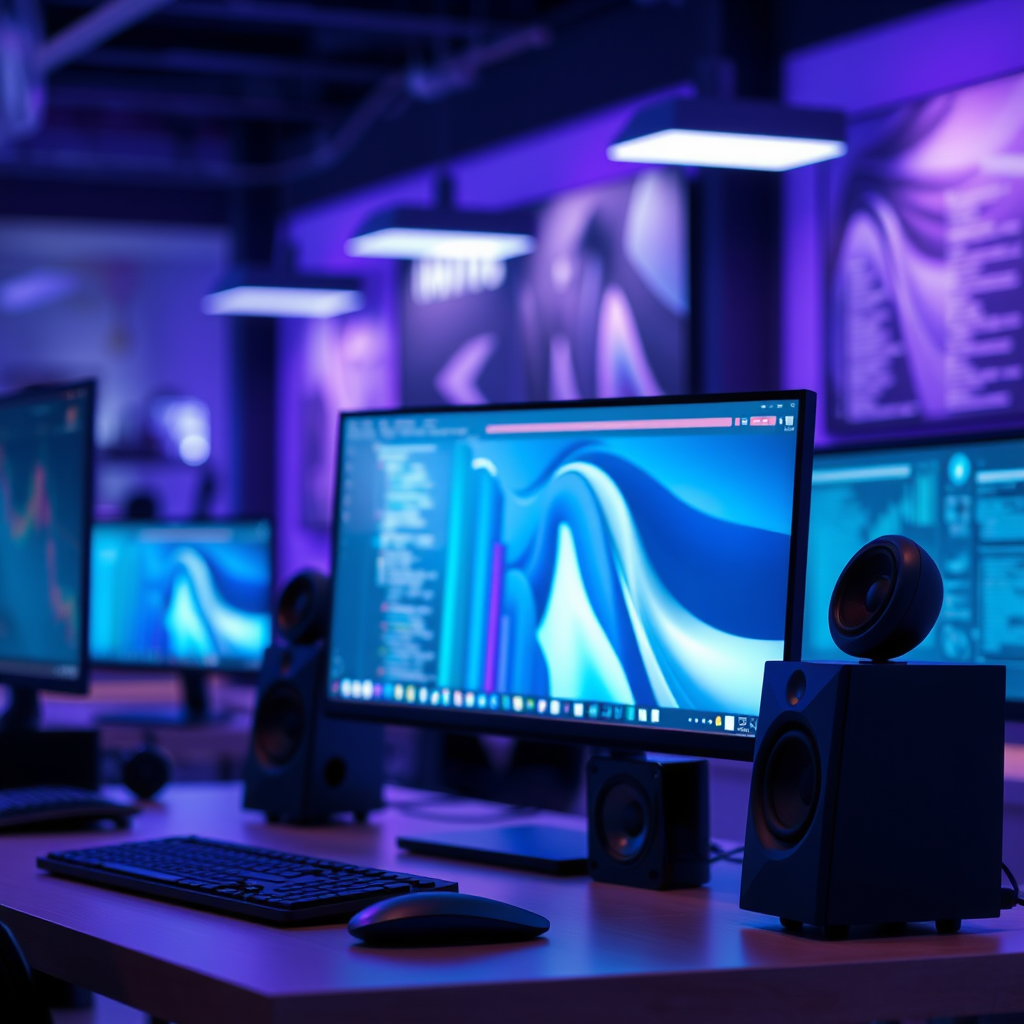

To connect speakers to your computer, locate the audio output ports, typically found on the back or front panel of your desktop or laptop. The most common ports include the green 3.5mm jack for standard speakers, USB ports for digital speakers, or HDMI outputs for multimedia devices. This guide will walk you through identifying the correct ports and connecting your speakers effectively, whether they are wired or wireless, ensuring you enjoy the highest audio quality.
Understanding Audio Ports on Your Computer

When it comes to audio connectivity, understanding the various audio ports on your computer is crucial. The most common audio port is the 3.5mm jack, which is typically color-coded green for speakers. This port is widely used for standard analog speakers and is compatible with most audio devices. Additionally, many computers also offer USB ports which can be used for digital speakers. These USB speakers often provide enhanced sound quality and may include their own audio processing capabilities, making them an excellent choice for audiophiles.
Another important port is HDMI, which allows for the transmission of both audio and video signals. This is particularly useful if you are connecting your computer to a television or a high-end audio system that supports HDMI. Understanding these ports will enable you to make the best choice for your audio setup.
Identifying Your Computer Type
Identifying the type of computer you are using is essential for determining the available audio ports.
– Desktop computers often have multiple audio ports located on the back panel, which may include dedicated ports for surround sound systems. These ports are usually arranged in a color-coded manner: the green for speakers, pink for microphones, and blue for line-in connections. Some advanced sound cards may even offer additional ports for subwoofers and rear speakers.
– Laptops, on the other hand, typically feature a single audio output jack. This jack often serves dual purposes, functioning for both headphones and speakers. In some cases, laptops might also have USB-C ports that can be used for audio output, especially for newer models. Understanding your computer’s specifications will help you determine the best way to connect your speakers.
Connecting Wired Speakers
Connecting wired speakers is a straightforward process. Begin by locating the speaker’s audio cable, which will likely have a 3.5mm connector. Simply plug this connector into the appropriate port on your computer, which is usually the green jack.
Before testing the sound, ensure that the speaker is powered on. Most speakers have a power switch and an adjustable volume knob. It’s essential to check these settings to confirm that the speakers are functioning correctly. After connecting, play an audio file to test the output. If you still do not hear any sound, consider checking the sound settings on your computer to ensure that the speakers are selected as the default playback device.
Top 7 Wired Speaker Brands (2024)
| # | Brand | Type | Power Output | Price |
|---|---|---|---|---|
| 1 | Logitech | Stereo | 80W | $99 |
| 2 | Bose | Bookshelf | 200W | $299 |
| 3 | Sony | Multimedia | 120W | $149 |
| 4 | Creative | Desktop | 50W | $79 |
| 5 | Edifier | Bookshelf | 120W | $199 |
| 6 | JBL | Portable | 150W | $179 |
| 7 | Klipsch | Home Theater | 300W | $399 |
Connecting Wireless Speakers
The process of connecting wireless speakers is slightly different and typically involves Bluetooth technology. First, ensure that Bluetooth is enabled on your computer. This can usually be done through the settings menu or by clicking on the Bluetooth icon in the system tray.
Next, place your wireless speakers in pairing mode. This often involves pressing a specific button on the speaker until a light indicator shows that it is ready to connect. Once your speakers are in pairing mode, return to your computer and navigate to the Bluetooth settings. You should see your speakers listed among available devices. Click on the speaker name to initiate the connection.
Once paired, your computer should automatically route audio to the speakers. If you encounter any issues, ensure that the speaker is fully charged and within proximity of the computer, as distance can affect connectivity.
Troubleshooting Connection Issues
Connection issues can be frustrating, but many problems can be resolved with a few straightforward checks. If no sound is coming from your speakers, begin by checking the volume settings on both your computer and your speakers. Sometimes, the most obvious issue can be easily overlooked.
Next, confirm that the correct playback device is selected in your computer’s sound settings. On Windows, this can be done by right-clicking the speaker icon in the system tray and selecting ‘Playback devices.’ Ensure that your connected speakers are set as the default device. For Macs, go to System Preferences > Sound > Output and verify that your speakers are selected.
If you are using wireless speakers, ensure that they are still connected via Bluetooth. Sometimes devices can disconnect, and a simple re-pairing may be necessary.
Advanced Setup for Surround Sound
For those looking to create an immersive audio experience, setting up a surround sound system can significantly enhance your enjoyment of movies and games. To connect multiple speakers, begin by identifying the correct ports on your sound card or audio interface. This often involves color-coded ports, where green typically represents the front speakers, black for rear speakers, and orange for the subwoofer.
Connect each speaker to its designated port. After physically connecting the speakers, you may need to configure the surround sound settings through your computer’s audio software. Most sound cards come with a utility that allows you to set up and customize the audio output. Follow the instructions specific to your sound card to ensure optimal performance and a balanced sound experience.
Additional Tips for Optimal Sound Quality
Achieving great sound quality is not just about the hardware; it also involves some thoughtful considerations regarding placement and settings. First, ensure that your audio drivers are up to date. This can resolve compatibility issues and improve performance, especially with newer hardware.
Speaker placement is also critical for optimal acoustics. Ideally, speakers should be positioned at ear level and angled towards the listener. Avoid placing speakers in corners or against walls, as this can create unwanted reverberation and muddy sound. Additionally, consider the room’s acoustics and furnishings, which can affect how sound waves interact with the environment.
Finally, regularly check and adjust the equalizer settings on your computer’s audio software to find the best sound profile for your preferences.
Summarizing the process of connecting speakers to your computer, it’s crucial to identify the correct audio ports and ensure proper settings. Whether you’re using wired or wireless speakers, following the outlined steps will help you achieve quality sound. If you have any questions or need further assistance, feel free to reach out or explore additional resources!
Frequently Asked Questions
Where do I plug in speakers on my computer?
To plug in speakers on your computer, locate the audio output jack, typically colored green, on the back or front panel of your desktop or laptop. Connect the speaker’s audio cable into this port; if your speakers have separate power, ensure they are also plugged into a power source.
How do I set up external speakers for my laptop?
To set up external speakers for your laptop, first connect the speakers to the audio output port, usually marked with a headphone icon or green color. Then, adjust your laptop’s sound settings by right-clicking the sound icon in the taskbar and selecting “Playback devices” to ensure your external speakers are set as the default output device.
Why aren’t my speakers working when plugged into my computer?
If your speakers aren’t working after being plugged in, check the connection to ensure it’s secure in the audio output jack. Additionally, verify that the speakers are powered on and the volume is turned up, and check your computer’s sound settings to ensure the correct output device is selected.
Which audio port should I use for my speakers?
For most speakers, you should use the green audio output port on your computer, which is designed for speaker connections. If your speakers are USB-powered or Bluetooth, you can use a USB port or pair them via Bluetooth settings instead.
What are the best speakers for a computer setup?
The best speakers for a computer setup depend on your needs; for general use, compact desktop speakers like the Logitech Z313 or Creative Pebble are popular for their sound quality and affordability. If you’re an audiophile or need surround sound, consider options like the Audioengine A2+ or a 5.1 surround sound system for an immersive experience.
References
- Computer audio
https://en.wikipedia.org/wiki/Computer_audio - https://www.lifewire.com/how-to-connect-computer-speakers-1846822
https://www.lifewire.com/how-to-connect-computer-speakers-1846822 - https://support.hp.com/us-en/document/bph07112
https://support.hp.com/us-en/document/bph07112 - Google Scholar Google Scholar
https://scholar.google.com/scholar?q=where+to+plug+in+speakers+on+a+computer - Google Scholar Google Scholar
https://scholar.google.com/scholar?q=computer+audio+connections - Google Scholar Google Scholar
https://scholar.google.com/scholar?q=speaker+setup+computer+audio - https://www.bbc.com/news/technology-52529338
https://www.bbc.com/news/technology-52529338 - Google Scholar Google Scholar
https://scholar.google.com/scholar?q=where+do+you+plug+in+speakers+on+a+computer - where do you plug in speakers on a computer – Search results
https://en.wikipedia.org/wiki/Special:Search?search=where+do+you+plug+in+speakers+on+a+computer - https://www.ncbi.nlm.nih.gov/search/research-articles/?term=where+do+you+plug+in+speakers+on+a+computer
https://www.ncbi.nlm.nih.gov/search/research-articles/?term=where+do+you+plug+in+speakers+on+a+computer

[…] can connect earbuds to a PS4, but only if your earbuds can plug into the controller via the 3.5mm jack or use a compatible USB/Bluetooth headset adapter. Wired earbuds generally work fastest and most […]
[…] with iPhones, but the verdict depends on the connection type. If your JVC earbuds use a standard 3.5mm jack, they’ll plug in and play; if they’re Bluetooth, they’ll pair normally, with iOS supporting […]
[…] connect earbuds to an Xbox One, but only through the right setup. If your earbuds plug in with a 3.5mm jack, you can use them with an Xbox One controller that has an audio port (or the required adapter). […]
[…] If your controller doesn’t have a 3.5mm jack (less common on mainstream controllers, but possible with some variants), your path becomes either […]
[…] output often needs fine-tuning for smooth bass integration. This step helps ensure your 5.1 or 7.1 surround sound system delivers tight, properly directed low-frequency […]
[…] to the USB Implementers Forum (USB-IF), standard USB ports provide power in defined current ranges (e.g., USB 2.0 is typically 500 mA), which affects whether […]