
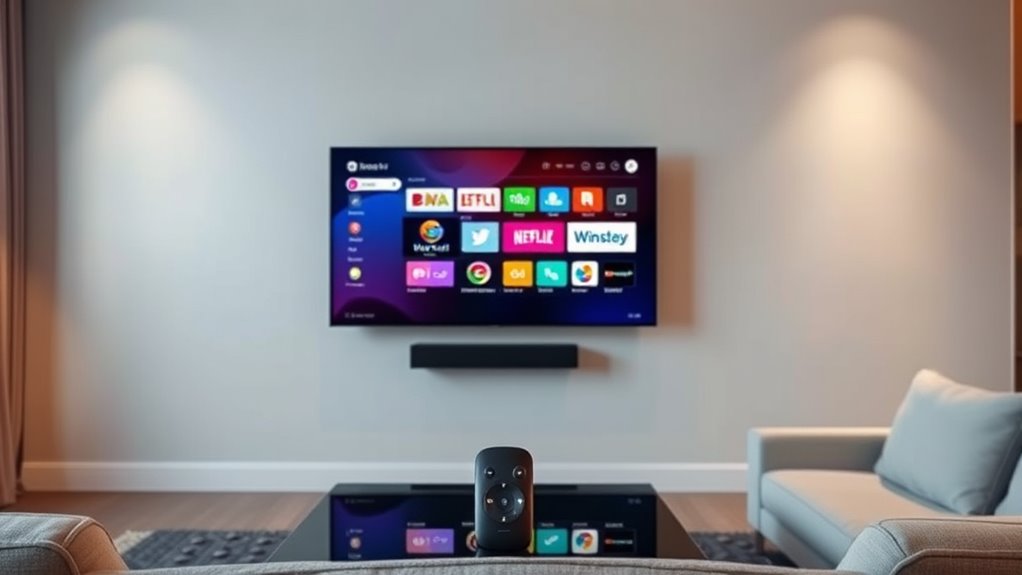

To tell if you have a smart TV, check for internet connectivity and built-in streaming apps like Netflix or Hulu. Look in the settings for network options; if you can connect to Wi-Fi, it’s likely smart. Voice control features, like compatibility with Alexa or Google Assistant, are another good sign. Finally, check for software update options and multiple HDMI or USB ports. If you want to learn more about these features, keep exploring!
Understanding Smart TV Features
Have you ever wondered what sets a smart TV apart from a regular one? Smart TVs come packed with features that connect you to the internet, giving you access to streaming services, apps, and online content. The benefits are clear: you can watch your favorite shows on demand, browse the web, and even control your TV with voice commands. However, there are smart TV drawbacks to take into account, like potential privacy issues and the need for regular software updates. Plus, if you’re not connected to the internet, you lose out on many of these features. Understanding these aspects helps you decide if a smart TV fits your lifestyle, offering freedom in entertainment while being aware of its limitations.
Checking for Internet Connectivity
To find out if your TV is smart, start by checking its internet connectivity. Access the network settings to see if it can connect to Wi-Fi; a smart TV typically needs this to stream content. If you see a connection status, you’re likely looking at a smart device.
Network Settings Access
Wondering how to check if your TV can connect to the internet? Start by accessing the network settings on your TV. Look for options like “Network” or “Internet” in the settings menu. Here, you’ll find various network types, such as Wi-Fi or Ethernet, depending on your setup. If your TV lists available networks, it likely has smart capabilities. Next, check the security settings; if it prompts you for a password, that’s a good sign it’s geared for online connectivity. Additionally, you might see options for connecting to guest networks or adjusting firewall settings, which further indicates its smart features. By reviewing these settings, you’ll be closer to knowing if your TV is truly smart.
Wi-Fi Connection Status
How can you confirm if your TV is connected to Wi-Fi? Start by checking the settings menu on your TV. Look for a “Network” or “Wi-Fi” option. If you see a status indicating it’s connected, you’re good to go! However, if you notice any connection issues, it’s time for some Wi-Fi troubleshooting. Try resetting your router or reconnecting your TV to the network. Make sure your Wi-Fi signal is strong and within range. If you still face problems, check if there are any firmware updates for your TV that might improve connectivity. A smart TV thrives on a solid internet connection, so addressing any issues guarantees you enjoy seamless streaming and a world of entertainment at your fingertips.
Identifying Built-in Streaming Apps
Have you checked for built-in streaming apps on your TV yet? Smart TVs often come preloaded with popular streaming app icons like Netflix, Hulu, and Amazon Prime Video. To find them, just navigate to your TV’s main menu or app section. If you see these icons, congratulations, you’ve got a smart TV!
Don’t forget to keep an eye out for app update notifications, which guarantee your apps stay current with the latest features and content. If you don’t see any streaming apps, you might still be able to download them from your TV’s app store, opening up a world of entertainment options. Embrace the freedom of streaming your favorite shows and movies at your convenience!
Exploring Voice Control Capabilities
Ever considered using voice control to navigate your TV? If you’ve got a smart TV, you might just have the freedom to do so! Many smart TVs come equipped with voice recognition technology, allowing you to control your viewing experience hands-free. This means you can change channels, search for shows, or adjust the volume just by speaking. Check if your TV supports popular virtual assistants like Amazon Alexa or Google Assistant; they can make your experience even smoother. Simply say a command, and watch your TV respond! Embracing voice control can enhance your viewing experience, giving you the freedom to enjoy your favorite content without fumbling for the remote. Explore these features and see how they can simplify your life!
Looking for Software Updates
To guarantee your TV is running smoothly, checking for software updates is essential. You can start by exploring your TV settings to see if any updates are available. If you’re unsure, visiting the manufacturer’s website can provide additional insights and resources.
Check TV Settings
One of the easiest ways to determine if you’ve got a smart TV is by checking its settings for software updates. Navigate through your TV interface, usually found under the settings or support section. If you see an option for software updates, there’s a good chance your TV has smart platform compatibility.
Here’s a quick table to help you identify the indicators:
| Indicator | Smart TV Feature |
|---|---|
| Software Update Option | Yes |
| Internet Connectivity Settings | Yes |
| App Store Access | Yes |
If these features are present, you’re likely enjoying all the freedom a smart TV offers! So, explore those settings and investigate!
Visit Manufacturer’s Website
If you’re still unsure about whether you own a smart TV, checking the manufacturer’s website can provide clarity. Look for your model specifications and product manuals to confirm its capabilities. Here’s how to get started:
- Navigate to the support section of the website.
- Enter your TV model number to find relevant information.
- Check for software updates; smart TVs often receive regular updates.
- Read through the product manuals for features that indicate smart functionality.
- Explore FAQs for additional insights on your model.
Recognizing HDMI and USB Ports
A quick glance at your TV’s ports can reveal whether it’s a smart model. Look for multiple HDMI types; if you see HDMI 2.0 or higher, your TV likely supports 4K streaming, a hallmark of smart technology. Additionally, check for USB specifications. A smart TV typically has USB ports that allow you to connect external drives for media playback or even to power devices. If you spot ports labeled USB 3.0, that’s a good sign your TV can handle faster data transfer rates. These features not only enhance your viewing experience but also provide the freedom to connect various devices. So, take a moment to inspect those ports and discover your TV’s capabilities!
Frequently Asked Questions
Can a Smart TV Connect to My Home Wi-Fi Network?
Yes, a smart TV can connect to your home Wi-Fi network. Just follow the Wi-Fi setup instructions in the settings menu, ensuring your network security is strong to protect your personal information while streaming.
Do Smart TVS Require Specific Internet Speeds to Function?
Smart TVs generally need at least 25 Mbps for smooth streaming quality. Curiously, over 60% of viewers experience buffering on slower connections. You’ll enjoy a much better experience with faster internet speeds, so consider upgrading!
Are Smart TVS Compatible With Gaming Consoles?
Yes, smart TVs generally offer excellent console compatibility, enhancing your gaming performance. Just verify your TV supports the resolution and refresh rate your console needs for the best experience. Enjoy seamless gaming sessions without limitations!
How Can I Reset My Smart TV to Factory Settings?
To factory reset your smart TV, go to settings, find the reset option, and follow the prompts. This will erase all your data and restore smart features, giving you a fresh start. Enjoy!
Will My Smart TV Work Without an Internet Connection?
Yes, your smart TV can work without an internet connection, but you’ll miss out on its smart features. Offline usage typically limits access to streaming apps, so consider your entertainment needs before disconnecting.
