
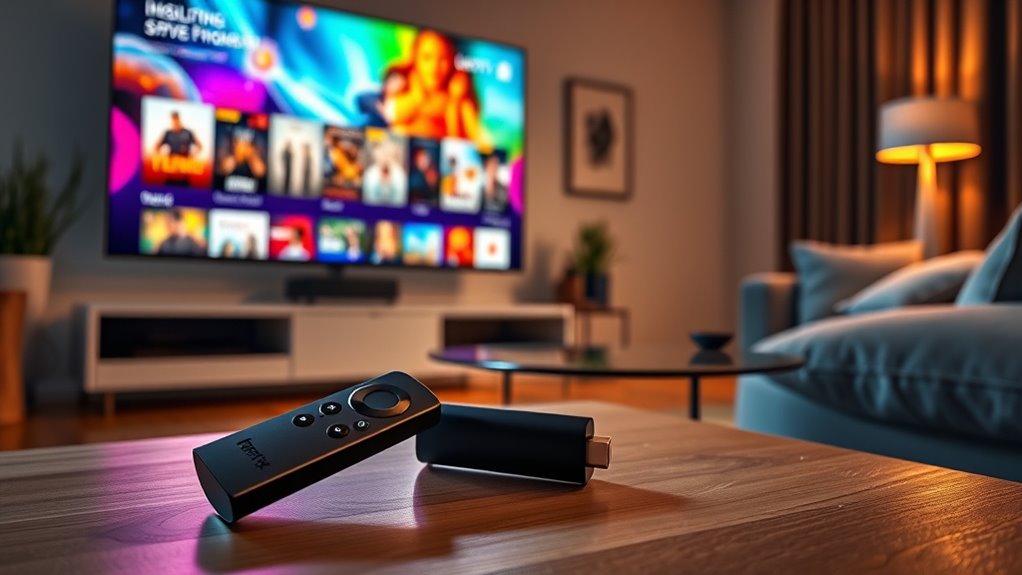

Yes, you can use a Fire Stick with your Smart TV. Most Smart TVs are compatible, as long as you have an available HDMI port. Simply connect the Fire Stick, plug it in, and select the correct HDMI input on your TV. This setup enhances your streaming options with a wide variety of apps and services. If you’re curious about the benefits and troubleshooting tips, there’s more information available to help optimize your experience.
Understanding Smart TVs and Fire Sticks
When you’re considering how to enhance your viewing experience, it’s important to understand both Smart TVs and Fire Sticks. Smart TV features typically include built-in streaming apps, voice control, and seamless internet connectivity, allowing you to access content without additional devices. However, Fire Stick advantages come into play by offering a more extensive selection of apps, customizable interfaces, and regular updates. With a Fire Stick, you can easily switch between services and enjoy a user-friendly experience. Plus, it’s portable, so you can take it anywhere. Ultimately, knowing what each option offers empowers you to choose the best setup for your entertainment needs, giving you the freedom to enjoy your favorite shows and movies.
Compatibility Between Fire Stick and Smart TVs
Although most Smart TVs are compatible with Fire Sticks, it’s essential to check a few key specifications before you plug one in. First, verify your Smart TV has an available HDMI port, as the Fire Stick connects directly through this interface. Additionally, confirm that your TV’s software is up-to-date to avoid potential compatibility issues with streaming services. Most modern Smart TVs support a variety of streaming platforms, but not all features of the Fire Stick may function perfectly, especially on older models. By verifying device compatibility, you can enjoy seamless streaming and take full advantage of the Fire Stick’s offerings. Ultimately, understanding these details helps you maximize your Smart TV experience.
How to Set Up Fire Stick on Your Smart TV
Once you’ve confirmed that your Smart TV is compatible with the Fire Stick, setting it up is a straightforward process. Start by plugging the Fire Stick into an available HDMI port on your TV. Then, connect the included power adapter to the Fire Stick and plug it into an outlet. Turn on your TV and select the corresponding HDMI input. You’ll see a welcome screen prompting you to pair your remote. Follow the on-screen instructions to connect to Wi-Fi and sign in to your Amazon account.
Here’s a quick overview of the steps:
| Step | Action |
|---|---|
| 1. Insert Fire Stick | Plug into HDMI port |
| 2. Power it up | Connect to power outlet |
| 3. Select HDMI input | Change TV input |
| 4. Follow on-screen prompts | Complete Fire Stick setup |
Benefits of Using a Fire Stick With a Smart TV
Using a Fire Stick with your Smart TV not only enhances your viewing experience but also provides access to a vast array of streaming services and apps. With a Fire Stick, you can enjoy superior streaming quality, allowing for smoother playback and sharper visuals. You’ll have the freedom to explore countless channels, from Netflix to Hulu, all at your fingertips. The user experience is streamlined, thanks to the intuitive interface and voice control features. Plus, regular software updates guarantee you stay current with the latest apps and features. By adding a Fire Stick, you’re not just upgrading your TV; you’re revealing a world of entertainment options to suit your preferences, making it a smart investment for any viewer.
Comparison of Built-in Streaming vs. Fire Stick
When deciding between built-in streaming options and a Fire Stick, it’s essential to evaluate the differences in performance and flexibility. Built-in streaming typically offers a straightforward user interface, making it easy to access popular apps. However, the streaming quality can vary based on your TV’s software and hardware capabilities. On the other hand, the Fire Stick provides a more versatile experience, allowing you to install a wider range of apps and services. Its user interface is designed for convenience, giving you quick access to your favorite content. Plus, regular updates guarantee excellent streaming quality. Ultimately, if you value freedom and a richer selection of content, the Fire Stick might be the better choice for you.
Potential Limitations of Using a Fire Stick
While the Fire Stick offers a multitude of streaming options, there are some potential limitations to contemplate. One significant issue is compatibility; some smart TVs may have specific restrictions that prevent seamless integration with the Fire Stick. Additionally, you might face fire stick limitations regarding app availability. Not all apps optimized for Fire Stick will work on your smart TV, which could hinder your viewing experience. Moreover, if your TV’s software isn’t up to date, you may encounter performance issues or lag. Finally, while the Fire Stick expands your content options, it can also complicate your remote control situation, requiring you to juggle multiple remotes. Knowing these smart TV restrictions can help you make an informed decision.
Troubleshooting Common Issues With Fire Stick on Smart TVS
Have you ever encountered issues with your Fire Stick on a smart TV? You’re not alone! Here are some common problems and solutions to improve your streaming experience.
| Issue | Solution |
|---|---|
| Fire Stick connectivity | Restart your Fire Stick and router. Verify your Wi-Fi is stable. |
| Remote control issues | Replace the batteries and confirm there’s no obstruction between the remote and the TV. |
| App crashing | Uninstall and reinstall the app. Check for any updates. |
| Low picture quality | Adjust the resolution settings on your Fire Stick. |
Frequently Asked Questions
Can I Use Multiple Fire Sticks on One Smart TV?
You can’t use multiple Fire Sticks on one Smart TV simultaneously due to compatibility and input limitations. Each Fire Stick needs its own HDMI port, so make sure your TV has enough available for your needs.
Does a Fire Stick Require Its Own Wi-Fi Connection?
No, a Fire Stick doesn’t require its own Wi-Fi connection. It uses your existing network. Confirm your Wi-Fi meets the streaming options’ requirements for smooth playback, allowing you to enjoy your favorite content seamlessly.
Can I Use a Fire Stick With a Non-Hd TV?
You can’t use a Fire Stick with a non-HD TV, as it requires HD compatibility. Curiously, about 80% of households have HD TVs now, so consider upgrading for better non-HD streaming experiences and Fire Stick compatibility.
Will a Fire Stick Work on a Smart TV Without HDMI Ports?
No, a Fire Stick won’t work without HDMI ports. You could use HDMI adapters for older TVs, or consider streaming alternatives like Roku or Chromecast that may offer options compatible with your setup.
Can I Control My Fire Stick With My Smart TV Remote?
Can you really control your Fire Stick with your Smart TV remote? It depends on the Fire Stick compatibility and Smart TV integration. Some remotes allow limited control, but full functionality typically requires the Fire Stick remote.
