
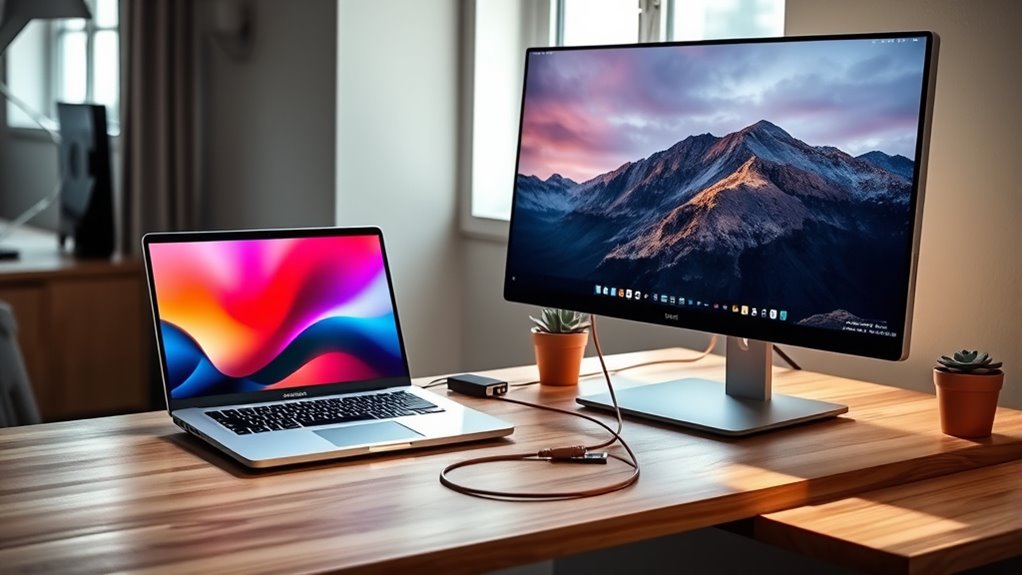

Yes, you can use your desktop monitor with your laptop, which can greatly improve your workspace and productivity. Verify compatibility by checking your laptop’s ports and the appropriate cables needed, like HDMI or DisplayPort. Once connected, adjust display settings for peak performance and ergonomics. You’ll enjoy increased screen space and better multitasking. Explore further if you want to learn more about enhancing your setup and troubleshooting connection issues effectively.
Understanding the Compatibility of Laptops and Monitors
When you’re considering using a desktop monitor with your laptop, it’s essential to understand their compatibility. Different monitor types, like LCD and LED, can impact your choice. Your laptop’s ports are also significant; common options include HDMI, DisplayPort, and VGA. Before you buy, check which ports your laptop has and verify the monitor supports them. This way, you won’t run into issues connecting them. Not all monitors will work seamlessly with every laptop, so compatibility is key to a smooth experience. By understanding these factors, you can enhance your productivity and enjoy a larger display without hassle. Ultimately, knowing the right monitor types and laptop ports will empower you to make the best choice for your needs.
Necessary Cables and Adapters
To successfully connect your laptop to a desktop monitor, you’ll need the right cables and adapters that match both devices’ ports. Different cable types and adapter options will help guarantee a seamless connection. Here’s what you might need:
- HDMI Cable: Common for high-definition video and audio.
- DisplayPort Cable: Great for high refresh rates and resolutions.
- VGA Cable: Useful for older monitors.
- DVI Cable: Offers good video quality for digital connections.
- USB-C Adapter: Ideal for modern laptops with USB-C ports.
Make sure to check the ports on your laptop and monitor to choose the appropriate combination. With the right cables and adapters, you’ll enjoy the freedom of a larger display!
Setting Up Your Desktop Monitor
Setting up your desktop monitor is straightforward and can be done in just a few steps. First, place the monitor at eye level to enhance monitor ergonomics. This positioning can help reduce strain on your neck and eyes during prolonged use. Next, connect the monitor to your laptop using the appropriate cable or adapter. Once you’ve got the physical setup sorted, verify the monitor’s screen is positioned away from direct light to minimize glare. Adjust the distance between you and the screen to find a comfortable viewing range. This setup allows for a more enjoyable and productive experience, giving you the freedom to work or play without discomfort. Enjoy your new workspace!
Adjusting Display Settings on Your Laptop
Once you’ve connected your monitor, it’s time to adjust your laptop’s display settings. You’ll want to set the screen resolution for ideal clarity and choose the right display mode to suit your needs. Let’s walk through these adjustments to enhance your viewing experience.
Connecting the Monitor
Connecting your laptop to a desktop monitor can greatly enhance your productivity and viewing experience. To get started, you’ll need to choose the right connection method based on your laptop’s ports and monitor types. Here are some common connection methods to take into account:
- HDMI: A widely used method for high-definition video and audio.
- DisplayPort: Ideal for high-resolution displays and multiple monitor setups.
- VGA: An older standard, primarily for legacy monitors.
- DVI: Offers good quality but lacks audio support.
- USB-C: A versatile option for newer laptops, supporting video and power.
Once you’ve connected your monitor, make sure to adjust the display settings on your laptop for best use. You’ll be ready to enjoy your expanded workspace!
Adjusting Screen Resolution
To get the most out of your new desktop monitor, adjusting the screen resolution is crucial. Start by right-clicking on your desktop and selecting ‘Display settings.’ Here, you’ll see the resolution settings for both your laptop and the monitor. Choose the recommended resolution for your monitor to guarantee the best image quality. If the text and icons seem too small, you can use screen scaling to make them larger and more readable. Adjust these settings until you find a balance that feels right for your eyes. Remember, having the right resolution not only enhances your experience but also allows you to enjoy the freedom of multitasking with ease. Don’t hesitate to experiment until you find your perfect setup!
Selecting Display Mode
How do you want your display to function? Selecting the right display mode is key to optimizing your external display configurations. You’ve got several display mode options that can enhance your experience. Here’s a quick rundown of what you can choose from:
- Duplicate: Mirrors your laptop screen.
- Extend: Expands your workspace across both screens.
- Second screen only: Uses only the external monitor.
- Laptop screen only: Disables the external monitor.
- Orientation settings: Adjusts landscape or portrait mode.
To change these settings, head to your display settings, and you’ll find these options at your fingertips. Play around with them to see what fits your workflow best, giving you the freedom to work how you want!
Using Multiple Displays for Enhanced Productivity
Wondering how multiple displays can boost your productivity? By connecting your laptop to a desktop monitor, you can expand your workspace and streamline your tasks. Imagine having your email open on one screen while you work on a presentation on another. This kind of workspace organization allows you to switch between tasks effortlessly, reducing the time spent fumbling through tabs or windows. With a productivity boost from increased screen real estate, you can tackle more projects simultaneously and maintain your focus. Plus, you’ll minimize distractions by keeping relevant information visible. Embrace the freedom of a multi-display setup, and watch your efficiency soar as you optimize your workflow and get more done in less time.
Troubleshooting Common Connection Issues
When connecting your laptop to a desktop monitor, you might run into a few common issues. These can include problems with cable compatibility, display settings that need adjustment, or power supply concerns. Let’s go through these troubleshooting steps to get your setup running smoothly.
Cable Compatibility Problems
Many users encounter cable compatibility problems when trying to connect a desktop monitor to a laptop. This can be frustrating, especially when you’re keen to expand your workspace. To guarantee a smooth connection, consider the following cable types and compatibility standards:
- HDMI: Widely used, supports high-definition video and audio.
- DisplayPort: Great for high refresh rates and resolutions.
- VGA: Older standard, primarily for video; may lack audio support.
- DVI: Good for video quality but doesn’t carry audio signals.
- USB-C: Increasingly popular; offers versatility for video and data.
Before you plug in, make certain your laptop and monitor support the same cable type. This way, you can avoid the hassle of incompatible connections.
Display Settings Adjustment
Although connecting a desktop monitor to your laptop might seem straightforward, adjusting the display settings is often necessary to make certain everything works seamlessly. First, check your display scaling settings to verify your desktop monitor shows content at the right size. If things appear too small or too large, you can adjust the scaling percentage in your display settings. Next, color calibration can greatly enhance your viewing experience, especially for tasks requiring accurate color representation. Use your operating system’s calibration tool to fine-tune colors for better clarity and vibrancy. If you encounter any issues, consider restarting both devices after adjustments. With these steps, you’ll enjoy a more productive and visually appealing workspace.
Power Supply Issues
If you’re experiencing connection issues between your laptop and desktop monitor, power supply problems could be the culprit. To troubleshoot effectively, consider the following:
- Check if your laptop meets the monitor’s power requirements.
- Confirm both devices are plugged into a functioning outlet.
- Inspect the power cables for any damage.
- Verify that you’re using the correct adapter options for your devices.
- Restart both the laptop and monitor to reset connections.
Considerations for Gaming on a Larger Screen
How do you guarantee an ideal gaming experience when shifting to a larger screen? First, consider your laptop’s gaming performance. A larger screen can enhance immersion, but if your laptop’s graphics card isn’t up to par, you may face lag or reduced frame rates. Make certain your hardware can support the increased screen size without sacrificing quality.
Next, think about the resolution. A higher resolution on a larger screen can provide stunning visuals, but it demands more from your laptop. You might need to adjust settings for peak performance. Finally, confirm your seating position and eye level match the screen size for comfort. Balancing these factors can help you enjoy gaming on a larger screen without compromising your experience.
Benefits of Using a Desktop Monitor With Your Laptop
Many users find that connecting a desktop monitor to their laptop greatly enhances their productivity and overall experience. Using a larger screen not only provides improved ergonomics but also allows for enhanced multitasking. Here are some key benefits:
Connecting a desktop monitor to your laptop boosts productivity and ergonomics, making multitasking smoother and more efficient.
- Increased Screen Real Estate: More space for applications and documents.
- Better Posture: A monitor can be positioned at eye level, reducing neck strain.
- Enhanced Focus: A larger display helps you stay focused on your work.
- Simplified Collaboration: Easier to share your screen during meetings.
- Improved Gaming Experience: Enjoy games on a larger, more immersive screen.
Maintaining Your Monitor and Laptop Connection
Once you’ve set up your desktop monitor with your laptop, maintaining a seamless connection is key to maximizing your productivity. Regular monitor care is essential—keep the screen clean and dust-free to guarantee peak display quality. Check the cables frequently; a loose or damaged cable can lead to connection instability. If you notice flickering or disconnections, try different ports or cables to find the most stable option. Adjust your laptop’s display settings to match your monitor’s resolution for the best performance. Don’t forget to update your graphics drivers regularly; this can enhance connection stability and prevent issues. By taking these simple steps, you can enjoy a reliable and efficient workspace that supports your freedom to work effectively.
Frequently Asked Questions
Can I Use a Touchscreen Monitor With My Laptop?
Yes, you can use a touchscreen monitor with your laptop if it’s compatible. Touchscreen advantages include intuitive navigation and enhanced interactivity, making your experience more engaging. Just verify your laptop supports touchscreen compatibility for peak performance.
Will Using a Monitor Drain My Laptop’s Battery Faster?
Yes, using a monitor can increase your laptop’s battery consumption, especially if it’s not managed properly. However, with good power management settings, you can minimize the impact and enjoy freedom without worrying too much about battery life.
How Do I Know if My Monitor Supports My Laptop Resolution?
To check resolution compatibility, review your monitor specifications and your laptop’s display settings. Make sure your laptop supports the monitor’s native resolution for ideal performance. Adjust settings if necessary to achieve the best visual experience.
Can I Connect Multiple Monitors to My Laptop?
Yes, you can connect multiple monitors to your laptop if it supports a dual monitor setup. Check your laptop’s compatibility with external displays, ensuring it has the necessary ports for a seamless experience.
Is There a Difference Between HDMI and Displayport for My Laptop?
Think of HDMI as a versatile river, flowing effortlessly into your devices, offering simplicity and wide compatibility. DisplayPort, however, stands tall like a mountain, providing higher refresh rates and multiple displays, perfect for your freedom to expand.
