
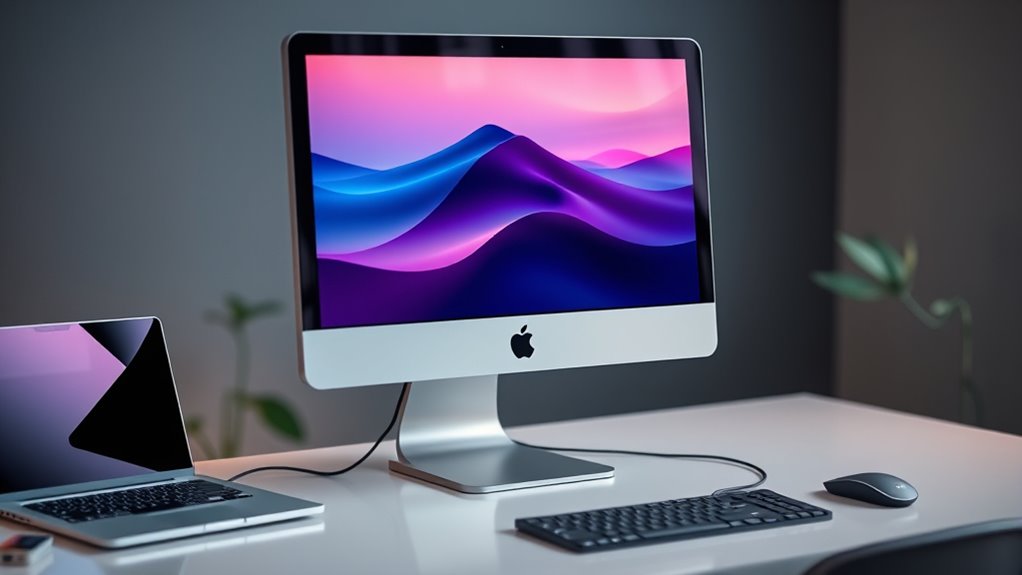

You can use your iMac as a monitor by activating Target Display Mode, which requires both devices to be compatible, typically through Thunderbolt or Mini DisplayPort. Start by checking your iMac model’s support and ensuring it’s updated. Connect the right cables securely, and then press Command + F2 on the iMac to switch modes. Adjust display settings for ideal viewing. Want to know more tips for perfecting your setup? Keep exploring further options!
Understanding Target Display Mode
If you want to use your iMac as a monitor, understanding Target Display Mode is essential. This feature lets you connect your iMac to another Mac, turning it into a secondary display. To activate this display mode, just confirm both devices are compatible and connected via Thunderbolt or Mini DisplayPort. Once connected, simply press Command + F2 on your iMac to toggle Target Display Mode on and off. It’s a fantastic way to maximize your workspace and enjoy that stunning Retina display. Keep in mind that this mode only works with specific iMac models, so knowing your hardware is critical to achieving that seamless dual-screen experience. Embrace the freedom of multitasking with your iMac as a powerful monitor!
Checking Compatibility
Before you can use your iMac as a monitor, you need to check its compatibility with your other devices. Make sure you know the required ports and connections, as well as which iMac models support this feature. This step is essential for a seamless setup and ideal performance.
Required Ports and Connections
To successfully use your iMac as a monitor, you’ll need to confirm that the necessary ports and connections are available and compatible. Start by checking the connection types on your iMac and the device you want to connect. Common options include Thunderbolt, Mini DisplayPort, and HDMI. Make sure that both devices support the same port compatibility; otherwise, you might need an adapter.
Once you’ve identified the ports, verify that any cables you plan to use are in good condition. If you’re using an older iMac model, keep in mind that not all connections support video input, so it’s vital to do your research beforehand. This step will save you time and frustration in setting up your iMac as an external display.
Supported Imac Models
When it comes to using your iMac as a monitor, not all models are created equal. You’ll need to check the specific iMac models that support Target Display Mode, which allows your iMac to function as an external display. Generally, iMacs from 2009 to 2014 with display capabilities featuring either Thunderbolt or Mini DisplayPort will work. If you own a newer model, unfortunately, you’re out of luck, as Apple removed this feature. Before proceeding, verify your iMac’s specifications to guarantee compatibility. If you’ve got a compatible model, you can enjoy the freedom of maximizing your workspace and enhancing your productivity by utilizing your iMac as a secondary screen. Happy connecting!
Preparing Your Imac
As you prepare your iMac for use as a monitor, it’s essential to confirm that both your iMac and the device you plan to connect are ready for the task. Start by checking your iMac model to verify it supports target display mode. Next, update your operating system to the latest version for peak performance. You’ll want to manage applications effectively, closing any unnecessary apps to free up resources. Additionally, setting preferences in your display settings can help you achieve the best resolution. Verify your iMac is positioned conveniently for easy access to ports and cables. With these steps, you’re on your way to transforming your iMac into a versatile monitor, enhancing your workspace and productivity.
Connecting Your Device
With your iMac prepped and ready, it’s time to connect your device. To make this work seamlessly, you’ll need to focus on the connection types that suit both your iMac and the device you’re using. Verify your device is compatible with your iMac’s input options.
Here are a few steps to help you connect:
- Choose the right cable: Depending on your device, you might need HDMI, DisplayPort, or Thunderbolt.
- Check for adapters: If your device has a different connection type, pick up a compatible adapter to bridge the gap.
- Confirm device compatibility: Verify your device supports video output to use your iMac effectively as a monitor.
Once everything’s connected, you’re one step closer to enjoying a larger display!
Configuring Display Settings
Once you’ve connected your device to your iMac, it’s time to configure the display settings for ideal use. You’ll want to adjust the resolution and fine-tune the color calibration to guarantee everything looks just right. Let’s go through these steps to enhance your viewing experience.
Connect to Target Device
To connect your iMac to a target device, like a MacBook or another computer, you’ll first need to guarantee both devices are properly configured. Make sure you have the right display cables and that your iMac is set up to receive the signal. Here’s what you should do:
- Confirm that both devices are powered on.
- Connect the display cables securely to both the iMac and the target device.
- Open the “Displays” preferences on your iMac to select the target device.
Once you’ve completed these steps, your iMac should recognize the target device and start displaying its screen. Enjoy the freedom of using your iMac as a monitor, enhancing your productivity and multitasking abilities!
Adjust Resolution Settings
When you’re using your iMac as a monitor, adjusting the resolution settings is essential for improving the display quality. You can achieve this by accessing your display preferences and tweaking the resolution scaling. Here’s a quick guide to help you decide on the best settings:
| Resolution | Description |
|---|---|
| 1920×1080 | Standard HD |
| 2560×1440 | Ideal for clarity |
| 3840×2160 | 4K for high detail |
| 1280×720 | Good for lower performance |
| 1600×900 | Balanced between quality |
Experiment with these options to find what works best for your needs. Adjusting these settings not only enhances visuals but also gives you a more comfortable viewing experience. Enjoy the freedom to customize!
Optimize Color Calibration
Enhancing color calibration can greatly improve your viewing experience on the iMac. By ensuring color accuracy, you’ll enjoy more vibrant and true-to-life visuals. Here’s how to get started with calibration tools:
- Use Built-in Calibration: Access the Display settings in System Preferences, and follow the calibration assistant for a guided setup.
- Third-Party Tools: Consider using professional calibration tools for precise adjustments, ensuring your colors are spot-on.
- Regular Checks: Periodically check and recalibrate as displays can shift over time, maintaining ideal color performance.
With these steps, you’ll reveal the full potential of your iMac as a monitor, making your visual experience not just better, but exhilarating. Embrace the freedom of perfect color calibration!
Troubleshooting Common Issues
While using your iMac as a monitor can enhance your setup, you might encounter some common issues along the way. First, check for common connection issues; make sure all cables are securely connected and compatible with your devices. If you’re facing display lag, try adjusting the resolution settings on both your iMac and the source device. Additionally, verify that your iMac is updated with the latest software, as updates can often contain important fixes. Restarting both devices can also resolve temporary glitches. If problems persist, consider using a different cable or port to rule out hardware issues. By addressing these common challenges, you can enjoy a seamless experience while utilizing your iMac as a monitor.
Maximizing Your Imac’s Display Potential
After addressing common issues, it’s time to explore how to get the most out of your iMac’s display capabilities. You’ve got a powerful screen at your fingertips, so let’s optimize it!
Explore your iMac’s display capabilities and optimize settings for an enhanced viewing experience!
- Adjust your display settings for resolution and color profiles to suit your preferences.
- Tweak the screen brightness to enhance visibility and reduce eye strain, especially in different lighting conditions.
- Experiment with the arrangement of external displays if you’re using more than one, ensuring seamless multitasking.
Frequently Asked Questions
Can I Use Any Imac Model for Target Display Mode?
Not all iMac models work for Target Display Mode. You’ll find compatibility issues mainly with iMacs from 2009 to 2014. Check your model’s specifications to verify you can use it as a monitor effectively.
Does Using My Imac as a Monitor Affect Its Performance?
Using your iMac as a monitor doesn’t greatly impact performance, but it may use some system resources. If you’re multitasking heavily, you might notice a slight decrease in responsiveness, depending on your setup.
What Cables Do I Need for Connecting Devices?
You’ll need Thunderbolt, HDMI, or DisplayPort cables for connecting devices. Curiously, over 60% of users prefer HDMI for its versatility. Explore these connection methods for seamless integration and enjoy the freedom of multitasking on your iMac!
Can I Use My Imac as a Monitor Wirelessly?
You can’t use your iMac as a monitor wirelessly. While some wireless connectivity options exist for displays, they typically don’t support iMacs. For ideal performance, consider traditional display options instead.
Will My Imac’s Speakers Work When Used as a Monitor?
Your iMac’s speakers won’t work as audio output when used as a monitor. Think of it like a beautiful painting; it can’t sing. You’ll need external speakers for sound while enjoying the visuals.

[…] by connecting your device to the router’s network (Wi‑Fi or Ethernet). Then open a web browser and enter your router’s […]
[…] into your router by finding its default gateway (router IP), connecting your device to the same network, then opening the router’s web login page and signing in with admin […]