
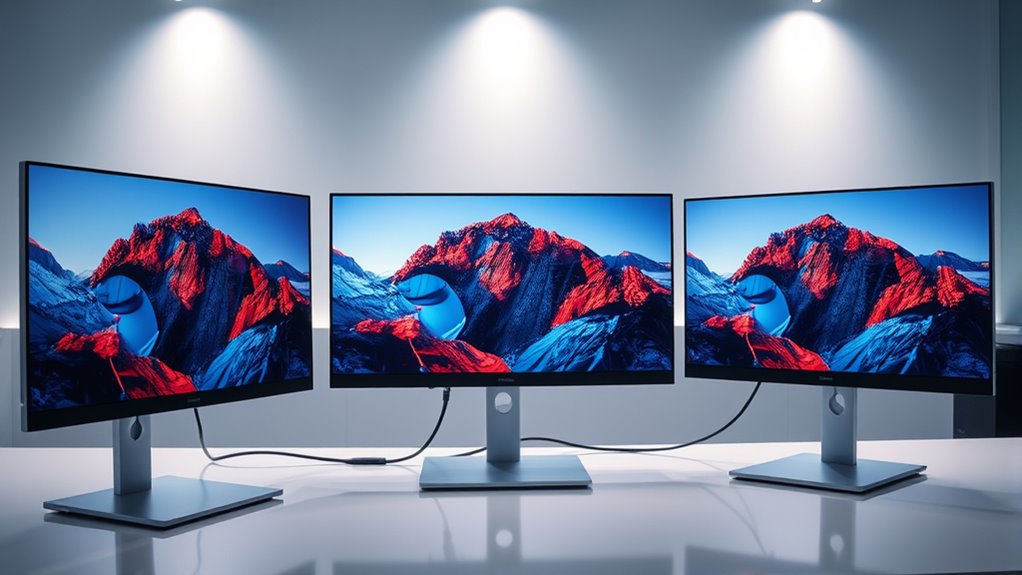

To daisy chain monitors, verify your displays support DisplayPort MST or Thunderbolt technology. Connect the first monitor to your computer using a compatible cable, then link additional monitors using their DisplayPort out ports. Adjust the display settings on your computer to configure resolutions and arrangement. Make certain to check for any driver updates if issues arise. For a deeper understanding of setup and optimization, you might find additional tips beneficial.
Understanding Daisy Chaining
When you’re looking to expand your workspace with multiple monitors, understanding daisy chaining is essential. This technique allows you to connect multiple monitors in a series, rather than using separate cables for each one. The daisy chaining basics involve using a single video output from your computer to link the first monitor, which then connects to the next monitor, and so on. This setup not only simplifies your monitor connectivity but also reduces cable clutter, creating a cleaner workspace. It’s perfect for enhancing productivity, as you can manage multiple applications across screens seamlessly. By embracing this method, you gain the freedom to customize your display setup, maximizing your efficiency and visual experience.
Requirements for Daisy Chaining Monitors
To successfully set up daisy chained monitors, there are a few key requirements you’ll need to meet. First, verify your monitor types support daisy chaining; look for those that utilize DisplayPort Multi-Stream Transport (MST) or Thunderbolt technology. Next, check that your graphics card adheres to the necessary display standards, as not all cards can handle multiple monitors simultaneously. You’ll also want to use high-quality cables to maintain signal integrity between the monitors. Finally, confirm your operating system is compatible and can manage multiple displays effectively. By meeting these requirements, you’ll enjoy a seamless and productive multi-monitor setup that enhances your workspace and offers the freedom to multitask with ease.
Choosing the Right Monitors
Choosing the right monitors is essential for an effective daisy chaining setup, especially since not all displays are created equal. You’ll want to contemplate monitor types and screen sizes that meet your needs. Here’s a quick guide to help you choose:
| Monitor Type | Ideal Screen Size | Best Use Case |
|---|---|---|
| IPS | 24-32 inches | Graphic design, gaming |
| TN | 21-27 inches | Fast-paced gaming |
| VA | 27-35 inches | Multimedia and general use |
Make sure the monitors support DisplayPort or Thunderbolt for daisy chaining. Additionally, reflect on resolution and refresh rates, as they can greatly affect your experience. Take your time and find the perfect fit!
Connecting the First Monitor
Once you’ve selected the right monitors for your setup, it’s time to connect the first one. Start by identifying the available monitor connections on your computer, such as HDMI, DisplayPort, or USB-C. Confirm your first monitor supports the same connection type for peak performance. Next, plug one end of the cable into the monitor and the other into your computer. Before turning on the monitor, check its settings to confirm it can handle the desired display resolutions. This guarantees you’ll get crisp visuals without any issues. Once everything’s connected, power up your monitor and adjust the settings as needed. You’re now ready to enjoy a seamless dual-monitor experience!
Setting Up the Second Monitor
Setting up your second monitor can enhance your workspace considerably. To achieve the best results, consider your monitor placement and display orientation. Position your monitors at eye level to reduce strain and create a seamless workflow. Here’s a quick guide to help you visualize your setup:
| Monitor Number | Placement | Orientation |
|---|---|---|
| 1 | Centered in front | Landscape |
| 2 | Slightly to the left | Landscape |
| 3 | To the right | Portrait |
| 4 | Above the first | Landscape |
| 5 | Below the first | Portrait |
Configuring Display Settings on Your Computer
After you’ve positioned your monitors for ideal comfort and productivity, the next step is to adjust the display settings on your computer. This will enhance your overall experience and guarantee everything looks just right. Here are some key adjustments you should make:
- Set the correct display resolution for each monitor.
- Adjust the screen orientation to match your layout.
- Choose the primary display based on your usage.
- Tweak color calibration for consistency.
Troubleshooting Common Issues
When you’re daisy chaining monitors, you might run into a few common issues. These can include problems with cable compatibility, resolution settings that don’t match, or power supply concerns. Let’s take a closer look at how to troubleshoot these situations effectively.
Cable Compatibility Problems
Although daisy chaining monitors can enhance your workspace, you might run into cable compatibility issues that can disrupt the setup. To guarantee a smooth connection, keep these points in mind regarding cable types and connection standards:
- Check if both monitors support DisplayPort Multi-Stream Transport (MST).
- Confirm you’re using the right cables, such as DisplayPort or USB-C, compatible with your monitors.
- Verify that your graphics card supports daisy chaining; some older models may not.
- Look for any firmware updates for your monitors that could improve compatibility.
Resolution Settings Mismatch
If you’ve set up your monitors but notice that they’re displaying different resolutions, you might encounter various issues that can affect your productivity. These resolution challenges can lead to scaling issues, where text and images appear distorted or misaligned. To resolve this, check your display settings in your operating system. Confirm both monitors are set to their native resolutions for ideal clarity. If one monitor isn’t supported by your graphics card, you may need to adjust the resolution to a compatible one. You can also explore scaling options to maintain visual consistency across screens. Don’t forget to update your graphics drivers, as they can sometimes alleviate these mismatches and enhance your multi-monitor experience.
Power Supply Issues
Even with your monitors set to the right resolutions, power supply issues can still disrupt your setup. It’s vital to take into account various factors that can affect power consumption and overall performance. Here are some common troubleshooting tips:
- Check power cables: Verify they’re securely connected and undamaged.
- Monitor cable length: Long cables can lead to voltage drops, affecting monitor performance.
- Power outlets: Confirm your outlets can handle the combined power consumption of all connected devices.
- Use a power strip: A quality surge protector can help manage voltage fluctuations.
Benefits of Daisy Chaining Monitors
Daisy chaining monitors can greatly expand your screen real estate, giving you more room to work efficiently. It also simplifies cable management, reducing clutter on your desk and improving your setup’s aesthetics. With these benefits, it’s easy to see why many users prefer this method.
Increased Screen Real Estate
While you might be limited by a single monitor’s size, daisy chaining allows you to expand your workspace considerably. With more screen real estate at your disposal, you can enhance your screen productivity and improve workspace organization. Here are some key benefits:
- Multitasking Made Easy: Switch between applications effortlessly without clutter.
- Improved Workflow: Organize your tasks visually for better focus and efficiency.
- Enhanced Collaboration: Share your screen with others while maintaining your own workspace.
- Personalized Setup: Tailor your monitor arrangement to fit your unique working style.
Simplified Cable Management
One of the standout benefits of daisy chaining monitors is simplified cable management. By connecting multiple monitors with a single cable, you can drastically reduce the clutter that often comes with traditional setups. Instead of wrestling with a tangle of wires, you’ll enjoy a clean and organized workspace that enhances your productivity. With fewer cables to manage, your monitor arrangement can be more flexible and aesthetically pleasing. This streamlined cable organization not only saves space but also makes it easier to troubleshoot issues if they arise. Ultimately, daisy chaining offers the freedom to design your workspace in a way that suits your style while keeping everything neat and efficient. Say goodbye to cable chaos and hello to simplicity!
Alternative Multi-Monitor Setups
When evaluating alternative multi-monitor setups, there are several configurations that can enhance your workspace. These alternate configurations not only provide multi monitor advantages but also allow you to customize your experience based on your needs. Here are a few options to evaluate:
- Vertical stacking: Great for coding or reading long documents.
- Side-by-side alignment: Perfect for multitasking with different applications.
- L-shaped setup: Ideal for maximizing desk space while keeping everything within reach.
- Curved arrangement: Enhances immersion, especially for gaming or design work.
Experimenting with these setups can boost productivity and comfort. Choose what feels right for you, and enjoy the freedom of a tailored workspace that meets your specific requirements!
Tips for Optimizing Your Multi-Monitor Experience
After setting up your monitors in a configuration that suits your workflow, optimizing your multi-monitor experience can greatly enhance productivity. Start by adjusting each monitor’s resolution and scaling settings for a seamless visual experience. Use a task manager or virtual desktops to keep your workspace organized, allowing you to focus on what matters. Consider using software that can manage window placement, making it easier to switch between applications. Don’t forget to declutter your physical space; a tidy workspace can boost your monitor productivity. Finally, take regular breaks to avoid burnout and keep your mind clear. With these tips, you’ll enjoy a more efficient and enjoyable multi-monitor setup that truly caters to your needs.
Frequently Asked Questions
Can I Daisy Chain Monitors With Different Brands?
Yes, you can daisy chain monitors of different brands, but make certain they’re compatible with your graphics card. Monitor performance may vary, so check resolutions and refresh rates for the best experience across displays.
What Cable Types Are Compatible for Daisy Chaining?
You’ll need DisplayPort cables for daisy chaining, as they’re designed for that purpose. HDMI cables don’t support daisy chaining, so stick with DisplayPort if you want seamless multiple monitor setups. Enjoy your expanded workspace!
Will Daisy Chaining Affect Monitor Resolution?
Daisy chaining’s like watering a garden; too much can drown the flowers. While it generally won’t affect monitor resolution, be mindful of resolution limits and overall monitor performance to guarantee your display thrives beautifully.
How Many Monitors Can I Daisy Chain Together?
You can daisy chain up to four monitors, but it depends on your graphics card’s monitor capacity and daisy chain limitations. Always check your hardware specs to verify compatibility and best performance.
Is Daisy Chaining Suitable for Gaming Setups?
Daisy chaining can be a double-edged sword for gaming setups. While it offers flexibility, the potential for increased input lag might hinder your gaming performance. If you crave smooth gameplay, consider direct connections instead.

[…] DisplayPort MST (Multi-stream) […]