
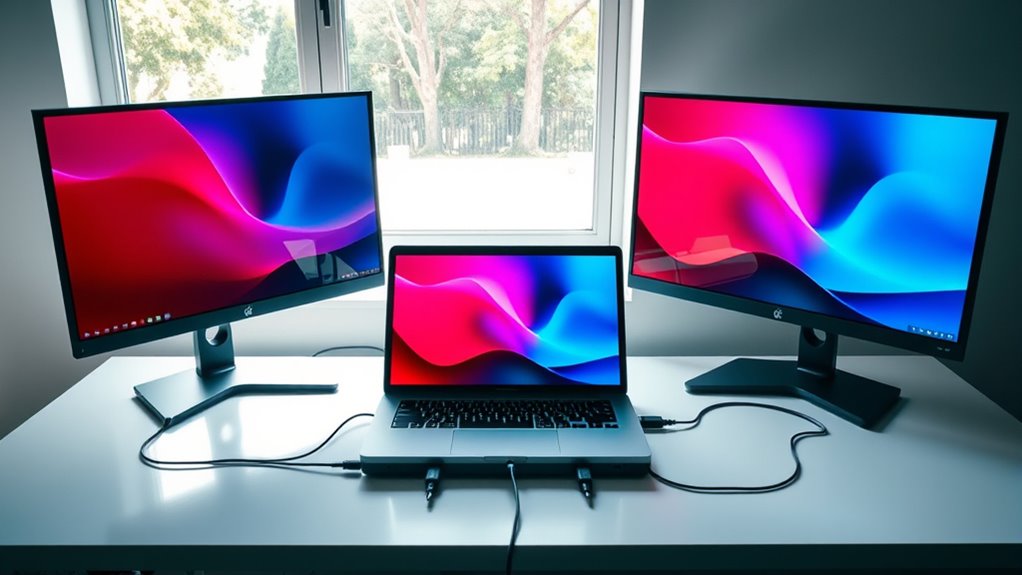

To hook up two monitors to one computer, first check your system’s compatibility, ensuring your graphics card supports dual displays and has enough output ports. Gather necessary cables like HDMI or DisplayPort and connect the monitors to your computer. Then, adjust display settings by right-clicking on your desktop to configure resolution and refresh rates. Position the monitors properly and troubleshoot any issues. There’s a lot more to take into account for peak performance and maintenance.
Understanding the Benefits of Dual Monitors
When you consider the advantages of dual monitors, you’ll quickly realize how they can enhance your productivity and streamline your workflow. By utilizing two screens, you can easily manage multiple applications simultaneously, leading to increased productivity. For instance, you can keep your email open on one monitor while working on a document or spreadsheet on the other. This enhanced multitasking capability allows you to switch tasks seamlessly without losing focus. Plus, with more screen real estate, you can view larger datasets or multiple documents side by side, eliminating the need for constant tab-switching. Ultimately, dual monitors empower you to maximize your efficiency, giving you the freedom to achieve more in less time. Embrace this setup for a transformative work experience.
Checking Your Computer’s Compatibility
Before setting up dual monitors, it’s vital to confirm your computer’s compatibility to guarantee a smooth experience. Start by checking your system’s monitor specifications; you’ll want to know the maximum resolution and refresh rate it can support. Next, examine the available display ports on your computer. Common types include HDMI, DisplayPort, and DVI, and you’ll need to verify you have enough ports for both monitors. If you’re using a laptop, check if it can handle dual displays as some models may have limitations. Utilizing the right cables is important too; mismatched connections can lead to subpar performance. By verifying compatibility now, you’ll avoid issues later and fully enjoy the benefits of your expanded workspace.
Gathering the Necessary Hardware
To set up two monitors, you’ll need the right cables and adapters based on your computer’s ports. It’s also essential to guarantee that the monitors you choose are compatible with your system. Gathering these components will streamline the setup process and enhance your multitasking capabilities.
Required Cables and Adapters
While setting up dual monitors, gathering the right cables and adapters is essential for a smooth experience. Start by identifying the cable types your monitors support, such as HDMI, DisplayPort, or VGA. Then, check your computer’s video output ports to verify compatibility. If there’s a mismatch, you’ll need adapter options like HDMI to VGA or DisplayPort to HDMI. It’s important to choose high-quality cables to avoid signal loss and guarantee peak display performance. Additionally, consider the lengths of the cables based on your workspace layout. Once you’ve gathered everything, you’ll be ready to connect your monitors and enjoy increased productivity and flexibility. With the right hardware, you’re one step closer to a multi-monitor setup that enhances your workflow.
Compatible Monitor Types
Choosing the right monitor types is essential for guaranteeing compatibility and ideal performance in a dual-monitor setup. You’ll want to take into account both display resolutions and connections for seamless integration. Here’s a quick overview of common monitor types:
| Monitor Type | Typical Resolutions | Best Use Case |
|---|---|---|
| LCD | 1920×1080 (Full HD) | General use, gaming |
| LED | 2560×1440 (QHD) | Design, video editing |
| OLED | 3840×2160 (4K UHD) | Multimedia, professional |
When selecting monitors, verify they support your desired display resolutions and have compatible ports. This will help you maximize your productivity and enhance your overall experience.
Connecting the Monitors
Before you start connecting the monitors, make sure your computer has the necessary ports available for multiple displays. Once confirmed, follow these steps to connect your monitors:
- Choose the right cables: Use HDMI, DisplayPort, or VGA cables compatible with your monitors and computer.
- Connect the monitors: Plug one end of each cable into the monitors and the other end into the appropriate ports on your computer.
- Check monitor alignment: Position the monitors side by side, ensuring they’re at the same height for ideal viewing and adjust the display resolution settings later for uniformity.
With your monitors connected, you’re one step closer to enhancing your workspace and enjoying the freedom of multiple displays!
Configuring Display Settings
Once your monitors are connected, you’ll need to configure the display settings to make the most of your dual setup. Start by right-clicking on your desktop and selecting “Display settings.” Here, you can adjust the display resolution for each monitor. Confirm each monitor’s resolution matches its native resolution for peak clarity. Next, check the refresh rate; this setting impacts how smoothly images display. Higher refresh rates can provide a better visual experience, especially for gaming or video editing. Make sure both monitors are set to a compatible refresh rate to avoid flickering or lag. Once you’ve finalized these settings, apply them and enjoy the freedom of your expanded workspace!
Adjusting Screen Arrangement
To guarantee a seamless workflow, you’ll need to adjust the screen arrangement of your monitors. Proper alignment enhances productivity, especially when using virtual desktops. Here’s how to set it up:
- Screen Orientation: Choose between landscape or portrait modes based on your tasks. A portrait mode is great for reading documents, while landscape is ideal for multitasking.
- Physical Placement: Position your monitors side by side or one above the other, depending on your desk space and comfort.
- Display Settings: In your computer settings, drag the monitor icons to reflect their physical arrangement, ensuring the cursor moves smoothly between screens.
Optimizing for Gaming and Productivity
Having your monitors properly arranged sets the stage for maximizing both gaming and productivity. To optimize your setup, make sure your primary monitor is directly in front of you, while the secondary is positioned to the side for easy access. Adjust the refresh rate and resolution settings to enhance gaming performance, as higher refresh rates provide smoother gameplay. For productivity, utilize software that allows window snapping and multitasking, giving you a productivity boost. You can also customize shortcuts for quick access to frequently used applications. Consider using a dual monitor stand to save desk space and create a cleaner workspace. By balancing your monitors effectively, you can greatly enhance your gaming experience and overall efficiency in tasks.
Troubleshooting Common Issues
When setting up dual monitors, you might encounter a few common issues. First, check your display settings to guarantee both screens are recognized and configured correctly. Next, verify cable compatibility and consider any limitations your graphics card may impose on multi-monitor setups.
Display Settings Adjustment
Although connecting two monitors to a single computer can enhance your productivity, it can also lead to display issues if the settings aren’t properly configured. Here are a few steps to adjust your display settings effectively:
- Set the Display Resolution: Confirm both monitors are set to their native resolutions for peak clarity.
- Color Calibration: Adjust the color settings on each monitor to achieve consistent hues and brightness across screens.
- Orientation and Arrangement: Make sure the monitors are arranged correctly in your display settings, reflecting their physical placement for a seamless experience.
Cable Compatibility Check
Before diving into troubleshooting, it’s essential to verify that the cables you’re using to connect your monitors are compatible with both your computer and the display devices. Different cable types, such as HDMI, DisplayPort, and VGA, adhere to various connection standards, which can affect performance and functionality. Check your computer’s output ports and confirm the monitors have the appropriate input ports for the cables you plan to use. If you’re using adapters, make sure they support the necessary resolutions and refresh rates. Mismatched cables or standards can lead to issues like flickering screens or no signal. Always consult your device manuals for detailed compatibility information to achieve a seamless dual-monitor setup.
Graphics Card Limitations
If you’ve confirmed your cables are compatible, the next step is to evaluate your graphics card’s capabilities. Not all graphics card types support multi monitor performance equally, so you’ll want to check a few details:
- Output Ports: Verify your graphics card has enough ports for two monitors. Common options include HDMI, DisplayPort, and DVI.
- Maximum Resolution: Check if your card can handle the resolution of both monitors simultaneously without performance drops.
- GPU Power: Assess whether your graphics card has sufficient processing power to drive two displays efficiently, especially for gaming or graphic-intensive tasks.
Understanding these limitations helps you achieve the best multi monitor performance and guarantees a seamless experience.
Tips for Maintaining Your Dual Monitor Setup
To guarantee your dual monitor setup runs smoothly, regular maintenance is essential. Start with monitor cleanliness tips—clean the screens with a microfiber cloth and a suitable cleaner to avoid streaks and dust buildup. This maintains peak visibility and extends the lifespan of your displays. Next, implement effective cable management strategies. Use cable ties or sleeves to organize cords and prevent tangling, which not only enhances aesthetics but also reduces wear and tear on connections. Regularly check for loose connections and frayed cables to avoid disruptions. Finally, keep your graphics drivers updated for improved performance and compatibility. With these simple practices, you’ll enjoy a seamless dual monitor experience, maximizing your productivity and creativity.
Frequently Asked Questions
Can I Use Different Monitor Brands Together?
Yes, you can use different monitor brands together. Just be aware of potential monitor compatibility issues. Mixed brand performance might vary, so make certain your graphics card supports multiple outputs for best results.
Will Dual Monitors Affect My Computer’s Performance?
Running dual monitors can feel like juggling, but it won’t drastically affect your computer’s performance if your graphics card and system resources are up to the task. Just verify you’ve got adequate specs to handle it.
How Do I Switch Between Monitors Quickly?
You can switch between monitors quickly by using monitor shortcuts, like Windows + P for display settings. This lets you choose between duplicate, extend, or second screen only, enhancing your multitasking freedom effectively.
Can I Connect Multiple Monitors Wirelessly?
Connecting multiple monitors wirelessly is like orchestrating a symphony; it requires compatible devices and reliable wireless technology. If your monitors support it, you can enjoy the freedom of a clutter-free workspace with seamless displays.
What’s the Maximum Resolution for Dual Monitors?
The maximum resolution for dual monitors largely depends on your graphics card’s maximum display capabilities and resolution compatibility. Typically, you can achieve up to 4K resolution per monitor, ensuring stunning visuals for your setup.
