
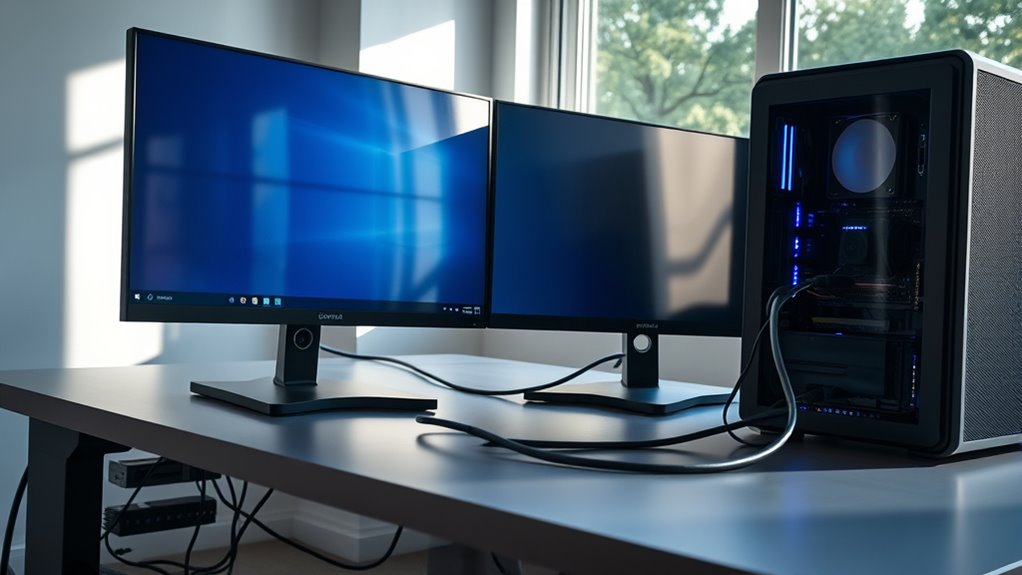

To hook up two monitors to one PC, first, check your PC’s compatibility, confirming your graphics card supports multiple displays. Gather the necessary cables and adapters, like HDMI or DisplayPort. Connect each monitor to the appropriate ports on your graphics card, then power them on. Next, configure display settings in Windows by adjusting resolutions and scaling. If you encounter issues, there are straightforward troubleshooting steps you can follow to guarantee everything runs smoothly.
Check Your PC’s Compatibility
Before you can set up dual monitors, you need to ascertain your PC can support them. First, check your graphics card; it must have multiple output ports, like HDMI, DisplayPort, or DVI, to connect both monitors. If you’re unsure, consult your graphics card’s specifications or manufacturer’s website. Next, verify that your operating system supports dual displays. Most modern OS versions, including Windows and macOS, do, but it’s good to confirm. Finally, make sure your system has enough processing power and RAM to handle the additional workload that dual monitors bring. By confirming these aspects, you’ll guarantee a seamless setup experience, allowing you to maximize your workspace and enhance productivity without unnecessary complications.
Gather the Necessary Cables and Adapters
To successfully connect two monitors to your PC, you’ll need the right cables and adapters. Start by identifying the cable types supported by your monitors and your graphics card. Common options include HDMI, DisplayPort, DVI, and VGA. Check if your monitors have matching ports; if not, you’ll need adapters to bridge the gap. For instance, if your monitor uses HDMI and your graphics card has only DisplayPort, an HDMI to DisplayPort adapter will be necessary. Verify you also consider the length of the cables to reach your setup comfortably. Having the correct cable types and adapter requirements is essential for a seamless dual-monitor experience, allowing you the freedom to enhance your workspace efficiently.
Connect the Monitors to Your Computer
Once you’ve gathered the necessary cables and adapters, connecting the monitors to your computer is straightforward. Begin by identifying your monitor types and available connection ports on both the monitors and the PC. Here’s how to go about it:
Connecting monitors to your computer is easy—just identify the ports and use the right cables for a seamless setup.
- Connect the first monitor: Use the appropriate cable (HDMI, DisplayPort, or VGA) to link it to your computer’s corresponding port.
- Connect the second monitor: Repeat the process with the second monitor, ensuring it’s connected to a different port or using an adapter if needed.
- Power on the monitors: Once everything is connected, turn on the monitors and your computer, allowing them to detect the new displays.
With this setup, you’re ready for a more expansive workspace!
Configure Display Settings in Windows
After connecting your monitors, you’ll need to configure the display settings in Windows to optimize your dual-monitor experience. Start by right-clicking on the desktop and selecting “Display settings.” Here, you can adjust the resolution settings for each monitor to guarantee clarity and proper scaling. It’s essential to set each monitor’s resolution to its native value for the best visual quality. You can also modify display scaling, which allows you to change the size of text, apps, and other items on your screens. This is especially helpful if you’ve got monitors with different resolutions. Once you’ve made your adjustments, click “Apply” to see the changes. Enjoy your enhanced workspace!
Adjust Monitor Arrangement
To adjust your monitor arrangement, first access the Display Settings in Windows. You can then drag and drop your monitors to match their physical layout and set your primary monitor for maximum productivity. This guarantees that your workflow is seamless across both displays.
Access Display Settings
As you connect two monitors to your PC, it’s essential to access the display settings to adjust the monitor arrangement. This step guarantees that your display preferences align with your workflow. Here’s how to proceed:
- Right-click on the desktop and choose “Display settings.”
- Select the monitor you want to configure from the graphical representation.
- Adjust the screen resolution and orientation as needed.
Drag and Drop
Once you’ve accessed the display settings, you’ll want to adjust the monitor arrangement using the drag-and-drop feature. This allows you to position your monitors in a way that reflects their physical layout. Simply click and hold on one of the monitor icons, then drag it to your desired location. This arrangement is essential for smooth desktop organization, especially when you’re dragging files between monitors. Make certain that your main monitor is set correctly to avoid confusion while working. Adjusting the arrangement helps maintain a natural flow when moving your cursor across screens, enhancing your multitasking experience. Once you’re satisfied, apply the changes, and enjoy the freedom of an organized workspace with two monitors.
Set Primary Monitor
After arranging your monitors, it’s important to set your primary monitor, which serves as the main display for your desktop and taskbar. This guarantees you have a seamless workflow across both screens. Here’s how to adjust your monitor preferences:
- Access Display Settings: Right-click on your desktop and select “Display settings.”
- Identify Monitors: Click “Identify” to see which monitor is which. The numbers will show briefly on each screen.
- Set Primary Display: Select the monitor you want as your primary. Check “Make this my main display.”
Once set, your chosen monitor will host the taskbar and desktop icons, providing a more organized experience. Enjoy the flexibility of dual monitors!
Troubleshooting Common Issues
When setting up dual monitors, you might encounter several common issues. These can include problems with cable connections, adjustments needed in display settings, or driver compatibility concerns. Let’s address these points to guarantee your setup functions smoothly.
Cable Connection Problems
Connecting two monitors to a single PC can sometimes lead to frustrating cable connection problems, but identifying the issue is often the first step toward resolution. Here are some common causes you might encounter:
- Incompatible Cable Types: Verify you’re using the right cables (HDMI, DisplayPort, DVI, VGA) that match your monitors and graphics card outputs.
- Connection Standards: Check if your hardware supports the desired resolution and refresh rate; not all cables handle high-definition signals well.
- Loose Connections: Make certain all cables are securely plugged in; a loose connection can lead to display issues.
Display Settings Adjustment
While troubleshooting display issues, adjusting your display settings is essential to guarantee both monitors function correctly. Start by right-clicking on the desktop and selecting “Display settings.” Here, you can choose the appropriate display resolution for each monitor. Verify that both displays use compatible resolutions to avoid distortion or black screens. Next, check the refresh rate; both monitors should ideally be set to the same refresh rate for peak performance. If one monitor flickers or lags, adjusting the refresh rate might resolve the issue. Remember to apply your changes and test the setup. By fine-tuning these settings, you can enhance your dual-monitor experience, confirming each screen operates smoothly and efficiently.
Driver Compatibility Issues
Even after adjusting display settings, you might encounter driver compatibility issues that can hinder your dual-monitor setup. These problems often stem from outdated drivers or software conflicts. To resolve these issues, consider the following steps:
- Check for Driver Updates: Verify your graphics card drivers are up-to-date by visiting the manufacturer’s website.
- Uninstall Conflicting Software: Identify any software that might be causing conflicts, such as third-party display management tools, and uninstall them.
- Reinstall Drivers: If issues persist, completely uninstall your graphics drivers and reinstall them to eliminate potential corruption.
Frequently Asked Questions
Can I Use Different Monitor Brands Together?
Yes, you can use different monitor brands together. Just verify monitor compatibility regarding resolution and refresh rates. Brand differences may affect color accuracy, but with proper settings, you’ll achieve a satisfactory multi-monitor setup.
How Do I Extend My Display Across Both Monitors?
To extend your display, just right-click on the desktop, select display settings, and choose “Extend these displays.” Confirm your cable connections are secure; it’s like opening a door to a wider world of productivity!
Will Using Two Monitors Slow Down My PC?
Using two monitors can impact performance, but it depends on your PC’s capabilities. Resource allocation shifts as additional display tasks require more from your GPU, potentially leading to reduced efficiency if your hardware isn’t up to par.
Can I Connect Two Monitors Wirelessly?
Yes, you can connect two monitors wirelessly! Just make sure your monitors support wireless display technology and are compatible. It’s a game-changer for freedom and flexibility, letting you declutter your workspace effortlessly!
What if My Monitors Have Different Resolutions?
If your monitors have different resolutions, you can adjust resolution scaling in your display settings. This way, both monitors will display content more uniformly, enhancing your overall experience and productivity while maintaining visual clarity.
