
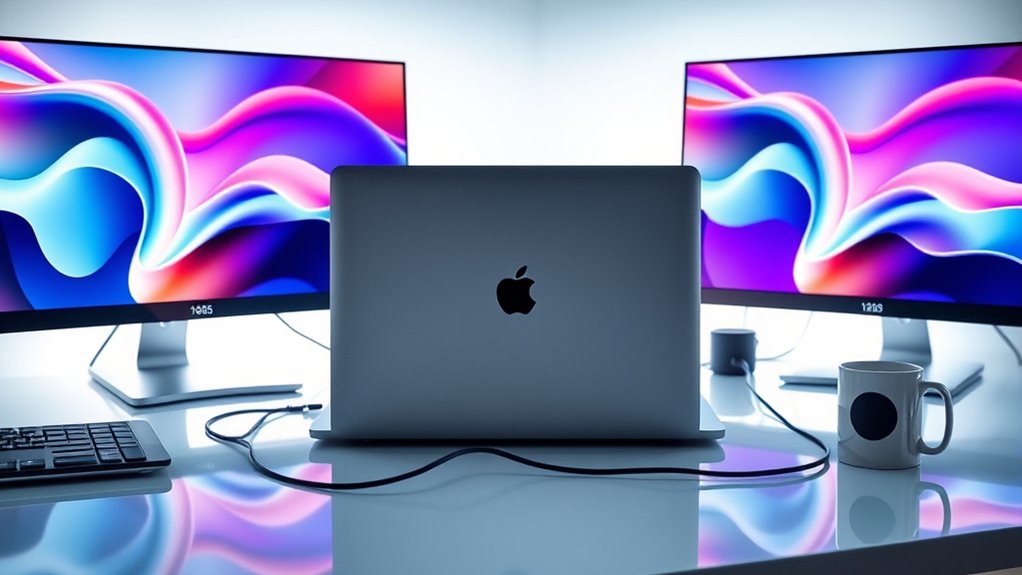

To connect two monitors to your MacBook Pro, first check your model and its specifications to ascertain compatibility. Gather the necessary cables and adapters for your monitors. Connect the first monitor using the appropriate cable and adapter, then repeat for the second monitor. Adjust display settings in System Preferences to arrange monitors and set resolutions. For an optimized setup, consider factors like monitor positioning and cable management. Keep going to discover more tips for enhancing your dual display experience.
Check Your MacBook Pro Model and Specifications
Before you connect two monitors to your MacBook Pro, it’s essential to check your model and specifications. Understanding your MacBook compatibility is the first step to ensuring a smooth multi-monitor setup. Different models come with varying features; for instance, newer MacBook Pros typically support multiple displays via Thunderbolt 3 ports, while older versions may have limitations.
You can find your model by clicking the Apple logo in the top-left corner and selecting “About This Mac.” This will show your model year and specifications. Knowing whether your MacBook can handle dual monitors will save you time and frustration later. So, take a moment to confirm your model features before you start planning your ideal workspace.
Gather the Necessary Cables and Adapters
Before connecting your monitors, you’ll need to gather the right cables and adapters. Start by identifying the ports on your MacBook Pro and choosing compatible adapters if necessary. Don’t forget to take into account cable lengths to guarantee everything reaches your setup comfortably.
Identify Required Ports
To successfully connect two monitors to your MacBook Pro, you’ll need to identify the required ports and gather the necessary cables and adapters. Start by checking your MacBook’s specifications to determine the available port types—like Thunderbolt, HDMI, or USB-C. Understanding these will help you select the right connections for your monitors. Next, consider the display resolutions you want to achieve. Some monitors may require specific adapters to support higher resolutions, so be certain to choose cables that match your desired output. Keep in mind that using different port types may affect performance, so verify compatibility between your MacBook Pro and the monitors. With the right ports identified, you’re ready to move on to selecting compatible adapters.
Select Compatible Adapters
When connecting two monitors to your MacBook Pro, selecting the right adapters and cables is essential. You’ll want to avoid compatibility issues that can arise from using the wrong adapter types. Here’s what to keep in mind:
- HDMI Adapter: Ideal for connecting to most external displays.
- DisplayPort Adapter: Great for high-resolution monitors and supports daisy chaining.
- USB-C Hub: Offers multiple ports, allowing for various connections with ease.
Before buying, double-check your MacBook Pro model and the monitors you plan to use. Ensuring compatibility will save you time and frustration, letting you enjoy that dual-monitor freedom without a hitch.
Consider Cable Lengths
Cable lengths play an essential role in setting up your dual-monitor workspace effectively. When gathering the necessary cables and adapters, consider how far your monitors will be from your MacBook Pro. Longer cables can provide more flexibility in positioning, but they may also lead to clutter and complicate cable management. Aim for a balance: cables that are long enough to reach without being excessively long, which can create tangles. Check the specific length requirements for each monitor, and think about using cable ties or sleeves to keep everything organized. By paying attention to length considerations, you’ll create a cleaner, more efficient workspace that enhances your productivity and freedom while working with dual monitors.
Connect the First Monitor
To connect your first monitor, you’ll need the right cables and adapters that fit your MacBook Pro’s Thunderbolt port. Make certain you have everything ready before you start the setup. This will streamline the process and guarantee a smooth connection.
Required Cables and Adapters
Connecting your first monitor to a MacBook Pro requires specific cables and adapters tailored to your device’s ports. Here’s what you’ll need to get started:
- Cable Types: Depending on your monitor, you might need HDMI, DisplayPort, or VGA cables. Make sure to pick the right one for your setup.
- Adapter Options: If your MacBook Pro has USB-C or Thunderbolt ports, you’ll need an adapter to connect to your monitor’s cable type. Look for USB-C to HDMI or USB-C to DisplayPort adapters.
- Quality Matters: Invest in high-quality cables and adapters to guarantee excellent display performance and avoid connectivity issues.
Connecting via Thunderbolt Port
One of the easiest ways to connect your first monitor to a MacBook Pro is through the Thunderbolt port. Thunderbolt advantages include high-speed data transfer and support for multiple display setups, allowing you to maximize your workspace effortlessly. Start by identifying the Thunderbolt port on your MacBook Pro, which looks like a lightning bolt symbol. Next, connect your monitor using a Thunderbolt or compatible adapter cable. Once plugged in, your MacBook should automatically detect the monitor. If it doesn’t, go to System Preferences, select Displays, and click “Detect Displays.” This setup not only enhances your productivity but also gives you the flexibility to arrange your workspace just the way you like it. Enjoy your new multi-display experience!
Connect the Second Monitor
Adding a second monitor to your MacBook Pro can greatly enhance your productivity and multitasking capabilities. To connect the second monitor, follow these simple steps:
Enhance your productivity by adding a second monitor to your MacBook Pro for seamless multitasking and a larger workspace.
- Choose the right cable: Depending on your monitor, use HDMI, DisplayPort, or USB-C cables to guarantee compatibility.
- Connect the monitor: Plug one end of the cable into your MacBook Pro and the other into your second monitor.
- Check monitor alignment: Position both screens for ideal viewing and adjust their layout in your workspace for a seamless dual display experience.
Once connected, you’ll notice how easily you can manage multiple applications. Enjoy the freedom of a larger workspace and boost your efficiency with this setup!
Configure Display Settings
Once your second monitor is connected, you’ll need to configure the display settings to enhance your viewing experience. Start by accessing “System Preferences,” then click on “Displays.” Here, you can adjust the display arrangement, dragging the monitors to match their physical setup. Make sure to select the appropriate resolution settings for each display, ensuring crisp visuals.
Here’s a quick reference table to help you with common resolutions:
| Display Type | Resolution | Best Use |
|---|---|---|
| Standard Monitor | 1920×1080 | General use |
| UltraWide Monitor | 2560×1080 | Multitasking |
| 4K Monitor | 3840×2160 | High-resolution work |
| Retina Display | 2880×1800 | Creative tasks |
| Compact Monitor | 1366×768 | Basic tasks |
Adjust these settings for an excellent dual-monitor setup!
Tips for Optimal Dual Monitor Setup
To achieve an ideal dual monitor setup, consider positioning your screens at eye level for comfort. This not only enhances your workspace but also reduces strain on your neck and eyes. Here are some tips to optimize your display arrangement:
Position your dual monitors at eye level to enhance comfort and reduce strain on your neck and eyes.
- Monitor Alignment: Guarantee both monitors are aligned horizontally to maintain a fluid visual experience. This helps in reducing cognitive load as you switch between screens.
- Adjust Brightness: Match the brightness levels of both displays to avoid distractions and guarantee a consistent view.
- Cable Management: Keep cables organized to minimize clutter. This can enhance your workspace aesthetics and make it easier to access ports.
Frequently Asked Questions
Can I Use Different Brands of Monitors Together?
Yes, you can use different brands of monitors together. Just verify they’re compatible. In your display settings, you can adjust resolutions and layouts to fit your needs, giving you the freedom to customize your workspace.
What Resolution Can My Macbook Pro Support on Dual Monitors?
When it comes to resolution limits, your MacBook Pro can support up to 4096 x 2304 on dual monitors. Check your display settings to optimize everything, and enjoy the freedom of expanded workspace!
How Do I Troubleshoot a Non-Detecting Monitor?
If your monitor isn’t detected, check all monitor connections, guarantee cables are secure, and try different ports. Restart your MacBook Pro and use troubleshooting tips like resetting NVRAM for best results.
Will Connecting Two Monitors Affect My Macbook’s Performance?
Connecting two monitors can impact your MacBook’s performance due to increased resource allocation. You might notice slower processing speeds or higher fan activity, but it often balances out if you’re managing tasks efficiently.
Can I Connect a Monitor Wirelessly to My Macbook Pro?
Yes, you can connect a monitor wirelessly to your MacBook Pro using AirPlay or third-party apps. Explore these wireless display options for seamless connection methods that enhance your setup without the hassle of cables.
