
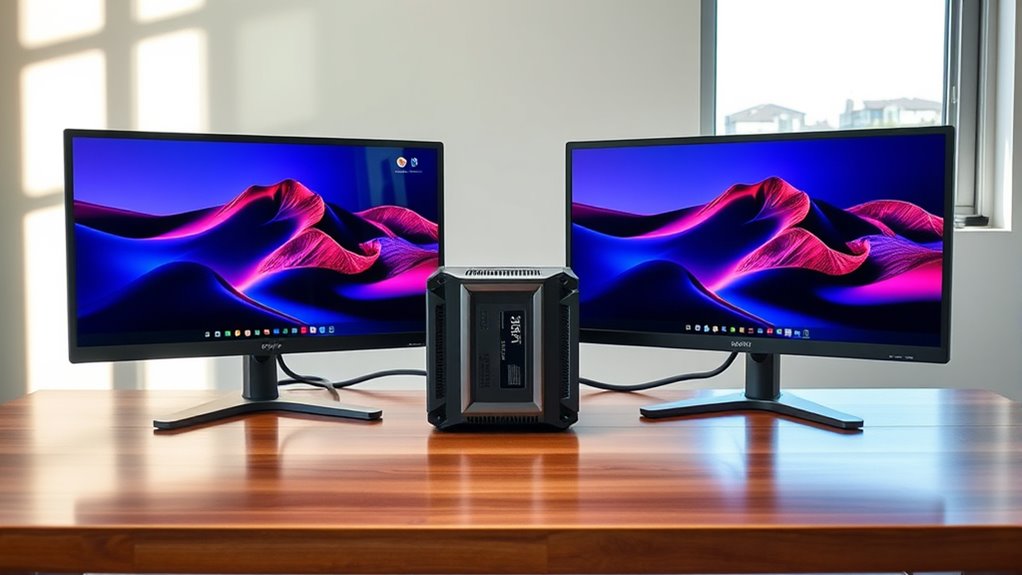

To connect two monitors to one CPU, first check your graphics card to verify it supports dual displays and has the right output ports, like HDMI or DisplayPort. Choose monitors that match your tasks and resolution needs. Connect the monitors using compatible cables, making sure they’re secure. Then, access your operating system’s display settings to arrange and configure the displays. If you face issues, troubleshooting steps can help resolve any problems. Further insights will guide you through optimizing your setup.
Understanding Your Computer’s Graphics Capabilities
Before you connect two monitors to your CPU, it is crucial to understand your computer’s graphics capabilities. Start by identifying the graphics card types installed in your system. Integrated graphics may support limited outputs, while dedicated graphics cards typically offer multiple video output options like HDMI, DisplayPort, and DVI. Each type has different specifications, affecting resolution and refresh rates. Check if your GPU supports dual-monitor setups; this often involves ensuring your drivers are up to date. Knowing the number of ports and their compatibility with your monitors will save you time and hassle. By understanding these aspects, you can maximize your productivity and enjoy a seamless dual-monitor experience, ultimately giving you the freedom to work how you want.
Choosing the Right Monitors
Once you’ve assessed your computer’s graphics capabilities, the next step is to choose the right monitors for your setup. Start by reviewing monitor specifications, including screen size and panel type. Think about the tasks you’ll perform; for gaming or graphic design, a higher screen resolution, like 1440p or 4K, can greatly enhance your experience. If you’re multitasking or working with spreadsheets, consider larger screens or ultrawide monitors. Verify your chosen monitors support the same resolutions for seamless integration. Additionally, look for features like adjustable stands or VESA compatibility for flexibility in placement. Ultimately, selecting monitors that align with your needs will empower you to maximize your productivity and enjoyment in a dual-monitor setup.
Connecting the Monitors to Your CPU
To connect your monitors to the CPU, start by checking the available ports on your graphics card. Next, use the appropriate cables that match those ports to establish a connection. Finally, configure your display settings to guarantee both monitors work seamlessly.
Check Graphics Card Ports
Checking your graphics card ports is vital when connecting two monitors to one CPU. First, identify your graphics card type; it could be integrated or dedicated. Each type may offer different port compatibility, such as HDMI, DisplayPort, DVI, or VGA. Examine the back of your computer to see which ports are available. If you’ve got multiple outputs, confirm that they can support dual displays simultaneously. Some graphics cards may only allow a specific combination of ports to function together, so it’s important to verify this. If your monitors and graphics card ports are compatible, you’re on the right track to achieving an expanded workspace. This freedom can enhance your productivity and gaming experience alike.
Use Appropriate Cables
When connecting your monitors to the CPU, using the appropriate cables is essential for ensuring ideal performance. First, identify the cable types that match your monitors and your graphics card. Common options include HDMI, DisplayPort, DVI, and VGA. Each type has its advantages, such as resolution support and refresh rates.
Next, consider cable lengths. Measure the distance between your CPU and monitors to avoid excess slack or tension. Longer cables may lead to signal degradation, so it’s best to choose the shortest length that meets your needs.
Configure Display Settings
Configuring display settings is essential once your monitors are connected to the CPU. This step guarantees that both displays work harmoniously, maximizing your productivity. Here’s how to set everything up:
- Access display settings through your operating system.
- Choose the display arrangement, whether to extend or duplicate screens.
- Adjust the resolution for each monitor to guarantee ideal clarity.
- Set the primary display to dictate where your main tasks will appear.
- Save your settings and check for any necessary adjustments.
Configuring Display Settings in Your Operating System
Once you’ve connected your monitors, you’ll need to adjust the display settings in your operating system. In Windows, you can access the Display Settings to customize your screen arrangement and resolution. On macOS, the Display Preferences allow you to set up your monitors for ideal performance and layout.
Windows Display Settings
To effectively manage multiple displays, you’ll need to access the Windows Display Settings, which allow you to configure how your monitors work together. Here, you can set up display scaling, ensuring that everything appears clear and proportionate across both screens.
You can customize your settings by:
- Selecting display modes (Duplicate, Extend, or Second Screen Only)
- Adjusting resolution for each monitor
- Configuring display scaling for better readability
- Rearranging monitors to match your physical layout
- Choosing your primary display for ideal workflow across multiple workspaces
With these adjustments, you’ll enhance your productivity and enjoy a seamless multi-monitor experience. Take the time to explore these settings and find what works best for you.
Macos Display Preferences
When using macOS, accessing Display Preferences is essential for setting up your monitors effectively. To do this, click the Apple menu, select “System Preferences,” and then choose “Displays.” Here, you can arrange your monitors, adjust resolution, and choose a dual monitor wallpaper that reflects your style. You can also use macOS shortcuts to switch between different display modes quickly.
Here’s a quick overview of key settings:
| Setting | Description | Shortcut |
|---|---|---|
| Arrangement | Organize display layout | Control + F2 |
| Resolution | Set ideal display resolution | Command + Option + 8 |
| Dual Wallpaper | Set different wallpapers for each | Command + Space (Finder) |
Optimizing Your Dual-Monitor Setup
Optimizing your dual-monitor setup can greatly enhance productivity and improve your overall computing experience. By making a few adjustments, you can create an ergonomic setup that delivers a significant productivity boost. Here are some tips to take into account:
- Position your monitors: Align them at eye level to reduce neck strain.
- Adjust display settings: Use the same resolution for both monitors to guarantee visual consistency.
- Utilize keyboard shortcuts: Master shortcuts for quick window management between screens.
- Organize your workspace: Keep frequently used tools and applications readily accessible on one monitor.
- Take breaks: Implement the 20-20-20 rule to minimize eye fatigue—look at something 20 feet away for 20 seconds every 20 minutes.
These simple steps will streamline your workflow and enhance your overall comfort.
Troubleshooting Common Issues
Have you ever encountered issues while trying to connect two monitors to your CPU? You’re not alone. Common connection problems often arise, such as using incompatible cables or ports. First, verify both monitors are powered on and properly connected. Check if your operating system recognizes the displays; this can help resolve display detection issues. If one monitor isn’t showing up, try unplugging and replugging the cable or using a different port. Updating your graphics drivers can also solve many issues, so don’t overlook that. Finally, if you’re using adapters, verify they’re compatible with your setup. By troubleshooting these common issues, you can access the full potential of your dual-monitor experience and enjoy a more productive workspace.
Frequently Asked Questions
Can I Use Different Monitor Brands Together?
Yes, you can use different monitor brands together. Monitor compatibility usually relies on resolution and connectors, not brand performance. Just make sure both monitors support your desired settings for an ideal experience without compromising your freedom of choice.
Will Connecting Two Monitors Affect Gaming Performance?
Yes, connecting two monitors can affect gaming performance, especially if your GPU isn’t powerful enough. In a dual monitor setup, the additional load can reduce frame rates, impacting your overall gaming experience. Optimize settings for balance.
How Do I Know if My CPU Supports Dual Monitors?
Check your graphics card compatibility first; if it has multiple outputs, you’re likely set. Then, plunge into your operating system settings—both should indicate whether dual monitors are supported, giving you the freedom to expand your workspace.
Can I Extend My Display Across Three Monitors?
Yes, you can extend your display across three monitors for a triple monitor setup, provided your graphics card supports it. Adjust your display configuration in the settings to manage how each monitor operates together effectively.
Do I Need Special Cables for Different Monitor Types?
Don’t you want everything to work seamlessly? Yes, you’ll need special cables for different monitor types to guarantee cable compatibility. HDMI, DisplayPort, and VGA all require specific connections, so choose wisely for best performance.
