
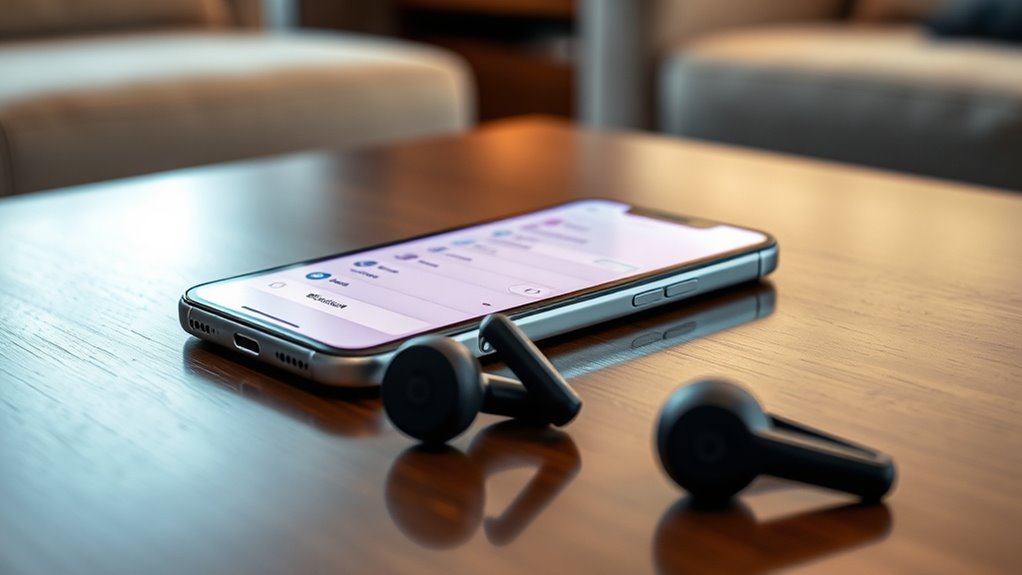

To connect your Beats earbuds to your iPhone, first make sure your iPhone is compatible and running iOS 10 or later. Charge your earbuds, then power them on and enter pairing mode by holding the button until the LED flashes. On your iPhone, go to Settings, tap Bluetooth, and turn it on. When your earbuds appear in the list, tap their name to pair them. For more tips on troubleshooting any connection issues, continue to explore further steps.
Check Compatibility With Your Iphone
Before you plunge into connecting your Beats earbuds to your iPhone, it’s essential to check their compatibility. First, identify the model of your Beats earbuds, as not all models work seamlessly with every iPhone version. Generally, if your iPhone runs iOS 10 or later, you’re likely in the clear. Next, review the device requirements for your specific earbuds model; this info can usually be found on the manufacturer’s website. A quick compatibility check guarantees that you won’t run into pairing issues down the line. Taking these steps allows you to enjoy your music or calls without any hiccups, giving you the freedom to immerse yourself in sound without frustration.
Prepare Your Beats Earbuds for Pairing
Once you’ve confirmed that your Beats earbuds are compatible with your iPhone, it’s time to prepare them for pairing. First, verify your earbuds are charged to maximize battery life. You’ll want to take advantage of their earbud features, like noise cancellation or transparency mode, once connected. To prepare, follow these steps:
| Step | Action | Purpose |
|---|---|---|
| Charge | Connect to a power source | Guarantee battery life |
| Power On | Press the power button | Activate earbuds |
| Pairing Mode | Hold the button until LED flashes | Enable pairing mode |
Once you complete these steps, your earbuds will be ready to connect to your iPhone, releasing your freedom to enjoy music and calls seamlessly.
Enable Bluetooth on Your Iphone
To connect your Beats earbuds to your iPhone, you’ll need to enable Bluetooth, which is a straightforward process that takes just a few taps. First, access your iPhone and open the “Settings” app. Once there, scroll down until you find “Bluetooth” and tap on it. You’ll see a toggle switch at the top of the screen. Simply tap it to turn Bluetooth on. When activated, your iPhone’s Bluetooth features will allow it to search for nearby devices. You’ll know Bluetooth is on when the switch turns green. Now that you’ve enabled Bluetooth, you’re one step closer to enjoying your music wirelessly. Next, you can proceed to pair your Beats earbuds with your iPhone.
Pair Your Beats Earbuds With Your Iphone
Connecting your Beats earbuds to your iPhone is a simple process that can be done in just a few steps. First, make sure your earbuds are charged and turned on. Then, put them in pairing mode; usually, this involves holding the power button until you see a blinking light. On your iPhone, go to your Bluetooth settings, and you’ll see your Beats earbuds listed under available devices. Tap on their name to initiate the pairing. Once connected, you’ll enjoy the incredible sound quality and unique earbud features that Beats offers. Whether you’re listening to music or taking calls, your audio experience will be enhanced, allowing you the freedom to enjoy your favorite tunes wherever you go.
Confirm the Connection
After you’ve paired your Beats earbuds with your iPhone, it’s important to confirm the connection to verify everything is working correctly. Start by checking your Bluetooth settings to guarantee your earbuds are listed as connected. You can also play a song or video to test the audio quality.
Here’s a quick reference table for connection confirmation:
| Action | Result |
|---|---|
| Open Bluetooth Settings | See your earbuds listed |
| Play Audio | Hear sound through earbuds |
| Adjust Volume | Changes reflected in earbuds |
| Answer a Call | Audio directs to earbuds |
| Check Battery Level | Displays on iPhone |
Troubleshooting Common Connection Issues
If you’re having trouble connecting your Beats earbuds to your iPhone, don’t worry—there are a few simple steps you can take. Start by checking your Bluetooth settings, and if that doesn’t help, consider resetting your earbuds or updating your iOS version. These quick fixes can often resolve common connection issues.
Check Bluetooth Settings
Before diving into more complex troubleshooting, it’s essential to check your Bluetooth settings, as they often hold the key to resolving connection issues with your Beats earbuds. First, make certain Bluetooth is turned on in your iPhone’s settings. If it’s on and your earbuds still won’t connect, look for any Bluetooth interference from other devices nearby, like speakers or computers. Sometimes, disconnecting these devices can help. Additionally, verify your iPhone is compatible with your specific Beats model. If you’re unsure, check the manufacturer’s specifications for device compatibility. Finally, it’s a good idea to toggle Bluetooth off and on again, as this can refresh connections and help restore your freedom to enjoy your music without interruptions.
Reset Earbuds
Sometimes, even when your Bluetooth settings are spot on, your Beats earbuds may still refuse to connect. In such cases, trying one of the reset methods can help. First, you can perform a simple reset by holding down the power button and the volume down button simultaneously for about 10 seconds. This usually prompts a reset without losing any of your personalized settings. If that doesn’t work, consider a factory reset. To do this, press and hold the power button for 15 seconds until the LED indicator flashes red and white. After this, pair your earbuds with your iPhone again. Resetting often clears up connection issues and helps restore that seamless audio experience you crave.
Update Ios Version
To guarantee your Beats earbuds connect smoothly to your iPhone, updating your iOS version can often resolve underlying compatibility issues. New iOS features improve device performance and can enhance your earbuds’ connectivity. To start the update process, go to your iPhone’s Settings, tap on General, and select Software Update. If an update is available, download and install it. Make sure your device is connected to Wi-Fi and has sufficient battery life. After updating, restart your iPhone to confirm the changes take effect. Once your iPhone is updated, try reconnecting your Beats earbuds. This simple step can often eliminate connection problems and allow you to enjoy your music without interruptions.
Frequently Asked Questions
Can I Use Beats Earbuds With Non-Apple Devices?
Yes, you can use Beats earbuds with non-Apple devices. Their Bluetooth compatibility guarantees connectivity across various platforms. Don’t worry about limitations; enjoy your music freely, regardless of the brand of your device!
How Do I Reset My Beats Earbuds?
To reset your Beats earbuds, press and hold the power button and volume down button for about 10 seconds until the LED flashes. Follow these reset instructions for effective earbud troubleshooting and reconnecting afterward.
What Should I Do if My Earbuds Won’t Charge?
If your earbuds won’t charge, check the power sources and connections. Like a car without fuel, they need proper energy. Clean the charging port, try a different cable, or consider resetting them for charging issues.
How Do I Check Battery Life on My Beats Earbuds?
You can check your Beats earbuds’ battery life by looking at the battery indicators on your device or using the Beats app. The battery percentage will display, so you’ll know when to recharge them.
Can I Connect Multiple Devices to My Beats Earbuds?
Yes, you can connect multiple devices to your Beats earbuds. Just go through the pairing process for each one. When switching devices, simply select your earbuds from the Bluetooth menu on your preferred device.
