
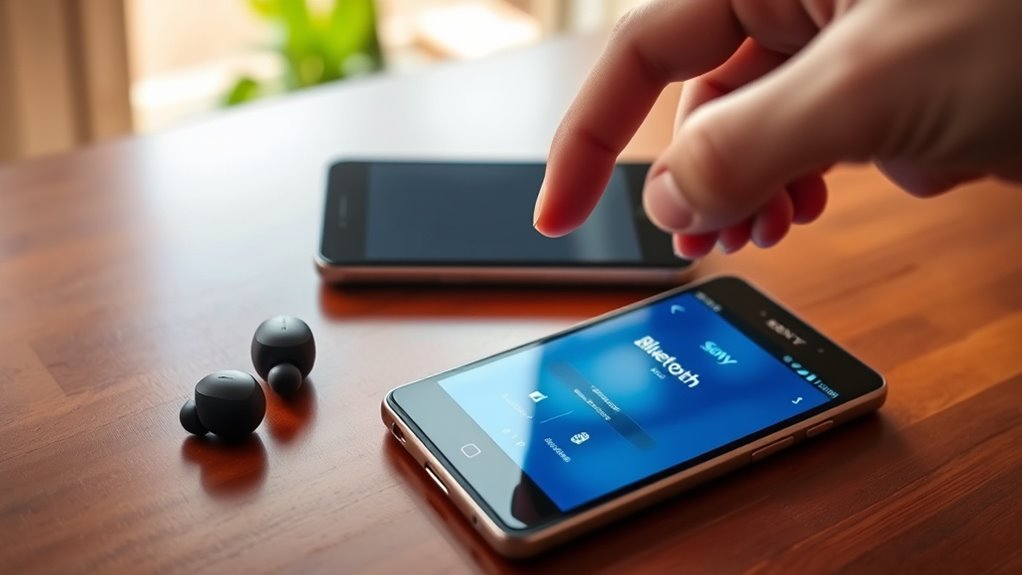

To connect your Sony earbuds, start by ensuring Bluetooth is enabled on your device. Power on your earbuds, putting them in pairing mode by holding the power button until the light blinks. On your device, access the Bluetooth settings and select your earbuds from the list. If you run into any issues, try restarting both devices, or check for interference. Keep exploring to discover more tips for ideal use and performance of your earbuds.
Understanding Your Sony Earbuds
Understanding your Sony earbuds is essential for maximizing their performance and features. Each model comes with a features overview that highlights its unique capabilities, like noise cancellation, touch controls, and battery life. You’ll want to familiarize yourself with these features to enhance your listening experience.
Additionally, earbud compatibility is vital for seamless connectivity with your devices. Most Sony earbuds support various Bluetooth profiles, ensuring they work with smartphones, tablets, and laptops. Make sure to check which devices your earbuds are compatible with, as this will help you avoid connectivity issues. By understanding these aspects, you can enjoy the freedom of wireless listening without any hassle, making the most of your Sony earbuds’ potential.
Preparing Your Device for Connection
Before connecting your Sony earbuds, you need to prepare your device. Start by checking your Bluetooth settings to verify they’re enabled, and make sure your device’s firmware is up to date. Finally, don’t forget to enable pairing mode on your earbuds for a smooth connection.
Check Bluetooth Settings
How can you guarantee your device is ready to connect to your Sony earbuds? Start by checking your Bluetooth settings. Make sure Bluetooth is enabled, as this confirms your device’s Bluetooth compatibility. Also, verify you’re within the earbud range for a seamless connection.
Here’s a quick reference table to help you with the settings:
| Device Type | Bluetooth Enabled | Earbud Range |
|---|---|---|
| Smartphone | Yes | Up to 30 feet |
| Tablet | Yes | Up to 30 feet |
| Laptop | Yes | Up to 30 feet |
| Smart TV | Yes | Varies |
| Desktop PC | Yes | Varies |
Once everything’s set, you’re ready to connect!
Update Device Firmware
To guarantee a smooth connection with your Sony earbuds, updating your device’s firmware is essential. Firmware updates often include important fixes that enhance device compatibility, ensuring your earbuds work seamlessly with your smartphone or tablet. Start by checking your device settings for available updates; this is typically found under “System” or “Software Update.” If there’s an update available, don’t hesitate to download and install it. This process may take a few minutes, but it’s worth it for the improved performance you’ll enjoy. By keeping your firmware up to date, you’ll minimize the chances of connection issues and maximize your listening experience. So, take a moment to update before you connect your Sony earbuds!
Enable Pairing Mode
Enabling pairing mode on your Sony earbuds is an essential step in establishing a successful connection with your device. To do this, simply press and hold the power button on your earbuds until you see a flashing light, indicating that they’re in pairing mode. This process activates the Bluetooth technology that allows your device to discover the earbuds. Make sure the device you want to connect is also in pairing mode, which usually involves going into the Bluetooth settings and selecting “Add Device.” Once both devices are ready, they’ll find each other. This simple setup grants the freedom of wireless listening, letting you enjoy your favorite tunes without the hassle of cords.
Turning On Your Sony Earbuds
To turn on your Sony earbuds, first locate the power button, which is usually found on the earbuds’ casing. Make certain they’re charged before use to guarantee peak performance. Once powered on, you can easily pair them via Bluetooth with your device.
Power Button Location
Finding the power button on your Sony earbuds is vital for getting started. Typically, the power button is located on the side of the earbuds or on the charging case, depending on the model. You’ll often see it marked with the familiar power symbol. To turn on your earbuds, simply press and hold the power button for a few seconds until you see a light indicator or hear a sound confirming they’re powered up. Familiarizing yourself with the power button is vital, as it’s one of the key earbud features that guarantees you can connect and enjoy your music or calls. Once you’ve located it, you’ll be ready to experience the freedom of wireless listening.
Charging Before Use
Before you can enjoy your new Sony earbuds, it’s essential to assure they’re charged. Start by locating the charging case; it’s your earbuds’ lifeline. Place the earbuds inside the case and ensure they’re securely nestled. Check the charging indicators on the case—these lights let you know the battery status. If the lights are red, it’s time to charge. Ideally, you want to give them a full charge to maximize your battery life. Once charged, you should have several hours of listening time ahead of you, depending on the model. Remember, a little pre-use charging goes a long way in enhancing your experience, so don’t skip this important step before diving into your favorite tunes!
Bluetooth Pairing Process
Once you’re ready to enjoy your music, it’s time to turn on your Sony earbuds and connect them via Bluetooth. First, take your earbuds out of the charging case; they should power on automatically. If they don’t, press and hold the power button until you see the indicator light. Next, go to your device’s Bluetooth settings and search for available devices. Select your Sony earbuds from the list. For successful pairing, verify your earbuds are in pairing mode—often indicated by a blinking light. If you encounter common issues, like connection failures, try resetting your earbuds and verifying they’re close to your device. Remember these pairing tips to enhance your experience and enjoy the freedom of wireless listening!
Activating Bluetooth on Your Device
To connect your Sony earbuds, you’ll first need to activate Bluetooth on your device, which allows for a seamless wireless connection. Start by accessing your device’s settings menu. Look for the Bluetooth option, usually found under “Connections” or “Wireless & Networks.” Confirm Bluetooth compatibility with your earbuds by checking if your device is on the list of supported devices. Toggle the Bluetooth switch to the “On” position. If you encounter any issues, don’t hesitate to explore some quick device troubleshooting—restarting your device or checking for software updates can often resolve connectivity problems. Once Bluetooth is activated and functioning properly, you’re ready to move on to pairing your Sony earbuds for that wireless freedom you desire.
Pairing Your Sony Earbuds
Pairing your Sony earbuds is a straightforward process that enhances your listening experience. Once you’ve activated Bluetooth on your device, follow these steps to connect:
Pairing your Sony earbuds is easy and enhances your listening experience—just activate Bluetooth and follow a few simple steps.
- Turn on your earbuds: Press and hold the power button until you see the indicator light flash.
- Enable pairing mode: Depending on your model, either continue holding the button until the light blinks or press the dedicated pairing button to activate Bluetooth.
- Connect to your device: On your device’s Bluetooth settings, select your earbuds from the list. Once connected, you’ll enjoy the impressive sound quality and various earbud features that make your listening experience truly exceptional.
Now you’re ready to immerse yourself in your favorite tunes with freedom and clarity!
Troubleshooting Connection Issues
Sometimes, despite following the pairing process, you might encounter connection issues with your Sony earbuds. If you’re having trouble, try resetting your earbuds. To do this, put them in the charging case, and hold the button for about 10 seconds until you see the indicator light flash. This often resolves minor glitches.
Next, check for interference sources. Other electronic devices, like microwaves or Wi-Fi routers, can disrupt Bluetooth connections. Move away from these devices to see if the connection improves. Also, verify your earbuds and the device you’re connecting to are within close range. If problems persist, consider unpairing and re-pairing your earbuds. This can help establish a fresh connection and restore your freedom to enjoy your music.
Connecting to Multiple Devices
If you’ve resolved any connection issues, you might be interested in connecting your Sony earbuds to multiple devices. With multi device pairing, you can enjoy seamless switching between your smartphone, tablet, and laptop without hassle. Here’s how to set it up:
Connect your Sony earbuds to multiple devices for effortless audio switching between your smartphone, tablet, and laptop.
- Pair your earbuds with the first device: Follow the standard pairing process through Bluetooth settings.
- Connect your second device: Repeat the pairing process for another device, ensuring your earbuds are in pairing mode.
- Switch effortlessly: Once both devices are connected, you can switch between them by simply playing audio from the desired device.
This feature lets you stay connected and enjoy your media without any interruptions. Enjoy the freedom of using your Sony earbuds across multiple devices!
Using Touch Controls on Your Earbuds
Many Sony earbuds come equipped with intuitive touch controls, allowing you to manage your audio experience with just a tap or swipe. These touch gesture controls simplify your listening, letting you play, pause, or skip tracks effortlessly. You can also customize touch functions to suit your preferences, ensuring you get the most out of your earbuds.
| Action | Gesture |
|---|---|
| Play/Pause | Double tap |
| Next Track | Swipe forward |
| Previous Track | Swipe backward |
Experiment with these gestures to find what feels right for you. As you personalize your touch controls, you’ll enjoy a more seamless audio experience, giving you the freedom to focus on what matters most—your music.
Maintaining Your Earbuds for Optimal Performance
Taking full advantage of your Sony earbuds’ features means keeping them in excellent shape. Regular earbud maintenance is essential for preserving sound quality and guaranteeing a great listening experience. Here are three simple tips to help you maintain your earbuds:
- Clean Regularly: Wipe down the earbuds with a soft, dry cloth to remove dirt and sweat. Avoid using liquids that could damage the electronics.
- Store Properly: When not in use, store your earbuds in their case to protect them from dust and physical damage.
- Check Battery Health: Keep an eye on battery life and charge them regularly to guarantee peak performance.
Frequently Asked Questions
How Do I Reset My Sony Earbuds?
To reset your Sony earbuds, press and hold the power button until the LED flashes. This factory reset can solve earbud troubleshooting issues, restoring them to their original state, granting you freedom to reconnect effortlessly.
Can I Use My Earbuds While Charging?
You can’t use your earbuds while charging due to charging safety and usage limitations. It’s best to let them charge fully before using, ensuring both performance and longevity. Enjoy your music once they’re ready!
Are Sony Earbuds Water-Resistant?
Yes, many Sony earbuds offer water resistance, enhancing their durability. This feature makes them suitable for workouts or outdoor activities, giving you the freedom to enjoy music without worrying about sweat or light rain damaging them.
What Is the Battery Life of Sony Earbuds?
Sony earbuds typically offer impressive battery performance, lasting up to 10 hours on a single charge. With quick charging times, you can get back to enjoying your music in no time, maximizing your freedom on-the-go.
How Do I Update the Firmware on My Earbuds?
To update your earbuds’ firmware, download the compatible app, connect your earbuds, and check for updates. It’s simple, but don’t underestimate the difference a fresh firmware can make in your listening experience.
