
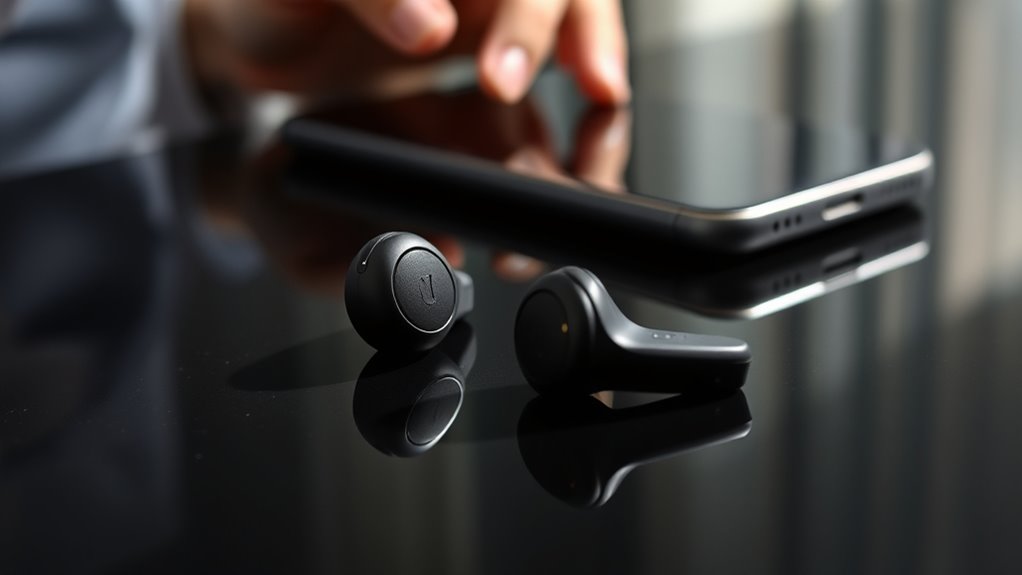

To reset your Raycon earbuds, make sure they’re fully charged first. Then, press and hold the buttons on both earbuds for about 10 seconds until you see the LED lights flash red and blue, indicating a successful reset. This clears old pairing information, allowing for improved performance. After the reset, you can reconnect them to your device through Bluetooth settings. If you’re facing issues after resetting, there’s more you can do to troubleshoot.
Understanding When to Reset Your Raycon Earbuds
If you’re experiencing connectivity issues or audio problems with your Raycon earbuds, it might be time to reset them. Look out for reset indicators, such as persistent disconnections or an inability to pair with your device. These signs often mean your earbuds need a refresh. Additionally, battery issues can also prompt a reset; if your earbuds aren’t holding a charge or are draining quickly, it’s a good idea to try resetting them to restore functionality. By understanding these indicators, you’ll maintain peak performance and enjoy your listening experience without interruptions. So, don’t hesitate to take that step when you notice these problems; your freedom to enjoy music and calls can be quickly restored.
How to Fully Reset Your Raycon Earbuds
When your Raycon earbuds aren’t performing as they should, fully resetting them can often resolve the issue. To do this, you’ll want to use specific resetting methods. First, verify your earbuds are charged. Then, press and hold the button on both earbuds for about 10 seconds until you see the LED lights flash red and blue. This indicates a successful reset. After the reset, your earbuds will be cleared of any pairing information, which can enhance earbud performance. Now, you’ll need to reconnect them to your device. Remember, a full reset can fix glitches and improve connectivity, giving you the freedom to enjoy your music without interruptions.
Steps to Reconnect Your Raycon Earbuds
After resetting your Raycon earbuds, the next step is reconnecting them to your device. Begin by ensuring Bluetooth is enabled on your phone or tablet. Then, take your earbuds out of the charging case. They should automatically enter pairing mode. If they don’t, press and hold the power button until you see a flashing LED light.
On your device, navigate to the Bluetooth settings and look for available devices. You should see your Raycon earbuds listed. Tap on them to initiate the Bluetooth pairing process. Once connected, you’ll hear a confirmation tone in your earbuds.
Now, you’re ready to enjoy your music or podcasts wirelessly, experiencing the freedom of connecting devices without hassle.
Troubleshooting Common Issues After Resetting
Although resetting your Raycon earbuds can resolve many issues, you might still encounter a few common problems during the reconnection process. If you’re experiencing poor audio quality, check your device’s Bluetooth settings and verify it’s not connected to other devices. This can often improve performance. If you notice a decline in battery performance, it might be worth charging your earbuds fully before using them again, as low battery can affect audio output. Additionally, confirm the earbuds are clean and free from debris, which can also impact sound quality. If issues persist, try disconnecting and reconnecting your device or consult Raycon’s support for further assistance. Enjoy your listening experience!
Tips for Maintaining Your Raycon Earbuds Connectivity
To guarantee a seamless connection with your Raycon earbuds, it’s essential to follow a few best practices. Maintaining your earbuds isn’t just about sound; it’s about ensuring connection stability too. Here are some tips to keep in mind:
- Keep your earbuds charged: Regular battery maintenance extends their lifespan and helps prevent connectivity issues.
- Stay within range: Keep your device within 30 feet for peak performance.
- Avoid interference: Move away from other Bluetooth devices or Wi-Fi routers that may disrupt the signal.
- Clean regularly: Dust and debris can affect connectivity, so clean your earbuds and charging port often.
Frequently Asked Questions
Can I Reset My Raycon Earbuds Without Using the App?
You can reset your Raycon earbuds without the app. Just hold the buttons for a few seconds until you see the lights flash, perfect for Bluetooth connectivity and earbud troubleshooting. Freedom awaits!
Will Resetting Erase My Custom Sound Settings?
Yes, resetting your Raycon earbuds will erase your custom sound settings. You’ll need to reconfigure them after the reset to enjoy your preferred audio experience again. Don’t worry, it’s easy to set up!
How Often Should I Reset My Raycon Earbuds?
You should reset your Raycon earbuds as needed, typically when experiencing connectivity issues. Frequency recommendations suggest doing this every few months or after troubleshooting tips fail, ensuring peak performance and better listening experiences.
Can I Reset Only One Earbud?
You can’t reset just one earbud; both must be reset together for proper earbud pairing. This guarantees ideal sound quality and maintains the connection between them, giving you the best listening experience possible.
What Should I Do if Resetting Fails?
If resetting fails, have you tried the troubleshooting steps? Verify your earbuds are charged, and consider restoring factory settings. If issues persist, contact customer support for further assistance. Freedom from frustration is just a call away!
