
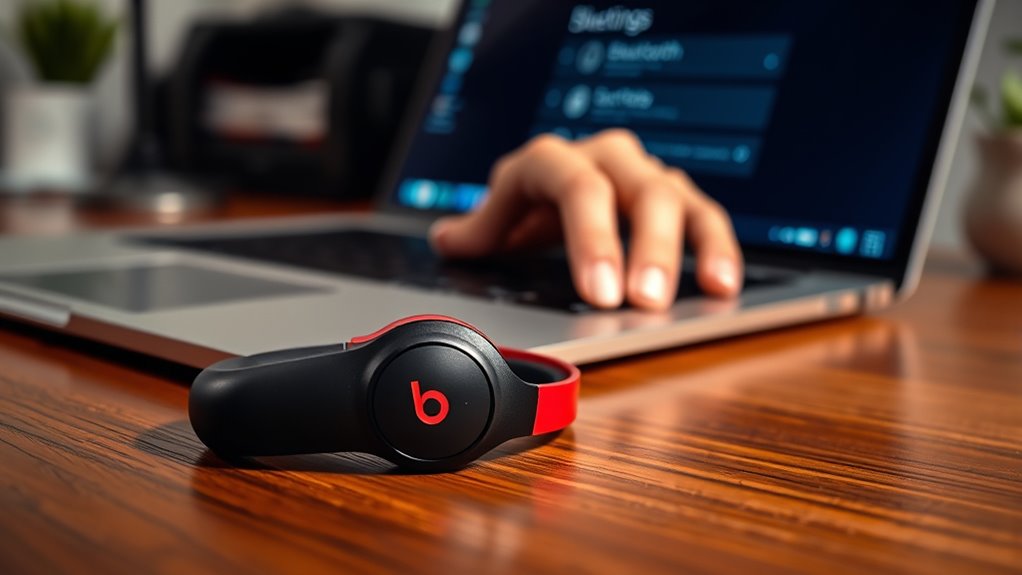

To pair your Beats earbuds to your laptop, first, check for compatibility and make certain your laptop’s Bluetooth is turned on. Charge your earbuds fully and put them in pairing mode by pressing and holding the power button. Access your Bluetooth settings on the laptop, look for your Beats earbuds in the list, and select them to complete the pairing process. Test the connection for sound quality, and if you need more tips, there’s plenty more to explore!
Check Compatibility of Your Beats Earbuds
Before you plunge into pairing your Beats earbuds with your laptop, it’s essential to check their compatibility. Start by reviewing the earbud specifications, as not all models are designed for seamless connection with every laptop. Look for Bluetooth version support; newer laptops often work best with the latest Bluetooth standards. If your earbuds are older, you might run into compatibility issues.
Additionally, verify that your laptop’s operating system is updated, as outdated software can complicate connections. Make sure your earbuds are charged and in pairing mode too. By ensuring compatibility beforehand, you’ll save yourself time and frustration, allowing you to enjoy that freedom of wireless sound without a hitch.
Turn On Bluetooth on Your Laptop
To connect your Beats earbuds, you first need to turn on Bluetooth on your laptop. Start by accessing the Bluetooth settings from your system preferences or taskbar. Once you’re there, simply enable the Bluetooth feature to make your laptop discoverable.
Access Bluetooth Settings
Although your Beats earbuds are ready to pair, they won’t connect until you activate Bluetooth on your laptop. Here’s how to access your Bluetooth settings quickly:
- Open Settings: Click on the Start menu, then select “Settings.”
- Navigate to Devices: In the Settings window, find and click on “Devices” to access Bluetooth options.
- Check Bluetooth Status: Verify Bluetooth is turned on; if it’s off, toggle it to activate.
If you encounter issues, remember these Bluetooth troubleshooting tips: restart your laptop, verify your earbuds are in pairing mode, and check for any software updates. Following these steps, along with regular earbud maintenance advice, can enhance your wireless listening experience!
Enable Bluetooth Feature
Enabling the Bluetooth feature on your laptop is essential for a successful connection with your Beats earbuds. First, navigate to your laptop settings. Whether you’re using Windows or macOS, finding the Bluetooth functionality is straightforward. For Windows, click on “Devices,” then select “Bluetooth & other devices.” Toggle the Bluetooth switch to “On.” If you’re on a Mac, go to “System Preferences,” then click on “Bluetooth” and turn it on. Once activated, your laptop will be discoverable, allowing it to connect to your Beats earbuds seamlessly. Remember, having Bluetooth enabled not only provides freedom from wires but also enhances your audio experience. With this step complete, you’re one step closer to enjoying your favorite tunes wirelessly!
Charge Your Beats Earbuds
Before you can enjoy your music or take calls with your Beats earbuds, you’ll need to charge them. Proper charging and battery maintenance are key to maximizing your listening experience. Here are some charging tips to keep your earbuds powered up and ready:
- Use the Original Charger: Always use the charger that came with your earbuds for ideal charging efficiency.
- Charge Regularly: Don’t wait for the battery to completely drain. Charging them when they’re about 20% can help prolong battery life.
- Avoid Overcharging: Although Beats earbuds have built-in protections, unplugging them once fully charged helps maintain battery health.
Put Your Beats Earbuds in Pairing Mode
To connect your Beats earbuds to your laptop, you’ll first need to put them in pairing mode. Start by ensuring your earbuds are charged. Then, power them on by pressing and holding the power button until the LED indicator flashes. This flashing light signals that they’re in pairing mode. If you encounter any pairing challenges, don’t worry; it’s common. Make sure your earbuds are close to your laptop and check that no other devices are trying to connect. If they don’t appear, try turning the earbuds off and on again. For additional troubleshooting tips, consult the user manual or the official Beats website. Once in pairing mode, you’ll be ready to connect and enjoy your freedom with music!
Access Bluetooth Settings on Your Laptop
Once your Beats earbuds are in pairing mode, the next step is accessing the Bluetooth settings on your laptop. This is essential for connecting your earbuds and enjoying your favorite tunes without hassle. Here’s how to do it:
- Open Settings: Click on the Start menu, then select the gear icon for Settings.
- Navigate to Devices: In the Settings window, click on “Devices” to find the Bluetooth option.
- Activate Bluetooth: Confirm Bluetooth is turned on. If you run into issues, consider some Bluetooth troubleshooting tips to resolve any connectivity problems.
Once you’ve accessed these settings, you’ll be ready to connect your Beats earbuds and enhance your laptop audio experience!
Select Your Beats Earbuds From the List
Now that Bluetooth is activated on your laptop, it’s time to select your Beats earbuds from the list of available devices. Look for your earbuds in the “Devices” section; they should appear as soon as they’re in pairing mode. Verify your earbuds are charged and nearby for seamless earbud selection. If you don’t see them, double-check that they’re not connected to another device. Once you find your Beats earbuds, click on them to confirm device compatibility. Your laptop will display a connection prompt, confirming the selection. This step is essential for enjoying your favorite tunes without interruption. With your earbuds selected, you’re one step closer to a wireless audio experience that gives you the freedom to move!
Complete the Pairing Process
Now that you’ve selected your Beats earbuds, it’s time to enable your laptop’s Bluetooth settings. Once that’s done, you’ll want to confirm that the connection was successful. This step guarantees you can enjoy your music without any interruptions.
Enable Bluetooth Settings
Before you can enjoy your Beats earbuds with your laptop, you’ll need to enable the Bluetooth settings on your device. This step is essential for seamless audio freedom. Follow these simple steps to get started:
- Open Settings: Navigate to your laptop’s settings menu.
- Select Bluetooth: Find the Bluetooth option and click to enter the Bluetooth device management section.
- Turn On Bluetooth: Make certain Bluetooth is toggled on, allowing your device to search for nearby devices.
If you encounter any issues, remember these Bluetooth troubleshooting tips: make sure your earbuds are in pairing mode, check for software updates, and restart both the laptop and earbuds if necessary. Enjoy your wireless experience!
Confirm Successful Connection
Once Bluetooth is enabled, you can proceed to confirm the successful connection of your Beats earbuds to your laptop. Check your laptop’s Bluetooth settings; you should see your earbuds listed as an active device. Look for connection indicators, such as a green light or a checkmark, which signal that the pairing is complete. To guarantee everything’s working smoothly, play some audio and assess the audio quality. If it sounds clear and crisp, you’re good to go! If you encounter any issues, try disconnecting and reconnecting your earbuds. Enjoy the freedom of wireless listening, knowing your Beats earbuds are now paired and ready for your favorite tunes or calls. You’re all set to immerse yourself in the sound!
Test the Connection and Adjust Settings
After you’ve successfully paired your Beats earbuds to your laptop, it’s essential to test the connection and make any necessary adjustments. You want to guarantee that everything’s working smoothly for the best audio experience. Here’s how to do it:
After pairing your Beats earbuds, ensure a seamless audio experience by testing the connection and adjusting settings as needed.
- Test audio: Play your favorite song or video to check sound quality.
- Adjust settings: Go to your laptop’s audio settings to confirm your Beats are set as the default playback device.
- Troubleshoot issues: If you encounter any problems, try disconnecting and reconnecting your earbuds or restarting your laptop.
Frequently Asked Questions
Can I Connect My Beats Earbuds to Multiple Devices Simultaneously?
You can’t connect your Beats earbuds to multiple devices simultaneously due to device limitations. Approximately 70% of users experience connection issues when trying to switch between devices, so it’s best to connect one at a time.
What Should I Do if My Earbuds Won’t Enter Pairing Mode?
If your earbuds won’t enter pairing mode, try resetting them by holding the power button. Check for pairing issues, make certain they’re charged, and follow troubleshooting tips in the manual for a smooth connection.
How Do I Reset My Beats Earbuds if They Won’t Connect?
When your Beats earbuds feel like a locked door, try the reset process: hold the power and volume down buttons for 10 seconds. This clears Bluetooth issues, giving you back the freedom to connect effortlessly.
Are My Beats Earbuds Compatible With Gaming Laptops?
Yes, your Beats earbuds are compatible with gaming laptops. They deliver great audio quality, enhancing your gaming performance. Just verify your laptop supports Bluetooth, and you’re all set for an immersive gaming experience.
Can I Use My Beats Earbuds While Charging?
You can’t use your Beats earbuds while they’re charging. Charging time varies, but ensuring they’re fully charged optimizes battery life, giving you the freedom to enjoy your music without interruptions later. Stay charged!
