
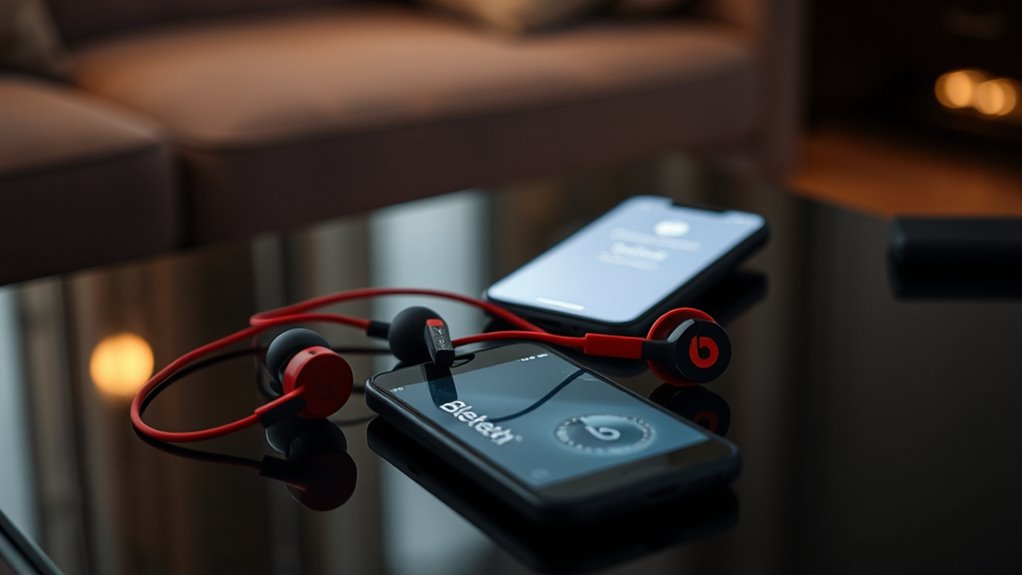

To pair your Beats earbuds, first verify your device is compatible and Bluetooth is enabled. Charge the earbuds fully, then turn them on by pressing the power button. Put your earbuds in pairing mode by holding the power button until you see a flashing LED. On your device, select your Beats earbuds from the Bluetooth list to connect. If you encounter issues, there are simple steps to troubleshoot. There’s more to explore for a seamless experience!
Checking Compatibility With Your Device
Before you can enjoy your new Beats earbuds, you’ll want to make certain they’re compatible with your device. Start with a quick compatibility check by reviewing the device requirements. Most Beats earbuds work seamlessly with iOS and Android devices, but it’s always best to confirm. Check your device’s Bluetooth version; ideally, it should be 4.0 or higher for peak performance. You may also want to verify your operating system is up to date, as older versions might cause connectivity issues. If you’re using a computer, verify that it supports Bluetooth audio. Once you’ve confirmed compatibility, you’ll be ready to connect and enjoy the freedom of wireless listening without any hassle.
Charging Your Beats Earbuds
Once you’ve confirmed that your Beats earbuds are compatible with your device, the next step is to verify they’re charged and ready for use. To guarantee peak performance, use the charging cable that came with your earbuds. Plug it into a power source, and connect the other end to your earbuds. A quick charging tip: fully charge them before your first use to maximize battery lifespan. You’ll typically find a LED indicator that shows charging status. If you want to prolong battery life, avoid letting them drain completely before recharging. Regularly check for software updates, as these can enhance battery efficiency. With these tips, you’ll enjoy your Beats earbuds without interruption, giving you the freedom to experience your favorite tunes.
Turning On Your Beats Earbuds
To get the most out of your Beats earbuds, you’ll need to turn them on before connecting to your device. First, locate the power button, typically found on the side of the earbuds or on the charging case, depending on your model. Press and hold this button for a few seconds until you see a light indicator. This light signals that your earbuds are powered on and ready for the initial setup. If you’re using the earbuds for the first time, make sure they’re charged adequately. Once they’re on, you can enjoy the freedom of wireless listening. Remember, turning on your earbuds is the first step towards a seamless audio experience, so don’t skip this vital part!
Enabling Bluetooth on Your Device
To pair your Beats earbuds, you’ll first need to enable Bluetooth on your device. Start by accessing the Bluetooth settings, and make sure Bluetooth is turned on. Once it’s activated, put your earbuds in discoverable mode to connect them seamlessly.
Access Bluetooth Settings
Accessing your device’s Bluetooth settings is essential for pairing your Beats earbuds. Without the right Bluetooth access, you won’t be able to connect your earbuds successfully. Here’s how to get to your Bluetooth settings quickly:
- Open Settings: Navigate to your device’s main settings menu.
- Find Bluetooth: Look for the Bluetooth option, usually near the top of the settings list.
- Access Earbuds Settings: Tap on Bluetooth to enter the earbuds settings, where you can see available devices.
Once you’re in the Bluetooth settings, you’re one step closer to connecting your Beats earbuds. Make sure your device is ready to discover new connections, and you’ll be enjoying your music in no time!
Turn On Bluetooth
Now that you’ve accessed your device’s Bluetooth settings, the next step is to turn on Bluetooth. This allows you to utilize Bluetooth technology for seamless connections with your Beats earbuds. Look for a toggle switch or button that says “Bluetooth,” and make sure it’s activated. Once it’s on, your device will start scanning for nearby Bluetooth devices, including your earbuds. Keeping Bluetooth enabled not only enhances your listening experience but also plays a role in earbuds maintenance, ensuring your device stays connected without hassle. Remember, a strong Bluetooth connection means clearer audio and fewer interruptions. So, go ahead and turn on Bluetooth to release the freedom of wireless listening with your Beats earbuds!
Discoverable Mode Activation
Before you can connect your Beats earbuds, you’ll need to confirm your device is in discoverable mode. This is essential for the pairing process, as it allows your earbuds to find your device. Here’s how to enable discoverable mode on most devices:
- Open Bluetooth Settings: Go to your device’s settings and tap on Bluetooth.
- Activate Discoverable Mode: Look for an option like “Make this device discoverable” or toggle Bluetooth on/off to trigger discoverability.
- Stay Nearby: Keep your Beats earbuds close to your device to facilitate a smooth connection.
Once your device is in discoverable mode, follow the prompts to pair your earbuds, and enjoy the freedom of wireless listening!
Putting Your Beats Earbuds in Pairing Mode
To successfully connect your Beats earbuds to a device, you’ll first need to put them in pairing mode. Here’s how:
- Turn off your earbuds by pressing and holding the power button.
- Press and hold the power button again until the LED indicator flashes white. This means they’re in pairing mode.
If you’re having trouble, consider performing an earbud reset: hold the power button and the volume down button simultaneously for about 10 seconds until the LED flashes red and white.
| Step | Action | Indicator |
|---|---|---|
| Step 1 | Turn off your earbuds | Off |
| Step 2 | Hold power button until LED flashes | Flashing white |
| Step 3 | Reset if needed | Flashing red/white |
Now you’re ready to connect!
Selecting Your Beats Earbuds From the Device List
Now that your Beats earbuds are in pairing mode, it’s time to select them from your device’s Bluetooth settings. First, make sure your device is compatible with the earbuds and check if Bluetooth is enabled. Once you see your Beats earbuds in the device list, simply select them to connect.
Bluetooth Settings Overview
When you’re ready to connect your Beats earbuds, the first step is accessing your device’s Bluetooth settings. This is where you’ll leverage Bluetooth technology to enhance your audio experience. Here’s how to find your earbuds in the device list:
- Open Bluetooth Settings: Navigate to the Bluetooth section in your device settings.
- Activate Bluetooth: Make sure Bluetooth is turned on to allow your device to search for available connections.
- Select Your Beats: Look for your Beats earbuds in the list of devices; their unique earbud features will help you identify them.
Once you see them, just tap to connect. Enjoy the freedom of wireless listening with your Beats earbuds!
Device Compatibility Check
Before you can enjoy your music, it’s essential to check that your device is compatible with your Beats earbuds. Each model has specific compatibility requirements, so you want to confirm your device meets them. Here’s a quick reference table to help you:
| Device Type | Compatibility Requirements | Device Limitations |
|---|---|---|
| iOS Devices | iOS 10 or later | May not support older models |
| Android Devices | Android 5.0 or later | Limited features on older versions |
| Windows Devices | Windows 10 or later | Requires specific drivers |
| Mac Devices | macOS Sierra or later | May not work with older OS versions |
Checking this list will save you time and frustration, confirming a smooth pairing experience.
Selecting Your Earbuds
Once you’ve confirmed your device is compatible, the next step is selecting your Beats earbuds from the device list. Here’s how to make your choice easier, focusing on your choosing style and sound preference:
- Open Bluetooth Settings: On your device, navigate to the Bluetooth settings to view available devices.
- Locate Your Beats: Find your specific model in the list. It’ll typically be labeled with the Beats name.
- Select and Connect: Tap on your earbuds’ name to connect. You might hear a sound confirmation when it’s successful.
Once connected, explore your sound preferences by adjusting the EQ settings, ensuring you get the best audio experience tailored to your unique taste. Enjoy your newfound freedom!
Confirming the Connection
Confirming the connection of your Beats earbuds is essential to guarantee a seamless listening experience. Once you’ve successfully paired them with your device, check for a connection confirmation on your screen. You should see an indication that your earbuds are connected. If you’re playing audio, listen closely to ascertain the audio quality meets your expectations. Clear, rich sound means you’re all set to enjoy your favorite tracks. If the audio seems off, it might indicate a weak connection, so double-check that your earbuds are within range of your device. Remember, a solid connection not only enhances your listening experience but also frees you from interruptions. Enjoy the freedom of wireless audio!
Troubleshooting Common Pairing Issues
Even if you’ve followed all the steps to pair your Beats earbuds, you might still encounter some issues. Here are some common issues and troubleshooting tips to help you out:
- Earbuds Not Discoverable: Verify your earbuds are in pairing mode. If they’re not, try resetting them by holding the power button until the LED flashes.
- Connection Drops: If your connection is unstable, make sure you’re within range of the device and that there aren’t obstacles blocking the signal.
- Device Compatibility: Double-check that your device is compatible with your Beats earbuds. Some older devices may have Bluetooth limitations.
Frequently Asked Questions
How Do I Reset My Beats Earbuds?
To reset your Beats earbuds, press and hold the power button and volume down button for ten seconds. This factory reset helps with earbud troubleshooting, restoring them to original settings for peak performance.
Can I Use My Beats Earbuds With Multiple Devices?
Yes, you can use your Beats earbuds with multiple devices! It’s all about device compatibility. Just switch between them easily, enjoying that freedom of multi-device connection without hassle whenever you want to listen.
What Should I Do if My Earbuds Won’t Charge?
If your earbuds won’t charge, check the charging cable and port for debris. Try a different charger or power source. Regular battery maintenance helps prevent issues, so keep them clean and store them properly when not in use.
Are My Beats Earbuds Waterproof or Water-Resistant?
Your Beats earbuds aren’t fully waterproof but are often water-resistant, typically rated IPX4 for sweat resistance. About 60% of users appreciate their durability during workouts, so they’re great for active lifestyles. Enjoy the freedom!
How Do I Update My Beats Firmware?
To update your Beats firmware, connect them to your device, open the Beats app, and check for a firmware update. Ascertain your software compatibility is up-to-date for a smooth and hassle-free updating process.
