
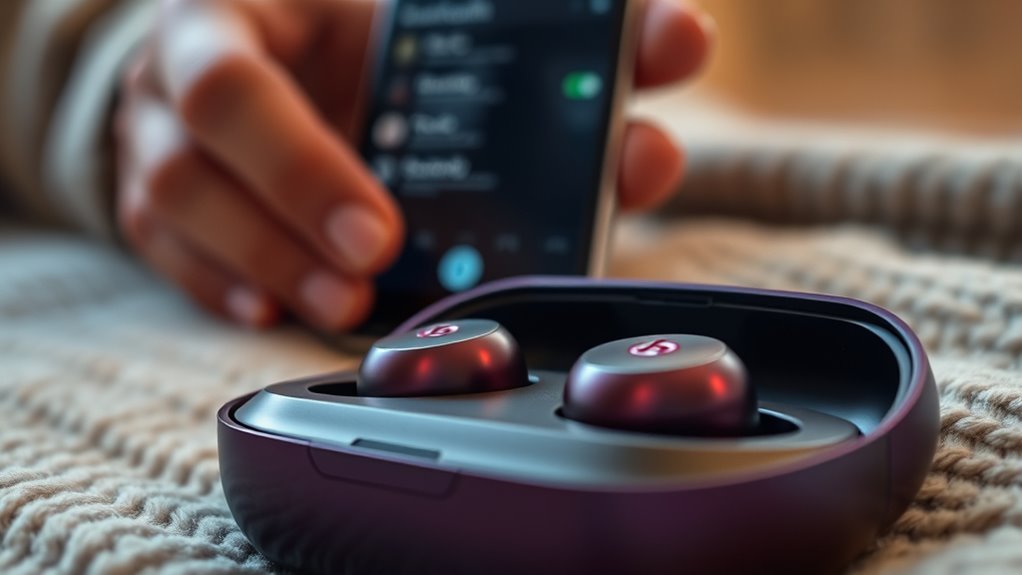

To pair your Beat earbuds, first make sure they’re charged and clean. Turn on the earbuds and put them in pairing mode. Then, on your smartphone or tablet, enable Bluetooth in the settings. Find your Beat earbuds in the available devices list and select them. Your devices should connect seamlessly, letting you enjoy hassle-free audio. If you run into any issues, there are simple troubleshooting steps you can follow to get back on track.
Understanding Bluetooth Basics
Bluetooth technology serves as the backbone for connecting your Beat earbuds to devices like smartphones and tablets. This wireless audio solution offers the freedom to move without being tethered by cords. When you pair your earbuds, they establish a secure connection, allowing you to enjoy seamless sound quality and convenient control. Bluetooth operates on short-range radio waves, making it efficient for streaming music, podcasts, or taking calls. You don’t have to worry about compatibility issues, as most modern devices support this technology. Just verify your earbuds are charged and in pairing mode to start enjoying your favorite tunes without the hassle of wires. Embrace the liberating experience of wireless audio and elevate your listening experience with Beat earbuds.
Preparing Your Beat Earbuds
Before you can enjoy your favorite music with your Beat earbuds, there are a few steps to get them ready. Start by checking the battery level; you want them fully charged for the best experience. For ideal battery care, avoid letting them drain completely before recharging. Next, inspect your earbuds for any debris or dirt. Regular earbud maintenance keeps the sound quality crisp and clear. Clean them gently with a soft cloth, making sure the speaker mesh is free from blockages. If you’ve got different ear tips, choose the size that fits comfortably in your ears. Getting them prepped not only enhances your listening experience but also guarantees they last longer, giving you the freedom to enjoy your music anytime.
Pairing With a Smartphone
Pairing your Beat earbuds with a smartphone is a quick and straightforward process. With wide smartphone compatibility, you can enjoy seamless audio streaming in no time. Just follow these simple steps:
Pairing your Beat earbuds with a smartphone is quick and easy, ensuring seamless audio streaming for all your favorite content.
- Turn on your Beat earbuds: Make sure they’re charged and in pairing mode. You’ll usually hear a prompt when they’re ready.
- Access Bluetooth settings: On your smartphone, navigate to the Bluetooth settings and enable it.
- Select your Beat earbuds: Look for your earbuds in the list of available devices and tap to connect.
Once paired, you’re all set to enjoy crystal-clear sound while freeing yourself from tangled wires. Immerse yourself in your favorite tunes or podcasts effortlessly!
Connecting to a Tablet
To connect your Beat earbuds to a tablet, you’ll need to start by preparing your tablet’s settings. Make sure Bluetooth is enabled, as this is essential for establishing a connection. Once that’s set, you can follow the pairing process steps to get your earbuds connected and ready to use.
Prepare Your Tablet Settings
While getting ready to connect your Beat earbuds to a tablet, it’s essential to ascertain that your tablet’s Bluetooth settings are properly configured. Follow these steps for seamless settings adjustments and ascertain tablet compatibility:
- Check Bluetooth Status: Make sure Bluetooth is enabled on your tablet. Look for the Bluetooth icon in your settings or quick access menu.
- Forget Previous Devices: If your tablet’s been paired with other devices, remove them to avoid connectivity issues. Go to your Bluetooth settings, find the device, and select “Forget.”
- Update Software: Ascertain your tablet is running the latest software version. This can improve compatibility and performance, enhancing your overall experience.
With these adjustments made, you’re all set for a smooth connection!
Enable Bluetooth Connection
Once you’ve confirmed your tablet settings are ready, enabling the Bluetooth connection is a straightforward process. Start by accessing the Bluetooth settings on your tablet. This is usually found in the settings menu, under “Connections” or “Wireless & Networks.” Make certain Bluetooth is turned on; you’ll see a toggle switch for this. Your tablet will now search for available devices, verifying device compatibility with your Beat earbuds. If prompted, allow any necessary permissions to guarantee a smooth connection. Once your earbuds appear in the list, you’re set! This simple step opens up a world of wireless freedom, letting you enjoy your audio without being tethered to your device. Just a few taps, and you’re ready to go!
Pairing Process Steps
With Bluetooth enabled on your tablet, you can now begin the pairing process for your Beat earbuds. Follow these simple steps to guarantee wireless compatibility:
- Put Your Earbuds in Pairing Mode: Press and hold the function button on your Beat earbuds until the LED flashes, indicating they’re ready to connect.
- Access Bluetooth Settings: On your tablet, go to Settings and select Bluetooth. Wait for your device to scan for available devices.
- Select Your Earbuds: When you see your Beat earbuds listed, tap on them to initiate the connection. You’ll hear a confirmation sound once they’re successfully paired.
Syncing With a Computer
To sync your Beat earbuds with a computer, you’ll first want to verify that Bluetooth is enabled on your device. Head to your computer settings and look for Bluetooth options. Once you find it, make sure it’s turned on. Next, put your Beat earbuds in pairing mode by pressing the designated button until the LED light starts blinking. On your computer, search for available devices; your earbuds should appear in the list. Select them to initiate the syncing process. Depending on your operating system, you might need to confirm the connection. Once paired, your earbuds are ready to deliver crisp sound while you enjoy the freedom to move around without being tethered. Happy listening!
Troubleshooting Common Issues
If you’re experiencing Bluetooth connectivity problems or audio quality issues with your Beat earbuds, you’re not alone. These common challenges can often be resolved with a few simple troubleshooting steps. Let’s explore how to get your earbuds back in top shape.
Bluetooth Connectivity Problems
While Bluetooth technology generally provides a seamless connection, you might encounter issues when trying to pair your Beat earbuds. Here are some common problems and solutions to help you regain that desired freedom:
- Bluetooth Interference: Confirm you’re away from other devices that may cause interference, like microwaves or Wi-Fi routers.
- Device Compatibility: Check if your device supports the Bluetooth version your earbuds require. If not, it might not connect.
- Resetting Earbuds: Sometimes, a simple reset is all you need. Turn off your earbuds, wait a few seconds, then turn them back on to refresh the connection.
Audio Quality Issues
Even when your Beat earbuds are connected, you might notice audio quality issues that can detract from your listening experience. To tackle this, start with some sound quality tips. First, verify your device’s volume isn’t too high, which can distort sound. Next, check for any firmware updates for your earbuds, as these often include audio performance enhancements. If you’re using a music app, try adjusting the equalizer settings to suit your preferences better. Finally, consider the environment—interference from other devices can affect performance. If problems persist, try resetting your earbuds and reconnecting them to your device. With these adjustments, you’ll likely enjoy a richer, clearer audio experience that enhances your freedom to enjoy music anywhere.
Frequently Asked Questions
Can I Use Beat Earbuds With Non-Bluetooth Devices?
You can’t use Beat earbuds with non-Bluetooth devices directly. If they have a wired connection option, you might connect them to compatible devices, but check for the right adapters to guarantee functionality.
How Do I Reset My Beat Earbuds?
To reset your Beat earbuds, follow these resetting procedures: press and hold the power button and volume down button for 10 seconds. This can help with troubleshooting tips if you’re experiencing connection issues.
Are Beat Earbuds Water-Resistant?
If you’re jogging in the rain, you’ll appreciate that Beats earbuds have water resistance features and a sweat-proof design. They’re built to handle your active lifestyle, so you can enjoy music without worry.
Can I Connect Multiple Devices at Once?
You can’t connect multiple devices at once due to Bluetooth limitations. While some earbuds offer multi-device connectivity, Beat earbuds typically connect to one device at a time, ensuring a seamless audio experience without interruptions.
How Long Do Beat Earbuds Last on a Single Charge?
Beat earbuds typically last around 8 to 12 hours on a single charge, depending on usage. With quick charging, you can enjoy impressive battery performance, so you won’t be tethered for long.
