
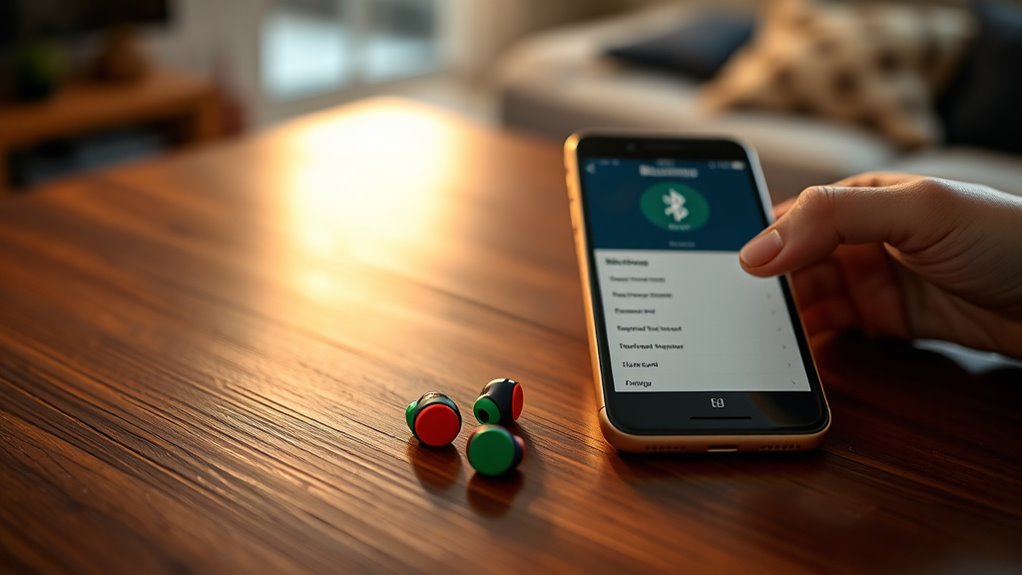

To pair your JBL earbuds, first verify they’re charged and nearby. Turn them on by holding the power button until the LED flashes. Activate Bluetooth on your device, then select your JBL earbuds from the list of available devices. Confirm the connection with a sound cue. If you run into issues, try resetting the earbuds or turning your device’s Bluetooth off and on again. There’s more to learn about optimizing your setup and usage.
Understanding Your JBL Earbuds
Understanding your JBL earbuds is essential for maximizing your listening experience. These earbuds come packed with features designed to enhance your audio enjoyment. You’ll find options like noise cancellation, which lets you immerse yourself in sound without distractions. The sound quality is impressive, delivering rich bass and crisp highs that bring your favorite music to life.
Familiarize yourself with the earbud features, such as touch controls, which allow you to play, pause, or skip tracks effortlessly. The battery life is another key aspect; knowing how long your earbuds last can help you manage your listening sessions. By understanding these features, you can tailor your experience and enjoy the freedom of high-quality audio wherever you go.
Preparing Your Device for Pairing
Before you can pair your JBL earbuds, you’ll need to prepare your device. Start by checking the Bluetooth settings to guarantee it’s enabled, and then put your earbuds in pairing mode. If your device has existing connections, remove them to avoid any conflicts during the pairing process.
Check Bluetooth Settings
To successfully pair your JBL earbuds, the first step is to check your device’s Bluetooth settings. Make certain your device is compatible with Bluetooth, as not all gadgets support the latest versions. Navigate to the Bluetooth section in your settings and make sure it’s turned on. If you see any devices connected that you’re not using, disconnect them to avoid any device interference. This can help guarantee a smoother pairing process. Additionally, verify that your earbuds are charged, as low battery levels can also cause issues. Once you’ve confirmed these settings, your device will be ready to search for and connect to your JBL earbuds, giving you the freedom to enjoy your music without hassle.
Enable Pairing Mode
Enabling pairing mode on your JBL earbuds is essential for connecting them to your device. To do this, just press and hold the power button until the indicator light flashes. This simple action opens the door to a world of wireless freedom! Here are some pairing techniques to keep in mind:
- Make sure your earbuds are charged for uninterrupted listening.
- Keep your device close to the earbuds for a strong connection.
- If you encounter issues, try resetting your earbuds as a troubleshooting tip.
With your earbuds in pairing mode, you’re one step closer to enjoying your favorite tunes without the hassle of wires. Embrace the freedom of movement and immerse yourself in your audio experience!
Remove Existing Connections
If you’re looking to connect your JBL earbuds, it’s important to remove any existing connections from your device. Start by heading to your device’s Bluetooth settings. Here, you’ll see a list of paired devices. If your JBL earbuds are already connected, select them and choose the option to forget or disconnect. This resets connections and guarantees your earbuds can easily pair with your device. If you have multiple devices connected, take a moment to manage devices by removing those you don’t use. This step helps clear any potential interference during the pairing process, allowing you to enjoy your favorite audio without hassle. Now, you’re ready to pair your JBL earbuds seamlessly!
Turning On Your JBL Earbuds
Turning on your JBL earbuds is a simple process that takes just a few seconds. To power them up, you’ll typically press and hold the designated button until you see the LED light flash. This indicates they’re ready to rock!
Powering on your JBL earbuds is quick and easy—just press and hold the button until the LED light flashes!
Here’s what you can look forward to when you turn them on:
- Freedom to move: Enjoy your favorite tunes without being tethered.
- Long-lasting battery life: Feel confident they’ll keep up with your adventures.
- Instant connection: Get ready to plunge into your playlists without delay.
Activating Pairing Mode
To activate pairing mode on your JBL earbuds, start by locating the power button on the device. Once you’ve powered them on, make sure your Bluetooth settings on your phone or tablet are enabled. This will allow your earbuds to connect seamlessly with your device.
Locate Power Button
Finding the power button on your JBL earbuds is essential for activating pairing mode. Knowing the power button location can make all the difference in enjoying your favorite tunes. Once you locate it, you’ll gain the freedom of wireless listening.
Here are some key points about the button functionality:
- Feel the Connection: Engaging the power button brings your earbuds to life, ready to pair.
- Freedom to Roam: Once paired, you can move around without being tethered to your device.
- Simple Control: A quick press is all it takes to start your audio journey.
Enable Bluetooth Settings
Once you’ve powered on your JBL earbuds, the next step is to enable Bluetooth settings on your device to activate pairing mode. Access your device’s Bluetooth settings, usually found in the settings menu. Confirm Bluetooth is turned on, allowing your device to search for nearby devices. Your JBL earbuds should appear in the list, indicating their Bluetooth compatibility. Select them to initiate pairing. This process not only connects your earbuds but also helps maintain earbud lifespan by confirming a stable connection. If your earbuds don’t show up, make sure they’re in pairing mode, often indicated by a blinking light. Once paired, you’re free to enjoy your music without the hassle of tangled wires.
Pairing With a Smartphone
If you want to enjoy your favorite tunes or take calls hands-free, pairing your JBL earbuds with your smartphone is a straightforward process. First, verify your smartphone’s Bluetooth connectivity is enabled. Then, follow these steps for seamless pairing:
- Open the Bluetooth settings on your smartphone.
- Select your JBL earbuds from the list of available devices.
- Confirm the connection, and you’re ready to go!
With smartphone compatibility, you can experience the freedom of wireless audio. Enjoy the convenience of hands-free calls, dance to your favorite beats, and immerse yourself in your music without the hassle of tangled wires. Once paired, your earbuds are just a click away, letting you focus on what truly matters.
Pairing With a Tablet
To pair your JBL earbuds with a tablet, you first need to enable Bluetooth on your device. Once Bluetooth is active, you can connect your earbuds by selecting them from the list of available devices. This quick process guarantees you can enjoy your favorite audio with ease.
Enable Bluetooth on Tablet
Enabling Bluetooth on your tablet is a straightforward process that only takes a few moments. Once you’ve got it set up, you’ll enjoy the freedom of wireless listening. Here’s how to enable Bluetooth:
- Navigate to your tablet’s settings.
- Look for “Bluetooth” and tap to open it.
- Toggle the Bluetooth switch to turn it on.
Make sure your tablet is compatible with your JBL earbuds for the best experience. Once activated, your tablet’s Bluetooth range will allow you to roam freely while you enjoy your favorite tunes. This simple step opens up a world of possibilities, letting you connect to your earbuds effortlessly and enhancing your listening experience. Now you’re ready to pair your JBL earbuds!
Connect JBL Earbuds
Now that Bluetooth is enabled on your tablet, you can easily connect your JBL earbuds. Follow these steps for a seamless connection, ensuring you enjoy the incredible JBL sound quality.
| Step | Action | Note |
|---|---|---|
| 1 | Open Bluetooth settings | Verify Bluetooth is on |
| 2 | Select “JBL Earbuds” | Look for your model |
| 3 | Confirm pairing | A sound cue indicates success |
| 4 | Test audio | Play something to check sound |
| 5 | Maintain earbuds | Clean regularly for better sound |
Pairing With a Laptop
Pairing your JBL earbuds with a laptop is a straightforward process that can enhance your audio experience. To get started, verify your laptop has Bluetooth capability, as this is vital for laptop compatibility.
Here’s how to pair them:
- Turn on Bluetooth on your laptop: Navigate to your settings and enable Bluetooth.
- Put your JBL earbuds in pairing mode: Usually, this involves pressing and holding the power button until you see a blinking light.
- Select your earbuds from the list: Once they appear, click to connect, and enjoy high-quality audio!
With these steps, you’ll be free to enjoy your favorite music, movies, or calls without the hassle of wires, elevating your audio quality to new heights.
Troubleshooting Common Pairing Issues
Although most JBL earbuds connect seamlessly, you might encounter some common pairing issues that can disrupt your audio experience. First, verify your earbuds are fully charged; low battery can prevent a successful connection. If they’re not appearing in your device’s Bluetooth settings, try turning Bluetooth off and then back on. Another common issue is interference from other devices—move away from potential sources of interference, like microwaves or Wi-Fi routers. If your earbuds are stuck in pairing mode, reset them according to the manufacturer’s instructions. Finally, confirm that your device’s software is up to date. By following these troubleshooting tips, you can resolve most pairing issues and enjoy your music without interruption.
Disconnecting and Reconnecting Your Earbuds
After addressing any pairing issues, you might need to disconnect and reconnect your JBL earbuds to refresh the connection. This simple step can enhance your listening experience and bring back that sense of freedom you crave. Here’s how to do it:
- Disconnecting earbuds: Turn off your earbuds or select the “Forget” option in your device’s Bluetooth settings.
- Reconnecting devices: Turn your earbuds back on and enable Bluetooth on your device.
- Enjoy the freedom: Once they’re connected again, immerse yourself in your favorite tunes without interruption.
Maintaining Your JBL Earbuds for Optimal Performance
To keep your JBL earbuds performing at their finest, regular maintenance is crucial. Here are some tips for earbud cleaning and battery maintenance to guarantee longevity:
| Task | Frequency | Tips |
|---|---|---|
| Earbud Cleaning | Weekly | Use a soft cloth and mild soap. Avoid moisture in the ports. |
| Battery Maintenance | Monthly | Charge regularly, but don’t let it fully deplete. |
| Storage | Daily | Store in the case when not in use to protect from dust. |
| Software Update | As needed | Keep the firmware updated via the JBL app for peak performance. |
Frequently Asked Questions
Can I Use My JBL Earbuds With Multiple Devices Simultaneously?
No, you can’t use your JBL earbuds with multiple devices simultaneously. They support Bluetooth connectivity and multi-device pairing, but only one device can play audio at a time. Switch connections for seamless use between devices.
How Long Does the Battery Last on JBL Earbuds?
JBL earbuds typically offer about 5 to 10 hours of battery life, depending on the model. To maximize battery life, try charging them fully before use and avoid extreme temperatures during storage.
Are JBL Earbuds Water-Resistant or Sweat-Proof?
JBL earbuds are often water-resistant and some are sweat-proof, like a trusty raincoat on a drizzly day. They stand up to moisture, so you can enjoy music while working out or commuting without worry.
Can I Use Voice Assistants With My JBL Earbuds?
Yes, you can use voice assistants with your JBL earbuds. They offer voice command features and are compatible with popular voice assistant apps, giving you the freedom to control your devices hands-free. Enjoy the convenience!
How Do I Reset My JBL Earbuds to Factory Settings?
To reset your JBL earbuds to factory settings, hold the power button for about 10 seconds or use specific reset methods in the manual. This’ll liberate them from previous connections, revitalizing your listening experience!
