
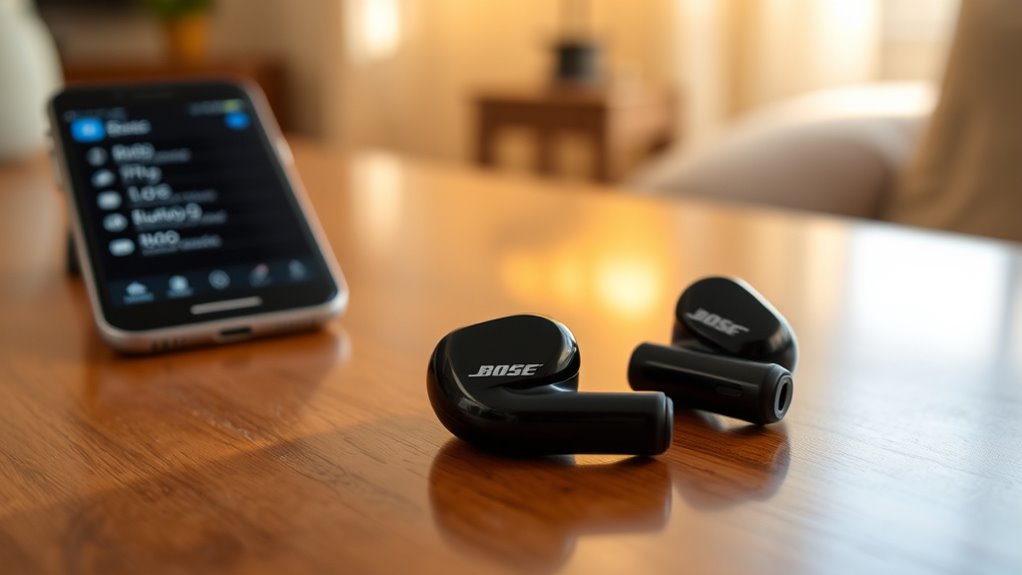

To connect your Bose earbuds, first check device compatibility and confirm they’re charged. Power them on by pressing the power button until the LED flashes. Enter pairing mode by holding the Bluetooth button until you hear a prompt or see a blue light. On your device, enable Bluetooth and select your earbuds from the list to pair. If you run into issues, there are troubleshooting steps that can help you connect smoothly.
Checking Compatibility
Before you plunge into connecting your Bose earbuds, it’s essential to verify they’re compatible with your device. Different Bose models may have specific connectivity requirements, so you’ll want to make sure that your smartphone, tablet, or computer supports Bluetooth audio. Start by checking the device specifications; look for Bluetooth version compatibility and audio codecs supported by your Bose earbuds. Most modern devices should work, but older models may not. Compatibility checks can save you time and frustration. If you have the user manual for your earbuds, it’s a good idea to reference that too. Once you confirm compatibility, you’ll be ready to enjoy the freedom of wireless listening without any hassle.
Powering On Your Bose Earbuds
Once you’ve confirmed that your device is compatible, the next step is to power on your Bose earbuds. To do this, simply locate the power button on the earbuds. Press and hold it until you see the LED indicator light flash, signaling that they’re on. It’s essential to verify your earbuds are charged for peak battery life. If they’re running low, follow some charging tips: connect them to a power source using the provided cable and let them charge until the LED shows they’re fully powered. This way, you’ll enjoy uninterrupted listening and freedom to move without worrying about battery life. Now you’re ready to pair them with your device for an immersive audio experience!
Entering Pairing Mode
To connect your Bose earbuds to a device, you’ll need to enter pairing mode. This process is straightforward and can be done using various pairing methods. First, verify your earbuds are powered on. Then, press and hold the Bluetooth button until you hear a voice prompt or see the indicator light flashing blue. This means your earbuds are ready to pair.
Here’s a quick reference table for different pairing methods:
| Pairing Method | Steps |
|---|---|
| Manual Pairing | Hold Bluetooth button until prompted. |
| Automatic Pairing | Turn on Bluetooth settings on your device. |
| Reset Pairing | Hold the power button for 10 seconds. |
| Device Switching | Disconnect from one device before pairing. |
| Reconnecting | Turn off and on Bluetooth settings. |
Once in pairing mode, your earbuds are ready to connect!
Connecting to Your Device
Connecting your Bose earbuds to your device is a simple process that can usually be completed in just a few steps. Once you’ve entered pairing mode, follow these instructions to guarantee a smooth connection and enjoy high-quality audio.
Connecting your Bose earbuds to your device is easy and ensures you enjoy high-quality audio in just a few simple steps.
- Open Bluetooth Settings: On your device, navigate to the Bluetooth settings and make sure Bluetooth is turned on.
- Select Your Earbuds: Look for your Bose earbuds in the list of available devices. Tap on them to initiate the pairing.
- Confirm Connection: Once paired, you should see a confirmation message. Enjoy your audio quality!
Troubleshooting Connection Issues
If you’ve followed the steps to connect your Bose earbuds but are still experiencing issues, you’re not alone. First, check for connection errors by confirming your earbuds are fully charged and in pairing mode. Sometimes, device interference can disrupt the connection, so make sure other Bluetooth devices are turned off or out of range. If your device lists the earbuds but won’t connect, try removing them and re-pairing. Restarting your smartphone or tablet can also resolve these issues. Additionally, verify your device’s software is up to date. If problems persist, consult the Bose support website for further assistance. With these steps, you should regain the freedom of enjoying your favorite tunes without hassle.
Frequently Asked Questions
Can I Connect Multiple Devices to My Bose Earbuds Simultaneously?
No, you can’t connect multiple devices to your Bose earbuds simultaneously. However, Bluetooth connectivity allows for easy device pairing, so you can switch between devices without hassle whenever you need to. Enjoy the freedom!
How Can I Reset My Bose Earbuds to Factory Settings?
To reset your Bose earbuds, hold the power button for ten seconds until you see the Bluetooth light blink. This reset procedure can solve many issues. For additional troubleshooting tips, refer to your user manual.
Do Bose Earbuds Support Voice Assistants Like Siri or Google Assistant?
Yes, Bose earbuds have voice assistant compatibility, allowing you to use voice commands with Siri or Google Assistant. Just guarantee your device is connected, and you can easily control your music and calls hands-free.
What Is the Battery Life of My Bose Earbuds?
Your Bose earbuds typically offer around 15 hours of battery life. To maximize that, practice good battery maintenance and follow charging tips, like avoiding extreme temperatures. Enjoy your freedom without worrying about constant recharging!
Are My Bose Earbuds Water-Resistant or Sweat-Proof?
Your Bose earbuds typically have water resistance and sweat protection, making them suitable for workouts or light rain. However, it is crucial to check the specific model’s rating for exact capabilities and limitations.
