
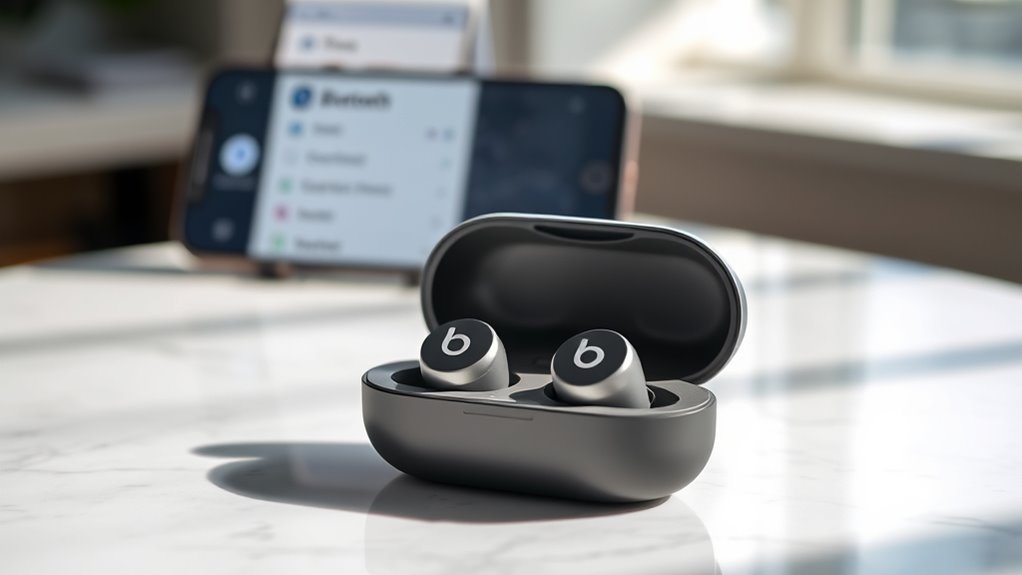

To connect your wireless Beats earbuds, first, make sure they’re charged by placing them in the charging case. Next, enable Bluetooth on your device by heading to the Bluetooth settings. Open the charging case or press the power button on your earbuds to activate pairing mode. Look for your Beats in the available devices list and select them to connect. If you’re experiencing any issues, there are simple troubleshooting steps you can follow to resolve them.
Unboxing Your Wireless Beats Earbuds
When you first unbox your wireless Beats earbuds, you’ll find everything you need for an easy setup. Inside the box, there are the earbuds, a charging case, and a quick start guide. The sleek design features ergonomic contours that fit comfortably in your ears, allowing you to enjoy your music without distractions. You’ll also appreciate the lightweight build, perfect for long listening sessions. As you explore the earbuds, you’ll notice the intuitive controls, making it easy to adjust volume or take calls. Most importantly, the sound quality is exceptional, delivering rich bass and clear highs, elevating your audio experience. With these earbuds, you’re ready to immerse yourself in your favorite tunes and enjoy the freedom to move without hassle.
Charging Your Earbuds
Charging your wireless Beats earbuds is a straightforward process that guarantees you’re always ready to enjoy your music. Start by locating the charging case and plug it into a power source using the provided cable. Place your earbuds in the case, ensuring they’re properly seated for ideal charging. As they charge, you’ll notice the charging indicators lighting up, showing you the battery status. Keep an eye on these indicators to know when your earbuds are fully charged. Regularly charging your earbuds helps maintain their battery lifespan, so don’t wait until they’re completely drained. With proper care and attention, your Beats earbuds will provide you with the freedom to enjoy your favorite tunes anytime, anywhere.
Enabling Bluetooth on Your Device
After ensuring your Beats earbuds are charged, the next step is to enable Bluetooth on your device. You’ll want to access your Bluetooth settings to make sure your device is ready for pairing. Whether you’re using a smartphone, tablet, or computer, Bluetooth functionality is essential for seamless connectivity. Below is a quick reference table for enabling Bluetooth on various devices:
| Device Type | Steps to Enable Bluetooth |
|---|---|
| Android | Settings > Connected devices > Bluetooth |
| iOS | Settings > Bluetooth |
| Windows | Settings > Devices > Bluetooth & other devices |
| macOS | System Preferences > Bluetooth |
| Chromebook | Settings > Bluetooth |
Ensure your device compatibility with your Beats earbuds, and you’re ready for the next step!
Pairing Your Earbuds With Your Device
Now that Bluetooth is enabled on your device, it’s time to pair your Beats earbuds. Begin by opening the charging case of your earbuds or pressing and holding the power button until the LED indicator flashes. This signals that your earbuds are in pairing mode. Next, go to your device’s Bluetooth settings and look for your Beats earbuds in the list of available devices. Select them to establish the connection. Once paired, you’ll enjoy the unique earbud features, like noise cancellation and high-quality audio, all while ensuring device compatibility with your smartphone, tablet, or computer. Remember, a seamless connection allows you to experience your music and calls with freedom and clarity.
Troubleshooting Connection Issues
If you’re having trouble connecting your Beats earbuds, don’t worry—these issues are often easy to resolve. Start by checking a few key areas to guarantee connection stability and device compatibility.
Having trouble connecting your Beats earbuds? Don’t worry; these issues are usually simple to fix with a few key checks.
- Restart Your Device: Sometimes, a simple reboot can fix connection glitches.
- Update Firmware: Confirm both your earbuds and device have the latest software updates.
- Forget and Re-Pair: Remove the earbuds from your device’s Bluetooth settings and pair them again.
- Check Battery Levels: Low battery can affect performance, so make certain your earbuds are charged.
Frequently Asked Questions
Can I Use My Beats Earbuds With Multiple Devices Simultaneously?
No, you can’t use your Beats earbuds with multiple devices simultaneously. They support multi-device connectivity, allowing quick switching, but only connect to one device at a time, ensuring ideal audio quality while you listen.
How Do I Reset My Wireless Beats Earbuds?
To reset your wireless Beats earbuds, press and hold the power button and the volume down button for 10 seconds until the LED flashes. This restores factory settings, allowing you to reconnect effortlessly.
Are My Beats Earbuds Water-Resistant?
Your Beats earbuds don’t have full water resistance features, but they’re designed to handle sweat and light moisture, enhancing your workout performance. Just avoid submerging them in water for best results.
How Long Is the Battery Life of My Beats Earbuds?
Your Beats earbuds typically offer around 10 hours of battery duration on a single charge. To maximize their life, consider charging them fully before use and avoiding extreme temperatures, ensuring you enjoy uninterrupted listening freedom.
Can I Customize the Controls on My Beats Earbuds?
Yes, you can customize the controls on your Beats earbuds. By adjusting touch sensitivity in the app, you can set preferences for playback, calls, and voice assistance, giving you more freedom in how you use them.
