


Yes, you can cast to a TV without WiFi by utilizing various alternative methods, including direct connections and specific technologies that facilitate casting without an internet connection. Many people assume that a reliable WiFi network is essential for this process, but there are indeed multiple options that allow you to stream content directly to your TV. In this article, we will explore these methods in detail, providing you with the tools and knowledge you need to enjoy your favorite shows and movies without a traditional WiFi setup.
Understanding Casting and WiFi
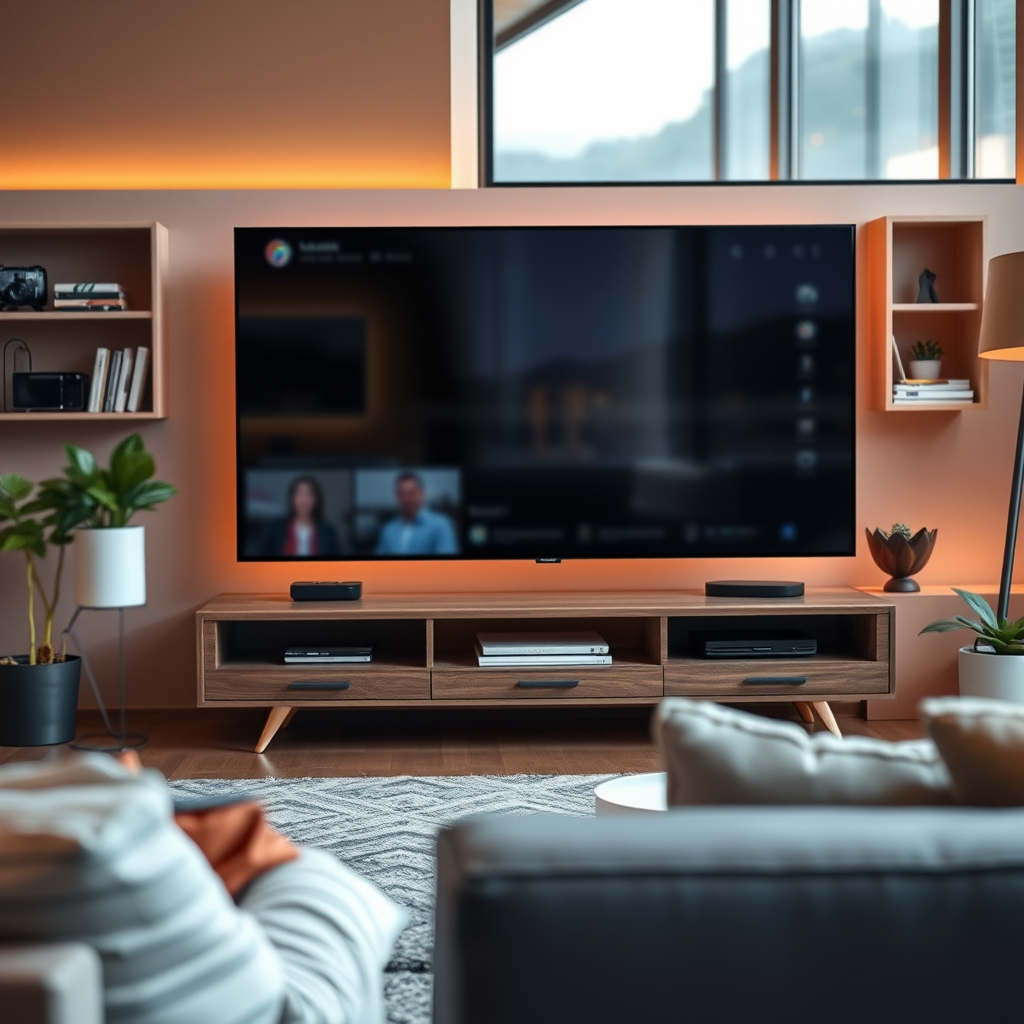
Casting, in its simplest form, refers to the ability to send audio or video content from one device, such as a smartphone or tablet, to a larger screen, typically a TV. This process usually relies on a WiFi network to establish a connection between the devices. Popular casting technologies, such as Google Cast and Apple AirPlay, depend on both devices being connected to the same WiFi network to function properly.
However, there are alternative methods that allow you to bypass the need for a WiFi connection altogether. These methods include using physical connections like HDMI cables, employing technologies such as Wi-Fi Direct, and utilizing mobile hotspots. Understanding these alternatives opens up new avenues for streaming content without the constraints of a WiFi network.
Using HDMI Cables
One of the most straightforward ways to cast to your TV without WiFi is through an HDMI cable. This method involves a direct, wired connection between your device and the TV, ensuring a stable and high-quality streaming experience.
Steps to Connect Your Device Directly to the TV Using an HDMI Cable:
1. Gather Your Equipment: Ensure you have an HDMI cable and compatible devices (e.g., laptop, smartphone, or tablet).
2. Connect the HDMI Cable: Plug one end of the HDMI cable into the HDMI port of your device and the other end into an available HDMI port on your TV.
3. Select the Input Source: Use your TV remote to select the corresponding HDMI input source where the cable is connected.
4. Start Casting: Open the content you wish to view on your device, and it should appear on the TV screen.
Benefits of Using Wired Connections for Stability and Quality
Using an HDMI connection is advantageous for several reasons:
– Stable Connection: Unlike wireless connections, wired connections are not susceptible to interference, ensuring a consistent streaming experience.
– High Quality: HDMI supports high-definition video and audio, allowing you to enjoy content in the best possible quality.
– No Need for Network Configuration: There’s no necessity to configure network settings, making it a plug-and-play solution.
Screen Mirroring via Direct WiFi
Another effective method to cast to your TV without a traditional WiFi network is through screen mirroring technologies like Wi-Fi Direct. This allows devices to connect to each other directly, enabling content streaming without a router.
Overview of Technologies Like Wi-Fi Direct
Wi-Fi Direct allows devices to connect directly to each other, creating a peer-to-peer network. This means you can connect your smartphone or tablet to a smart TV without needing a separate WiFi network. Many smart TVs and devices support this feature, making it a convenient option for casting.
How to Enable Screen Mirroring on Various Devices Without a Traditional WiFi Network
1. Enable Wi-Fi Direct on Your TV: Access your TV settings, navigate to the network settings, and enable Wi-Fi Direct.
2. Connect Your Device: On your smartphone or tablet, go to the Wi-Fi settings and look for the TV’s Wi-Fi Direct name. Select it to establish a connection.
3. Start Mirroring: Once connected, use the screen mirroring feature on your device to display content on your TV.
Top 7 Casting Technologies Without WiFi (2024)
| # | Technology | Connection Type | Video Quality | Ease of Use |
|---|---|---|---|---|
| 1 | Wi-Fi Direct | Direct Peer-to-Peer | Up to 4K | Easy |
| 2 | Miracast | Wireless Display | Up to 1080p | Moderate |
| 3 | DLNA | Local Network | Up to 1080p | Easy |
| 4 | AirPlay | Local Network | Up to 4K | Easy |
| 5 | Google Cast | Local Network | Up to 4K | Easy |
| 6 | Roku Mobile App | Local Network | Up to 1080p | Easy |
| 7 | Apple TV | Local Network | Up to 4K | Easy |
Utilizing Chromecast Without WiFi
Chromecast is a popular device for casting content from mobile devices to TVs, but it typically requires a WiFi network. However, you can still use Chromecast by creating a mobile hotspot from your smartphone or tablet.
Instructions for Setting Up Chromecast with a Mobile Hotspot
1. Create a Mobile Hotspot: On your smartphone, enable the mobile hotspot feature in the settings.
2. Connect Chromecast: Plug the Chromecast into your TV and power it on. Use the Google Home app to connect the Chromecast to the mobile hotspot.
3. Cast Content: Once connected, you can cast content from your mobile device to the TV through the Chromecast.
Alternatives to WiFi Like Using a Mobile Device to Create a Connection
Using a mobile hotspot is an excellent alternative to traditional WiFi, especially for users who want to cast while on the go. This method allows you to stream content from various apps, such as Netflix or YouTube, directly to your TV without needing a separate WiFi network.
Third-Party Apps and Devices
Several third-party apps and devices also support casting without a WiFi connection, offering flexibility for users looking for alternative solutions.
Review of Applications That Support Casting Without WiFi
– AllCast: This app allows you to cast photos, music, and videos from your device to your TV. It supports various file formats and can connect directly to compatible devices.
– LocalCast: Similar to AllCast, LocalCast supports casting media files stored on your device or network. It can connect to DLNA-compatible devices without needing a WiFi network.
Devices Like Miracast or Apple TV That May Allow Offline Casting
– Miracast: As discussed earlier, Miracast enables peer-to-peer connections, allowing users to mirror their screens without a traditional WiFi network.
– Apple TV: While it primarily relies on WiFi, Apple TV can also work with peer-to-peer AirPlay, enabling casting from compatible devices without a shared network.
Troubleshooting Common Issues
When attempting to cast without WiFi, users may encounter various connectivity issues. Here are some tips to resolve common problems:
Tips for Resolving Connectivity Problems While Casting Without WiFi
– Check Device Compatibility: Ensure that both your casting device and the TV support the technology you are using (e.g., HDMI, Miracast).
– Restart Devices: Sometimes, a simple restart can resolve connectivity issues. Restart both your TV and casting device to establish a fresh connection.
– Adjust Settings: Ensure that screen mirroring or casting features are enabled on both devices. Check for any setting that may prevent connections.
How to Ensure Device Compatibility for Seamless Casting Experiences
Before attempting to cast, verify that both devices are compatible with the desired casting method. Consult user manuals or online resources to confirm that your devices support the necessary technologies.
Additional Tips for Offline Streaming
To enhance your offline viewing experience, consider the following tips:
Suggestions for Downloading Content Prior to Casting
Many streaming services allow users to download content for offline viewing. Make use of this feature to ensure you have access to your favorite shows and movies before casting.
Highlighting the Importance of Device Settings for Optimal Performance
Adjusting device settings can significantly improve casting performance. Ensure that your device’s display settings are optimized for casting, and check that battery-saving modes are turned off to prevent interruptions during streaming.
In summary, casting to a TV without WiFi is entirely feasible through various methods such as using HDMI cables, leveraging direct WiFi connections, or utilizing devices like Chromecast with a mobile hotspot. By following the outlined steps and tips, you can enjoy streaming your favorite content directly to your TV without the need for a traditional WiFi network. Explore these options today and enhance your viewing experience!
Frequently Asked Questions
Can you cast to a TV without WiFi?
Yes, you can cast to a TV without WiFi by using technologies like screen mirroring or direct connections through HDMI. Many smart TVs support features like Miracast or Apple AirPlay, allowing you to connect your smartphone or tablet directly to the TV without needing a wireless network.
How do I cast my phone to a TV without WiFi?
To cast your phone to a TV without WiFi, you can use an HDMI adapter to connect your device directly to the TV. Alternatively, if both your phone and TV support it, enable screen mirroring through Bluetooth or a direct wireless connection, which allows you to share your screen without an internet connection.
Why might I want to cast to my TV without using WiFi?
You might want to cast to your TV without WiFi to avoid connectivity issues, save data, or when you’re in a location without internet access. Additionally, casting directly can provide a more stable connection for streaming videos or displaying presentations without interruptions.
What devices can I use to cast to a TV without WiFi?
You can use smartphones, tablets, and laptops that support screen mirroring or have HDMI output capabilities to cast to a TV without WiFi. Many modern devices come equipped with built-in casting features, while older models may require an HDMI cable or adapter for a wired connection.
Which apps allow casting to a TV without an internet connection?
Apps like AllCast, LocalCast, and Miracast-enabled applications can help you cast to a TV without an internet connection. These apps utilize direct connections between devices, allowing you to stream content stored locally on your device directly to your TV.
References
- https://en.wikipedia.org/wiki/Casting_(digital
https://en.wikipedia.org/wiki/Casting_(digital - https://www.sciencedirect.com/topics/computer-science/casting
https://www.sciencedirect.com/topics/computer-science/casting - https://www.bbc.com/news/technology-55868897
https://www.bbc.com/news/technology-55868897 - https://www.theguardian.com/technology/2021/jan/29/how-to-cast-to-your-tv-without-wifi
https://www.theguardian.com/technology/2021/jan/29/how-to-cast-to-your-tv-without-wifi - Google Scholar Google Scholar
https://scholar.google.com/scholar?q=casting+to+tv+without+wifi - Google Scholar Google Scholar
https://scholar.google.com/scholar?q=screen+casting+without+internet - https://pubmed.ncbi.nlm.nih.gov/33124936/
https://pubmed.ncbi.nlm.nih.gov/33124936/ - https://www.lifewire.com/how-to-cast-without-wifi-4782332
https://www.lifewire.com/how-to-cast-without-wifi-4782332 - Google Scholar Google Scholar
https://scholar.google.com/scholar?q=can+you+cast+to+a+tv+without+wifi - can you cast to a tv without wifi – Search results
https://en.wikipedia.org/wiki/Special:Search?search=can+you+cast+to+a+tv+without+wifi

[…] analyses, repeating on the same band can reduce effective throughput significantly compared with direct connections—often by more than half in some scenarios (varies by channel and signal quality, measured across […]
[…] blocks access by network routing. If your device is behind a different gateway (for example, a mobile hotspot), the “default gateway” you see won’t point to the target […]