

If you’re wondering whether you can access the Roku Channel on your LG Smart TV, the answer is yes! You can enjoy Roku Channel content on your LG Smart TV through the Roku app or by using a compatible streaming device. The Roku Channel is a fantastic source of free and premium content, making it a popular choice for streaming enthusiasts. In this article, we’ll guide you through the steps to get the Roku Channel on your LG Smart TV and explore your viewing options, ensuring a seamless streaming experience.
How to Access Roku Channel on LG Smart TV
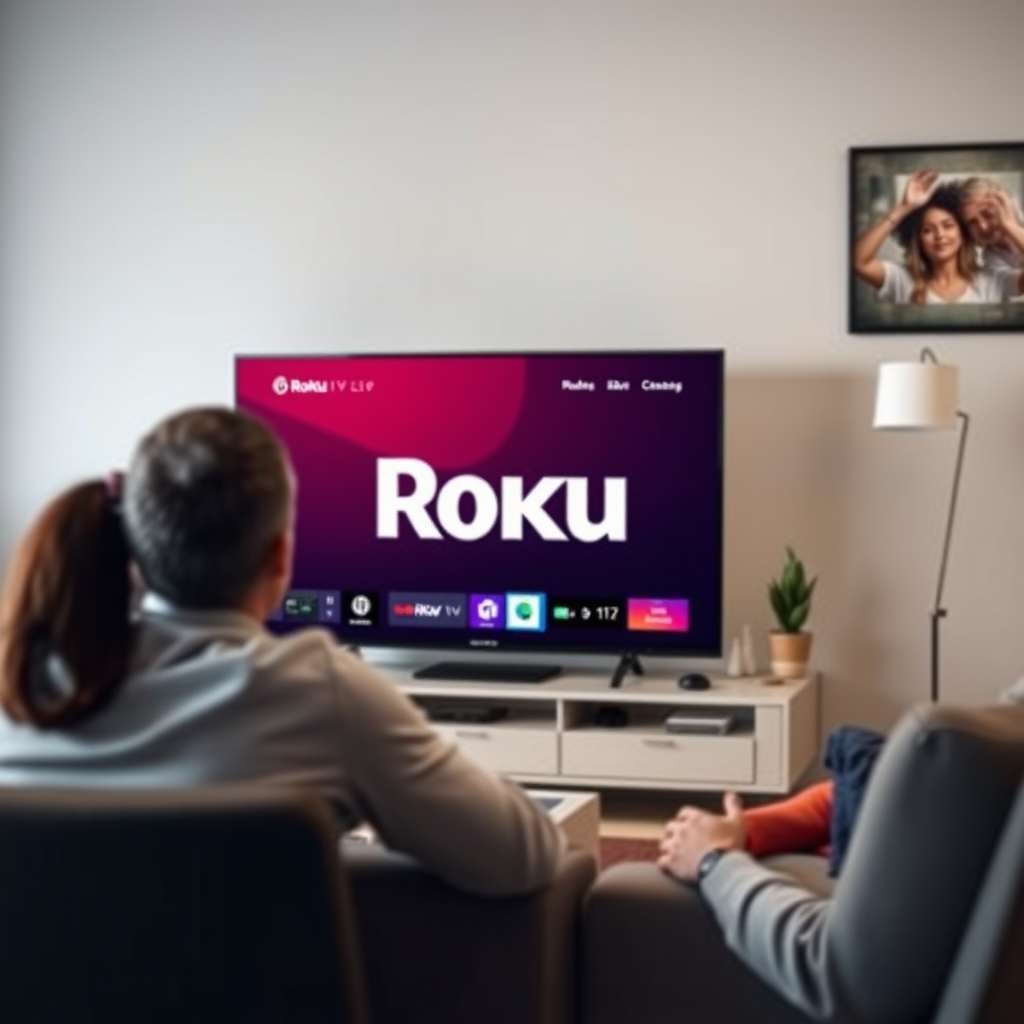
Accessing the Roku Channel on your LG Smart TV can be done in a couple of simple ways. First, you can download the Roku app directly from the LG content store. This app provides easy access to a variety of channels, including the Roku Channel itself. Here’s how you can do it:
1. Download the Roku App:
– Turn on your LG Smart TV and navigate to the LG Content Store.
– Use the search function to find the Roku app.
– Click on the app and select “Install.”
2. Create or Log Into a Roku Account:
– Once the app is installed, open it.
– If you already have a Roku account, simply log in with your credentials.
– If you don’t have an account, you can create one directly within the app. This will allow you to access your channels and personal settings.
By following these steps, you will gain access to a wide range of content available on the Roku Channel, including movies, TV shows, and live TV options.
Using a Streaming Device
If you prefer using a streaming device for an enhanced experience, you can easily connect a Roku streaming device to your LG Smart TV. This method not only provides access to the Roku Channel but also enhances your overall streaming capabilities. Here’s how to set it up:
1. Connect a Roku Streaming Device:
– Plug the Roku device into an available HDMI port on your LG Smart TV.
– Make sure to connect the device to a power source.
2. Set Up the Device:
– Turn on your TV and select the HDMI input that corresponds to your Roku device.
– Follow the on-screen instructions to pair your remote and connect to your Wi-Fi network.
3. Install the Roku Channel App:
– Once set up, navigate to the Roku home screen.
– Search for the Roku Channel app and install it.
– Log in or create a Roku account to start enjoying content.
Using a dedicated streaming device can provide faster performance and more features, making it a worthwhile investment for avid streamers.
Alternative Methods for Accessing Roku Channel
If you are unable to download the Roku app or prefer not to use a streaming device, there are alternative methods to access the Roku Channel on your LG Smart TV:
1. Screen Mirroring:
– If you have a smartphone or tablet, you can use screen mirroring to cast content directly from the Roku app on your mobile device to your LG Smart TV.
– Ensure both devices are connected to the same Wi-Fi network.
– Open the Roku app on your mobile device, select the content you want to watch, and choose the screen mirroring option to display it on your TV.
2. Access via Web Browser:
– Some LG Smart TVs support web browsing. If yours does, you can navigate to the Roku Channel website using the TV’s browser.
– Log in to your Roku account and start streaming directly from the browser.
These methods offer flexibility and convenience, ensuring you can enjoy the Roku Channel even without the app or a streaming device.
Roku Channel Features Comparison (2024)
| # | Feature | Roku Channel | Subscription Required | Content Type |
|---|---|---|---|---|
| 1 | Movies | Yes | Free & Premium | Film |
| 2 | TV Shows | Yes | Free & Premium | Series |
| 3 | Live TV | Yes | Subscription | Streaming |
| 4 | Free Content | Yes | Free | Ad-supported |
| 5 | Premium Content | Yes | Subscription | Film/Series |
| 6 | Original Series | Yes | Subscription | Series |
| 7 | User Profiles | Yes | Free | Personalization |
Compatibility and Requirements
Before attempting to access the Roku Channel on your LG Smart TV, it’s essential to check your TV’s compatibility. Not all LG Smart TV models support the Roku app, especially older models. You can typically find this information in the specifications section of your TV’s manual or on the manufacturer’s website.
Additionally, ensure that your TV is connected to a stable Wi-Fi network. Streaming content requires a reliable internet connection to function smoothly. A minimum speed of 25 Mbps is recommended for optimal streaming quality, especially when watching high-definition content.
Troubleshooting Common Issues
Even with a straightforward setup, you might encounter some issues while accessing the Roku Channel on your LG Smart TV. Here are some common problems and their solutions:
1. App Not Responding: If the Roku app freezes or crashes, try restarting your LG Smart TV. Simply turn it off, unplug it for a minute, and then plug it back in.
2. Connection Problems: If you experience buffering or disconnections, check your Wi-Fi signal strength. You may need to move your router closer to your TV or use a Wi-Fi extender.
3. Software Updates: Ensure that both your LG Smart TV and the Roku app are updated. Go to the settings menu on your TV and check for any available software updates.
By addressing these common issues, you can enhance your streaming experience and enjoy uninterrupted access to the Roku Channel.
Additional Tips for Enjoying Roku Channel
To maximize your enjoyment of the Roku Channel, consider the following tips:
1. Explore Content: The Roku Channel offers a wide array of free and premium content. Spend some time browsing through the categories to discover new movies and shows.
2. Use Parental Controls: If you have children, utilize the parental control features within the Roku app to restrict access to certain content. This will help you manage what your kids can watch.
3. Create a Watchlist: Take advantage of the watchlist feature to keep track of content you want to see later. This is especially helpful for series with multiple episodes.
4. Join the Roku Community: Engage with other Roku users through forums and social media groups. Sharing tips and recommendations can enhance your streaming experience.
Your LG Smart TV can indeed access the Roku Channel, enhancing your streaming experience with a wide range of content. Follow the steps provided to easily set it up, troubleshoot any issues, and make the most of your viewing options. Whether you use the Roku app, a streaming device, or alternative methods, you’ll be enjoying your favorite shows and movies in no time!
Frequently Asked Questions
Can you get the Roku Channel on an LG Smart TV?
Yes, you can access the Roku Channel on an LG Smart TV by using the Roku app, which is available for download from the LG Content Store. Once installed, simply sign in or create a Roku account to start streaming your favorite shows and movies from the Roku Channel.
How do you install the Roku app on an LG Smart TV?
To install the Roku app on your LG Smart TV, navigate to the LG Content Store and use the search function to find the Roku app. Once you locate it, select “Install” to download the app, and then open it to log in or create your Roku account to access the channel’s content.
Why can’t I find the Roku Channel on my LG Smart TV?
If you can’t find the Roku Channel on your LG Smart TV, it may be due to the app not being available in your region or your TV model not supporting the latest apps. Ensure your TV’s firmware is up to date, and check the LG Content Store periodically for new app releases.
What features does the Roku Channel offer on LG Smart TVs?
The Roku Channel offers a wide range of features on LG Smart TVs, including access to thousands of movies and TV shows, live TV streaming, and personalized recommendations. Additionally, users can enjoy ad-supported content for free or subscribe to premium channels directly through the Roku Channel interface.
Which LG Smart TV models support the Roku Channel app?
Most recent LG Smart TV models with webOS should support the Roku Channel app. However, it’s advisable to check the specifications of your specific model or refer to the LG Content Store for the latest compatibility information regarding the Roku app.
References
- Product Support: Help Library | LG USA Support
https://www.lg.com/us/support/help-library/how-to-install-the-roku-app-on-lg-smart-tv-CT10000015-2010 - Google Scholar Google Scholar
https://scholar.google.com/scholar?q=Roku+channel+LG+smart+TV - Google Scholar Google Scholar
https://scholar.google.com/scholar?q=Roku+app+compatibility+LG+smart+TV - Google Scholar Google Scholar
https://scholar.google.com/scholar?q=streaming+applications+on+LG+smart+TV - https://www.lifewire.com/roku-channel-on-lg-smart-tv-5071583
https://www.lifewire.com/roku-channel-on-lg-smart-tv-5071583 - Google Scholar Google Scholar
https://scholar.google.com/scholar?q=can+you+get+roku+channel+on+lg+smart+tv - can you get roku channel on lg smart tv – Search results
https://en.wikipedia.org/wiki/Special:Search?search=can+you+get+roku+channel+on+lg+smart+tv - https://www.ncbi.nlm.nih.gov/search/research-articles/?term=can+you+get+roku+channel+on+lg+smart+tv
https://www.ncbi.nlm.nih.gov/search/research-articles/?term=can+you+get+roku+channel+on+lg+smart+tv
