


To get Pluto TV on your Samsung Smart TV, simply download the Pluto TV app from the Samsung Smart Hub. Once installed, you can enjoy a wide variety of live and on-demand content. Pluto TV is a free streaming service that offers a plethora of channels and shows, catering to diverse interests. This article will guide you through the steps to install and set up Pluto TV, ensuring you can start streaming your favorite shows and channels in no time.
Accessing the Samsung Smart Hub
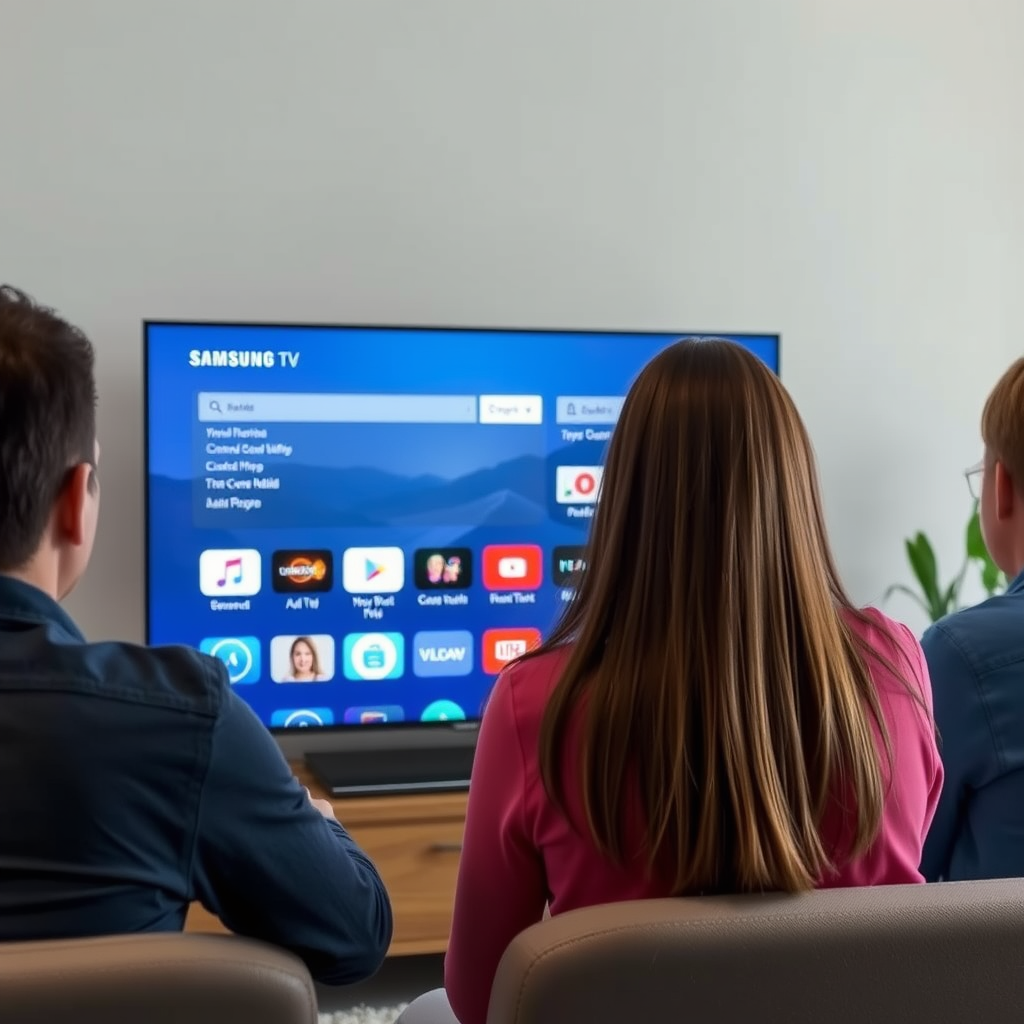
To begin the process of downloading Pluto TV, you first need to access the Samsung Smart Hub. This interface serves as the gateway to all the applications available on your Samsung Smart TV.
– Navigate to the Smart Hub: Use your Samsung remote control and press the Home button. This will bring up the Smart Hub interface on your TV screen.
– Look for the Apps Section: Once in the Smart Hub, scroll through the options to find the Apps section. This section displays a variety of applications that you can download and install.
The Smart Hub is designed to be user-friendly, making it simple for anyone to explore the vast array of apps, including Pluto TV.
Downloading the Pluto TV App
With access to the Smart Hub, you can now proceed to download the Pluto TV app.
– Search for “Pluto TV”: In the Apps section, you will see a search bar. Type in “Pluto TV” to find the app quickly.
– Select the Pluto TV App: Once you locate the Pluto TV app, click on it to see more details.
– Click on the “Install” Button: To initiate the download, click on the “Install” button. The app will begin downloading, and once installed, it will appear in your apps list.
Downloading the Pluto TV app is a straightforward process that takes just a few moments, ensuring you won’t have to wait long to start enjoying your favorite content.
Setting Up Your Pluto TV Account
After downloading the app, the next step is setting up your Pluto TV account.
– Open the Pluto TV App: Find the app in your apps list and click to open it.
– Choose Your Account Option: Pluto TV allows you to access a wide range of content without the need for an account. However, if you want to enjoy personalized features, you can create an account. To sign up, follow the prompts, which usually involve providing an email address and creating a password.
Whether you opt to create an account or not, you can start watching immediately. The app’s user-friendly design makes navigation easy, allowing you to dive right into the content you love.
Top 7 Features of Pluto TV (2024)
| # | Feature | Availability | User Rating | Ad-supported |
|---|---|---|---|---|
| 1 | Live TV Channels | Yes | ★★★★☆ | Yes |
| 2 | On-demand Movies | Yes | ★★★★☆ | Yes |
| 3 | Custom Watchlist | Yes | ★★★★☆ | No |
| 4 | User Profiles | Yes | ★★★★☆ | No |
| 5 | Easy Navigation | Yes | ★★★★★ | Yes |
| 6 | Multiple Devices | Yes | ★★★★☆ | No |
| 7 | Offline Viewing | No | ★★★☆☆ | No |
Exploring Content on Pluto TV
Once you’ve set up your account, it’s time to explore the vast content that Pluto TV offers.
– Familiarize Yourself with the Interface: The Pluto TV app features a user-friendly interface that makes it easy to navigate through its extensive library. Spend a few moments getting to know where everything is located.
– Browse Channels and Categories: Pluto TV offers a range of channels categorized by genres such as news, sports, entertainment, and movies. You can easily switch between different channels or search for specific shows.
– Take Advantage of the “Live TV” Feature: One of the standout features of Pluto TV is its Live TV option, which allows you to watch channels in real-time, just as you would with traditional cable TV. This feature is particularly beneficial for those who want to keep up with live events or news broadcasts.
By exploring the content on Pluto TV, you’ll discover a wide array of entertainment options that suit your viewing preferences.
Troubleshooting Installation Issues
While installing Pluto TV is typically a seamless process, you may encounter some issues along the way. Here are some common troubleshooting tips:
– Check for Software Updates: Ensure your Samsung Smart TV is running the latest software version. Go to Settings, select Support, and then Software Update to check for updates. Running the latest firmware can resolve many compatibility issues.
– Restart Your TV: If the app fails to install or crashes during use, try restarting your TV. Simply turn it off for a few minutes and then turn it back on to refresh the system.
– Reinstall the App: If problems persist, consider uninstalling the Pluto TV app and then reinstalling it. This can often fix glitches that may have occurred during the initial installation.
By following these troubleshooting steps, you can address most common problems efficiently, allowing you to return to your viewing experience as quickly as possible.
Using Pluto TV on Different Samsung Models
Pluto TV is compatible with a wide range of Samsung Smart TV models, but usability and features may vary slightly across different versions.
– Learn About Compatibility: Most Samsung Smart TVs produced after 2015 support the Pluto TV app. However, if you are using an older model, check the Samsung website for compatibility information.
– Enhance Your Viewing Experience: Depending on your specific model, you may have access to different features. For instance, newer Samsung models may offer enhanced resolution quality, such as 4K streaming, which can significantly improve your viewing experience. Additionally, check if your model supports voice commands or smart remotes for easier navigation.
Understanding the capabilities of your specific Samsung model can help you optimize your Pluto TV experience, ensuring you enjoy the full range of features available.
Additional Features of Pluto TV
Beyond just streaming content, Pluto TV offers a variety of features that enhance the overall viewing experience.
– Channel Surfing: Users can easily flip between channels, similar to traditional television viewing. This feature allows for spontaneous discovery of new shows and channels.
– On-demand Movies and Shows: Besides live TV, Pluto TV provides a selection of on-demand movies and shows that users can watch at their convenience.
– Personalized Watchlist: Create a customized watchlist to keep track of your favorite shows. This feature allows for easy access to content you want to watch later, making it convenient to pick up where you left off.
These additional features make Pluto TV a flexible and enjoyable streaming option for viewers looking to diversify their entertainment choices.
Pluto TV is now ready to stream on your Samsung Smart TV, providing you with a wide range of entertainment options. By following the steps outlined in this article, you’ll be able to easily navigate the app, explore its features, and resolve any installation issues you encounter. Start enjoying your favorite content today by downloading the Pluto TV app and diving into a world of free streaming!
Frequently Asked Questions
How can I download Pluto TV on my Samsung Smart TV?
To download Pluto TV on your Samsung Smart TV, start by turning on your TV and navigating to the Smart Hub. From there, select the Apps section and search for “Pluto TV” using the search function. Once you find the app, click on it and select “Install” to download it to your device.
Why is Pluto TV not showing up in the Samsung Smart TV app store?
If Pluto TV is not appearing in your Samsung Smart TV app store, it may be due to your TV model not being compatible with the app. Ensure that your TV is updated to the latest firmware version, as app availability can depend on system updates. If the issue persists, consider checking the Pluto TV website for compatibility information.
What should I do if Pluto TV keeps crashing on my Samsung Smart TV?
If Pluto TV keeps crashing on your Samsung Smart TV, first try clearing the app cache by going to Settings, selecting Apps, and then finding Pluto TV. Clear the cache and restart the app. If the problem continues, uninstall and reinstall Pluto TV to resolve any potential software glitches.
Which Samsung Smart TV models support Pluto TV?
Pluto TV is supported on a variety of Samsung Smart TV models released from 2016 onward. To check if your specific model supports the app, visit the Samsung website or consult the user manual. Additionally, ensure your TV is updated to the latest software version for optimal performance.
How do I sign up for Pluto TV on my Samsung Smart TV?
Signing up for Pluto TV on your Samsung Smart TV is simple. After downloading and opening the app, you can choose to create an account or continue without one. If you opt to sign up, follow the on-screen prompts to enter your email and create a password, allowing you to access additional features like personalized content recommendations.
References
- Pluto TV: Watch Free Movies, TV Shows & Live TV Online
https://www.plutotv.com/support/samsung-smart-tv - https://www.wiki-how.com/Install-Pluto-TV-on-Samsung-Smart-TV
https://www.wiki-how.com/Install-Pluto-TV-on-Samsung-Smart-TV - Google Scholar Google Scholar
https://scholar.google.com/scholar?q=Pluto+TV+Samsung+Smart+TV+installation - Google Scholar Google Scholar
https://scholar.google.com/scholar?q=streaming+apps+on+Samsung+Smart+TV - Google Scholar Google Scholar
https://scholar.google.com/scholar?q=how+to+get+pluto+tv+on+samsung+smart+tv - how to get pluto tv on samsung smart tv – Search results
https://en.wikipedia.org/wiki/Special:Search?search=how+to+get+pluto+tv+on+samsung+smart+tv - https://www.ncbi.nlm.nih.gov/search/research-articles/?term=how+to+get+pluto+tv+on+samsung+smart+tv
https://www.ncbi.nlm.nih.gov/search/research-articles/?term=how+to+get+pluto+tv+on+samsung+smart+tv
