

To delete apps on your Vizio Smart TV, simply navigate to the app you want to remove, press the ‘OK’ button on your remote, and select the option to delete or uninstall. This straightforward process allows you to manage your apps efficiently, freeing up space and improving your TV’s performance. Knowing how to delete apps can enhance your viewing experience by decluttering your app list and ensuring your Smart TV runs smoothly.
Managing apps on a Smart TV is crucial for optimizing performance and ensuring that you have access to your most-used applications. With Vizio’s user-friendly interface, deleting apps is a hassle-free process. In this article, we will explore the steps involved in deleting apps on your Vizio Smart TV, ways to manage your storage space, and troubleshooting common issues that may arise during the process.
Accessing the Smart TV Home Screen
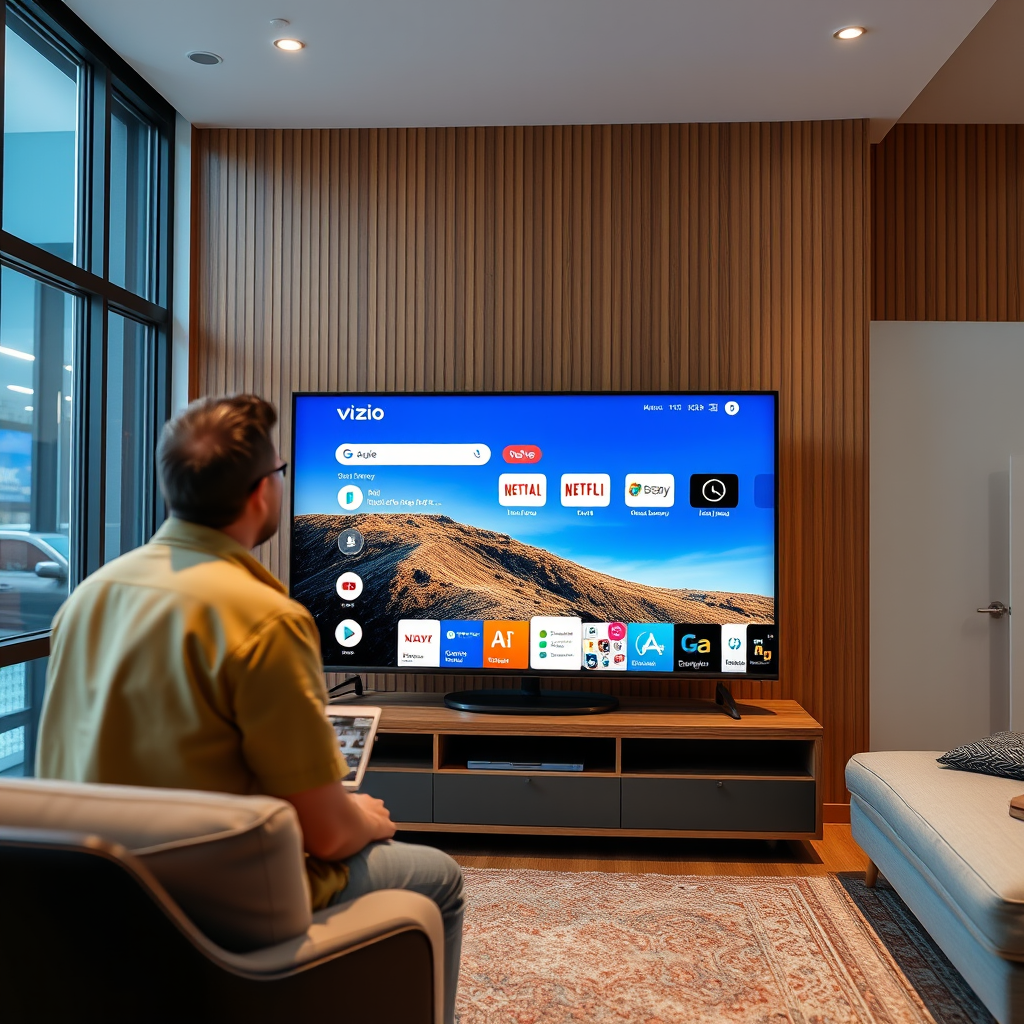
– Press the ‘V’ button on your remote to open the Vizio Smart TV home screen. This button typically takes you directly to the main interface where all your installed apps are displayed.
– Use the arrow keys to navigate to the app you wish to delete. The layout is designed to be intuitive, allowing you to easily scroll through your app library.
Once you have accessed the home screen, you will see a range of apps, including streaming services, games, and other utilities. Understanding how to navigate this screen effectively is essential for managing your apps.
Deleting an App
– Highlight the app you want to remove and press the ‘OK’ button. This action will open a menu that provides options related to the selected app.
– Look for the ‘Delete App‘ or ‘Uninstall’ option from the menu that appears. This option is usually located at the bottom of the menu. Selecting it will initiate the deletion process.
Deleting apps that you no longer use can help streamline your Smart TV’s interface, making it easier to find the apps you actually use.
Confirming Deletion
– A confirmation prompt will pop up. Select ‘Yes’ to confirm the deletion. This step ensures that you do not accidentally delete an app you want to keep.
– After confirming, the app will be removed from your Smart TV. You should see a brief notification indicating that the app has been successfully deleted.
This confirmation step is crucial, as it prevents inadvertent deletions and ensures you have control over the apps you keep on your device.
Checking for Remaining Apps
– Return to the home screen to ensure the app no longer appears. This visual confirmation is important to verify that the deletion was successful.
– Browse your app list to verify that other apps are functioning correctly. Sometimes, removing an app can inadvertently affect the performance of others, so it’s good practice to check.
By regularly checking your app library, you can maintain a clean and efficient Smart TV experience.
Managing Storage Space
– Regularly deleting unused apps helps free up storage space on your Smart TV. This is particularly important for models with limited storage capacity, as it can enhance performance and reduce lag.
– Consider checking for updates or hidden apps that may also take up space. Some apps may run in the background, consuming resources without your awareness.
Effective storage management not only improves the speed of your device but also enhances your overall viewing experience.
Troubleshooting Common Issues
– If an app doesn’t delete, try restarting your TV and attempt the deletion again. A simple reboot can often resolve temporary glitches that may hinder functionality.
– Ensure your TV’s software is updated to avoid compatibility issues with app management. Keeping your firmware up to date ensures that you have the latest features and improvements, enhancing the overall operation of your Smart TV.
Understanding these troubleshooting steps can save you time and frustration when managing your apps.
Popular Apps on Vizio Smart TV (2024)
| # | App Name | Category | Storage Used (MB) | Rating |
|---|---|---|---|---|
| 1 | Netflix | Streaming | 250 | ★★★★☆ |
| 2 | YouTube | Streaming | 180 | ★★★★☆ |
| 3 | Hulu | Streaming | 220 | ★★★☆☆ |
| 4 | Amazon Prime Video | Streaming | 240 | ★★★★☆ |
| 5 | Disney+ | Streaming | 200 | ★★★★☆ |
| 6 | Spotify | Music | 150 | ★★★★☆ |
| 7 | Plex | Media | 160 | ★★★☆☆ |
Deleting apps on your Vizio Smart TV can enhance your viewing experience by decluttering your app list and optimizing performance. Follow these simple steps to manage your apps effectively and make the most of your Smart TV. By regularly reviewing and deleting apps you no longer use, you can ensure that your device remains fast and functional. If you encounter any issues, don’t hesitate to consult Vizio’s customer support for further assistance. Remember, a well-maintained Smart TV not only improves your entertainment experience but also extends the life of your device.
Frequently Asked Questions
How do I delete unwanted apps on my Vizio Smart TV?
To delete unwanted apps on your Vizio Smart TV, press the “V” button on your remote to access the app launcher. Navigate to the app you wish to remove, highlight it, and press the “OK” button. Then, select the “Delete App” option to confirm the removal.
What should I do if my Vizio Smart TV won’t let me delete apps?
If your Vizio Smart TV isn’t allowing you to delete apps, ensure that your TV’s firmware is up to date, as outdated software can cause issues. You can also try restarting your TV or resetting it to factory settings if the problem persists. Remember that some pre-installed apps may not be removable.
Why is it important to delete unused apps from my Vizio Smart TV?
Deleting unused apps from your Vizio Smart TV can help improve its performance and free up storage space. It also helps streamline your viewing experience by reducing clutter on the home screen, making it easier to find the apps you actually use.
Which apps can I delete from my Vizio Smart TV?
You can delete most third-party apps that you have installed on your Vizio Smart TV, but pre-installed apps that come with the TV may not be removable. Common apps you might consider deleting include those you rarely use or have not accessed in a long time, such as games or streaming services.
What is the best way to manage apps on my Vizio Smart TV?
The best way to manage apps on your Vizio Smart TV is to periodically review the installed applications and remove those you no longer need. Utilize the app management feature by accessing the app launcher, and prioritize keeping only the apps that enhance your viewing experience for optimal performance.
References
- https://www.vizio.com/en/support
https://www.vizio.com/en/support - https://www.lifewire.com/how-to-delete-apps-on-vizio-smart-tv-4685969
https://www.lifewire.com/how-to-delete-apps-on-vizio-smart-tv-4685969 - https://www.vizio.com/faq
https://www.vizio.com/faq - https://support.vizio.com/s/article/Removing-Apps-from-your-VIZIO-Smart-TV?language=en_US
https://support.vizio.com/s/article/Removing-Apps-from-your-VIZIO-Smart-TV?language=en_US - Google Scholar Google Scholar
https://scholar.google.com/scholar?q=how+to+delete+apps+on+vizio+smart+tv - Google Scholar Google Scholar
https://scholar.google.com/scholar?q=Vizio+Smart+TV+app+management - https://scholar.google.com/scholar?q=Vizio+TV+delete+applications Google Scholar
https://scholar.google.com/scholar?q=Vizio+TV+delete+applications - how to delete apps on vizio smart tv – Search results
https://en.wikipedia.org/wiki/Special:Search?search=how+to+delete+apps+on+vizio+smart+tv - https://www.ncbi.nlm.nih.gov/search/research-articles/?term=how+to+delete+apps+on+vizio+smart+tv
https://www.ncbi.nlm.nih.gov/search/research-articles/?term=how+to+delete+apps+on+vizio+smart+tv
