

To download apps on your Philips Smart TV, navigate to the app store on your television, select the desired app, and follow the prompts to install it. This straightforward process allows you to enhance your viewing experience with various applications tailored to your interests. In this article, we’ll guide you through the steps and tips for efficiently managing your app downloads.
Understanding Your Philips Smart TV Interface
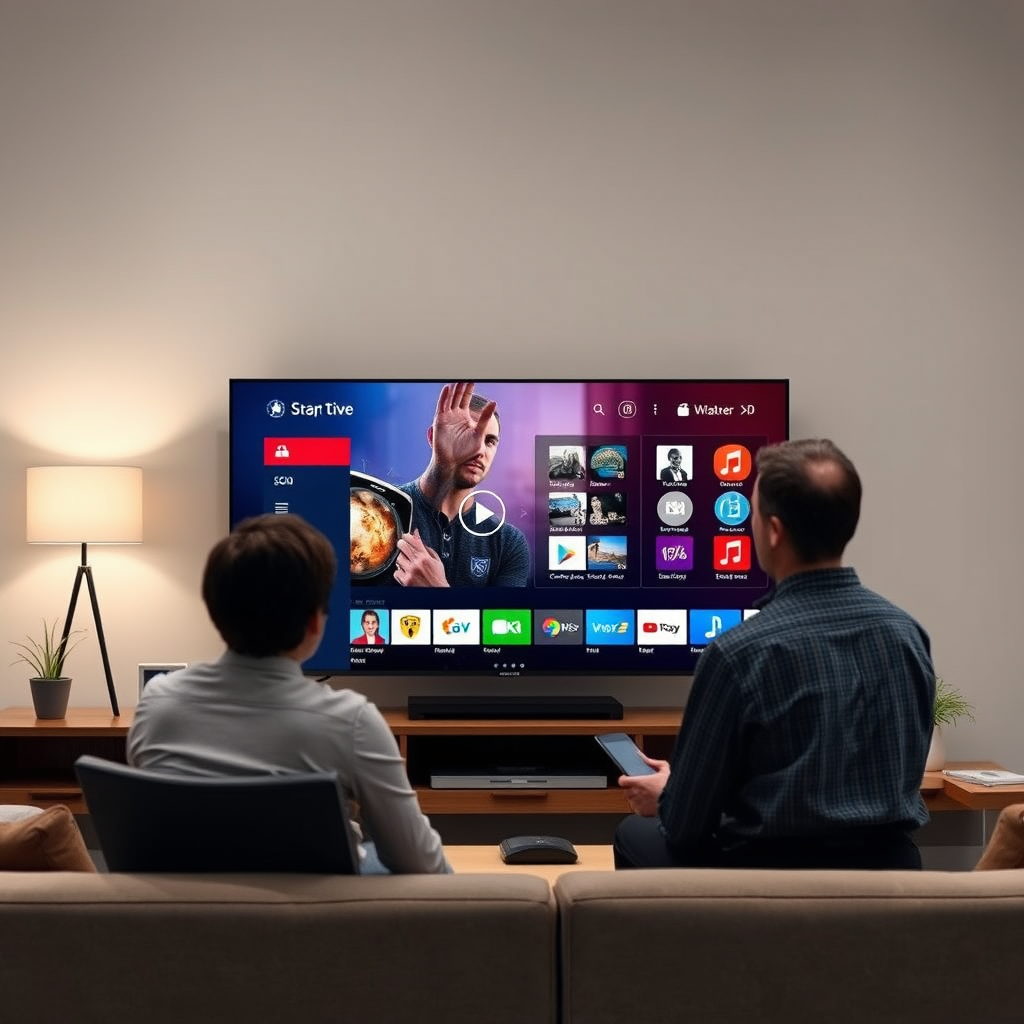
Familiarizing yourself with the Philips Smart TV interface is crucial for a seamless app downloading experience. The home screen typically features a grid layout that showcases your recently used apps, recommended content, and various categories. You can navigate using the remote control, which has dedicated buttons for quick access to essential functions.
Within the interface, you’ll find a settings menu that provides options for customizing your TV experience, including app management. Accessing this menu allows you to monitor your installed apps, adjust settings, and explore system updates, ensuring you stay current with the latest features.
Accessing the Philips App Store
To begin downloading apps, locate the app store icon on your Smart TV’s home screen. This icon usually resembles a shopping bag or has a specific label like “Philips App Store” or “Google Play Store,” depending on your TV model. Selecting this icon will take you directly to the app marketplace.
Once inside the app store, you will encounter various categories such as “Entertainment,” “Games,” “News,” and “Lifestyle,” making it easier to browse through available applications. This organized layout allows users to discover new apps that align with their interests and improve their viewing pleasure.
Searching for Specific Apps
Using the search function within the app store is an efficient way to find specific applications. Look for a search bar, typically located at the top of the screen, where you can type the name of the app you wish to download. This feature can save you time, especially if you already have a specific application in mind.
Additionally, the app store often features a section for recommended apps based on your viewing habits. These suggestions can introduce you to applications you may not have considered but could significantly enhance your overall Smart TV experience.
Top 7 Most Downloaded Apps for Philips Smart TV (2023)
| # | App Name | Category | Rating | Downloads |
|---|---|---|---|---|
| 1 | Netflix | Streaming | ★★★★☆ | 150M |
| 2 | YouTube | Streaming | ★★★★★ | 200M |
| 3 | Amazon Prime Video | Streaming | ★★★★☆ | 90M |
| 4 | Spotify | Music | ★★★★★ | 180M |
| 5 | Disney+ | Streaming | ★★★★☆ | 60M |
| 6 | Hulu | Streaming | ★★★★☆ | 45M |
| 7 | Twitch | Gaming | ★★★★☆ | 35M |
Downloading and Installing Apps
Once you have identified the app you wish to download, select it to view more details. There will typically be an “Install” or “Download” button. Click this button, and your Philips Smart TV will begin downloading the app. Follow any on-screen instructions that may appear, which could involve reviewing permissions the app requires or accepting terms and conditions.
In some cases, additional settings may be needed before installation, such as logging into an existing account or connecting to your home Wi-Fi network if not already done. Once the installation process is complete, the app will appear on your home screen, ready for use.
Managing Installed Apps
Managing your installed apps is essential for maximizing your Smart TV’s potential. You can easily organize and arrange your downloaded applications for quick access. This is typically done by highlighting an app on the home screen and using the remote to move it to your preferred location.
If you find that there are applications you no longer use, it is possible to uninstall them to free up space. Navigate to the settings menu, select the “Apps” section, and choose the app you wish to remove. Confirm the uninstallation process, and the app will be deleted from your device.
Troubleshooting Common Issues
While downloading apps on your Philips Smart TV is generally straightforward, you may encounter common issues such as slow download speeds or apps failing to install. To troubleshoot these problems, first, check your internet connection. A stable and strong Wi-Fi connection is crucial for smooth downloads.
If you are experiencing persistent issues, consider restarting your Smart TV or performing a factory reset as a last resort. Additionally, ensure that your TV’s firmware is up to date, as outdated software may hinder app functionality.
Keeping Apps Updated
Keeping your apps updated is vital for ensuring optimal performance and access to the latest features. Many apps have automatic update settings that you can enable through the settings menu. This feature allows your apps to update without manual intervention, ensuring you always have the latest version.
To manually check for updates, revisit the app store, and navigate to the “My Apps” section. Here, you can see all installed applications and any available updates. Regularly checking for updates can help you enjoy new features and security improvements that come with the latest versions.
By following these steps, you can effortlessly download and manage apps on your Philips Smart TV, enhancing your entertainment options. Start exploring the app store today and make the most of your Smart TV experience!
Frequently Asked Questions
How do I download apps on my Philips Smart TV?
To download apps on your Philips Smart TV, start by pressing the Home button on your remote. Navigate to the ‘App Gallery’ or ‘Apps’ section, where you can browse available applications. Select the app you wish to download, then click on ‘Install’ to add it to your TV.
Why can’t I find certain apps on my Philips Smart TV?
Some apps may not be available on Philips Smart TVs due to compatibility issues or regional restrictions. It’s important to ensure that your TV’s software is updated to the latest version, as this can expand the range of available applications. If an app is still missing, consider using alternative methods such as screen mirroring from a smartphone or tablet.
What are the best apps to download on Philips Smart TV?
The best apps for your Philips Smart TV typically include popular streaming services like Netflix, Amazon Prime Video, and YouTube for entertainment. Additionally, you may want to download gaming apps, news apps, or fitness apps depending on your interests. Always check user reviews and ratings to find the most suitable apps for your needs.
How do I update apps on my Philips Smart TV?
To update apps on your Philips Smart TV, go to the ‘App Gallery’ or ‘Apps’ section from the Home menu. Look for any available updates, usually indicated by a notification or an ‘Update’ button next to the app. Click on it to initiate the update process, ensuring you have a stable internet connection for smooth downloads.
Which Philips Smart TV models support app downloads?
Most modern Philips Smart TV models that run on the Android TV operating system support app downloads through the Google Play Store. Models that feature the Saphi Smart TV platform also offer a selection of pre-installed apps and additional downloadable options. Always check the specifications of your model to confirm app compatibility.
References
- https://www.pcmag.com/how-to/how-to-install-apps-on-your-smart-tv
https://www.pcmag.com/how-to/how-to-install-apps-on-your-smart-tv - https://www.scholar.google.com/scholar?q=how+to+download+apps+on+smart+tv+philips Google Scholar
https://www.scholar.google.com/scholar?q=how+to+download+apps+on+smart+tv+philips - https://www.scholar.google.com/scholar?q=installing+apps+on+Philips+smart+TV Google Scholar
https://www.scholar.google.com/scholar?q=installing+apps+on+Philips+smart+TV - https://www.scholar.google.com/scholar?q=Philips+smart+TV+app+download+guide Google Scholar
https://www.scholar.google.com/scholar?q=Philips+smart+TV+app+download+guide - https://www.bbc.com/news/technology-54854509
https://www.bbc.com/news/technology-54854509 - Google Scholar Google Scholar
https://scholar.google.com/scholar?q=how+to+download+apps+on+smart+tv+philips - how to download apps on smart tv philips – Search results
https://en.wikipedia.org/wiki/Special:Search?search=how+to+download+apps+on+smart+tv+philips - https://www.ncbi.nlm.nih.gov/search/research-articles/?term=how+to+download+apps+on+smart+tv+philips
https://www.ncbi.nlm.nih.gov/search/research-articles/?term=how+to+download+apps+on+smart+tv+philips
