


To get local channels on your Samsung Smart TV, you can use an antenna, streaming services, or access built-in apps. This guide will walk you through these methods, ensuring you can enjoy your favorite local programming without hassle. Whether you prefer traditional over-the-air signals or the convenience of streaming, there are multiple solutions available to suit your viewing habits.
Using an Antenna
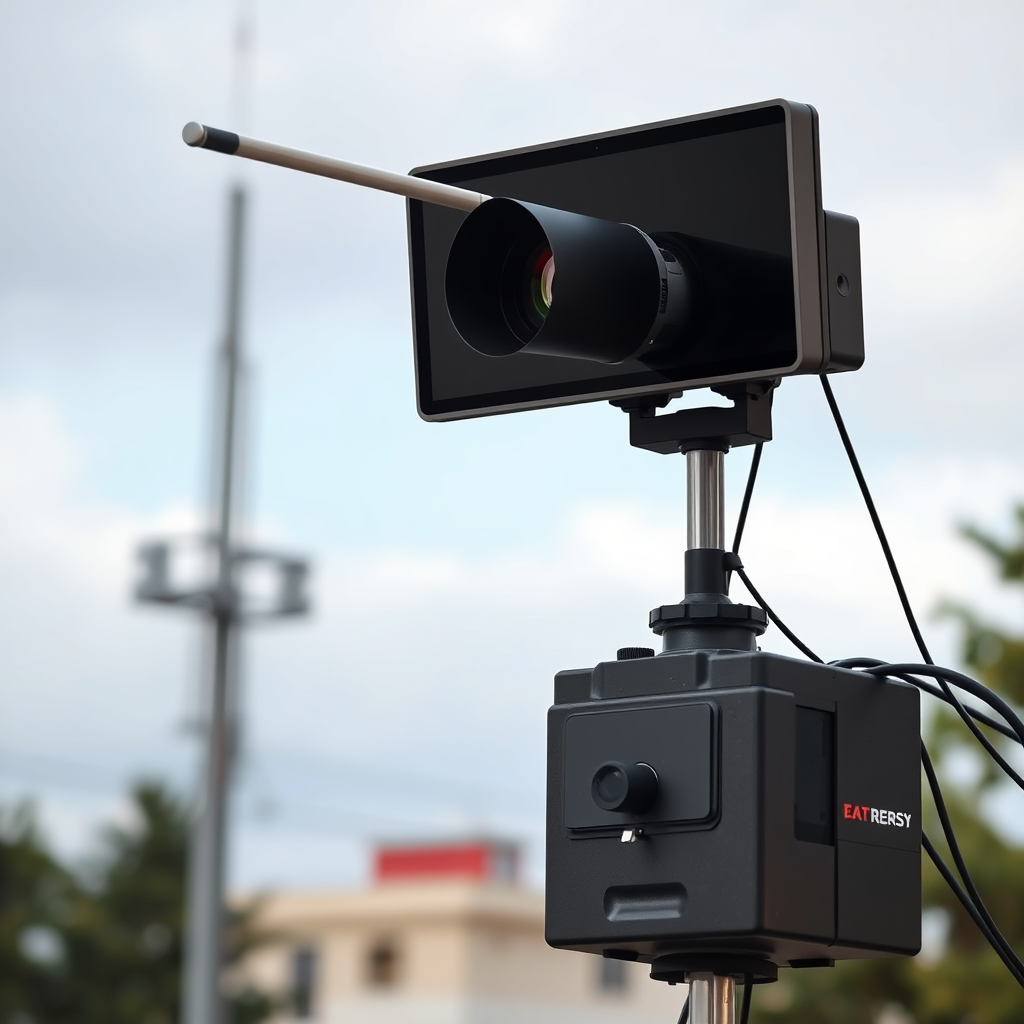
Investing in a quality HDTV antenna is often the most straightforward method to access local channels. These antennas allow you to pick up over-the-air broadcasts, giving you access to major networks such as ABC, CBS, NBC, and FOX, all for free. When selecting an antenna, consider factors such as range, signal strength, and the type of reception you need (indoor vs. outdoor).
Once you’ve purchased a suitable antenna, connect it to the TV’s coaxial input. After that, navigate to the TV’s settings menu, go to the broadcast settings, and perform a channel scan. This process will help your TV identify all available local channels based on the antenna’s placement and reception capabilities.
Streaming Services
Streaming services have revolutionized how we access local channels, offering flexibility and convenience. Platforms like Hulu + Live TV, YouTube TV, and Sling TV provide packages that include local broadcasts in select areas. These services enable you to stream content over the internet, making it ideal for those who prefer not to use an antenna.
To start, ensure you have a stable internet connection, as a slow or unstable connection can impact your streaming experience. Once subscribed to a service, you can access local channels through the respective app available on your Samsung Smart TV, enabling you to watch live programming and on-demand content seamlessly.
Samsung TV Plus
Samsung TV Plus is a noteworthy feature available on Samsung Smart TVs, offering a variety of channels at no cost. This service aggregates live channels, including local news and entertainment options, directly accessible through your TV’s interface.
To access Samsung TV Plus, simply navigate to the app section of your TV. Here, you can browse through the channel lineup, which includes various local stations depending on your region. This option is particularly useful for those who want to avoid additional subscription fees while still enjoying local broadcasts.
Over-the-Air (OTA) Channels
Setting up your Samsung Smart TV for receiving over-the-air (OTA) channels requires a few steps. First, ensure that you have your antenna connected properly. Positioning your antenna in a location with a clear line of sight to the broadcast towers is crucial for optimal signal strength.
Once your antenna is in place, go to the settings menu on your TV and select “Broadcast” or “Channel Setup.” From there, perform a channel scan, which will allow your TV to detect available OTA channels within your vicinity. Understanding the importance of antenna positioning and the local broadcast landscape will significantly enhance your viewing experience.
Top 7 Local Channels Available via Antenna (2024)
| # | Channel | Network | Antenna Range | Signal Strength |
|---|---|---|---|---|
| 1 | WABC | ABC | 40 miles | Strong |
| 2 | WCBS | CBS | 35 miles | Strong |
| 3 | WNBC | NBC | 30 miles | Moderate |
| 4 | WNYW | FOX | 45 miles | Strong |
| 5 | WPVI | ABC | 50 miles | Moderate |
| 6 | KABC | ABC | 25 miles | Strong |
| 7 | KTVU | FOX | 40 miles | Strong |
Using a Cable Provider
If you already have a cable subscription, many local cable providers offer apps that are compatible with Samsung Smart TVs. Check with your provider to see if they have an app that allows you to stream local channels directly through your TV.
Once you find the appropriate app, download it from the Samsung Smart Hub, log in with your cable account credentials, and you should have instant access to your local channels alongside other programming. This method combines the benefits of traditional cable with the convenience of smart technology, allowing for a seamless viewing experience.
Managing Channel Settings
To enhance your viewing experience on your Samsung Smart TV, consider customizing your channel lineup. You can remove unwanted channels and save your favorite local channels for easy access. This not only declutters your interface but also makes it easier to find the content you love.
Access the channel management settings through the TV menu, where you can make adjustments to your favorites list. By organizing your channels, you can streamline your viewing experience and ensure that you never miss your local news or favorite shows.
Troubleshooting Tips
If you encounter issues with missing channels or channels not displaying correctly, there are a few troubleshooting steps you can take. First, try rescanning for channels in the broadcast settings menu to ensure your TV is detecting all available signals.
Additionally, verify that your antenna is properly connected and positioned. Sometimes, even minor adjustments in antenna placement can significantly improve reception. If problems persist, consult the Samsung support page or your antenna manufacturer for further assistance.
By following these steps, you can easily access local channels on your Samsung Smart TV through various methods, from antennas to streaming services. Make sure to explore each option to find what works best for your viewing habits and enjoy your local programming!
Frequently Asked Questions
How can I access local channels on my Samsung Smart TV?
To access local channels on your Samsung Smart TV, you can use an antenna or subscribe to a streaming service that offers local broadcasts. Simply connect an over-the-air antenna to your TV and perform a channel scan in the settings menu to find available local channels. Alternatively, platforms like Hulu Live, YouTube TV, or Sling TV can provide access to local channels over the internet.
What type of antenna is best for receiving local channels on a Samsung Smart TV?
The best type of antenna for receiving local channels on your Samsung Smart TV depends on your location and distance from broadcast towers. For urban areas, a simple indoor antenna may suffice, while rural areas might require an outdoor antenna for better reception. Look for antennas with good reviews and a range that matches your distance from local stations.
Why aren’t my local channels showing up on my Samsung Smart TV?
If your local channels are not showing up on your Samsung Smart TV, it may be due to improper antenna setup or a need to rescan for channels. Ensure your antenna is correctly connected and positioned for optimal reception, then go to the TV settings and perform a channel scan. Also, check if there are any obstructions, like buildings or trees, that could be affecting signal strength.
Which streaming services offer local channels for Samsung Smart TV?
Popular streaming services that offer local channels for Samsung Smart TV include Hulu + Live TV, YouTube TV, and Sling TV. These platforms provide access to major networks like ABC, CBS, NBC, and FOX in various locations. Always check the availability of local channels in your area before subscribing to ensure you get the channels you want.
How do I set up my Samsung Smart TV to receive local channels via antenna?
To set up your Samsung Smart TV to receive local channels via an antenna, start by connecting the antenna to the RF port on the back of your TV. Next, power on the TV and navigate to the ‘Broadcast’ settings in the menu. Select ‘Auto Program’ or ‘Channel Scan’ to begin the search for available local channels, and once completed, you should see a list of channels you can watch.
References
- https://www.lifewire.com/how-to-watch-local-channels-on-samsung-smart-tv-5071343
https://www.lifewire.com/how-to-watch-local-channels-on-samsung-smart-tv-5071343 - Google Scholar Google Scholar
https://scholar.google.com/scholar?q=local+channels+Samsung+Smart+TV - Google Scholar Google Scholar
https://scholar.google.com/scholar?q=how+to+get+local+channels+on+smart+TV - Google Scholar Google Scholar
https://scholar.google.com/scholar?q=Samsung+Smart+TV+local+channels+guide - Google Scholar Google Scholar
https://scholar.google.com/scholar?q=how+to+get+local+channels+on+samsung+smart+tv - how to get local channels on samsung smart tv – Search results
https://en.wikipedia.org/wiki/Special:Search?search=how+to+get+local+channels+on+samsung+smart+tv - https://www.ncbi.nlm.nih.gov/search/research-articles/?term=how+to+get+local+channels+on+samsung+smart+tv
https://www.ncbi.nlm.nih.gov/search/research-articles/?term=how+to+get+local+channels+on+samsung+smart+tv

[…] my experience writing troubleshooting steps for privacy controls on mobile/OS platforms, the fastest path is using Titan OS’s built-in search […]
[…] Netflix Help Center: troubleshooting steps for Netflix playback, app errors, and sign-in issues ([ADD: exact relevant Netflix Help article […]