


To record on a smart TV, you typically need to access your TV’s built-in recording feature or use an external device like a DVR. This guide will walk you through various methods to record your favorite shows and movies on your smart TV, ensuring you never miss a moment of entertainment. Whether you’re looking to capture a live sports event, binge-watch a series later, or save a memorable movie, our detailed instructions will help you set up recording seamlessly.
Understanding Your Smart TV’s Recording Features
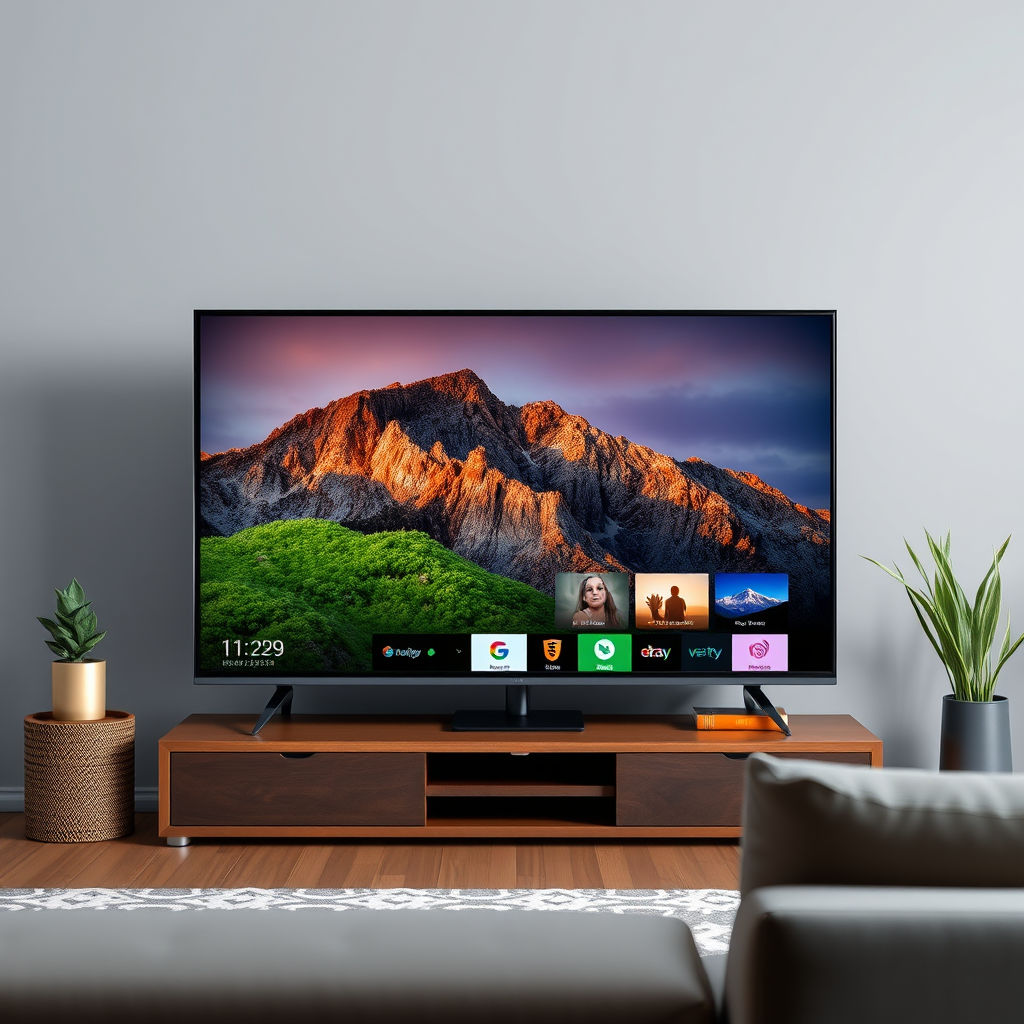
Many modern smart TVs come equipped with built-in recording capabilities, allowing users to save broadcasts directly onto the device. However, the specifics can vary based on the manufacturer and model. When considering how to record on your smart TV, it’s essential to first check your model’s specifications or user manual; some may have advanced features while others may have limited options.
Typically, smart TVs that support recording will have a USB port available. This allows users to connect an external USB drive, which can be used to store recordings. It is crucial to ensure that the USB drive is compatible and formatted correctly, often requiring a specific file system such as NTFS or FAT32. Additionally, some brands may offer built-in storage solutions or even cloud services for recordings, adding a layer of convenience for the user.
Using a DVR for Recording
Digital Video Recorders (DVRs) are an excellent option for those seeking advanced recording functionalities. DVRs not only enable users to record live TV but also come with features that allow for scheduling recordings, pausing live broadcasts, and even rewinding them. This can be particularly useful for catching up on missed parts of a program.
To use a DVR, you will need to connect it to your smart TV via HDMI. Most devices come with straightforward setup instructions, typically involving plugging in the device, connecting it to your cable service, and following the on-screen prompts. Once set up, access the DVR’s interface to schedule recordings by selecting the desired show and specifying the recording time. This flexibility ensures that you can manage your viewing schedule efficiently.
Utilizing Streaming Services
Many streaming services have embraced the idea of recording by offering cloud DVR features, allowing users to save shows for later viewing. Services such as Hulu, YouTube TV, and Sling TV offer plans that include robust recording capabilities, which can be a game-changer for those who primarily consume content through these platforms.
To utilize these features, you’ll need to ensure that you subscribe to a plan that includes cloud DVR functionality. Once subscribed, the process is generally as simple as navigating to the desired show within the app and selecting the ‘record’ option. This not only saves the show but often provides options to store it for a specified duration, which can be incredibly useful for managing storage.
Setting Up Scheduled Recordings
Setting up scheduled recordings is a straightforward process, yet it requires a bit of navigation through your smart TV’s interface. Access the recording schedule menu, often found in the main settings or in the program guide. From there, select the show or movie you wish to record.
When scheduling, be sure to account for time zone differences, particularly if you are recording a show that airs at different times based on geographic location. Many smart TVs also allow you to set up recurring recordings for series, ensuring you never miss an episode. This functionality can be particularly beneficial for avid watchers of weekly shows or sports events.
Top Smart TVs with Recording Features (2024)
| # | Model | Built-in Recording | DVR Support | Cloud DVR |
|---|---|---|---|---|
| 1 | Samsung QN90A | Yes | Yes | Yes |
| 2 | LG OLED C1 | Yes | Yes | Yes |
| 3 | Sony A80J | Yes | Yes | Yes |
| 4 | TCL 6-Series | Yes | Yes | Yes |
| 5 | Vizio P-Series | Yes | No | No |
| 6 | Hisense U8G | Yes | No | No |
| 7 | Philips 804 | Yes | No | No |
Managing Recorded Content
Once you have recorded your shows, managing your recorded content is essential for an optimal viewing experience. Accessing recorded shows is typically done through the TV’s home screen or the DVR interface. Depending on your device, you may find a dedicated section for recorded programs.
Managing this content includes options like deleting shows you no longer wish to keep, organizing recordings into folders, or marking favorites. This can help free up space on your device, especially if you are using an external USB drive, which often has limited storage capacity. Regularly reviewing your recorded content not only keeps your library manageable but also enhances your overall viewing experience.
Troubleshooting Common Issues
While recording on a smart TV is generally a straightforward process, users may encounter a few common issues. If your recordings aren’t saving, the first step is to check your storage device and ensure it is properly connected. For USB drives, ensure that it is formatted correctly and has enough space to accommodate new recordings.
Additionally, keeping your smart TV software up-to-date is crucial. Outdated software can lead to compatibility issues, which may affect the recording features of your device. Regularly check for system updates in your TV settings to ensure you have the latest features and security enhancements.
Exploring Alternative Recording Solutions
If built-in recording features or DVRs do not meet your needs, consider exploring alternative recording solutions. Smart home devices like Amazon Fire TV or Roku offer additional recording functionalities through their respective services. For instance, Fire TV users can access various apps that provide cloud DVR capabilities.
Furthermore, third-party apps may provide recording features compatible with various streaming services, allowing you to expand your recording options. Researching and testing different apps can help you find a solution that best suits your viewing habits, ensuring you have access to all your favorite content on demand.
Summarizing the key methods to record on a smart TV, you now have the tools to enjoy your favorite shows whenever you want. Whether you use built-in features, a DVR, or streaming service options, make sure to explore all possibilities for maximum convenience. Start recording today so you never miss out on your favorite entertainment!
Frequently Asked Questions
What equipment do I need to record on my Smart TV?
To record on your Smart TV, you typically need a USB storage device that is compatible with your TV. Many Smart TVs have a built-in feature that allows you to connect a USB drive, enabling you to record live TV shows and movies directly onto the device. Additionally, ensure your TV supports the recording function, as not all models have this feature.
How do I set up recording on my Smart TV?
To set up recording on your Smart TV, first connect a USB hard drive or flash drive to the USB port. Then, navigate to the settings menu, find the recording options, and format the USB drive if necessary. After that, you can schedule recordings through your TV’s program guide or start recording live TV by pressing the record button on your remote.
Why can’t I record live TV on my Smart TV?
If you cannot record live TV on your Smart TV, it could be due to a few reasons: your TV model may not support recording, the USB device may not be formatted correctly, or your cable/satellite provider may have restrictions on recording certain channels. Check your TV’s user manual for specific instructions and ensure your recording settings are properly configured.
Which Smart TVs have built-in recording capabilities?
Many Smart TVs from brands like Samsung, LG, and Sony offer built-in recording features, but it varies by model. Look for Smart TVs that support PVR (Personal Video Recorder) functionality or have a feature called “Time Shift.” Research specific models and read reviews to find the best Smart TV that meets your recording needs.
What is the best way to record shows on a Smart TV?
The best way to record shows on a Smart TV is by using a compatible USB drive and leveraging the TV’s built-in recording features. Additionally, consider using a DVR service if your Smart TV lacks robust recording options, as it can provide more flexibility and storage for your recordings. Always check for software updates for your TV to ensure optimal recording performance.
References
- Smart TV
https://en.wikipedia.org/wiki/Smart_TV - https://www.bbc.com/news/technology-57977624
https://www.bbc.com/news/technology-57977624 - https://www.reuters.com/technology/how-use-your-smart-tv-record-tv-shows-2021-06-24/
https://www.reuters.com/technology/how-use-your-smart-tv-record-tv-shows-2021-06-24/ - Google Scholar Google Scholar
https://scholar.google.com/scholar?q=how+to+record+on+smart+tv - Google Scholar Google Scholar
https://scholar.google.com/scholar?q=smart+tv+recording+features - Google Scholar Google Scholar
https://scholar.google.com/scholar?q=smart+tv+recording+guide - how to record on smart tv – Search results
https://en.wikipedia.org/wiki/Special:Search?search=how+to+record+on+smart+tv - https://www.ncbi.nlm.nih.gov/search/research-articles/?term=how+to+record+on+smart+tv
https://www.ncbi.nlm.nih.gov/search/research-articles/?term=how+to+record+on+smart+tv
