


While you cannot directly use FaceTime on most smart TVs, there are several workarounds that enable you to connect your Apple device to your smart TV for video calls. This article will guide you through the options available, including using AirPlay, exploring third-party apps, and setting up screen mirroring, allowing you to enjoy FaceTime on a larger screen.
Understanding FaceTime Compatibility
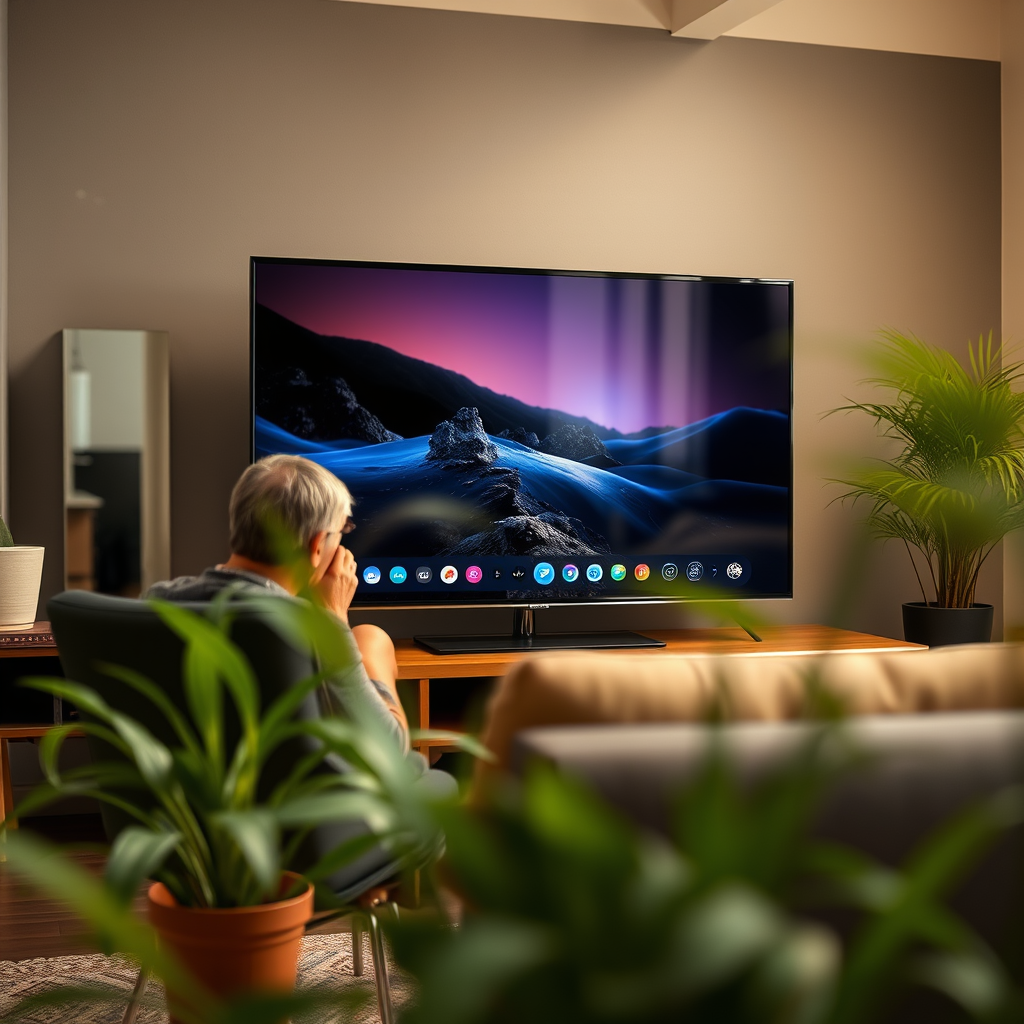
FaceTime is a video and audio calling service exclusive to Apple devices, including iPhones, iPads, and Macs. This exclusivity means that you cannot access FaceTime on non-Apple smart TVs directly. However, many modern smart TVs come equipped with features that allow for screen mirroring or casting from iOS devices. This capability makes it possible to display your FaceTime calls on your TV screen, even if the FaceTime app itself is not available on the TV. It’s essential to familiarize yourself with these features to maximize your video calling experience.
Using AirPlay to Connect to Smart TVs
One of the most efficient methods to use FaceTime on a smart TV is through AirPlay. Many smart TVs, especially those from brands like Samsung, LG, and Sony, now support AirPlay 2, which allows for seamless content streaming from your iPhone or iPad.
To use AirPlay for FaceTime, follow these steps:
1. Ensure Connectivity: Make sure your iOS device and smart TV are connected to the same Wi-Fi network.
2. Open FaceTime: Launch the FaceTime app on your iPhone or iPad.
3. Initiate a Call: Start a video call with the person you wish to connect with.
4. Access Control Center: Swipe down from the upper right corner of your iPhone or iPad screen to open the Control Center.
5. Select Screen Mirroring: Tap on “Screen Mirroring” and select your smart TV from the list of available devices.
6. Enjoy Your Call: Your FaceTime video call will now be displayed on your TV screen.
This method not only enhances the visual experience but also allows for a more engaging conversation, especially during group calls.
Third-Party Apps for Video Calls
If you are unable to use AirPlay or prefer not to, there are several third-party applications that can facilitate video calls directly on your smart TV. Applications like Zoom, Skype, and Google Meet can be easily installed from your smart TV’s app store, enabling you to make video calls without needing an external device.
When selecting a third-party app, consider the following:
– Compatibility: Ensure the app is compatible with your specific smart TV model.
– User Reviews: Check for user feedback regarding the app’s performance and ease of use.
– Features: Look for features that enhance usability, such as screen sharing and chat functions.
These apps provide an excellent alternative for video calling, especially for users who may not own Apple devices or prefer a dedicated solution for their smart TV.
Top Third-Party Video Calling Apps for Smart TVs (2024)
| # | App | Compatibility | User Rating | Special Features |
|---|---|---|---|---|
| 1 | Zoom | Smart TVs | ★★★★☆ | Screen Sharing |
| 2 | Skype | Smart TVs | ★★★★☆ | Chat Functionality |
| 3 | Google Meet | Smart TVs | ★★★★☆ | Live Captions |
| 4 | Microsoft Teams | Smart TVs | ★★★☆☆ | Integration with Office |
| 5 | FaceTime (via AirPlay) | Apple Devices | ★★★★★ | High Quality |
| 6 | Discord | Smart TVs | ★★★★☆ | Community Features |
| 7 | Viber | Smart TVs | ★★★★☆ | Free Calls |
Setting Up Screen Mirroring
For users who prefer to see their iPhone or iPad screen mirrored on their smart TV, screen mirroring is an excellent option. This method allows for a direct display of your device’s content on the larger screen, making it simple to use FaceTime.
To set up screen mirroring:
1. Access Settings on Your TV: Open your smart TV’s settings menu and look for the screen mirroring option.
2. Turn on Screen Mirroring: Enable the screen mirroring feature to allow your TV to receive signals from your iOS device.
3. Connect Your Device: On your iPhone or iPad, go to the Control Center and select “Screen Mirroring.”
4. Select Your TV: Choose your smart TV from the list of devices that appear.
5. Start Your FaceTime Call: Open FaceTime and make your call. The call will now appear on your TV screen.
This method is particularly beneficial for group calls, as it allows everyone in the room to view the conversation easily.
Limitations to Consider
While using workarounds to access FaceTime on a smart TV, it is essential to be aware of certain limitations.
1. Video Quality: Depending on your Wi-Fi connection and the capabilities of your smart TV, video quality may vary. A weak connection can lead to lagging or pixelation during calls.
2. Privacy Concerns: When using third-party apps, be cautious about privacy settings and app permissions. Ensure that the app does not have access to more information than necessary.
3. Audio Issues: Some users may experience challenges with audio synchronization or quality, particularly when using screen mirroring or AirPlay.
Being mindful of these limitations can help you make informed decisions about how to best use FaceTime on a smart TV.
Troubleshooting Common Issues
When attempting to use FaceTime on a smart TV, users may encounter various issues. Here are some common problems and their solutions:
1. Connectivity Issues: If your iOS device is unable to find your smart TV, ensure both devices are on the same Wi-Fi network. Restarting your router may also help.
2. Poor Video Quality: If the video is lagging or pixelated, check your internet speed; a minimum of 5 Mbps is recommended for smooth streaming.
3. App Malfunctions: If a third-party app crashes frequently, try uninstalling and reinstalling the app or checking for updates in your smart TV’s app store.
By addressing these issues proactively, you can ensure a more seamless video calling experience.
In summary, while FaceTime is not natively available on smart TVs, various alternatives like AirPlay, third-party apps, and screen mirroring can provide effective solutions. Understanding these options will allow you to connect with friends and family on a larger screen. Whether you choose to leverage AirPlay or explore other video call apps, these solutions can enhance your video conferencing experience. Try these methods today for an engaging and enjoyable FaceTime experience on your smart TV!
Frequently Asked Questions
Can you FaceTime on a smart TV?
FaceTime is not natively supported on most smart TVs due to the lack of the app in their operating systems. However, you can use devices like Apple TV or Chromecast to mirror your iPhone or iPad screen to your smart TV, allowing you to use FaceTime on a larger display.
How do I set up FaceTime on my smart TV?
To set up FaceTime on your smart TV, you’ll first need to connect your iPhone or iPad to the same Wi-Fi network as your TV. Using AirPlay for Apple devices, swipe down from the top right corner of your device and select Screen Mirroring, then choose your smart TV. This will allow you to access FaceTime on your phone while displaying it on the TV.
Why can’t I find the FaceTime app on my smart TV?
The FaceTime app is specifically designed for iOS and macOS devices and is not available for smart TVs. This limitation is due to the different operating systems and user interface of smart TVs, which are not compatible with FaceTime’s functionalities.
What is the best way to use FaceTime on a smart TV?
The best way to use FaceTime on a smart TV is by utilizing AirPlay with an Apple TV or any compatible streaming device. This allows you to project your FaceTime calls onto the larger screen while maintaining audio through your TV’s speakers, providing a better video call experience.
Which smart TVs support screen mirroring for FaceTime?
Most modern smart TVs from brands like Samsung, LG, and Sony support screen mirroring features like Apple AirPlay 2. To use FaceTime, ensure your smart TV is updated to the latest firmware and that your iOS device is compatible with AirPlay to seamlessly connect and mirror your calls.
References
- https://www.lifewire.com/use-facetime-on-your-smart-tv-5078797
https://www.lifewire.com/use-facetime-on-your-smart-tv-5078797 - Google Scholar Google Scholar
https://scholar.google.com/scholar?q=facetime+on+smart+tv - Google Scholar Google Scholar
https://scholar.google.com/scholar?q=video+calling+smart+tv - Google Scholar Google Scholar
https://scholar.google.com/scholar?q=facetime+technology+smart+tv - https://www.bbc.com/news/technology-57961467
https://www.bbc.com/news/technology-57961467 - Google Scholar Google Scholar
https://scholar.google.com/scholar?q=can+you+facetime+on+a+smart+tv - can you facetime on a smart tv – Search results
https://en.wikipedia.org/wiki/Special:Search?search=can+you+facetime+on+a+smart+tv - https://www.ncbi.nlm.nih.gov/search/research-articles/?term=can+you+facetime+on+a+smart+tv
https://www.ncbi.nlm.nih.gov/search/research-articles/?term=can+you+facetime+on+a+smart+tv

[…] behavior compared with multi-stage capture/stream pipelines. For capture-based workflows, video quality varies with the capture resolution, encoder settings, and network conditions (for […]
[…] Restart devices and update firmware if video quality […]
[…] best option is often screen mirroring from an iPhone, iPad, or Mac using AirPlay, so you can open any website in your existing browser and display it on your TV. After mirroring, […]
[…] Will lowering my iPhone’s video quality improve AirPlay performance?Often yes—especially for streaming video—because reduced bitrate […]
[…] add latency; may compress video quality; depends on Wi‑Fi and […]
[…] adapter (Lightning-to-AV or USB-C to HDMI) for instant mirroring. If your projector supports it, using AirPlay can work just as well without cables, but setup and latency depend on your Wi‑Fi. Keep reading to […]
[…] Typical Video Quality […]
[…] can project from your iPhone to your TV using AirPlay for wireless mirroring or an HDMI adapter for a fast, reliable wired connection. In my own testing […]
[…] can project your iPhone to your Smart TV, usually using AirPlay or a compatible app. In practice, the quickest route is AirPlay screen mirroring (or casting […]
[…] When using AirPlay: […]
[…] the correct HDMI input on the projector is required for stable playback when using AirPlay receivers like Apple TV. Apple TV / HDMI setup guidance (Apple Support + HDMI best practices) […]
[…] goal is “it must work” (client demos, recurring business reviews, classrooms). HDMI also makes video quality predictable because you’re controlling the video signal rather than routing it over […]
[…] can connect an iPhone to a projector using AirPlay (wireless) or a wired adapter (USB‑C/Lightning to HDMI). In most real-world scenarios, wired HDMI […]
[…] Typical Video Quality […]
[…] can connect an iPhone to a projector either with a wired HDMI adapter (most reliable) or wirelessly using AirPlay (when your projector supports it). In this guide (updated for 2024–2026 workflows), you’ll get […]
[…] can project from iPhone to your TV using AirPlay (wirelessly) or a compatible adapter/cable (wired). In practice, I recommend starting with AirPlay […]
[…] What’s the quickest compatibility check?If using AirPlay, confirm the iPhone can see the receiver in Screen Mirroring; if using HDMI, confirm the TV is on […]
[…] can mirror (project) your iPhone’s screen to a PC using AirPlay-style receiver options (when supported) or dedicated mirroring software. In my testing across […]
[…] can project video from an iPhone to your TV using AirPlay, a compatible smart TV (often via AirPlay 2), or an HDMI adapter/cable. In my hands-on tests, […]
[…] best wireless option is using AirPlay if your projector supports AirPlay (or if you have an Apple TV connected to the projector). For […]
[…] your iPhone to a projector either with a wired Lightning/USB‑C to HDMI adapter or wirelessly using AirPlay/Screen Mirroring. The key is matching your iPhone’s port (Lightning vs. USB‑C) to the […]
[…] Samsung phone to a projector quickly—choose HDMI for the most reliable, lag-free video, or use screen mirroring (Samsung Smart View/Cast) when you want the simplest wireless setup. The best method depends on […]