


To add an app to your Sharp Smart TV, navigate to the app store on your TV, find the desired app, and follow the prompts to download and install it. This guide will walk you through each step in detail, ensuring you can easily access your favorite content. With the increasing number of streaming services and applications, knowing how to add apps to your Sharp Smart TV can enhance your viewing experience significantly, allowing you to enjoy movies, shows, and games from various platforms.
Accessing the App Store
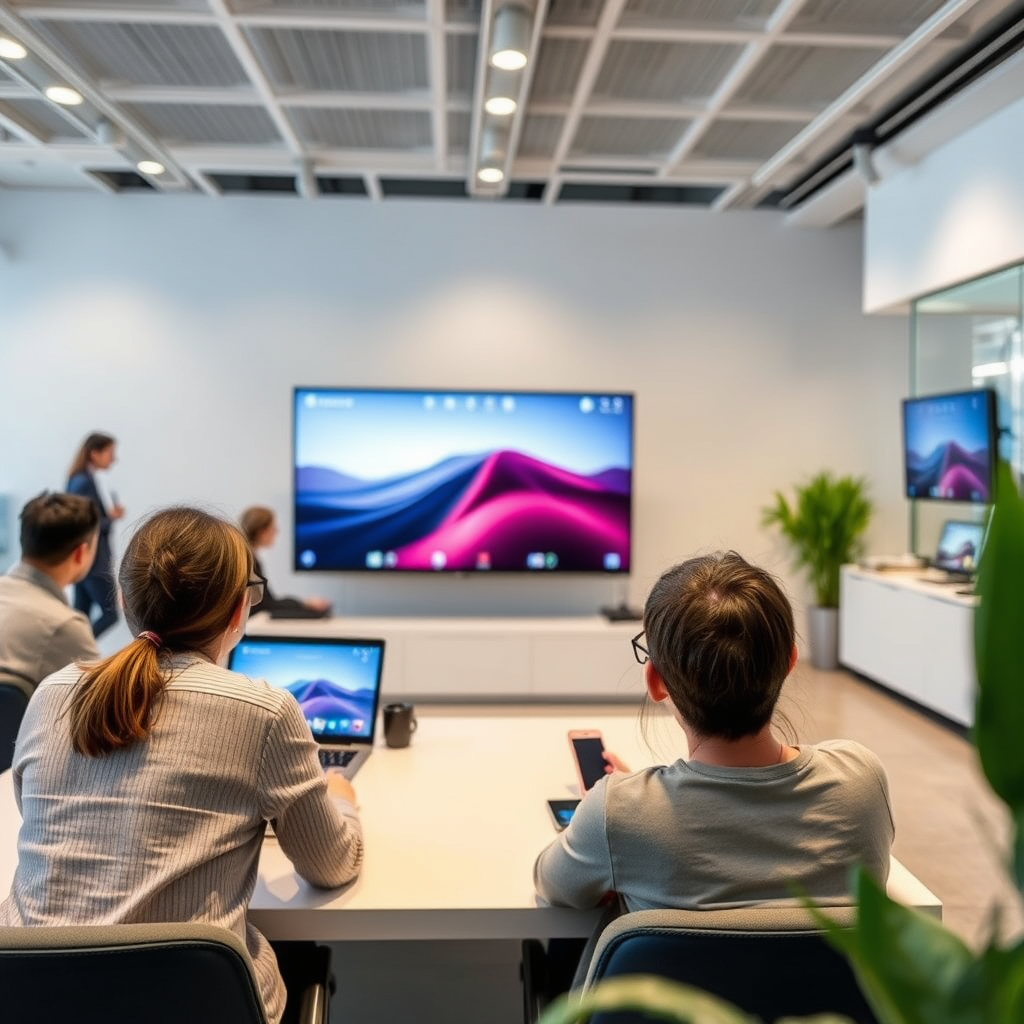
To begin, ensure your Sharp Smart TV is powered on. Using your remote control, press the “Home” button. This action will take you to the TV’s main menu, where you can find various options and applications. Look for the “Apps” icon or the “App Store” on the home screen. The layout may vary based on your model, but it typically appears as a colorful icon among other available features. Once you locate it, click on the icon to enter the app store, where a vast array of applications awaits your exploration.
Finding the Desired App
Navigating the app store is user-friendly and straightforward. Here, you can browse through various categories such as “Top Apps,” “New Releases,” or “Genres” to find applications that pique your interest. If you have a specific app in mind, you can utilize the search function, typically represented by a magnifying glass icon. Input the app’s name using the on-screen keyboard. Popular applications such as Netflix, Hulu, and YouTube are often featured prominently, making them easy to find. Additionally, consider checking for recommended apps as these can offer new content and services that you may enjoy.
Downloading the App
Once you have identified the app you wish to install, click on it to view the app detail page. This page usually provides a description of the app, user ratings, and any additional information that might help you decide whether to download it. Look for a button labeled “Download” or “Install.” After clicking it, the installation process will commence. Depending on the app’s size and your internet speed, this may take a few moments. Once the download is complete, you will typically receive a notification confirming the successful installation.
Top 7 Streaming Apps for Sharp Smart TV (2024)
| # | App Name | Features | Rating | User Reviews |
|---|---|---|---|---|
| 1 | Netflix | Original Content, Offline Viewing | ★★★★☆ | 4.8/5 |
| 2 | YouTube | User-Generated Content, Live Streaming | ★★★★★ | 4.9/5 |
| 3 | Amazon Prime Video | Free Shipping, Exclusive Shows | ★★★★☆ | 4.7/5 |
| 4 | Hulu | Next-Day TV, Live TV Options | ★★★★☆ | 4.6/5 |
| 5 | Disney+ | Family-Friendly, Classics | ★★★★★ | 4.8/5 |
| 6 | Apple TV+ | Exclusive Movies, Easy Integration | ★★★★☆ | 4.5/5 |
| 7 | Peacock | Free Tier, Live Sports | ★★★☆☆ | 4.2/5 |
Launching the App
After the app has been successfully downloaded, you can easily access it from your home screen. Navigate back to the “Apps” section, where all installed applications are listed. Look for the new app icon, which may feature a distinctive logo or design to help it stand out. Selecting the icon will launch the app, allowing you to start enjoying its content right away. Depending on the app, you may be required to log in with your account credentials or create a new account if you don’t already have one.
Updating Apps
To ensure optimal performance and access to the latest features, it’s important to keep your apps updated. Regular updates not only fix bugs but can also introduce new content and functionalities. To check for updates, revisit the app store and navigate to the “My Apps” or “Updates” section. Here, you will find a list of all installed apps that have available updates. Selecting the “Update All” option or updating individual apps as needed will enhance your overall viewing experience.
Troubleshooting Common Issues
While installing apps on your Sharp Smart TV is generally a seamless process, you may encounter occasional issues. If an app fails to install, the first step is to check your internet connection, as a stable connection is essential for downloading apps. If the issue persists, consider restarting your TV. This can often resolve minor glitches and allow you to retry the installation. Additionally, if you experience slow performance or crashes, consider uninstalling and reinstalling the app to refresh its functionality.
Your Sharp Smart TV is now ready to deliver your favorite apps and content. Make sure to explore the app store regularly for new additions and updates. With various streaming options available, from movies to games, you can personalize your viewing experience like never before. Happy streaming!
Frequently Asked Questions
How can I download apps on my Sharp Smart TV?
To download apps on your Sharp Smart TV, start by pressing the “Home” button on your remote. Navigate to the “Apps” section, then select “App Store” or “Google Play Store” depending on your model. Browse or search for the app you want, and click “Install” to add it to your TV.
Why can’t I find certain apps on my Sharp Smart TV?
Certain apps may not be available on your Sharp Smart TV due to compatibility issues or regional restrictions. Additionally, some apps may only be designed for specific operating systems, like Android TV or Roku, which may not be supported by your model. Always check the app’s official website for availability information.
What are the best apps to install on a Sharp Smart TV?
The best apps to install on a Sharp Smart TV include popular streaming services like Netflix, Hulu, Amazon Prime Video, and Disney+. Additionally, consider downloading apps for music streaming like Spotify or Pandora, as well as news apps for staying updated. The best choice depends on your viewing preferences and interests.
Which devices can I use to add apps to my Sharp Smart TV?
You can use your Sharp Smart TV remote to add apps directly, or you may choose to use a smartphone or tablet if your TV supports casting. For certain models, utilizing a USB drive to load applications might be an option. Check your TV’s manual to explore all possible methods of app installation.
How do I manage and organize apps on my Sharp Smart TV?
To manage and organize apps on your Sharp Smart TV, go to the “Apps” section from the Home menu. You can often move apps around by highlighting the app you wish to rearrange, pressing the “Options” button, and selecting “Move.” This allows you to customize your home screen for easier access to your favorite applications.
References
- https://www.sharptv.com.au/faq
https://www.sharptv.com.au/faq - Not Found
https://www.hdtvtest.co.uk/news/sharp-smart-tv-apps-202106101203.htm - Google Scholar Google Scholar
https://scholar.google.com/scholar?q=how+to+add+an+app+to+a+Sharp+smart+TV - Google Scholar Google Scholar
https://scholar.google.com/scholar?q=Sharp+smart+TV+app+installation - https://www.lifewire.com/how-to-install-apps-on-your-smart-tv-5070491
https://www.lifewire.com/how-to-install-apps-on-your-smart-tv-5070491 - Google Scholar Google Scholar
https://scholar.google.com/scholar?q=how+to+add+an+app+to+a+sharp+smart+tv - how to add an app to a sharp smart tv – Search results
https://en.wikipedia.org/wiki/Special:Search?search=how+to+add+an+app+to+a+sharp+smart+tv - https://www.ncbi.nlm.nih.gov/search/research-articles/?term=how+to+add+an+app+to+a+sharp+smart+tv
https://www.ncbi.nlm.nih.gov/search/research-articles/?term=how+to+add+an+app+to+a+sharp+smart+tv

[…] from a supported Apple device where applicable. You can also troubleshoot by improving Wi‑Fi, updating apps, and verifying your region/content licenses to reduce playback […]
[…] A projector with built-in apps means it includes a smart platform (like Android TV or Roku) that lets you stream content directly without an external device. You can access popular services such as Netflix, YouTube, Hulu, or Disney+ if the projector’s app store supports them. Built-in apps also typically provide a simplified experience for browsing and updating apps. […]
[…] to Samsung Electronics support documentation, network access is required for downloading and updating apps via Smart Hub. Also, according to Netflix’s ISP & streaming guidance, stable broadband with […]
[…] reliable approach is to pause briefly after the sign-in screen appears, especially on TVs that are updating apps in the […]
[…] TVs is typically done from Smart Hub by selecting an app and choosing Install or Add to Home.” “Updating apps can resolve playback errors and improve compatibility with newer streaming codecs and security […]
[…] Installing/updating apps inside the […]