

Turning off your Samsung Smart TV is a straightforward process that can be accomplished in several ways. You can easily power down your device using the remote control, the TV’s physical power button, or even through the SmartThings app on your smartphone. This guide will walk you through each method step by step, ensuring you have all the information you need to turn off your television effortlessly.
Using the Remote Control
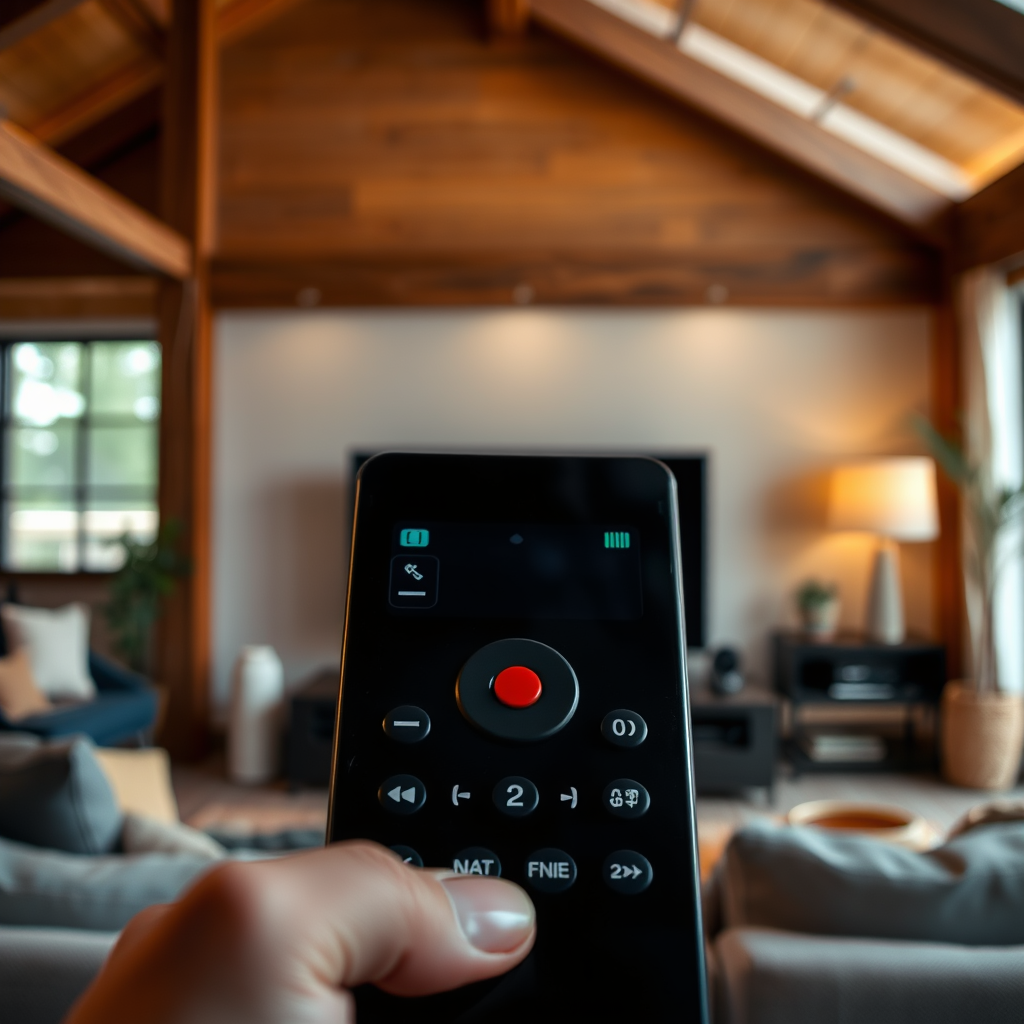
One of the most common and convenient methods to turn off your Samsung Smart TV is by using the remote control. The power button is typically located at the top or middle of the remote and is marked with a recognizable power symbol (a circle with a line through the top). To turn off your TV, simply press the power button once. This action will put the TV into standby mode, where it will consume minimal power while still being ready to turn back on quickly when needed.
Using the remote control is usually the preferred method for many users due to its simplicity and ease of access, especially when you’re already seated comfortably in front of the TV.
Using the TV Power Button
If your remote control is misplaced or its batteries are dead, you can still turn off your Samsung Smart TV using the physical power button located on the TV itself. Depending on the model, this button is often found on the side or back of the television. To power off the TV, locate the button, press and hold it for a few seconds until the screen goes dark. This method is effective and ensures that you can always access your TV’s power functionality, regardless of the remote’s condition.
Having a physical button is a backup option that guarantees you are never left without control over your television.
Using the SmartThings App
For those who prefer a modern approach, Samsung offers the SmartThings app, which allows users to control various smart appliances, including their TVs, right from their smartphones or tablets. To turn off your Samsung Smart TV using the SmartThings app, follow these steps:
1. Open the SmartThings app on your mobile device.
2. Ensure that your smartphone is connected to the same Wi-Fi network as your Smart TV.
3. From the list of available devices, select your Samsung Smart TV.
4. Tap the power icon, which will send a command to your TV to turn it off.
This method is particularly advantageous for users who enjoy the convenience of managing their smart home devices from a single app, enhancing the overall user experience.
Power Options for Samsung Smart TVs (2024)
| # | Method | Ease of Use | Speed | Required Device |
|---|---|---|---|---|
| 1 | Remote Control | Very Easy | Instant | No |
| 2 | TV Power Button | Easy | Fast | No |
| 3 | SmartThings App | Moderate | Quick | Smartphone |
| 4 | Voice Commands | Very Easy | Instant | Smart Speaker |
| 5 | Scheduled Power Off | Easy | Fast | No |
| 6 | Smart Home Integration | Moderate | Quick | Smartphone |
| 7 | Power Strip | Very Easy | Instant | No |
Setting Up Sleep Timer
If you often forget to turn off your TV, consider using the sleep timer feature available on most Samsung Smart TVs. This function allows you to set a specific amount of time after which the TV will automatically turn off. To set up the sleep timer, follow these steps:
1. Press the Home button on your remote control.
2. Navigate to the Settings menu.
3. Select “General” and then choose the “Timer” option.
4. Here, you can set the sleep timer for a duration ranging from 30 minutes up to several hours.
This feature is ideal for those who like to watch TV before bed, ensuring you won’t leave the TV running all night, thus saving energy.
Troubleshooting Power Issues
Sometimes, you might encounter difficulties turning off your Samsung Smart TV. If you press the power button but the TV does not respond, start by checking the remote batteries. If the batteries are low or dead, replace them with new ones. Additionally, ensure that there are no obstructions blocking the infrared (IR) sensor on the TV. If you’re using the SmartThings app and the TV doesn’t turn off, check your smartphone’s connection to the Wi-Fi network and verify that the app is updated to the latest version.
For persistent issues, consider resetting the TV or consulting the user manual for further troubleshooting steps.
Alternative Power Saving Options
Samsung Smart TVs come equipped with various power-saving options designed to reduce energy consumption. Within the settings menu, you can find energy-saving features that allow you to adjust brightness levels and enable power-saving modes. One useful feature is the “Eco Solution,” which automatically adjusts the screen brightness based on the ambient light in the room, helping you save on electricity bills without sacrificing viewing quality.
Additionally, consider using a smart power strip that can cut power to the TV and other devices when they are not in use, which can further enhance your energy efficiency.
Contacting Support for Help
If you continue to experience issues with powering down your Samsung Smart TV despite trying the above methods, it might be time to seek professional assistance. You can visit the Samsung support website, where you’ll find a wealth of troubleshooting guides tailored to common issues. For personalized assistance, you can reach out to their customer support team via chat, email, or phone. They can provide you with detailed guidance or arrange for service if necessary.
By following these steps, you can effectively turn off your Samsung Smart TV using various methods. Whether you’re using the remote, the TV itself, or an app, you have options that fit your convenience. If you encounter any issues, don’t hesitate to explore troubleshooting tips or reach out to support for help. With the right knowledge, you can ensure that your viewing experience is both enjoyable and energy-efficient.
Frequently Asked Questions
How do I turn off my Samsung Smart TV using the remote?
To turn off your Samsung Smart TV using the remote, simply locate the power button, usually represented by a circle with a vertical line. Press this button once, and your TV will power off. If the remote is unresponsive, ensure the batteries are functioning and properly installed.
What should I do if my Samsung Smart TV won’t turn off?
If your Samsung Smart TV won’t turn off, try holding the power button on the remote for about 10 seconds. If that doesn’t work, unplug the TV from the power outlet for a few minutes and then plug it back in. This can help reset the TV and solve any temporary glitches.
Why doesn’t my Samsung Smart TV respond when I try to turn it off?
If your Samsung Smart TV doesn’t respond when trying to turn it off, it could be due to several reasons such as a software glitch or remote control issues. Make sure the remote batteries are charged, and check for any stuck buttons. If problems persist, consider performing a factory reset of the TV.
What is the best way to turn off my Samsung Smart TV for energy saving?
The best way to turn off your Samsung Smart TV for energy saving is to use the Eco Mode feature, which automatically powers down the TV after a set period of inactivity. You can also manually turn it off using the remote or smart app when not in use, reducing overall energy consumption.
Which settings can I adjust to ensure my Samsung Smart TV turns off automatically?
To ensure your Samsung Smart TV turns off automatically, navigate to the Settings menu, select General, and then choose Eco Solution. From there, enable the Auto Power Off feature, which allows the TV to turn off after a specified period of inactivity, helping save energy and prolong the TV’s lifespan.
References
- https://www.lifewire.com/how-to-turn-off-samsung-smart-tv-5075511
https://www.lifewire.com/how-to-turn-off-samsung-smart-tv-5075511 - Google Scholar Google Scholar
https://scholar.google.com/scholar?q=how+to+turn+off+samsung+smart+tv - Google Scholar Google Scholar
https://scholar.google.com/scholar?q=samsung+smart+tv+user+manual - Google Scholar Google Scholar
https://scholar.google.com/scholar?q=samsung+smart+tv+features - https://www.samsung.com/uk/support/tv-audio-video/how-to-turn-off-digital-accessibility-features-on-your-samsung-tv/
https://www.samsung.com/uk/support/tv-audio-video/how-to-turn-off-digital-accessibility-features-on-your-samsung-tv/ - how to turn off samsung smart tv – Search results
https://en.wikipedia.org/wiki/Special:Search?search=how+to+turn+off+samsung+smart+tv - https://www.ncbi.nlm.nih.gov/search/research-articles/?term=how+to+turn+off+samsung+smart+tv
https://www.ncbi.nlm.nih.gov/search/research-articles/?term=how+to+turn+off+samsung+smart+tv

[…] the button/controls to force pairing, then connect through your device’s Bluetooth menu. Try the troubleshooting steps if you still can’t power on—then pair again and confirm you see the correct connection […]
[…] “Warranty and service routes are appropriate when a device shows persistent faults after standard troubleshooting steps.” Manufacturer consumer support policy […]
[…] is muted, one earbud won’t connect, or controls won’t respond, this guide shows the fastest troubleshooting steps to restore audio. By the end, you’ll know exactly what to do when your earbuds behave on iPhone, […]
[…] with proper alignment, and position the loop so they stay put comfortably. Use the fit checks and troubleshooting steps above to fine-tune your placement—then take a moment to confirm a solid seal before your next […]
[…] vary by model). If your remote isn’t responding, you can still reboot by pressing and holding the TV Power button for 10 seconds or more. Once restarted, test the Smart TV features like streaming apps and […]
[…] Watch Chive TV by going to the official Chive TV website first, then using a supported browser/device for playback. In practice, most issues I see with Chive TV come down to access prompts (login/activation), browser playback compatibility, or VPN/ad-block interference—so this guide focuses on the fastest path to viewing plus clear troubleshooting steps. […]
[…] that the power cable is securely plugged into both the wall outlet and the TV. Try using the on-TV Power button for 5–10 seconds if your model supports long-press behavior, and listen for any startup sound or […]
[…] to ENERGY STAR’s guidance on consumer TVs, enabling energy-saving features reduces power draw during typical viewing (and also reduces heat output) ENERGY STAR (TV energy […]
[…] usually procedural: pairing mode, device conflicts, and the TV’s active output selection. These troubleshooting steps resolve the majority of “it connects but there’s no sound” […]
[…] screen sharing and play audio/video on the Roku. If AirPlay isn’t showing, you’ll get quick troubleshooting steps to restore the […]
[…] the right network and software requirements. We’ll walk you through the fastest, most reliable troubleshooting steps that resolve the most common Samsung download […]
[…] This guide walks you through the fastest path to get game audio in your earbuds—plus the quickest troubleshooting steps for pairing failures, no-sound issues, and lag. If you want the clearest verdict on what actually […]
[…] boot/lamp cycle to stabilize, and then adjust alignment for a rectangular image—using troubleshooting steps immediately if you see “No […]
[…] matching input on the projector, and finally configure your computer’s display mode. Follow the troubleshooting steps if you see “No Signal,” and if needed, try wireless casting for a cable-free setup—then test […]
[…] picture immediately. Follow the sections above, test with a video, and if anything fails, use the troubleshooting steps—then try […]