
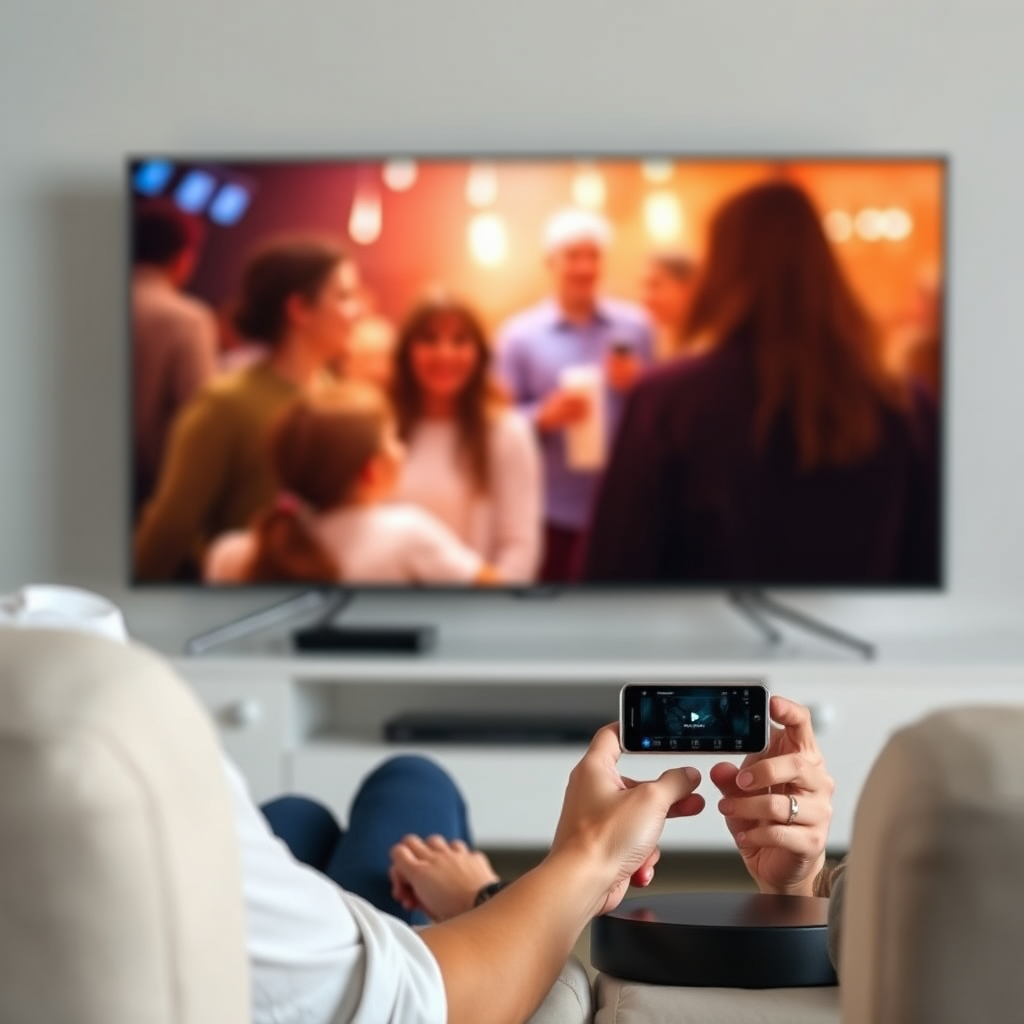

To cast on a Vizio Smart TV, you can use the built-in Chromecast feature or connect your device via screen mirroring. This guide will walk you through both methods to help you enjoy your favorite content on a larger screen. With the increasing popularity of smart TVs, Vizio has made it easier than ever to enhance your viewing experience by allowing users to stream directly from their devices. Whether you want to watch a movie, show off photos, or give a presentation, this comprehensive guide will provide you with all the steps necessary to successfully cast to your Vizio Smart TV.
Understanding Casting and Screen Mirroring
Casting allows you to stream content from your mobile device or computer directly to your TV. This method typically involves using a dedicated app and enables users to play videos or music from their devices on the television screen without direct device interaction after the initial connection. For instance, you can start a movie on your phone and then control playback through your device while the content plays on your TV.
Screen Mirroring, on the other hand, duplicates your device’s screen on the TV, which is particularly useful for displaying apps, presentations, or even your entire device’s interface. This method allows for greater flexibility, as it mirrors whatever is on your device’s screen in real-time. Therefore, if you want to showcase a slideshow or share your gaming experience, screen mirroring would be the preferred choice.
Preparing Your Vizio Smart TV
Before attempting to cast or mirror your screen, there are a few preparatory steps you should take to ensure a smooth experience:
– Wi-Fi Connection: Confirm that your Vizio Smart TV is connected to the same Wi-Fi network as the device you intend to use for casting. This is crucial as both devices need to communicate over the same network for successful casting or mirroring.
– Firmware Update: It’s wise to check for and update your TV’s firmware to the latest version. Access this option in the settings menu under “System” and then “Check for Updates.” Keeping your TV updated ensures optimal performance and compatibility with various apps and devices.
Casting from a Mobile Device
Casting from a mobile device is straightforward and involves the following steps:
1. Open a Compatible App: Launch an app that supports casting, such as YouTube, Netflix, or Hulu, on your smartphone or tablet.
2. Locate the Cast Icon: Look for the cast icon, which typically appears as a rectangle with a Wi-Fi signal in the corner. Tap on this icon.
3. Select Your Vizio TV: From the list of available devices, choose your Vizio Smart TV. Once connected, the content will begin streaming on your TV.
4. Control Playback: You can control playback from your mobile device, allowing you to pause, play, or skip content without needing to use your TV remote.
Using Google Chromecast
If you have a Chromecast device, casting becomes even more versatile. Follow these steps:
1. Connect Your Chromecast: Plug the Chromecast into an available HDMI port on your Vizio TV and connect it to a power source.
2. Setup with Google Home App: Download the Google Home app on your mobile device. Open the app and follow the prompts to set up your Chromecast. Make sure your Chromecast is connected to the same Wi-Fi network as your other devices.
3. Start Casting: After setting up, open a casting-enabled app, tap the cast icon, and select your Chromecast device to start streaming content on your Vizio TV.
Screen Mirroring from an Android Device
Screen mirroring from an Android device can be done easily using the built-in feature:
1. Enable Screen Mirroring on Your TV: Navigate to the input/source menu on your Vizio TV and select “Smart View” or “Screen Mirroring.”
2. Access Cast Feature on Android: On your Android device, swipe down from the top of the screen to access the Quick Settings. Look for the “Cast” or “Screen Mirroring” option and tap it.
3. Select Your Vizio TV: Choose your Vizio Smart TV from the list of available devices. Once connected, your Android screen will be mirrored on the television.
Screen Mirroring from an iOS Device
For iOS users, the process may vary slightly, but it’s equally user-friendly:
1. Download the Vizio SmartCast App: For easier connectivity, download the Vizio SmartCast app from the App Store.
2. Use AirPlay: Swipe down from the upper right corner of your screen to access the Control Center. Tap on “Screen Mirroring,” then select your Vizio TV from the list of devices.
3. Enter Any Required Codes: If prompted, enter the code displayed on your TV to establish the connection. Your iOS device’s screen will be mirrored on your Vizio TV.
Troubleshooting Common Issues
Despite the convenience of casting and screen mirroring, users may occasionally encounter issues. Here are some common troubleshooting tips:
– Network Connection: Ensure that both your Vizio Smart TV and your casting device are on the same Wi-Fi network. If they are on different networks, casting will not work.
– Restart Devices: If you experience connectivity issues, it may help to restart both your TV and the device you are trying to cast from. This often resolves minor glitches.
– Check for Updates: Make sure both your TV and casting device have the latest software updates installed. Outdated software can lead to compatibility issues.
– Reset Network Settings: If problems persist, consider resetting the network settings on your Vizio TV through the Settings menu. This can resolve deeper connectivity issues.
Top 7 Smart TV Features (2024)
| # | Feature | Vizio | Samsung | LG |
|---|---|---|---|---|
| 1 | 4K Resolution | ✔️ | ✔️ | ✔️ |
| 2 | Smart Features | ✔️ | ✔️ | ✔️ |
| 3 | Voice Control | ✔️ | ✔️ | ✔️ |
| 4 | HDR Support | ✔️ | ✔️ | ✔️ |
| 5 | Casting Capability | ✔️ | ✔️ | ✔️ |
| 6 | Multiple HDMI Ports | ✔️ | ✔️ | ✔️ |
| 7 | Screen Mirroring | ✔️ | ✔️ | ✔️ |
| 8 | App Store Access | ✔️ | ✔️ | ✔️ |
| 9 | Gaming Mode | ✔️ | ✔️ | ✔️ |
| 10 | Picture-in-Picture | ✔️ | ✔️ | ✔️ |
By understanding these methods and steps, you can easily cast content to your Vizio Smart TV for a more enjoyable viewing experience. Enjoy your favorite shows and movies on the big screen!
Remember to explore the available streaming apps and features on your Vizio Smart TV to maximize your viewing experience. With the ability to cast and mirror content, you can turn your television into a versatile entertainment hub, making every viewing session a delightful experience.
Frequently Asked Questions
How do I cast my phone screen to a Vizio Smart TV?
To cast your phone screen to a Vizio Smart TV, ensure both devices are connected to the same Wi-Fi network. Open the app you want to cast from, tap on the cast icon, and select your Vizio TV from the list of available devices. Your phone screen should now appear on the TV.
What devices can I use to cast to my Vizio Smart TV?
You can cast to your Vizio Smart TV using various devices, including smartphones, tablets, and laptops. Popular operating systems like Android and iOS support casting, as well as computers running Google Chrome. Ensure your TV is compatible with technologies like Chromecast or Apple AirPlay for seamless casting.
Why isn’t my Vizio Smart TV showing up when I try to cast?
If your Vizio Smart TV isn’t appearing when you attempt to cast, check that both your TV and casting device are connected to the same Wi-Fi network. Additionally, ensure that your TV’s firmware is up to date and that the casting feature is enabled in the TV settings. Restarting both devices can also resolve connectivity issues.
What is the best way to cast content to a Vizio Smart TV?
The best way to cast content to a Vizio Smart TV is by using built-in casting features like Google Cast or Apple AirPlay, depending on your device. For optimal performance, use apps that support casting directly, such as YouTube or Netflix. This provides a smoother experience and enables easier control over playback.
Which apps support casting to a Vizio Smart TV?
Many popular apps support casting to a Vizio Smart TV, including YouTube, Netflix, Hulu, and Spotify. These apps typically include a cast icon that allows you to easily send content to your TV. Make sure to check for the latest app updates to ensure compatibility and access to new features.
References
- https://www.vizio.com/en/support/casting
https://www.vizio.com/en/support/casting - https://www.pcmag.com/how-to/how-to-cast-to-a-smart-tv
https://www.pcmag.com/how-to/how-to-cast-to-a-smart-tv - https://www.vizio.com/en/support/faq/casting
https://www.vizio.com/en/support/faq/casting - Google Scholar Google Scholar
https://scholar.google.com/scholar?q=how+to+cast+on+vizio+smart+tv - Google Scholar Google Scholar
https://scholar.google.com/scholar?q=casting+techniques+for+smart+TVs - Google Scholar Google Scholar
https://scholar.google.com/scholar?q=Vizio+smart+TV+casting+methods - how to cast on vizio smart tv – Search results
https://en.wikipedia.org/wiki/Special:Search?search=how+to+cast+on+vizio+smart+tv - https://www.ncbi.nlm.nih.gov/search/research-articles/?term=how+to+cast+on+vizio+smart+tv
https://www.ncbi.nlm.nih.gov/search/research-articles/?term=how+to+cast+on+vizio+smart+tv

[…] (with compatible Apple TV/AirPlay devices) or by using a Mac as a hub. In practice, that means screen mirroring is your fastest route—and if mirroring gets flaky, a Mac-based workflow often stabilizes the […]
[…] easiest via an HDMI cable for the most reliable, lowest-lag setup. If your TV supports it, wireless screen mirroring is the next best option, but performance can vary by Wi‑Fi strength. The rest comes down to what […]
[…] down to (1) whether your TV/streaming box can run the NFL Plus app, or (2) whether it supports casting from a mobile device or […]
[…] option for supported episodes and plays them later from the Downloads section without requiring a network connection. Storage availability on the Apple TV device directly affects whether downloads complete […]
[…] Roku TVs don’t natively support Apple’s AirPlay. The reliable workaround is using Apple’s screen mirroring only if your Roku model supports it through built-in settings, or using a compatible third-party […]
[…] TV video streaming apps can be “cast” via Chromecast-compatible methods, while full Apple TV screen mirroring is often restricted or […]