


To change the input on your LG Smart TV, simply press the “Input” or “Source” button on your remote control. This action will bring up a menu displaying all available input options, allowing you to select your desired device quickly and easily. In this article, we’ll walk you through the various methods to change the input, ensuring you can switch between devices without hassle. Whether you are connecting a gaming console, streaming device, or any other HDMI-enabled gadget, mastering these techniques will enhance your viewing experience.
Understanding Your Remote Control
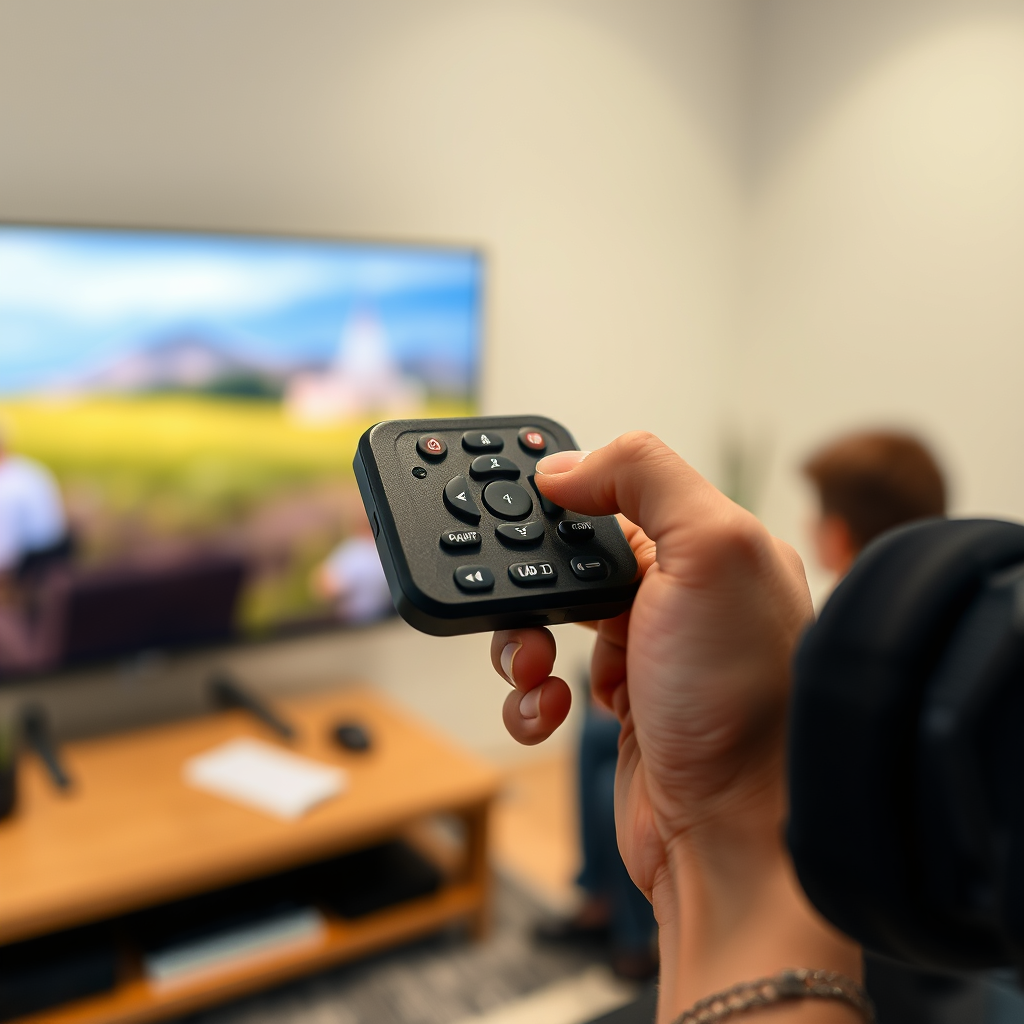
The first step in changing the input on your LG Smart TV is to familiarize yourself with the remote control. Most LG remotes feature a clearly labeled “Input” or “Source” button, typically located in the center or near the top. This button is essential for navigating the various input options available on your TV.
Additionally, some models may include a dedicated “Home” button that can also grant access to input settings. This feature can streamline the process, allowing you to move easily between different functionalities, including changing inputs, adjusting settings, and accessing apps. Understanding your remote’s layout can save you time and effort, especially when you need to switch devices quickly during a viewing session.
Navigating the Input Menu
Once you press the “Input” or “Source” button, the input menu will be displayed on your screen. At this point, you will see a list of all available sources, such as HDMI1, HDMI2, USB, and possibly others like AV or Component. Use the arrow keys on your remote to scroll through the options.
When you have highlighted the desired input source, simply press the “OK” or “Select” button to confirm your choice. The transition should be seamless, and your LG Smart TV will switch to the selected input almost instantly. If you are using devices like a cable box, Blu-ray player, or gaming console, ensure they are powered on to avoid any connection issues.
Using the LG TV Settings Menu
For those who prefer a more organized approach, the LG TV settings menu offers an alternative way to manage your input sources. To access the settings, press the “Settings” button on your remote. This button usually has a gear icon and is commonly found near the center of the remote.
Navigate to the “All Settings” option from the menu that appears. From there, go to the “General” section and select “Inputs.” Here, you can view all connected devices, customize their names for easier identification, and switch inputs as needed. This method is particularly useful if you frequently change inputs, as it allows you to see a complete overview of all connected devices at a glance.
Changing Input via the LG ThinQ App
In today’s digital age, convenience is paramount. The LG ThinQ app allows you to control your LG Smart TV from your smartphone, including changing input sources. To get started, download the LG ThinQ app from your device’s app store and connect it to your TV.
Once paired, the app provides a user-friendly interface that mimics your remote control, offering options to change inputs and access various features directly from your mobile device. This functionality is especially advantageous if you’ve misplaced your remote or simply prefer the ease of a touchscreen interface.
Troubleshooting Input Issues
Despite its user-friendly design, you may occasionally encounter issues when changing inputs on your LG Smart TV. Here are some common troubleshooting steps:
1. Check Connections: Ensure that all cables are securely connected to their respective ports. Loose cables can lead to connectivity issues and prevent the TV from recognizing your device.
2. Power On External Devices: Make sure that the external devices you wish to connect—such as gaming consoles, streaming devices, or Blu-ray players—are powered on and functioning correctly.
3. Test Different Ports: If a specific input is not working, try connecting the device to another HDMI port. Sometimes, individual ports may have issues while others operate normally.
By following these steps, you can quickly resolve input issues and continue enjoying your favorite content.
Tips for Easy Access to Inputs
To enhance your viewing experience and streamline the process of switching inputs, consider these practical tips:
– Label Your Devices: If you have multiple devices connected to your TV, labeling them can help you quickly identify which input to select. This is particularly useful in households with many gadgets.
– Use a Universal Remote: If managing multiple remotes becomes cumbersome, consider using a universal remote. These devices can be programmed to control all your home entertainment systems, enabling a more seamless input changing experience.
– Regularly Update Your Devices: Ensure that your LG Smart TV and connected devices are running the latest firmware. Updates often improve functionality and can resolve input recognition issues.
Top 7 Input Sources for LG Smart TVs (2024)
| # | Input Source | Type | Resolution Supported | Popularity |
|---|---|---|---|---|
| 1 | HDMI 1 | HDMI | 4K | ★ ★ ★ ★ ★ |
| 2 | HDMI 2 | HDMI | 4K | ★ ★ ★ ★ |
| 3 | USB | USB | 1080p | ★ ★ ★ |
| 4 | AV | Analog | 720p | ★ ★ |
| 5 | Component | Analog | 1080p | ★ ★ ★ |
| 6 | HDMI 3 | HDMI | 4K | ★ ★ ★ ★ |
| 7 | HDMI ARC | HDMI | Dolby Atmos | ★ ★ ★ ★ ★ |
In conclusion, changing the input on your LG Smart TV is a straightforward process, whether you use the remote control, the settings menu, or the LG ThinQ app. By understanding these methods, you can easily switch between your devices and enjoy seamless viewing. If you have any further questions or issues, consult your TV’s user manual or reach out to LG support for assistance. Embracing these tips will not only make your experience more enjoyable but also enhance your overall engagement with the technology in your living space.
Frequently Asked Questions
How do I change the input source on my LG Smart TV?
To change the input source on your LG Smart TV, press the “Input” or “Source” button on your remote control. This will bring up a list of available input options such as HDMI, USB, and AV. Use the arrow keys to navigate to the desired input and press “OK” to select it.
What should I do if my LG Smart TV won’t switch inputs?
If your LG Smart TV won’t switch inputs, first ensure that your remote control has fresh batteries. Next, check if the device you are trying to connect is powered on and properly connected to the TV. If the issue persists, try resetting the TV by unplugging it for a few minutes and then plugging it back in.
Why is my LG Smart TV not recognizing the HDMI input?
If your LG Smart TV is not recognizing the HDMI input, ensure that the HDMI cable is securely connected to both the TV and the device. Check for any visible damage on the cable or the ports. If available, try using a different HDMI port on the TV or a different HDMI cable to see if the issue is resolved.
Which input should I use for my gaming console on an LG Smart TV?
For a gaming console, it’s best to use one of the HDMI ports on your LG Smart TV, as HDMI provides the best quality for both video and audio. Make sure to connect your gaming console to an HDMI port that supports 4K if your console is 4K compatible, and switch to that input using the remote.
How can I quickly switch between inputs on my LG Smart TV?
To quickly switch between inputs on your LG Smart TV, utilize the “Quick Access” feature available on the remote. You can assign your favorite inputs to the Quick Access buttons, allowing you to effortlessly switch between devices like your streaming box, gaming console, or Blu-ray player without navigating through multiple menus.
References
- Product Support: Help Library | LG USA Support
https://www.lg.com/us/support/help-library/how-to-change-input-on-lg-smart-tv-CT10000026-20150183202003 - Google Scholar Google Scholar
https://scholar.google.com/scholar?q=how+to+change+input+on+lg+smart+tv - Google Scholar Google Scholar
https://scholar.google.com/scholar?q=LG+Smart+TV+input+settings - Google Scholar Google Scholar
https://scholar.google.com/scholar?q=LG+TV+input+change+guide - https://www.lifewire.com/how-to-change-input-on-lg-smart-tv-4688822
https://www.lifewire.com/how-to-change-input-on-lg-smart-tv-4688822 - how to change input on lg smart tv – Search results
https://en.wikipedia.org/wiki/Special:Search?search=how+to+change+input+on+lg+smart+tv - https://www.ncbi.nlm.nih.gov/search/research-articles/?term=how+to+change+input+on+lg+smart+tv
https://www.ncbi.nlm.nih.gov/search/research-articles/?term=how+to+change+input+on+lg+smart+tv

[…] If you use a universal remote or TV remote control integration, pair it per your device instructions and test volume and channel […]
[…] universal remotes usually work reliably for turning the TV on/off, changing inputs, and adjusting volume because they send standard IR signals. Bluetooth-enabled universal remotes […]
[…] apps, playing content, and controlling playback. Some TVs also support additional controls like changing inputs or basic settings, but support varies by brand, model, and whether the TV is truly Alexa-integrated […]
[…] plan includes any travel features, since availability can vary by subscription and device. For a seamless viewing experience in Europe, consider switching to a local live-TV service and keep your YouTube TV […]
[…] approach gives you access to the Roku home screen, channel store, and features like Roku search and universal remote control (depending on the model). If you only need limited Roku content, installing the Roku […]
[…] for Roku functions while controlling TV power and volume with the TV’s original remote or a universal remote if programming isn’t […]
[…] and navigate to the Network/Wi‑Fi setup. Some LG models also support mobile control through the LG ThinQ app, which can guide you through Wi‑Fi connection steps using your phone. As an alternative, you can […]