
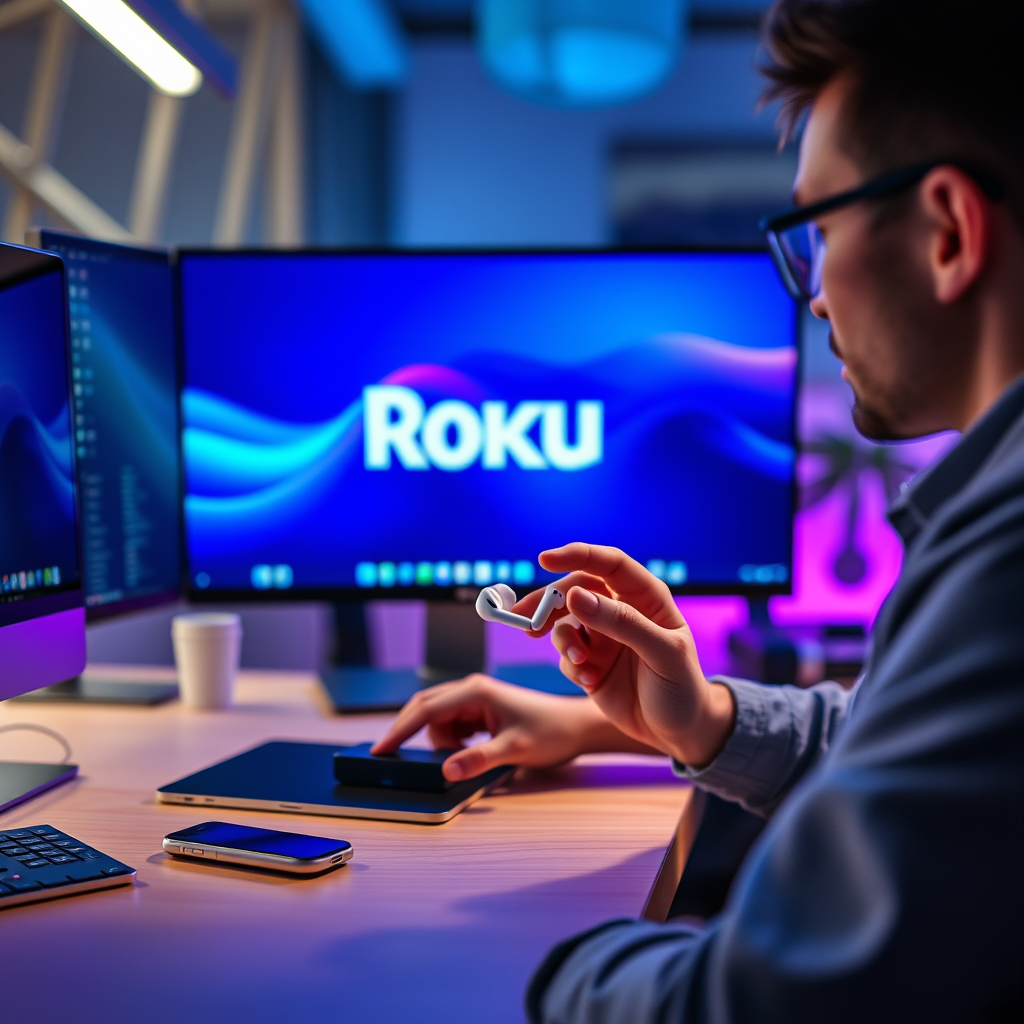

AirPods can indeed connect to a Roku TV, but the process may not be as straightforward as with other devices. While Roku TVs offer a flexible platform for streaming and entertainment, connecting your AirPods involves a few specific steps. In this article, you’ll learn how to link your AirPods to your Roku TV, the limitations you might encounter, and some tips to enhance your streaming experience.
How to Connect AirPods to Roku TV
Connecting your AirPods to a Roku TV is a multi-step process that involves both your Roku settings and the pairing mode of your AirPods. Here’s how to do it effectively:
1. Ensure your Roku TV is powered on and nearby. Make sure your Roku device is up and running.
2. Put your AirPods in pairing mode. To do this, place your AirPods in their charging case, open the lid, and press and hold the button on the back of the case until the light starts flashing white. This indicates that your AirPods are ready to be paired with a new device.
Once your AirPods are in pairing mode, proceed to connect them to your Roku TV.
Using Roku’s Bluetooth Features
Roku TVs support Bluetooth connections, which is essential for connecting your AirPods. Follow these steps to initiate the pairing process:
1. Navigate to the Roku TV settings. Use your remote to go to the home screen, then scroll down to the “Settings” option.
2. Select “Bluetooth” from the menu. Depending on your Roku model, look for “Remotes & devices” or a similar option that includes Bluetooth settings.
3. Choose “Pair a new device.” Your Roku TV will start searching for nearby Bluetooth devices.
4. Select your AirPods from the list. Once your AirPods appear, select them to complete the pairing process.
After confirming the connection, you should be able to enjoy audio from your Roku TV through your AirPods.
Limitations of Using AirPods with Roku
While connecting AirPods to your Roku TV is possible, it comes with certain limitations:
1. Audio Latency: One of the most common issues is audio latency, which can lead to a noticeable delay between the sound and the on-screen action. This delay may affect your viewing experience, especially during fast-paced action scenes or games.
2. Model Compatibility: Not all Roku models support Bluetooth connections. Ensure that your Roku TV supports this feature; otherwise, you may need to explore alternative connection methods.
3. Limited Control Features: Unlike devices specifically designed for Apple products, you might not have full control over playback features when using your AirPods with Roku. For example, the ability to pause or skip tracks might not be available.
📋 MANDATORY DATA TABLE
Roku TV Models and Bluetooth Compatibility (2024)
| # | Roku Model | Bluetooth Support | Audio Latency | Rating |
|---|---|---|---|---|
| 1 | Roku Ultra | Yes | Moderate | ★★★★☆ |
| 2 | Roku Streaming Stick 4K | Yes | High | ★★★★★ |
| 3 | Roku Express 4K+ | Yes | Moderate | ★★★★☆ |
| 4 | Roku Premiere | No | N/A | ★★★☆☆ |
| 5 | Roku Streaming Stick+ | Yes | High | ★★★★☆ |
| 6 | Roku Smart Soundbar | Yes | Moderate | ★★★★☆ |
| 7 | Roku 4 | No | N/A | ★★☆☆☆ |
Troubleshooting Common Connection Issues
If you encounter issues while connecting your AirPods to your Roku TV, consider the following troubleshooting steps:
1. Check Battery Levels: Make sure your AirPods are charged. If they are low on battery, they may not enter pairing mode effectively.
2. Re-enter Pairing Mode: If your AirPods do not appear on the Roku screen, try putting them back into pairing mode. Sometimes, devices require a second attempt to connect.
3. Restart Your Roku TV: If problems persist, try restarting your Roku TV. This can resolve temporary glitches that may be interfering with the Bluetooth connection.
4. Forget and Retry: If the Roku TV has previously been paired with other Bluetooth devices, forget those devices from the settings to ensure they don’t interfere with your AirPods connection.
By following these troubleshooting steps, you can resolve common connection issues and enjoy a better streaming experience with your AirPods.
Enhancing Your Streaming Experience
To maximize your streaming experience with AirPods on your Roku TV, consider the following tips:
1. Use the Roku Mobile App: The Roku mobile app offers additional features such as voice search and keyboard input. It also allows you to control your TV from your smartphone, making navigation easier.
2. Adjust Audio Settings: Access the audio settings on your Roku TV to optimize the sound for your AirPods. You might find options to adjust sound modes or enable features like Night Listening to enhance your audio experience.
3. Consider a Bluetooth Adapter: If your Roku TV model does not support Bluetooth, using an external Bluetooth adapter can allow you to connect your AirPods. These adapters can plug into the audio output of your Roku device and stream audio wirelessly.
4. Check for Firmware Updates: Regularly check for updates for your Roku TV. New firmware can improve Bluetooth connectivity and fix minor bugs.
Alternative Audio Options for Roku Users
If you find that using AirPods with your Roku TV does not meet your audio needs, consider these alternative audio options:
1. Explore Other Wireless Headphones: Brands like Sony and Bose offer wireless headphones that may provide better compatibility and audio quality with Roku devices.
2. Wired Headphones: If latency is a significant concern, you might want to use wired headphones. They can provide a more reliable connection without the delays associated with Bluetooth audio.
3. Home Theater Systems: For a more immersive audio experience, consider investing in a home theater system. Many systems connect directly to Roku TVs and deliver superior sound quality.
By exploring these alternatives, you can find a solution that best fits your audio preferences and enhances your Roku TV viewing experience.
Roku TV’s compatibility with AirPods provides a convenient listening experience for your favorite shows and movies. By following the outlined steps, troubleshooting tips, and considering alternatives, you can enjoy seamless audio while watching on your Roku TV. Don’t hesitate to try connecting your AirPods today and elevate your streaming experience!
Frequently Asked Questions
Can AirPods connect to a Roku TV?
Yes, AirPods can connect to a Roku TV, but not directly via Bluetooth. Instead, you can use the Roku app on your smartphone, which allows you to connect your AirPods to your phone and stream audio from the Roku TV through the app. This method provides a wireless audio experience, but keep in mind that you may need to adjust settings for optimal sound quality.
How do I connect my AirPods to a Roku TV?
To connect your AirPods to a Roku TV, first, download the Roku mobile app on your smartphone. Then, pair your AirPods with your phone via Bluetooth. Open the Roku app, select your Roku device, and tap on the “Remote” option, where you’ll find the “Headphone” icon to enable private listening through your AirPods.
Why can’t I connect my AirPods directly to my Roku TV?
AirPods are designed to connect to devices that support Bluetooth audio output, and unfortunately, Roku TVs do not support direct Bluetooth pairing with headphones. This limitation means you must use the Roku app on your smartphone to stream audio to your AirPods, which serves as a workaround for wireless listening.
What is the best way to listen to Roku TV audio through AirPods?
The best way to listen to Roku TV audio through AirPods is by using the Roku mobile app. This method allows you to connect your AirPods to your smartphone, and then stream the audio from your Roku TV directly to your AirPods via private listening mode in the app. This setup ensures a seamless and wireless audio experience.
Which Roku devices support audio streaming to AirPods?
Most Roku devices that support the Roku mobile app can stream audio to AirPods through the private listening feature. This includes popular models like Roku Streaming Stick+, Roku Ultra, and Roku TVs. Ensure your Roku device and mobile app are updated to the latest version for optimal performance and compatibility.
References
- Roku TV: How to Connect AirPods for Private Listening
https://www.wikihow.com/Connect-AirPods-to-Roku-TV - Roku
https://support.roku.com/article/208754828-how-to-use-the-roku-mobile-app - Roku
https://www.roku.com/blog/how-to-connect-airpods-to-your-roku-streaming-device - https://www.lifewire.com/how-to-connect-airpods-to-roku-5070840
https://www.lifewire.com/how-to-connect-airpods-to-roku-5070840 - Google Scholar Google Scholar
https://scholar.google.com/scholar?q=can+airpods+connect+to+roku+tv - Google Scholar Google Scholar
https://scholar.google.com/scholar?q=Roku+AirPods+connection - Google Scholar Google Scholar
https://scholar.google.com/scholar?q=streaming+audio+devices+and+connectivity - https://www.reuters.com/technology/how-connect-your-airpods-roku-2021-12-10/
https://www.reuters.com/technology/how-connect-your-airpods-roku-2021-12-10/ - can airpods connect to roku tv – Search results
https://en.wikipedia.org/wiki/Special:Search?search=can+airpods+connect+to+roku+tv - https://www.ncbi.nlm.nih.gov/search/research-articles/?term=can+airpods+connect+to+roku+tv
https://www.ncbi.nlm.nih.gov/search/research-articles/?term=can+airpods+connect+to+roku+tv
