

If you’re wondering whether you can get Roku on your smart TV, the answer is yes! Many smart TVs come with the Roku operating system built-in, or you can easily add Roku functionality through external devices. Roku provides a user-friendly interface with access to a plethora of streaming channels, making it a popular choice for viewers seeking diverse entertainment options. In this article, we’ll explore how to access Roku on your smart TV and the various options available to you.
Understanding Roku and Smart TVs
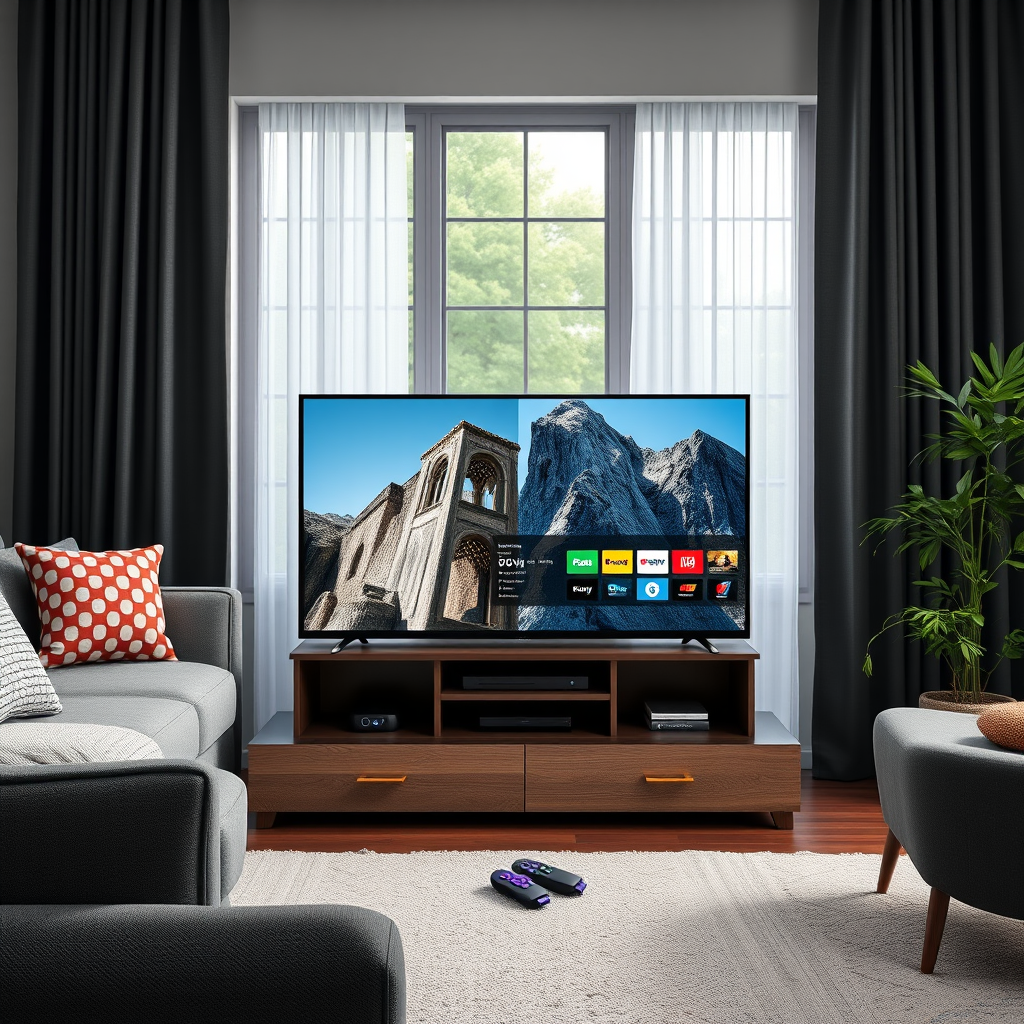
Roku is a versatile streaming platform that allows users to access a wide array of channels and applications from one central hub. It aggregates content from various streaming services, enabling users to enjoy movies, TV shows, music, and more without the need for multiple remotes or interfaces. Many smart TVs are compatible with Roku, either as a built-in feature or through the use of external devices like the Roku Streaming Stick or Roku Express.
The Roku operating system is designed to streamline the viewing experience, offering easy access to popular services such as Netflix, Hulu, and Amazon Prime Video, among others. This versatility in content access has made Roku a household favorite, appealing to both casual viewers and dedicated binge-watchers.
Checking Smart TV Compatibility
Before diving into the Roku experience, it’s crucial to determine if your smart TV is compatible. Here are a few steps to check compatibility:
1. Look for the Roku Logo: Many TVs that support Roku will feature the Roku logo on the packaging or in the specifications. This is a clear indication that the TV has the operating system built-in.
2. Manufacturer’s Website: Visit the manufacturer’s website and look for the specifications of your TV model. This will usually provide detailed information regarding compatibility with Roku or other streaming services.
3. User Manual: Consult your TV’s user manual for any mention of Roku features. This will provide insights into accessing the Roku interface if it is available.
Installing Roku on a Smart TV
If your smart TV has Roku built-in, getting started is straightforward. Simply navigate to the Roku interface using your TV remote. You will typically find it in the main menu or as an app icon.
For TVs that do not come with Roku pre-installed, you have options to add Roku functionality:
– Roku Streaming Stick: This device plugs into your TV’s HDMI port and provides full access to the Roku operating system. It’s compact and easy to use, making it a popular choice for those looking to upgrade their viewing experience.
– Roku Express: Another external device, Roku Express, is also connected via HDMI. It’s an affordable option that delivers a similar experience to the Roku Streaming Stick.
Comparison of Roku Devices
Comparison of Roku Devices (2024)
| # | Device | Resolution | Remote Type | Price |
|---|---|---|---|---|
| 1 | Roku Streaming Stick 4K | 4K | Voice Remote | $49.99 |
| 2 | Roku Express | HD | Standard Remote | $29.99 |
| 3 | Roku Ultra | 4K | Voice Remote | $99.99 |
| 4 | Roku Premiere | 4K | Standard Remote | $39.99 |
| 5 | Roku Smart Soundbar | HD | Voice Remote | $179.99 |
Setting Up Roku on Your Smart TV
Once you’ve confirmed compatibility and chosen your Roku device, the next step is setting it up:
1. Connect the Device: If using a Roku Streaming Stick or Express, plug it into an available HDMI port on your TV. Make sure to note which HDMI input you are using.
2. Power On and Select Input: Turn on your TV and select the HDMI input corresponding to your Roku device. You should see the Roku welcome screen.
3. Create or Log into Your Roku Account: Follow the on-screen prompts to set up your Roku account. If you don’t have one, you can create it during this process.
4. Connect to Wi-Fi: Choose your Wi-Fi network from the list and enter the password to connect. This step is essential for streaming content.
5. Complete Setup: Once connected, Roku may install updates. After updates are complete, you can start adding channels and customizing your home screen.
Troubleshooting Common Issues
Despite its user-friendly nature, you may encounter some issues while using Roku. Here are common problems and solutions:
– Channels Not Loading: If channels are slow to load or fail to open, check your internet connection. A weak or unstable connection can hinder performance.
– Performance Issues: If you experience lag or freezing, consider restarting your smart TV or the Roku device. Unplugging the device for a few seconds can help refresh its system.
– Account Issues: If you have trouble accessing your account, ensure you’re entering the correct credentials. Resetting your password through the Roku website can resolve login issues.
Exploring Roku Channels and Features
One of the greatest advantages of Roku is the extensive library of channels available. Users can access popular services such as:
– Netflix: Stream a wide range of movies and TV shows.
– Hulu: Enjoy current and classic TV shows, along with original content.
– Amazon Prime Video: Access a vast selection of movies, shows, and exclusive programming.
In addition to these, Roku offers access to free channels and niche content providers, allowing users to customize their viewing experience. The platform’s search feature further enhances usability, allowing viewers to find specific content across multiple channels efficiently.
Benefits of Using Roku on Smart TVs
Integrating Roku with your smart TV offers several benefits:
– User-Friendly Interface: Roku’s intuitive design simplifies navigation, making it accessible for users of all ages.
– Diverse Content: With thousands of channels, Roku allows users to explore a wide variety of entertainment options, catering to different interests and preferences.
– Regular Updates: Roku frequently updates its software and adds new channels, ensuring that users have access to the latest content and features.
– Customizable Home Screen: Users can personalize their home screen by adding favorite channels and removing those they do not use, creating a tailored experience.
Summarizing the key points, yes, you can definitely get Roku on your smart TV, either built-in or through external devices. To get started, check your TV’s compatibility, install Roku if necessary, and explore the vast array of channels available. With a straightforward setup process and extensive content options, Roku enhances your viewing experience significantly. Ready to enjoy endless streaming? Take the next step and set up Roku on your smart TV today!
Frequently Asked Questions
Can I get Roku on my smart TV without a Roku device?
Yes, many smart TVs come with the Roku operating system built-in, allowing you to access Roku channels directly without needing an additional Roku device. If your smart TV has the Roku interface, you can easily navigate and download apps from the Roku Channel Store.
How do I install the Roku app on my smart TV?
To install the Roku app on your smart TV, first, navigate to your TV’s app store or marketplace. Search for the Roku app, select it, and choose the install option. Once installed, you can log in or create a Roku account to start streaming your favorite content.
Why can’t I find the Roku app on my smart TV?
If you can’t find the Roku app on your smart TV, it may be because your TV’s operating system does not support it. Additionally, older models or certain brands may not have the Roku app available. Check your TV’s compatibility with Roku or consider using a Roku streaming device for access.
What are the benefits of using Roku on my smart TV?
Using Roku on your smart TV provides access to a vast array of channels and content, including movies, shows, and live TV options. Roku also offers a user-friendly interface and personalized recommendations, making it easier to discover new content based on your viewing habits.
Which smart TVs are compatible with Roku?
Many smart TVs from brands like TCL, Hisense, and Sharp come with Roku integrated or as an available option. Additionally, you can use a Roku streaming device with any smart TV that has an HDMI port, expanding your options for accessing the Roku ecosystem.
References
- https://www.roku.com/about/faq
https://www.roku.com/about/faq - Roku
https://support.roku.com/article/208754088-how-do-i-set-up-my-roku-streaming-device - https://www.lifewire.com/how-to-use-roku-with-smart-tv-5078344
https://www.lifewire.com/how-to-use-roku-with-smart-tv-5078344 - https://www.digitaltrends.com/home-theater/what-is-roku/
https://www.digitaltrends.com/home-theater/what-is-roku/ - Google Scholar Google Scholar
https://scholar.google.com/scholar?q=Roku+on+smart+TV - Google Scholar Google Scholar
https://scholar.google.com/scholar?q=Roku+streaming+device+setup - Google Scholar Google Scholar
https://scholar.google.com/scholar?q=smart+TV+streaming+options - Google Scholar Google Scholar
https://scholar.google.com/scholar?q=can+i+get+roku+on+my+smart+tv - https://en.wikipedia.org/wiki/Special:Search?search=can+i+get+roku+on+my+smart+tv
https://en.wikipedia.org/wiki/Special:Search?search=can+i+get+roku+on+my+smart+tv - https://www.ncbi.nlm.nih.gov/search/research-articles/?term=can+i+get+roku+on+my+smart+tv
https://www.ncbi.nlm.nih.gov/search/research-articles/?term=can+i+get+roku+on+my+smart+tv

[…] Roku Streaming Stick 4K […]
[…] Express is often enough for HD streaming and popular channels. For a better experience, choose a Roku Streaming Stick or Roku Ultra if you want faster performance, better Wi‑Fi performance (depending on model), and […]
[…] Roku Channel Store […]
[…] Roku Streaming Stick 4K […]
[…] people say “Roku,” they usually mean a Roku streaming device (Roku Express, Roku Streaming Stick, Roku Ultra, etc.) plus its remote and Roku OS. The key idea is separation of responsibilities: […]