
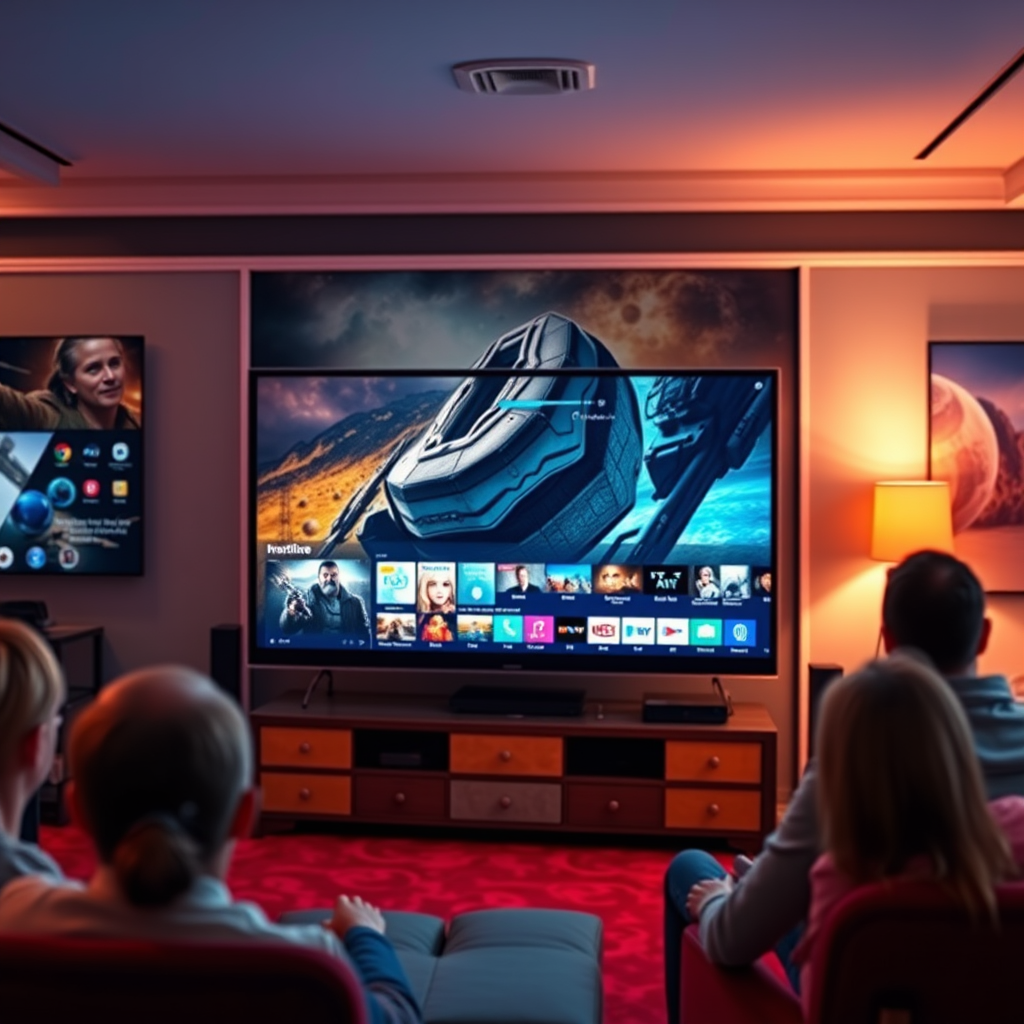

Using a TV as a PC monitor is not only possible but can also be an effective solution for many users. With the right setup and considerations, you can enjoy a larger display for gaming, streaming, or working. This approach can enhance your overall experience by providing more screen real estate, making it easier to multitask or immerse yourself in high-definition content. In this article, we’ll explore how to do it, what to look for, and the potential pros and cons to help you decide if this is the right setup for you.
Understanding Compatibility
Before you connect your TV to your PC, it’s crucial to understand compatibility to ensure a seamless experience.
– Check HDMI and DisplayPort connections: Most modern TVs feature HDMI ports, which are standard connectors for audio and video. If your PC also has HDMI outputs, connecting them is straightforward. Some high-end TVs may support DisplayPort connections, which are typically found on gaming monitors but not as common on TVs. Always check the specifications of both devices to confirm compatibility.
– Consider resolution and refresh rates: Resolution is a key factor in determining the quality of the image displayed on your TV. Most TVs today support at least Full HD (1920×1080), while many high-end models offer 4K (3840×2160) resolution. When using a TV as a monitor, ensure it can handle the resolution you need for your tasks. Additionally, if you’re a gamer, pay attention to the refresh rate; a higher refresh rate (like 120Hz) can provide smoother gameplay, especially for fast-paced games.
Setting Up Your TV as a Monitor
Once you’ve confirmed compatibility, setting up your TV as a monitor is relatively straightforward.
– Connect via HDMI: Start by using an HDMI cable to connect your PC to the TV. After connecting, power on both devices, and select the correct HDMI input source on your TV. Most TVs will automatically detect the connection, but you may need to adjust settings on your TV to ensure the best image quality.
– Adjust display settings: After connecting, navigate to your PC’s display settings. Here, you can modify the resolution and scaling options to fit your TV screen. It’s important to set the resolution to match your TV’s native resolution for optimal clarity. Additionally, adjusting the scaling may help you fit more content on the screen without compromising readability.
Pros of Using a TV as a Monitor
Using a TV as a monitor comes with several advantages:
– Larger screen size: One of the most notable benefits is the increased screen size. TVs often come in larger dimensions than standard monitors, providing a more immersive experience for watching movies, playing games, or even working on spreadsheets. A bigger display can enhance productivity by allowing you to view multiple windows side by side without squinting.
– Multi-functional use: A TV can serve multiple purposes beyond just being a monitor. It can be used for gaming, watching movies, or streaming content from various services. This versatility can be especially appealing if you want to minimize the number of devices in your home entertainment setup.
Cons of Using a TV as a Monitor
However, there are some drawbacks to consider:
– Input lag: One of the significant disadvantages of using a TV as a monitor is the potential for higher input lag. This lag can be problematic for gaming, where quick responses are crucial. Many TVs have a gaming mode that reduces input lag, but it’s essential to check this feature before purchasing.
– Pixel density: Larger TVs typically have lower pixel density compared to dedicated monitors. This means that, while the screen is bigger, the sharpness and clarity of images may not match that of a high-resolution monitor. For tasks requiring fine detail, such as graphic design or photo editing, this could be a significant drawback.
Tips for an Optimal Experience
To get the best out of your setup, consider the following tips:
– Calibration: Adjusting your TV’s settings for brightness, contrast, and color can dramatically improve your viewing experience. Many TVs come with preset modes for various activities like cinema or sports; however, customizing these settings to suit your preferences can yield better results.
– Use game mode: If your TV has a game mode, enable it when gaming to reduce input lag and enhance responsiveness. This mode adjusts the TV’s settings to prioritize speed, ensuring a smoother gaming experience.
Comparison of Popular TV Models for PC Use (2024)
| # | Model | Resolution | Refresh Rate | Input Lag | Price |
|---|---|---|---|---|---|
| 1 | Samsung QN90A | 4K | 120Hz | 10ms | $1,299 |
| 2 | LG C1 OLED | 4K | 120Hz | 6ms | $1,699 |
| 3 | Sony X90J | 4K | 120Hz | 8ms | $1,299 |
| 4 | TCL 6-Series | 4K | 120Hz | 12ms | $899 |
| 5 | Vizio P-Series | 4K | 120Hz | 9ms | $1,099 |
| 6 | Hisense U8G | 4K | 120Hz | 7ms | $799 |
| 7 | Philips 803 | 4K | 60Hz | 16ms | $1,499 |
Common Issues and Troubleshooting
While setting up your TV as a monitor can be straightforward, some common issues may arise:
– No signal: If your TV displays a “no signal” message, first ensure that the correct HDMI port is selected. You can usually do this from the TV’s remote control. Additionally, verify that the HDMI cable is securely connected to both the PC and the TV.
– Resolution problems: If the display appears stretched or pixelated, revisit your PC’s display settings. Adjust the resolution to match your TV’s native resolution for the best visual clarity. Sometimes, simply rebooting your PC can also resolve display issues.
In conclusion, using a TV as a PC monitor can be a great option if you understand the compatibility, setup process, and the pros and cons involved. The larger screen size and multi-functional use are significant advantages, while input lag and pixel density are potential drawbacks to consider. For the best experience, take the time to optimize your settings and troubleshoot any issues that may arise. If you’re curious about trying this setup, gather the necessary cables and give it a shot! Explore your display settings and enjoy your new workspace or entertainment hub.
Frequently Asked Questions
Can I use my TV as a PC monitor without any issues?
Yes, you can use your TV as a PC monitor, but there are a few considerations to keep in mind. Ensure your TV has the necessary HDMI ports and supports the resolution and refresh rate of your PC. Additionally, be aware that input lag and pixel density may not match that of a dedicated computer monitor, which can affect gaming and productivity tasks.
How do I connect my PC to my TV as a monitor?
To connect your PC to your TV, you’ll typically use an HDMI cable. Simply plug one end into your computer’s HDMI output and the other end into an available HDMI input on your TV. Once connected, you may need to adjust your display settings on your PC to extend or duplicate the screen, ensuring optimal resolution and layout.
Why is my TV display blurry when used as a PC monitor?
A blurry display when using your TV as a PC monitor can be due to a mismatch in resolution settings. Make sure your PC’s output resolution matches the native resolution of your TV for the best clarity. Additionally, check if the TV is set to “PC mode” or “Game mode,” which can enhance sharpness and reduce input lag.
What is the best TV size for using as a PC monitor?
The best TV size for using as a PC monitor largely depends on your workspace and viewing distance. Generally, a 32 to 43-inch TV works well for desk setups, while larger screens can be suitable for more spacious environments. Keep in mind that the larger the TV, the farther away you should sit to avoid eye strain and ensure a comfortable viewing experience.
Which type of TV is better for use as a PC monitor: LED or OLED?
When choosing between LED and OLED TVs for use as a PC monitor, OLED displays generally offer superior color accuracy and contrast, making them ideal for creative tasks and gaming. However, LED TVs can be more cost-effective and may provide brighter images in well-lit rooms. Ultimately, your choice should depend on your budget and specific use case.
References
- https://en.wikipedia.org/wiki/Television_as_a_computer_monitor
https://en.wikipedia.org/wiki/Television_as_a_computer_monitor - https://www.lifewire.com/use-tv-as-a-computer-monitor-4687396
https://www.lifewire.com/use-tv-as-a-computer-monitor-4687396 - Google Scholar Google Scholar
https://scholar.google.com/scholar?q=can+i+use+tv+as+pc+monitor - Google Scholar Google Scholar
https://scholar.google.com/scholar?q=TV+as+computer+monitor+advantages - Google Scholar Google Scholar
https://scholar.google.com/scholar?q=TV+monitor+comparison+to+PC+monitor - can i use tv as pc monitor – Search results
https://en.wikipedia.org/wiki/Special:Search?search=can+i+use+tv+as+pc+monitor - https://www.ncbi.nlm.nih.gov/search/research-articles/?term=can+i+use+tv+as+pc+monitor
https://www.ncbi.nlm.nih.gov/search/research-articles/?term=can+i+use+tv+as+pc+monitor

[…] Input lag with your console (PlayStation 5 and Xbox Series X|S differ in negotiation […]
[…] typically get lower input lag and cleaner motion by enabling Game Mode and adjusting a few picture controls. This matters because […]