

To download apps on a Philips Smart TV, simply access the Google Play Store directly from your TV. Once you’re in the store, you can browse or search for the desired apps and install them with just a few clicks. This guide will walk you through the process step-by-step to ensure you can enhance your viewing experience.
Accessing the Home Screen
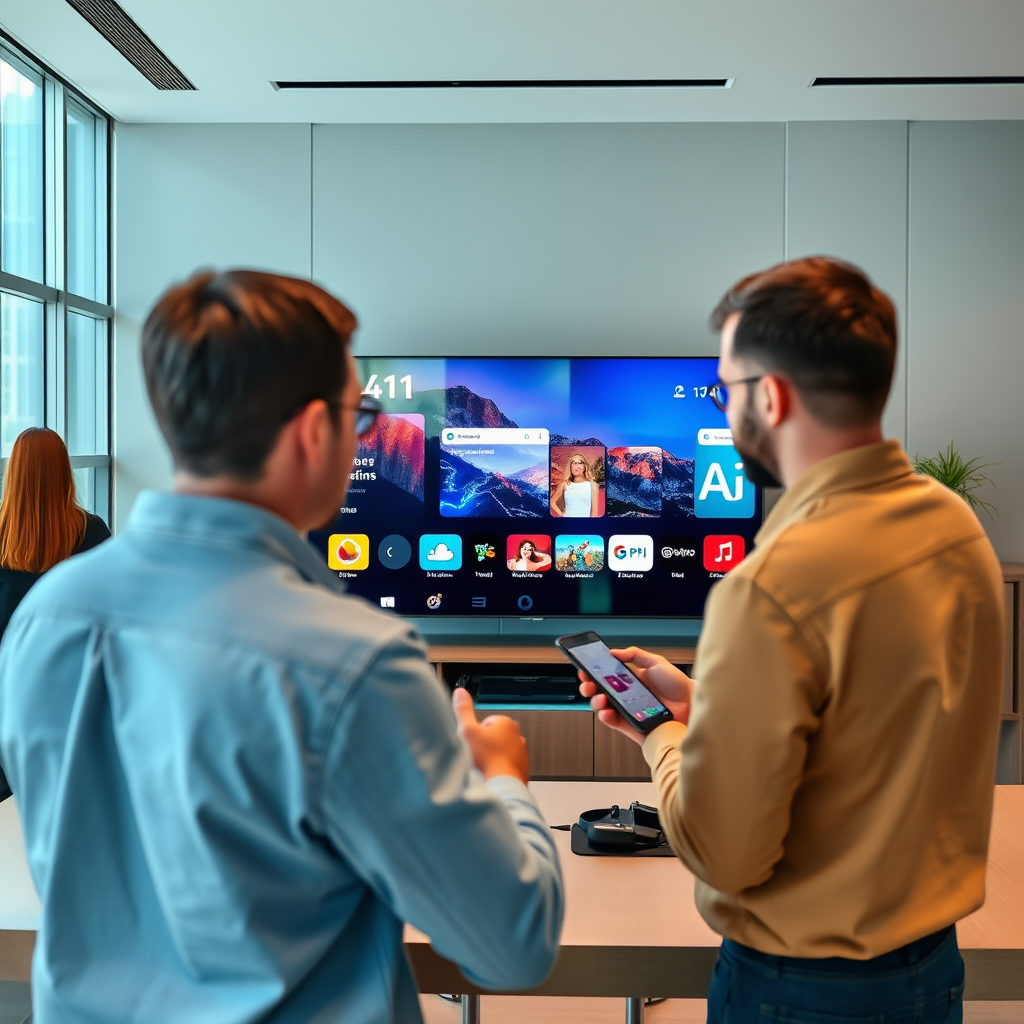
The first step in downloading apps on your Philips Smart TV is to access the home screen. You can do this by using your remote control, which typically has a dedicated home button. Once you press this button, you will be taken to the main menu, where various options are displayed, including settings, inputs, and apps.
In this menu, you should locate the ‘Apps’ section. This section is usually prominently featured and may be represented by an icon that looks like a grid of squares. Selecting this option will take you to a new interface specifically designed for app management, allowing you to view installed apps and access the app store.
Opening the Google Play Store
Once you are in the Apps section, the next step is to open the Google Play Store. Look for the Google Play Store icon, which is typically colored and easily recognizable. By selecting this icon, you will be directed to the store, where a wide range of applications is available for download.
Be patient as the store loads, as this may take a few moments depending on your internet connection. A stable connection will ensure a smoother browsing experience, allowing you to quickly navigate through the available options.
Searching for Apps
With the Google Play Store open, you can now begin searching for the apps you want to download. At the top of the screen, you will find a search function that enables you to enter the name of a specific app. Simply use your remote control to type in the app name, and the store will generate a list of matching results.
Alternatively, if you’re looking to explore new options, you can browse through categories. The Google Play Store organizes apps into various categories, such as Entertainment, Games, and Utilities, making it easier for you to discover new applications that may enhance your Philips Smart TV experience.
Top 7 Most Popular Apps for Philips Smart TV (2024)
| # | App Name | Category | Rating | Downloads |
|---|---|---|---|---|
| 1 | Netflix | Streaming | ★★★★☆ | 100M+ |
| 2 | YouTube | Streaming | ★★★★★ | 1B+ |
| 3 | Amazon Prime Video | Streaming | ★★★★☆ | 100M+ |
| 4 | Spotify | Music | ★★★★☆ | 500M+ |
| 5 | Disney+ | Streaming | ★★★★☆ | 150M+ |
| 6 | Hulu | Streaming | ★★★★☆ | 40M+ |
| 7 | Twitch | Gaming | ★★★★☆ | 30M+ |
Installing Apps
After locating the desired app, the next step is to install it. Click on the app’s icon to open its details page, which will provide information about its features, user ratings, and requirements. This page also includes an ‘Install’ button. Click this button, and the installation process will begin.
Once you click ‘Install,’ the app will start downloading. Depending on your internet speed, the download may take anywhere from a few seconds to a couple of minutes. You will receive a notification once the installation is complete, and the app will then appear in your list of installed applications on the home screen.
Managing Installed Apps
Managing your installed apps is just as straightforward as downloading them. You can access your installed applications either from the home screen or through the Apps section. This area allows you to rearrange your apps for easy access or uninstall any applications you no longer need.
To rearrange apps, highlight the app you want to move, then use the remote control to drag it to your desired position. If you wish to uninstall an app, select it, and you will typically find an option to remove it within the app’s details page. Regularly updating your apps is also essential to ensure optimal performance, and you can usually do this through the same Apps section.
Troubleshooting Common Issues
While the process of downloading and managing apps on a Philips Smart TV is generally seamless, you may encounter some issues. The most common problem is related to internet connectivity. Ensure that your TV is connected to a stable Wi-Fi network before attempting to download any app. You can check your connection in the Settings menu.
If the Google Play Store is not functioning properly, a simple restart of your TV can often resolve the issue. Unplugging the TV for a few seconds and plugging it back in can help reset the system and restore functionality.
Exploring Additional Features
Aside from downloading and managing apps, your Philips Smart TV offers various settings to enhance your app experience. You can customize your preferences, such as enabling notifications for app updates or adjusting user settings for each application.
Additionally, it’s crucial to stay informed about app compatibility and updates. Regular updates not only provide new features but also fix bugs and improve performance. You can usually find the option to check for updates in the Apps section, ensuring that you always have the latest and best version of your favorite applications.
In conclusion, downloading apps on a Philips Smart TV is a straightforward process that enhances your viewing experience significantly. By accessing the Google Play Store, searching for apps, and managing your installations, you can customize your TV to suit your entertainment needs. Regular management and troubleshooting will ensure that your TV remains a versatile source of entertainment. Enjoy exploring the vast world of apps available at your fingertips!
Frequently Asked Questions
How do you download apps on a Philips Smart TV?
To download apps on your Philips Smart TV, first, press the “Home” button on your remote to access the main menu. Navigate to the “App Gallery” or “Google Play Store,” where you can browse available apps. Select the app you want, click “Install,” and once the download is complete, you can find the app on your home screen or in your apps section.
Why can’t I find certain apps on my Philips Smart TV?
If you can’t find certain apps on your Philips Smart TV, it may be due to regional restrictions or compatibility issues with your TV model. Some apps are only available in specific countries or require a certain operating system version. Ensure your TV’s firmware is updated and check the Philips website for a list of supported apps for your specific model.
What should I do if an app won’t download on my Philips Smart TV?
If an app won’t download on your Philips Smart TV, first check your internet connection to ensure it’s stable and working properly. You can also try restarting your TV and router, clearing the cache of the app store, or ensuring that your TV software is up to date. If issues persist, consider reaching out to Philips customer support for assistance.
Which apps are recommended for Philips Smart TVs?
Some of the best apps for Philips Smart TVs include streaming services like Netflix, Amazon Prime Video, and Disney+, as well as social media platforms like YouTube and Facebook. Depending on your interests, you might also consider apps for news, games, or fitness. Always check the “Top Charts” section in the app store for trending and popular options.
How can I uninstall apps on my Philips Smart TV?
To uninstall apps on your Philips Smart TV, navigate to the “Home” menu and select “My Apps” or “App Gallery.” Highlight the app you want to remove, press the options button on your remote, and choose “Uninstall” or “Remove.” Confirm your choice, and the app will be deleted from your TV, freeing up space for new downloads.
References
- https://en.wikipedia.org/wiki/Philips_Smart_TV
https://en.wikipedia.org/wiki/Philips_Smart_TV - https://www.bbc.com/news/technology-44185729
https://www.bbc.com/news/technology-44185729 - Philips Customer Service Support – Home | Philips
https://www.philips.com/support - Google Scholar Google Scholar
https://scholar.google.com/scholar?q=download+apps+on+philips+smart+tv - Google Scholar Google Scholar
https://scholar.google.com/scholar?q=Philips+Smart+TV+app+download+guidelines - Google Scholar Google Scholar
https://scholar.google.com/scholar?q=Philips+Smart+TV+features - Google Scholar Google Scholar
https://scholar.google.com/scholar?q=how+do+you+download+apps+on+a+philips+smart+tv - how do you download apps on a philips smart tv – Search results
https://en.wikipedia.org/wiki/Special:Search?search=how+do+you+download+apps+on+a+philips+smart+tv - https://www.ncbi.nlm.nih.gov/search/research-articles/?term=how+do+you+download+apps+on+a+philips+smart+tv
https://www.ncbi.nlm.nih.gov/search/research-articles/?term=how+do+you+download+apps+on+a+philips+smart+tv

[…] app downloads and that the App Store can run video streaming apps reliably. If your model can’t install apps (or the ESPN app isn’t listed), you’ll still have options through an ESPN-included streaming […]