
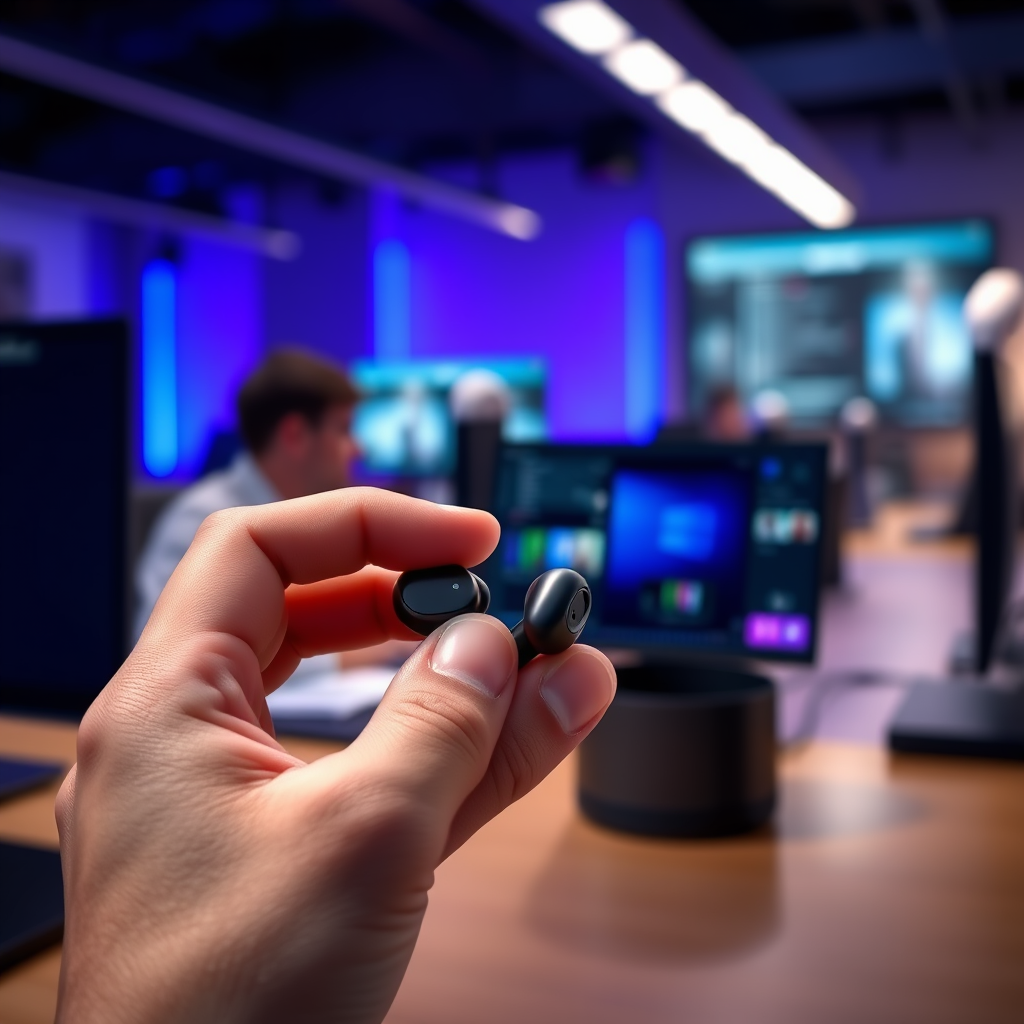

To pair your T16 earbuds, start by ensuring that they are charged and in pairing mode. Typically, you’ll need to hold down the power button until you see a flashing light indicating they are ready to connect. In this guide, you’ll learn the detailed steps to successfully pair your T16 earbuds with your device, troubleshoot common issues, and maximize your listening experience.
Understanding the Basics of T16 Earbuds
T16 earbuds are designed with user-friendliness in mind, featuring Bluetooth connectivity for seamless wireless pairing with a variety of devices. Understanding the basic functionalities of these earbuds can greatly enhance your user experience. They typically have a compact design, making them portable and convenient for on-the-go usage. The earbuds come equipped with touch-sensitive controls or physical buttons that allow users to manage calls, adjust volume, and switch tracks without needing to access their connected device.
Familiarity with the LED indicators on the earbuds is also essential. For instance, a solid light may indicate that the earbuds are powered on, while a flashing light usually signals that they are in pairing mode. This knowledge will ensure that you can effortlessly navigate through the various features of your T16 earbuds.
Preparing Your Earbuds for Pairing
Before you can pair your T16 earbuds, it is crucial to ensure they are fully charged. A fully charged battery guarantees a stable connection and optimal performance. To charge your earbuds, simply place them in their charging case until the indicator lights signal a full charge.
Once charged, activate pairing mode by holding down the power button on either earbud for a few seconds. You will know that the earbuds are in pairing mode when the LED light begins to flash rapidly, indicating they are ready to connect with nearby devices.
Pairing T16 Earbuds with Your Device
To begin pairing your T16 earbuds with a device, follow these steps:
1. Open Bluetooth Settings: On your smartphone, tablet, or computer, navigate to the Bluetooth settings. This can usually be found in the settings menu or quick-access toolbar.
2. Search for Devices: Ensure that Bluetooth is turned on, and your device is searching for available Bluetooth devices.
3. Select T16 Earbuds: Look for “T16” in the list of available devices. Tap or click on it to initiate the pairing process. If prompted, enter a pairing code, which is often “0000” or “1234,” though most modern devices will pair without needing to input a code.
4. Confirmation: Once paired, you will see a confirmation message on your device, and the LED light on your earbuds will usually change to indicate a successful connection.
Compatibility Chart for T16 Earbuds
Compatibility of T16 Earbuds with Devices
| # | Device Type | Compatibility | Bluetooth Version | Audio Quality |
|---|---|---|---|---|
| 1 | iPhone | Yes | 5.0 | High |
| 2 | Android | Yes | 5.0 | High |
| 3 | Windows PC | Yes | 5.0 | High |
| 4 | Mac | Yes | 5.0 | High |
| 5 | Smart TV | Yes | 5.0 | High |
| 6 | Gaming Consoles | Yes | 5.0 | High |
| 7 | Smart Watches | No | N/A | Low |
Troubleshooting Common Pairing Issues
Even with the best technology, users may occasionally experience issues when attempting to pair their T16 earbuds. Here are some common problems and how to troubleshoot them effectively:
– Earbuds Not Appearing: If your earbuds do not show up in the Bluetooth device list, it may be due to them being connected to another device. To resolve this, turn off Bluetooth on any other devices they may be connected to or manually disconnect them from those devices before attempting to pair again.
– Restart Your Devices: If pairing is unsuccessful, try restarting both the earbuds and the device you are trying to connect. This simple step can often refresh the Bluetooth connection and resolve any temporary glitches.
– Check Battery Levels: Ensure that both the earbuds and the connecting device have sufficient battery life. Low battery on either side can hinder the pairing process.
– Reset Your Earbuds: If you continue to experience issues, refer to the manufacturer’s manual for specific instructions on how to reset your T16 earbuds. This can often resolve persistent connectivity problems.
Maximizing Your Listening Experience
To truly enjoy your T16 earbuds, consider the following tips to enhance your listening experience:
– Adjust the Fit: Finding the right fit for your earbuds is crucial for sound quality and comfort. Experiment with different ear tips if available, as a snug fit can improve sound isolation and bass response.
– Explore Audio Settings: Many devices have built-in audio settings that allow you to customize sound profiles or apply equalization settings. Experiment with these features to find the sound profile that suits your preferences best.
– Utilize Noise Cancellation Features: If your T16 earbuds come with noise cancellation capabilities, make sure to activate this feature in noisy environments for an immersive listening experience.
– Stay Updated: Ensure your earbuds’ firmware is updated regularly if applicable. Manufacturers may release updates that enhance functionality or sound quality.
Maintaining Your T16 Earbuds
Proper maintenance of your T16 earbuds is essential for longevity and performance:
– Regular Cleaning: To maintain optimal sound quality and hygiene, clean your earbuds regularly. Use a soft, dry cloth to wipe down the exterior and ensure any ear tips are free from debris.
– Use the Charging Case: Always store your earbuds in their charging case when not in use. This not only protects them from physical damage but also ensures they are charged and ready for your next use.
– Avoid Extreme Conditions: Protect your earbuds from extreme temperatures and moisture. Excessive heat or cold can damage electronic components, while moisture can lead to malfunctions.
– Monitor Battery Health: Keep an eye on the battery health of your earbuds. If you notice a significant decrease in battery life, consider reaching out to customer support for assistance or possible replacement options.
Your T16 earbuds can provide an excellent listening experience when paired correctly. By following these steps, you can easily connect them to your devices and enjoy your favorite music or podcasts. If you encounter any issues, refer to the troubleshooting section to resolve them quickly. With proper care and maintenance, your T16 earbuds will serve you well for years to come. Happy listening!
Frequently Asked Questions
How do I pair my T16 earbuds with my smartphone?
To pair your T16 earbuds with your smartphone, start by ensuring that the earbuds are fully charged. Then, press and hold the power button on the earbuds until you see a blinking light, indicating they are in pairing mode. On your smartphone, go to the Bluetooth settings, find the T16 earbuds in the list of available devices, and select them to complete the pairing process.
What should I do if my T16 earbuds won’t connect to my device?
If your T16 earbuds won’t connect, first ensure that Bluetooth is enabled on your device and that the earbuds are charged. Try resetting the earbuds by turning them off and then holding the power button until they enter pairing mode again. If the issue persists, remove the earbuds from your device’s Bluetooth list and attempt to pair them again.
Why are my T16 earbuds not pairing with my laptop?
Your T16 earbuds may not be pairing with your laptop due to compatibility issues or Bluetooth settings. Ensure that your laptop’s Bluetooth is turned on and that it is discoverable. Additionally, check if your laptop has the latest Bluetooth drivers installed, as outdated drivers can hinder connectivity.
Which devices are compatible with T16 earbuds?
T16 earbuds are compatible with most Bluetooth-enabled devices, including smartphones, tablets, and laptops. They work seamlessly with both iOS and Android operating systems, making them a versatile choice for users. Always check the device specifications to confirm Bluetooth compatibility before attempting to pair.
What is the best way to reset T16 earbuds for pairing issues?
To reset your T16 earbuds, first ensure they are turned off. Then, press and hold the power button for about 10 seconds until you see the LED indicator flash red and blue. This will reset the earbuds, allowing you to start fresh with the pairing process and resolve any connectivity issues you may have encountered.
References
- https://www.lifewire.com/how-to-pair-wireless-earbuds-5182117
https://www.lifewire.com/how-to-pair-wireless-earbuds-5182117 - https://www.bbc.com/news/technology-58887042
https://www.bbc.com/news/technology-58887042 - Google Scholar Google Scholar
https://scholar.google.com/scholar?q=how+to+pair+T16+earbuds - Google Scholar Google Scholar
https://scholar.google.com/scholar?q=pairing+wireless+earbuds - https://scholar.google.com/scholar?q=wireless+earbuds+pairing+guide Google Scholar
https://scholar.google.com/scholar?q=wireless+earbuds+pairing+guide - https://www.sony.com/electronics/support/articles/00008412
https://www.sony.com/electronics/support/articles/00008412 - Google Scholar Google Scholar
https://scholar.google.com/scholar?q=how+to+pair+t16+earbuds - how to pair t16 earbuds – Search results
https://en.wikipedia.org/wiki/Special:Search?search=how+to+pair+t16+earbuds - https://www.ncbi.nlm.nih.gov/search/research-articles/?term=how+to+pair+t16+earbuds
https://www.ncbi.nlm.nih.gov/search/research-articles/?term=how+to+pair+t16+earbuds
