
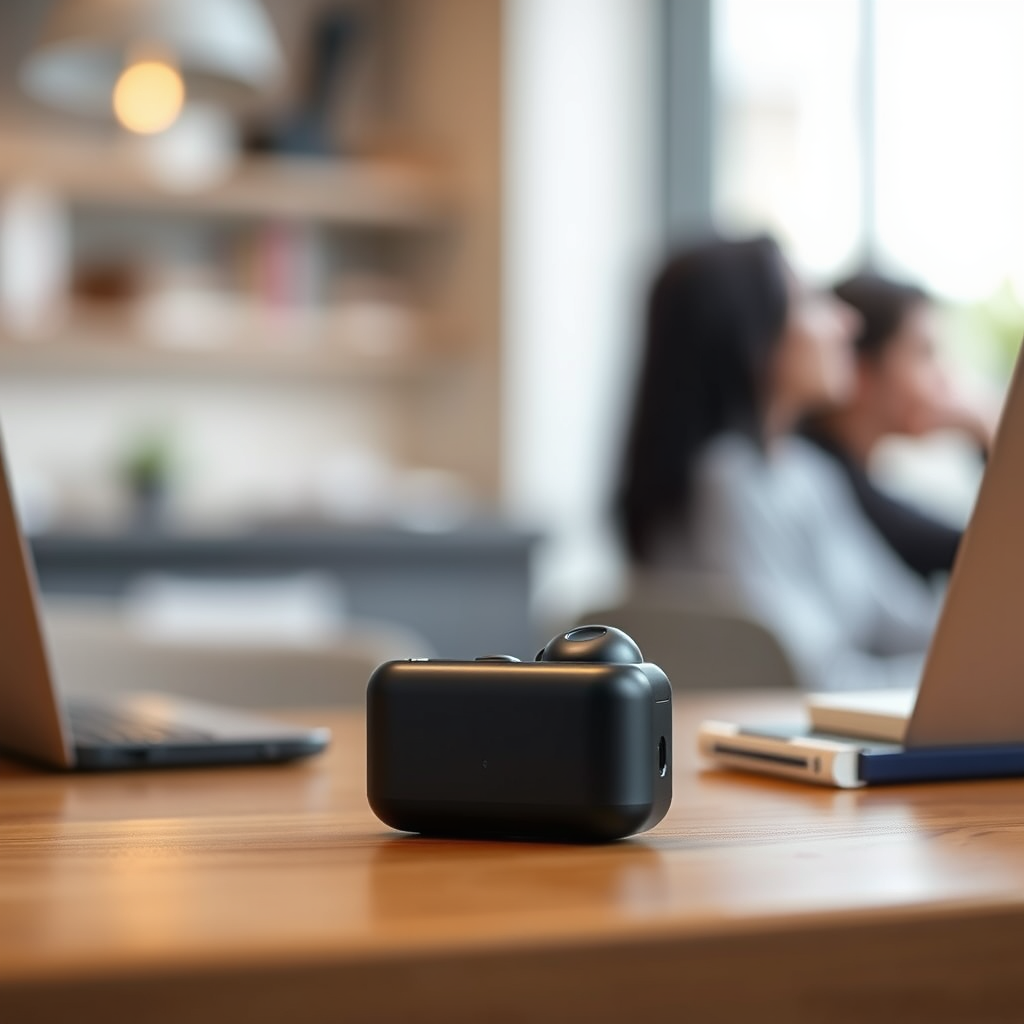

Connecting your iSOUND Bluetooth earbuds is a straightforward process that can be completed in just a few steps. This guide will walk you through the pairing process with various devices, ensuring you can enjoy your music and calls wirelessly in no time. With a clear understanding of Bluetooth technology and some easy-to-follow instructions, you will be ready to connect your earbuds effortlessly.
Understanding Bluetooth Pairing
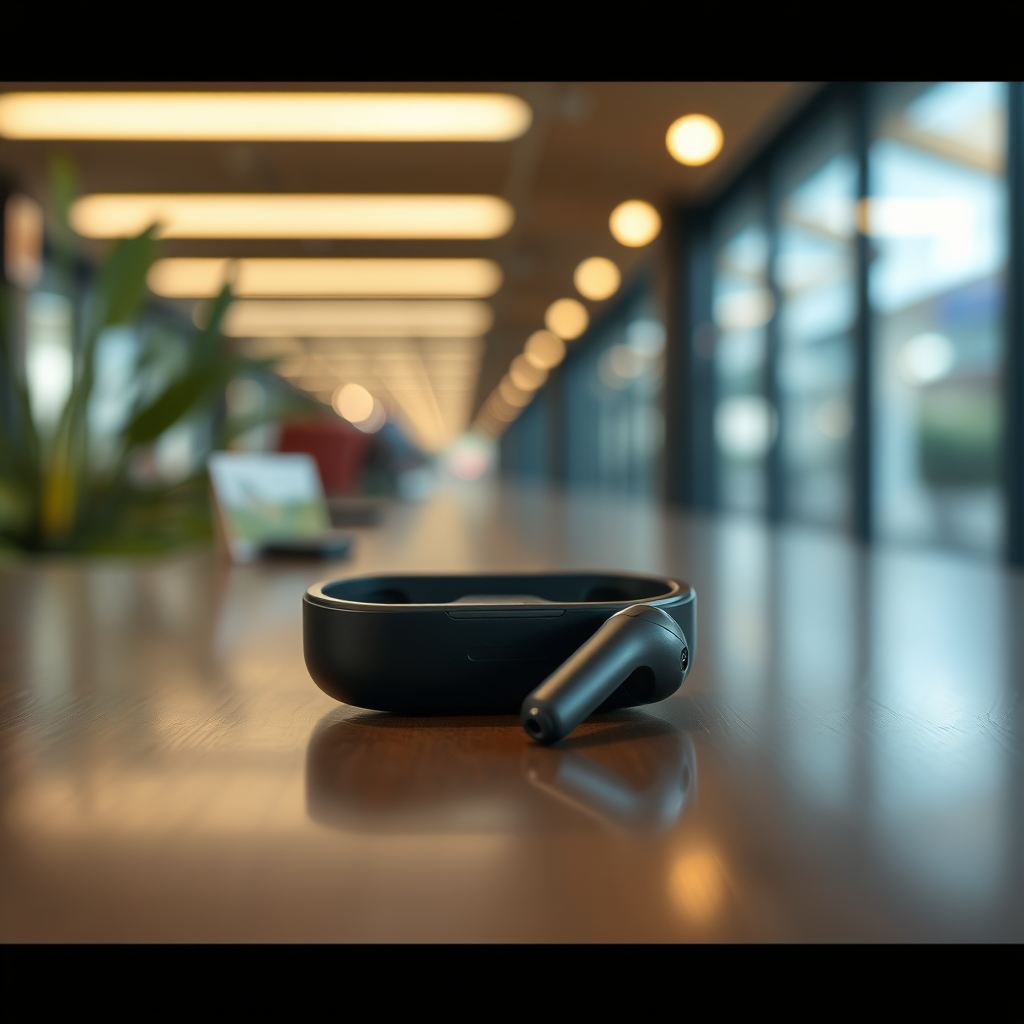
Bluetooth pairing is the process of establishing a secure connection between your earbuds and a compatible device, such as a smartphone, tablet, or computer. This technology allows for wireless communication over short distances, typically up to 30 feet, which makes it ideal for listening to music or taking calls without being tethered to your device.
To successfully pair your earbuds, ensure they are adequately charged and within range of the device you want to connect to. Most Bluetooth devices will not connect if they are too far apart, so it’s important to stay close during the pairing process. Understanding these basics will set you up for a seamless connection experience.
Preparing Your iSOUND Earbuds for Pairing
Before pairing your iSOUND earbuds, you need to prepare them appropriately. Start by locating the power button on your earbuds, which is typically found on one of the earbuds or on the connecting wire. Press the power button to turn on your earbuds.
Next, you will need to activate pairing mode. To do this, press and hold the power button for a few seconds until you notice a flashing LED light. This flashing light usually indicates that your earbuds are now discoverable and ready to be paired with another device. This preparation is crucial, as failing to enter pairing mode will prevent your devices from recognizing your earbuds.
Connecting to a Smartphone
To connect your iSOUND earbuds to a smartphone, follow these simple steps:
1. Access Bluetooth Settings: On your smartphone, navigate to the Bluetooth settings. This can usually be found in the settings menu under “Connections” or “Bluetooth.”
2. Enable Bluetooth: Ensure that Bluetooth is turned on. You should see a toggle switch at the top of the Bluetooth settings menu.
3. Select Your Earbuds: In the list of available devices, look for “iSOUND Earbuds.” Tap on this option to initiate the connection.
4. Confirmation: Once connected, you will typically hear a confirmation sound or see a notification on your smartphone indicating that the earbuds are connected.
This process is similar across most smartphone brands, including Apple, Samsung, and Google devices. If you encounter any difficulties, refer to the troubleshooting section for assistance.
Connecting to a Computer
Connecting your iSOUND earbuds to a computer involves a similar process as with smartphones. Follow these steps for both Windows and Mac systems:
1. Open Bluetooth Settings: On a Windows computer, go to “Settings,” then “Devices,” and click on “Bluetooth & other devices.” For Mac, open “System Preferences,” then select “Bluetooth.”
2. Turn on Bluetooth: Ensure Bluetooth is enabled on your computer.
3. Find Your Earbuds: Look for “iSOUND Earbuds” in the list of available devices. Click on it to begin the connection.
4. Complete the Connection: Confirm the connection if prompted. Once connected, you may hear a sound or receive a notification confirming the successful pairing.
The process is quick and efficient, allowing you to enjoy your audio experience on a larger screen without the hassle of wires.
iSOUND Earbuds Specifications
| # | Feature | Value | Battery Life | Water Resistance |
|---|---|---|---|---|
| 1 | Bluetooth Version | 5.0 | Up to 5 hours | IPX4 |
| 2 | Charging Case | Included | 20 hours total | Yes |
| 3 | Audio Quality | High Fidelity | N/A | N/A |
| 4 | Microphone | Built-in | N/A | N/A |
| 5 | Weight | 5 grams per earbud | N/A | N/A |
| 6 | Color Options | Black, White | N/A | N/A |
| 7 | Warranty | 1 Year | N/A | N/A |
Troubleshooting Connection Issues
Sometimes, despite following all the steps, you might encounter issues while trying to connect your iSOUND earbuds. Here are some common troubleshooting tips to resolve connection issues:
1. Check Power: If your earbuds do not appear in the list of available devices, first ensure they are powered on. If necessary, turn them off and back on again to reset the connection.
2. Bluetooth Status: Double-check that Bluetooth is enabled on your device. Sometimes, it may be turned off inadvertently, or it might be connected to another device.
3. Distance: Ensure that your earbuds are within the recommended range of your device. Being too far away can lead to connection failures.
4. Reboot the Device: If problems persist, try rebooting the device you are trying to connect to. This can resolve software glitches that may be causing connection issues.
5. Forget and Reconnect: If you’ve previously paired the earbuds with your device, you may need to forget the device in your Bluetooth settings and try reconnecting from scratch.
Implementing these troubleshooting tips can save you time and frustration, allowing you to return to your audio experience swiftly.
Maintaining Your iSOUND Earbuds
To ensure the longevity and optimal performance of your iSOUND earbuds, regular maintenance is essential. Here are some best practices to follow:
1. Regular Charging: Keep your earbuds charged to prevent battery depletion. Avoid letting the battery drain completely, as this can negatively impact battery health over time.
2. Proper Storage: When not in use, store your earbuds in their charging case or a soft pouch to protect them from physical damage. Avoid leaving them in places with extreme temperatures, as heat and cold can affect battery performance and sound quality.
3. Cleaning: Regularly clean your earbuds to prevent the buildup of dirt and earwax, which can obstruct sound quality and hygiene. Use a soft, dry cloth to wipe the earbuds and a small brush to clean the mesh areas gently.
4. Software Updates: Occasionally check for firmware updates for your earbuds, as manufacturers often release updates that can enhance performance and connectivity.
By following these maintenance tips, you will ensure that your iSOUND earbuds continue to perform well, providing you with an enjoyable listening experience for years to come.
Disconnecting and Reconnecting
Disconnecting your iSOUND earbuds is a simple task. You can do this by either turning off the earbuds or disabling Bluetooth on your device. To reconnect them, follow these steps:
1. Turn on Earbuds: If they were turned off, simply press the power button to turn them back on.
2. Reconnect via Bluetooth: Navigate to the Bluetooth settings on your device. If your earbuds are within range, they should appear in the list of available devices. Click on “iSOUND Earbuds” to reconnect.
3. Automatic Reconnection: In many cases, your earbuds will automatically reconnect to the last device they were paired with, simplifying the process.
This ease of connectivity is one of the key benefits of Bluetooth technology, allowing you to switch between devices without hassle.
Connecting your iSOUND Bluetooth earbuds involves a few straightforward steps: prepare your earbuds, navigate to your device’s Bluetooth settings, and select the earbuds to establish a connection. Should you encounter any issues, refer back to the troubleshooting section for quick fixes. Now that you’re equipped with this knowledge, enjoy your wireless experience!
Frequently Asked Questions
How do I pair my IsoTunes Bluetooth earbuds with my smartphone?
To pair your IsoTunes Bluetooth earbuds with your smartphone, first ensure that the earbuds are charged. Then, press and hold the power button until you see the LED light flashing, indicating they are in pairing mode. On your smartphone, go to the Bluetooth settings, search for available devices, and select your IsoTunes earbuds to complete the pairing process.
What should I do if my IsoTunes Bluetooth earbuds won’t connect?
If your IsoTunes Bluetooth earbuds won’t connect, start by making sure they are charged and in pairing mode. Next, check if they are already connected to another device; if so, disconnect from that device first. If the issue persists, try resetting the earbuds by turning them off and back on, or consult the user manual for specific troubleshooting steps.
Why are my IsoTunes Bluetooth earbuds not showing up in the Bluetooth device list?
If your IsoTunes Bluetooth earbuds are not appearing in the Bluetooth device list, ensure that they are powered on and in pairing mode. Additionally, check that your smartphone’s Bluetooth is turned on and that it is not connected to other devices. If the problem continues, try resetting the earbuds and then attempt pairing again.
What is the best method to ensure a stable Bluetooth connection with IsoTunes earbuds?
To ensure a stable Bluetooth connection with your IsoTunes earbuds, keep your device within a range of 30 feet and minimize physical obstructions. Make sure there are no interfering electronic devices nearby, as they can disrupt the connection. Regularly update your device’s software and the earbuds firmware for optimal performance.
Which devices are compatible with IsoTunes Bluetooth earbuds?
IsoTunes Bluetooth earbuds are compatible with most Bluetooth-enabled devices, including smartphones, tablets, and computers. They support standard Bluetooth profiles, allowing them to connect seamlessly with various operating systems like iOS, Android, and Windows. For best results, check the user manual for any specific compatibility requirements.
References
- https://www.lifewire.com/how-to-connect-bluetooth-earbuds-2000240
https://www.lifewire.com/how-to-connect-bluetooth-earbuds-2000240 - https://www.nytimes.com/2020/09/23/technology/personaltech/bluetooth-earbuds.html
https://www.nytimes.com/2020/09/23/technology/personaltech/bluetooth-earbuds.html - https://www.mayoclinic.org/healthy-lifestyle/consumer-health/in-depth/bluetooth-earbuds/art-20459184
https://www.mayoclinic.org/healthy-lifestyle/consumer-health/in-depth/bluetooth-earbuds/art-20459184 - Google Scholar Google Scholar
https://scholar.google.com/scholar?q=how+to+connect+isotunes+bluetooth+earbuds - Google Scholar Google Scholar
https://scholar.google.com/scholar?q=bluetooth+earbuds+connection+guide - https://pubmed.ncbi.nlm.nih.gov/30732948/
https://pubmed.ncbi.nlm.nih.gov/30732948/ - https://www.cdc.gov/niosh/topics/noise/index.html
https://www.cdc.gov/niosh/topics/noise/index.html - https://www.sciencedirect.com/science/article/pii/S2095809920300851
https://www.sciencedirect.com/science/article/pii/S2095809920300851 - how to connect isotunes bluetooth earbuds – Search results
https://en.wikipedia.org/wiki/Special:Search?search=how+to+connect+isotunes+bluetooth+earbuds - https://www.ncbi.nlm.nih.gov/search/research-articles/?term=how+to+connect+isotunes+bluetooth+earbuds
https://www.ncbi.nlm.nih.gov/search/research-articles/?term=how+to+connect+isotunes+bluetooth+earbuds
