

Connecting your JBL earbuds to your Mac is a straightforward process that allows you to enjoy your favorite music and podcasts wirelessly. In just a few simple steps, you can pair your earbuds and start listening. This guide will walk you through the necessary steps to ensure a seamless connection, providing detailed insights to enhance your experience.
Understanding Bluetooth on Your Mac
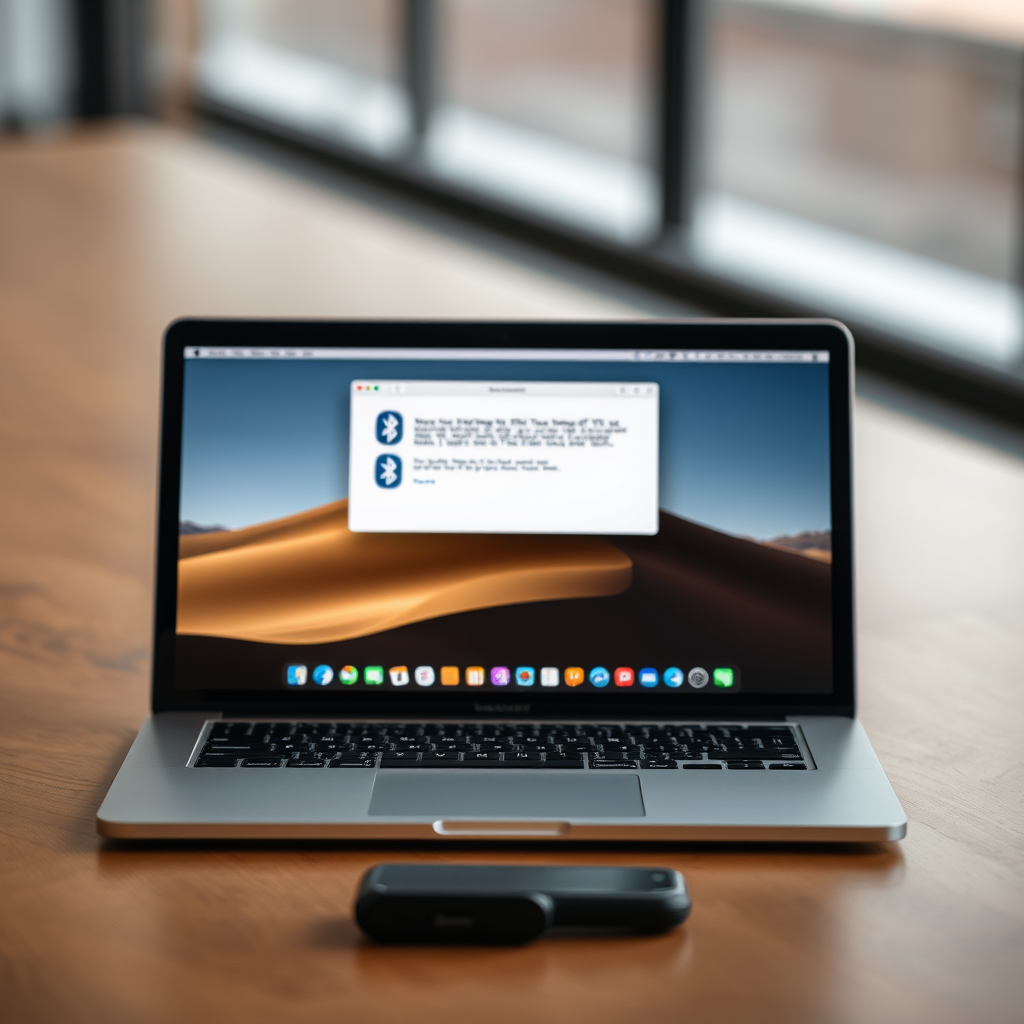
Before diving into the connection process, it’s essential to understand Bluetooth technology on your Mac. Most modern Macs are equipped with Bluetooth capabilities, making them compatible with a wide range of wireless audio devices, including JBL earbuds. To ensure a successful connection, check that your Mac has Bluetooth enabled. You can typically find this in the menu bar at the top-right corner of your screen.
Additionally, it is crucial to verify that your JBL earbuds are adequately charged and powered on. Low battery levels can interfere with the connection process, leading to frustrating experiences. If your earbuds are not responding, consider placing them in their charging case for a few minutes before attempting to connect them again.
Putting Your JBL Earbuds in Pairing Mode
The next step is to put your JBL earbuds into pairing mode. This mode allows your Mac to discover and connect with your earbuds. To activate pairing mode, turn on your JBL earbuds and locate the Bluetooth button. Press and hold this button until you see a blinking light, which indicates that the earbuds are ready to connect.
For specific models, the pairing process may vary slightly. It is advisable to consult the user manual that came with your earbuds for any unique instructions or troubleshooting tips. Some JBL earbuds may automatically enter pairing mode when powered on for the first time or after being reset.
Connecting to Your Mac’s Bluetooth Settings
Now that your JBL earbuds are in pairing mode, it’s time to connect them to your Mac. Click on the Apple menu located in the upper-left corner of your screen, then select “System Preferences.” From the options presented, click on “Bluetooth.” Ensure that Bluetooth is turned on; you should see a list of available devices.
Once you see your JBL earbuds listed among the available devices, click on the “Connect” button next to their name. Your Mac will initiate the pairing process, which usually takes only a few seconds.
Top JBL Earbuds Features (2024)
| # | Model | Battery Life | Bluetooth Version | Water Resistance | Noise Cancellation |
|---|---|---|---|---|---|
| 1 | JBL Tune 125TWS | 8 hours | 5.0 | IPX4 | No |
| 2 | JBL Free X | 4 hours | 4.2 | IPX5 | Yes |
| 3 | JBL Live 300TWS | 6 hours | 5.0 | IPX5 | Yes |
| 4 | JBL Reflect Mini 2 | 10 hours | 4.2 | IPX5 | No |
| 5 | JBL Tune 220TWS | 19 hours | 5.0 | IPX4 | Yes |
| 6 | JBL Endurance Peak II | 30 hours | 5.0 | IP67 | Yes |
| 7 | JBL Quantum TWS | 10 hours | 5.0 | IPX4 | Yes |
Pairing Your JBL Earbuds
Once you have located your JBL earbuds in the Bluetooth settings on your Mac, click on the “Connect” button next to their name. The connection process is usually quick and should only take a few moments. Upon successful pairing, you may hear a confirmation sound through the earbuds, and the LED indicator on the earbuds may change to solid.
For optimal performance, ensure that your Mac and earbuds are within a close range—typically, Bluetooth connections work best within a 30-foot radius. If you do not hear a sound or notice a change in the LED indicator, repeat the pairing process, as there may have been a temporary glitch.
Testing the Connection
After pairing your JBL earbuds, it’s time to test the connection. Open your preferred audio application, whether it be a music streaming service, a podcast app, or even a video player. Play an audio file to confirm that sound is coming through the earbuds.
If you find that the audio is not playing through your JBL earbuds, revisit the Bluetooth settings on your Mac to ensure that the earbuds are selected as the output device. You can adjust the volume settings either through the application or your Mac’s system volume controls to enhance your listening experience.
Troubleshooting Common Issues
Despite the simplicity of connecting JBL earbuds to your Mac, you may encounter some common issues. If your earbuds do not connect, the first step is to turn Bluetooth off and then back on again on your Mac. This simple action often resolves connectivity problems.
If the issue persists, try restarting your earbuds by turning them off and then back on, and repeat the pairing process. Occasionally, interference from other Bluetooth devices can also disrupt connections. To mitigate this, ensure that other nearby devices are turned off during the pairing process.
Maintaining Your Connection
Once your JBL earbuds are successfully connected to your Mac, your device will remember the earbuds for future use. This means that you won’t have to repeat the pairing process each time you want to use them, simplifying your listening experience.
However, if you experience connectivity issues in the future, consider re-pairing your earbuds using the steps outlined above. Regularly checking for software updates on your Mac can also enhance compatibility and performance with Bluetooth devices.
By following these steps, you can easily connect your JBL earbuds to your Mac and enjoy a high-quality audio experience. If you encounter any difficulties, revisiting the pairing mode or checking Bluetooth settings typically resolves most issues. Happy listening!
Frequently Asked Questions
How do I put my JBL earbuds in pairing mode to connect to my Mac?
To put your JBL earbuds in pairing mode, first ensure they are powered off. Then, press and hold the power button until you see a blinking LED light, usually blue and red, indicating they are in pairing mode. This makes it easy for your Mac to detect the earbuds during the Bluetooth connection process.
Why won’t my JBL earbuds connect to my Mac?
If your JBL earbuds won’t connect to your Mac, ensure they are charged and in pairing mode. Additionally, check if your Mac’s Bluetooth is turned on by going to ‘System Preferences’ > ‘Bluetooth’. If they still won’t connect, try removing the earbuds from the Bluetooth device list on your Mac and re-pairing them.
What should I do if my Mac doesn’t recognize my JBL earbuds?
If your Mac doesn’t recognize your JBL earbuds, first make sure that they are in pairing mode and within range. Try turning off Bluetooth on your Mac and then turning it back on. If the issue persists, restart both your Mac and the earbuds, and attempt the pairing process again.
Which JBL earbuds are best for connecting to a Mac?
Most JBL earbuds, including the JBL Free, JBL Live, and JBL Tune series, are great for connecting to a Mac due to their Bluetooth compatibility. Consider features like battery life, sound quality, and comfort to find the best model for your needs. For seamless connectivity, choose models that support the latest Bluetooth technology.
How can I improve the Bluetooth connection quality between my JBL earbuds and Mac?
To improve the Bluetooth connection quality between your JBL earbuds and Mac, minimize the distance between the devices and avoid physical obstructions. Ensure no other Bluetooth devices are causing interference, and keep your Mac’s software updated for optimal performance. Regularly resetting your earbuds can also enhance connection stability.
References
- https://www.jbl.com/support-knowledgebase.html
https://www.jbl.com/support-knowledgebase.html - https://www.lifewire.com/how-to-connect-jbl-earbuds-to-mac-4771957
https://www.lifewire.com/how-to-connect-jbl-earbuds-to-mac-4771957 - Google Scholar Google Scholar
https://scholar.google.com/scholar?q=how+to+connect+jbl+earbuds+to+mac - Google Scholar Google Scholar
https://scholar.google.com/scholar?q=JBL+earbuds+Bluetooth+connection+Mac - Google Scholar Google Scholar
https://scholar.google.com/scholar?q=Bluetooth+earbuds+Mac+connectivity - https://www.jbl.com/faq.html
https://www.jbl.com/faq.html - how to connect jbl earbuds to mac – Search results
https://en.wikipedia.org/wiki/Special:Search?search=how+to+connect+jbl+earbuds+to+mac - https://www.ncbi.nlm.nih.gov/search/research-articles/?term=how+to+connect+jbl+earbuds+to+mac
https://www.ncbi.nlm.nih.gov/search/research-articles/?term=how+to+connect+jbl+earbuds+to+mac

[…] Pairing your JBL earbuds is quick: put them into pairing mode, then select their name in your device’s Bluetooth list. Below are the exact steps for first-time setup and the most reliable re-connection workflow across iPhone, Android, and laptops—plus troubleshooting that mirrors how Bluetooth actually negotiates audio profiles. […]
[…] your remote or on-screen keyboard. After connecting, confirm that the TV shows “Connected” and test the connection by opening a streaming app like YouTube or […]
[…] enter the password, and wait for the TV to confirm it’s connected to the internet. If prompted, test the connection or update apps for best […]
[…] drops during meetings or classes. If you need flexibility, wireless casting can work well, but test the connection beforehand to avoid lag or audio sync issues. Always enable “Do Not Disturb” on your phone so […]
[…] If possible, test the connection by opening another internet-dependent […]
[…] Test the connection in Network […]
[…] Test the connection using built-in apps or the TV browser. Open YouTube and play any short video. If it stalls early, […]
[…] If prompted, accept the connection details and wait for the TV to confirm “Connected.” Finally, test the connection by opening a streaming app or running a network […]