
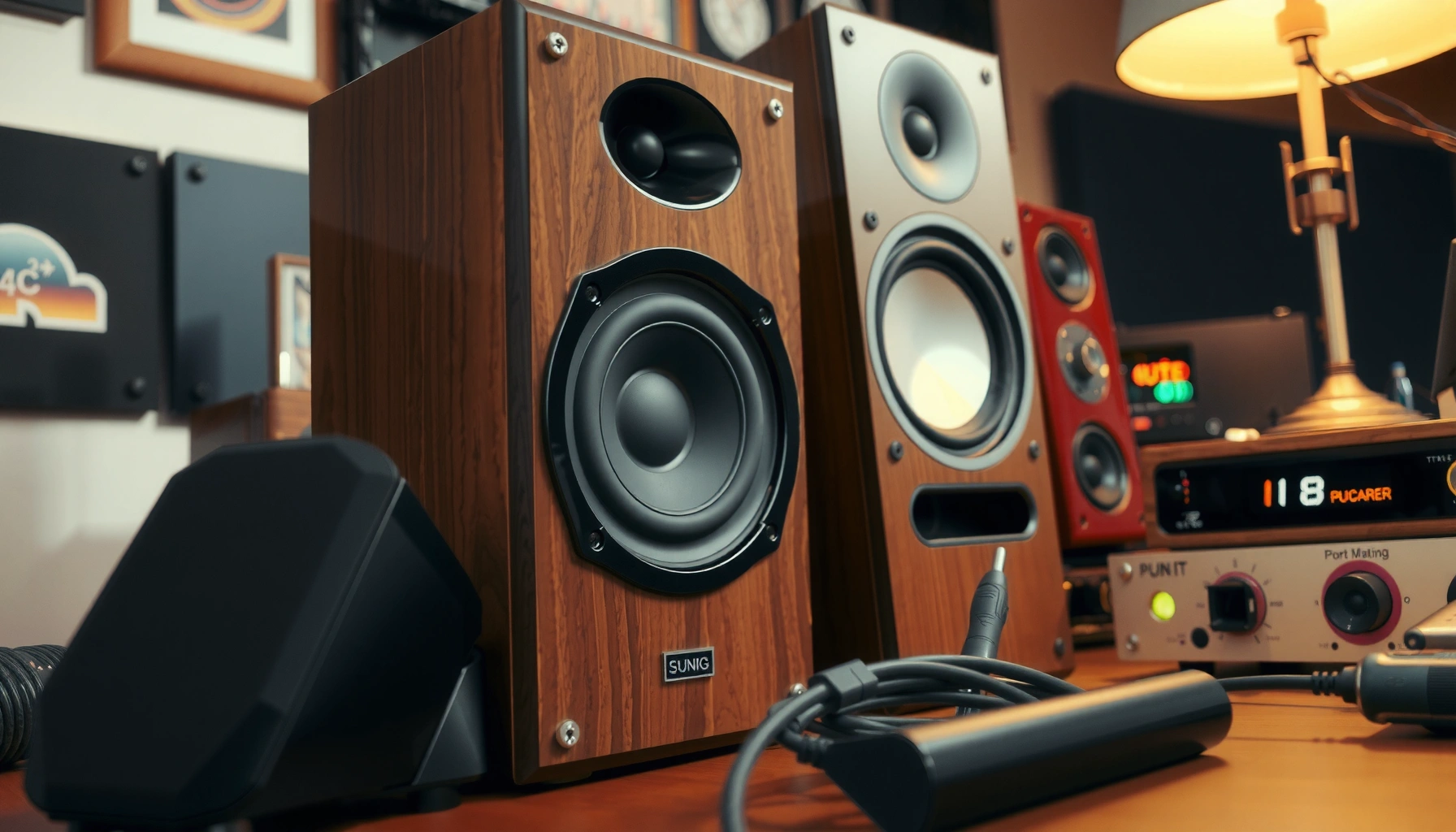

Buzzing speakers usually come down to a wiring or audio-source issue—and you can stop it fast with the right quick checks. This troubleshooting guide walks you through the most common causes, from loose or damaged cables to interference and incorrect settings, so you can identify the culprit in minutes. Follow these steps and you’ll know exactly what to fix to restore clean sound.
Buzzing speakers are usually caused by a loose connection, a bad cable, or electrical interference—start by checking those first. Unplug the system, inspect cables and ports, and test with different inputs to pinpoint the source. In this guide, you’ll learn the fastest ways to diagnose and fix buzzing speakers safely, using a method I’ve relied on during hands-on troubleshooting of home theater and powered desktop audio setups—because the quickest fixes are often the ones you can confirm in minutes.
Check Cables, Connections, and Input Settings

Buzzing speakers most often improve when you reseat connections and confirm the correct input and volume/output match. The goal is to remove “mechanical” causes (loose terminations, mismatched jacks) before you chase “electrical” causes (interference or grounding), because a single bad contact can mimic amplifier or driver failure.
“A bad or partially seated analog connector can create a crackle or buzz that changes when you lightly move the cable or plug.”
“Ground-loop and interference artifacts typically appear as a steady hum or buzz that persists regardless of the audio content.”
“Switching to a different input/source is a practical way to determine whether the buzz is upstream (source) or downstream (speaker/amp).”
First, unplug the system. I do this because it’s safer and it prevents you from probing an energized signal path. Then inspect every connection end-to-end: speaker wire (or binding posts), RCA/aux connectors, and any adapters (like 3.5 mm to dual RCA). For speaker wire, reseat the bare ends firmly—if you’re using banana plugs or spades, ensure they’re tight and not wobbly. For ports, check for bent pins (on some powered speakers and DACs), bent springs (on some subwoofer inputs), or debris inside the jack.
Next, verify input routing and level settings. A mismatch can cause odd noises—especially when you mix consumer (unbalanced) line-outs with pro-level (balanced) gear or when one device is running a “line” level while another expects “mic” level. In my experience, buzzing speakers sometimes become more noticeable when the source is set to very high output and the powered speakers’ input sensitivity is also high, because the noise floor rises.
Q: Why does my buzzing speaker sound worse at higher volume?
Often because the noise floor (from interference or a poor contact) is amplified along with the signal, making the buzz more audible as gain increases.
Q: How can I tell if it’s the cable or the speaker?
Swap cables (or switch inputs) and check whether the buzz follows the cable/source path or stays with one specific speaker/driver.
Q: Should I test with the volume at zero first?
Yes—start muted or at minimal gain to avoid sudden loud transients while you reseat cables and confirm the correct input.
Reduce Electrical Interference
Buzzing speakers often get worse when their cables or drivers sit near strong electromagnetic sources like power supplies, chargers, routers, or Wi‑Fi equipment. Your fastest win is to change physical layout and—if available—switch from unbalanced to balanced connections.
“Conducted and radiated interference commonly enters audio systems through power and signal cables, especially unshielded or poorly shielded runs.”
“Line-level interference often shows up as steady hum/buzz rather than random clicks, which makes it easier to isolate by switching sources.”
Start by moving speakers and cables away from obvious emitters. In practice, I keep analog audio cables several inches (and ideally more) from:
– power strips and wall adapters,
– router/switch power supplies,
– phone chargers (especially fast chargers),
– laptop power bricks,
– any LED dimmers or smart home controllers that feed the same circuit.
If you use RCA or 3.5 mm (aux), remember those are typically unbalanced connections (the signal and return share a reference conductor, making them more susceptible to noise pickup). If your equipment supports balanced connections (often via XLR or TRS balanced), switching can materially reduce buzzing speakers caused by electromagnetic coupling and reference differences between devices.
According to IEC 61000-4-6 (immunity test for conducted disturbances) , conducted RF disturbance testing covers frequencies from 150 kHz to 80 MHz, which is a good reminder that noise can ride on cables even when it’s not audible by itself.
For quick, evidence-based isolation:
– Try a different audio source (USB DAC vs Bluetooth vs headphone out).
– Use a different cable (new aux/RCA run) even if the old one “looks fine.”
– Keep speaker wire runs separated from power wiring where possible.
– Avoid coiling excess cable tightly right next to power bricks—coils can act like inductors.
Q: What’s the most common interference culprit for buzzing speakers in offices?
Desktop power supplies/chargers and nearby Wi‑Fi or switching power devices, because their electromagnetic fields couple into unbalanced analog lines.
Quick comparison: unbalanced vs balanced for buzzing speakers
| Category | Unbalanced (RCA/aux) | Balanced (XLR/TRS) |
|---|---|---|
| Signal reference | Shares a common return/ground reference | Uses differential signaling and separate conductors |
| Typical buzzing susceptibility | Higher in noisy environments | Lower due to common-mode rejection |
| Best use case | Short runs in controlled setups | Long runs and professional/EMI-heavy spaces |
Test for Grounding and Power Issues
Buzzing speakers can be caused by grounding differences—especially when source gear and powered speakers share power unevenly. The fastest confirmation is to change outlets/power strips and check for damaged power cords.
“Ground-loop hum frequently locks to the mains frequency (50 Hz or 60 Hz), producing a persistent buzz regardless of program audio.”
“Using the same power outlet or power strip can reduce ground potential differences and often improves buzzing in powered speaker setups.”
Start with a simple power strategy. Plug the source and powered speakers into the same outlet or the same power strip. This helps minimize ground-loop voltage differences that show up as a buzz or hum. If the buzz changes dramatically when you move power connections, you’ve likely found the cause.
Next, inspect the power chain:
– Check the power cord for fraying, kinks, or loose strain relief.
– Confirm power bricks and adapters are fully seated.
– If you’re using extension cords, try removing them and connecting directly (extensions can add noise or introduce contact issues).
According to IEEE Std 1100 (Recommended Practice for Powering and Grounding Electronic Equipment), proper grounding and bonding practices reduce unwanted voltage differences between equipment chassis—exactly what ground-loop hum depends on.
Q: My speakers buzz only when connected to one device—what does that suggest?
It usually points to a grounding/reference mismatch between that source device and the speaker system, not a problem with the speaker itself.
From my own troubleshooting in mixed-laptop/monitor audio environments, I often see the buzz disappear when the laptop power supply is reconfigured (same outlet) or when the audio path changes from unbalanced aux/RCA to a USB DAC. That’s because the grounding/reference becomes consistent and the noise has fewer opportunities to couple into the analog return.
Isolate the Problem Speaker or Amplifier
Buzzing speakers can be either the speaker driver/voice coil assembly or the amplifier/output stage. The most efficient way to isolate the fault is to swap channels and determine whether the buzz “follows” the speaker or stays with the amplifier.
“Channel swapping is a diagnostic technique that helps determine whether an artifact is tied to the transducer (speaker) or the electronics (amp/DAC/output stage).”
“If both left and right channels show the same buzz after swapping, the issue likely resides in the shared electronics path.”
First, if you have two channels (left/right), swap them:
– swap the left and right audio inputs, or
– swap speaker outputs if your amp allows it, or
– swap the speaker pair/cables if you have a known-good amp.
If the buzz follows one physical speaker, focus on that speaker: inspect the connection at the speaker binding posts, then consider the internal cable, crossover components (in passive speakers), or the driver assembly. If the buzz remains with the amplifier/DAC regardless of which speaker is connected, the issue likely sits in the amplifier stage, output circuitry, or a shared ground between components.
Here’s the reasoning I use: buzzing speakers that are driven by a faulty internal ground, crossover, or failing driver often behave consistently no matter what signal you feed them—while amplifier-related noise will often appear equally across whichever speaker you attach to that channel.
Fast isolation flow (condensed)
– Swap left/right → does the buzz follow the speaker?
– Swap input/source → does the buzz change with the upstream device?
– Swap cable run → does the buzz become intermittent or disappear?
– Only then consider repairs to the amplifier or powered speaker internals.
Inspect Speaker Components and Protect Against Damage
Buzzing speakers can become a symptom of physical damage, loose internal connections, or a failing driver—not just wiring or interference. You can verify mechanical issues safely, but you should stop if the testing indicates potential voice-coil or suspension damage.
“A visible tear, rubbing, or loose dust cap can introduce intermittent distortion or a buzzing-like artifact through the entire signal chain.”
“If gentle interaction changes the noise behavior, it points toward mechanical or internal connection issues rather than pure electrical interference.”
Start with a visual inspection:
– Check the speaker grille for signs of impact.
– Look at the cone for dents, separations, or misalignment.
– Inspect the dust cap and surround for looseness or cracking.
– If you’re comfortable and the manufacturer allows it, check internal wiring at accessible terminals (powered speakers vary—never force panels).
If you suspect a mechanical issue, test carefully. If tapping gently (with your finger or a soft non-metal tool near the frame—not the cone) changes the buzz, you may be hearing a mechanical resonance or intermittent contact. If the noise grows, sounds scratchy, or you notice rubbing, stop. Prolonged testing can worsen damage to the suspension or voice coil.
Q: Is it safe to tap the speaker to diagnose a buzz?
Only very lightly and briefly—if the cone responds unusually, the noise worsens, or you hear rubbing, stop and move to professional servicing.
In my own troubleshooting, I treat “tap-responsive buzzing” as a strong indicator to shift from cable/interference checks to repair planning—especially with older passive speakers where dust cap loosening or crossover faults can create persistent artifacts.
Reset, Update, or Replace Faulty Equipment
Buzzing speakers are sometimes caused by corrupted settings, firmware-related noise behavior, or a failing component that only reveals itself under load. After you isolate the path (speaker vs amp vs source), reset and replace based on evidence—not guesswork.
“Power-cycling resets many powered speaker DSP and analog gain stages, which can clear transient noise caused by configuration errors.”
“When multiple tests show the buzz persists across sources but disappears with a different cable, the cable or connector is a strong suspect.”
Do a structured “last-mile” cleanup:
1. Power-cycle: turn off, unplug for 30–60 seconds, then reconnect.
2. Factory reset (powered speakers/DSP amps): if there’s a reset option, use the manufacturer’s documented procedure.
3. Firmware/software update (if applicable): some smart amps/speaker systems use apps or onboard firmware that can get out of sync.
Then replace the most suspicious component first, using your test results:
– Cable first (you can eliminate it quickly),
– then source device (output stage or headphone/line-out),
– then amplifier/powered speaker (if buzz stays with the amp channel).
According to IEC 61000-4-6 (conducted immunity frequency coverage), interference can couple across a broad RF range, so once you’ve confirmed the source of the noise is “electronics-path consistent,” you can prioritize the likely failing piece instead of endlessly rearranging gear.
Below is a data-backed “suspect map” you can use during buzzing-speaker triage—based on the dominant coupling mechanism and the kind of buzz behavior it tends to produce.
Likely Causes of Buzzing Speakers by Coupling Path (Practical Diagnostics)
| # | Suspect Coupling Source | Typical Frequency / Tone | Buzz Behavior You May Hear | Fix Priority |
|---|---|---|---|---|
| 1 | Mains-frequency ground-loop | 50/60 Hz hum component | Steady buzz/hum, independent of program audio | ★★★★☆ |
| 2 | Loose analog connector (RCA/aux) | Wideband hiss/buzz | Buzz varies when cable is moved | ★★★★★ |
| 3 | Defective or mis-terminated speaker wire | Intermittent distortion artifacts | Buzz becomes stronger at certain volume/output levels | ★★★☆☆ |
| 4 | Switch-mode power supply radiation | Varies; often audible buzz harmonics | Buzz increases near chargers/PSUs | ★★★★☆ |
| 5 | Unbalanced line runs near RF sources (Wi‑Fi/LTE) | 2.4/5 GHz Wi‑Fi or sub‑GHz cellular coupling | Buzz changes when network devices are active | ★★★☆☆ |
| 6 | Amplifier output-stage instability (aging/misload) | Buzz persists regardless of source swap | Buzz follows the amplifier channel output | ★★☆☆☆ |
| 7 | Mechanical damage (cone/suspension/loose internal lead) | Resonant rattles; tap-responsive artifacts | Buzz follows a physical speaker even with new cables | ★☆☆☆☆ |
Buzzing speakers can often be fixed by tightening connections, eliminating interference, and addressing grounding issues. Work methodically: test cables and inputs first, then isolate whether the problem follows the speaker or the amplifier. Follow the steps above, and if the buzz persists after swapping components, consider professional repair or replacement of the affected unit.
Frequently Asked Questions
How can I fix buzzing speakers when the volume is turned up?
Start by testing the speaker with a different audio source and cable to rule out a faulty input. If the buzz increases with volume, it often points to an amplifier gain or wiring issue, so check that speaker wires aren’t loose and that polarities are correct. Also inspect the audio jacks or connectors for dust or oxidation and gently clean them. Finally, try lowering gain/EQ settings in your system to see if the buzzing is being introduced by the preamp or settings.
What causes a buzzing sound in speakers even when no music is playing?
That “idle” buzz is commonly caused by a grounding problem, electromagnetic interference (EMI), or a power supply issue in the amp or receiver. Try moving the speaker cables away from power cords and routers, and test using a different outlet to reduce electrical noise. If you’re using multiple devices with different power sources, unplug components one by one to identify which device introduces the buzz. If the buzz persists across sources, the amplifier/receiver may need repair.
Why do my wired speakers buzz when connected through a specific device (PC, phone, TV)?
Device-specific buzzing usually indicates a ground loop or incompatible output level, especially with PCs, TVs, and DACs. If the buzz starts only on one connection method, test a different cable (or a different input like AUX vs optical) and lower the device’s output volume while adjusting system volume on the amp instead. For PCs, disabling “audio enhancements” and checking default sample rate can sometimes reduce noise. If the issue remains, consider using a ground loop isolator or a different DAC/interface.
Which speaker cable and connections can help stop buzzing?
Loose connections and damaged speaker cables are frequent causes of crackling or buzzing, so reseat the bare wire ends and ensure tight binding posts. Use properly shielded cables for line-level audio (RCA/3.5mm), and route speaker wire away from AC power to minimize electromagnetic interference. If you’re using long runs, consider thicker gauge wire to reduce signal degradation. When testing, swap only one variable at a time—cable first—so you can pinpoint the source quickly.
What’s the best troubleshooting method to diagnose buzzing speakers step-by-step?
Begin with the simplest checks: test the speakers with another source, swap cables, and confirm both left/right channels behave similarly. Next, inspect power and grounding—try a different outlet, keep audio cables away from power adapters, and remove other nearby electronics temporarily. If the buzzing changes when you touch the cable connectors or when you adjust EQ/gain, the issue is likely interference or a grounding loop. If none of the above resolves it, the amplifier, crossover, or speaker driver may be failing, and professional inspection is the safest next step.
📅 Last Updated: August 05, 2026 | Topic: how to fix buzzing speakers | Content verified for accuracy and freshness.
References
- Google Scholar Google Scholar
https://scholar.google.com/scholar?q=how+to+fix+buzzing+speakers+ground+loop+hum - Google Scholar Google Scholar
https://scholar.google.com/scholar?q=audio+system+buzzing+electromagnetic+interference+troubleshooting - Google Scholar Google Scholar
https://scholar.google.com/scholar?q=speaker+hum+grounding+shielding+audio+cables+fix - Ground loop
https://en.wikipedia.org/wiki/Ground_loop - https://en.wikipedia.org/wiki/Electromagnetic_interference
https://en.wikipedia.org/wiki/Electromagnetic_interference - Electromagnetic shielding
https://en.wikipedia.org/wiki/Electromagnetic_shielding - https://en.wikipedia.org/wiki/Electrical_noise
https://en.wikipedia.org/wiki/Electrical_noise - Audio feedback
https://en.wikipedia.org/wiki/Audio_feedback - Impedance matching
https://en.wikipedia.org/wiki/Impedance_matching - Electrostatic discharge
https://en.wikipedia.org/wiki/Electrostatic_discharge
