
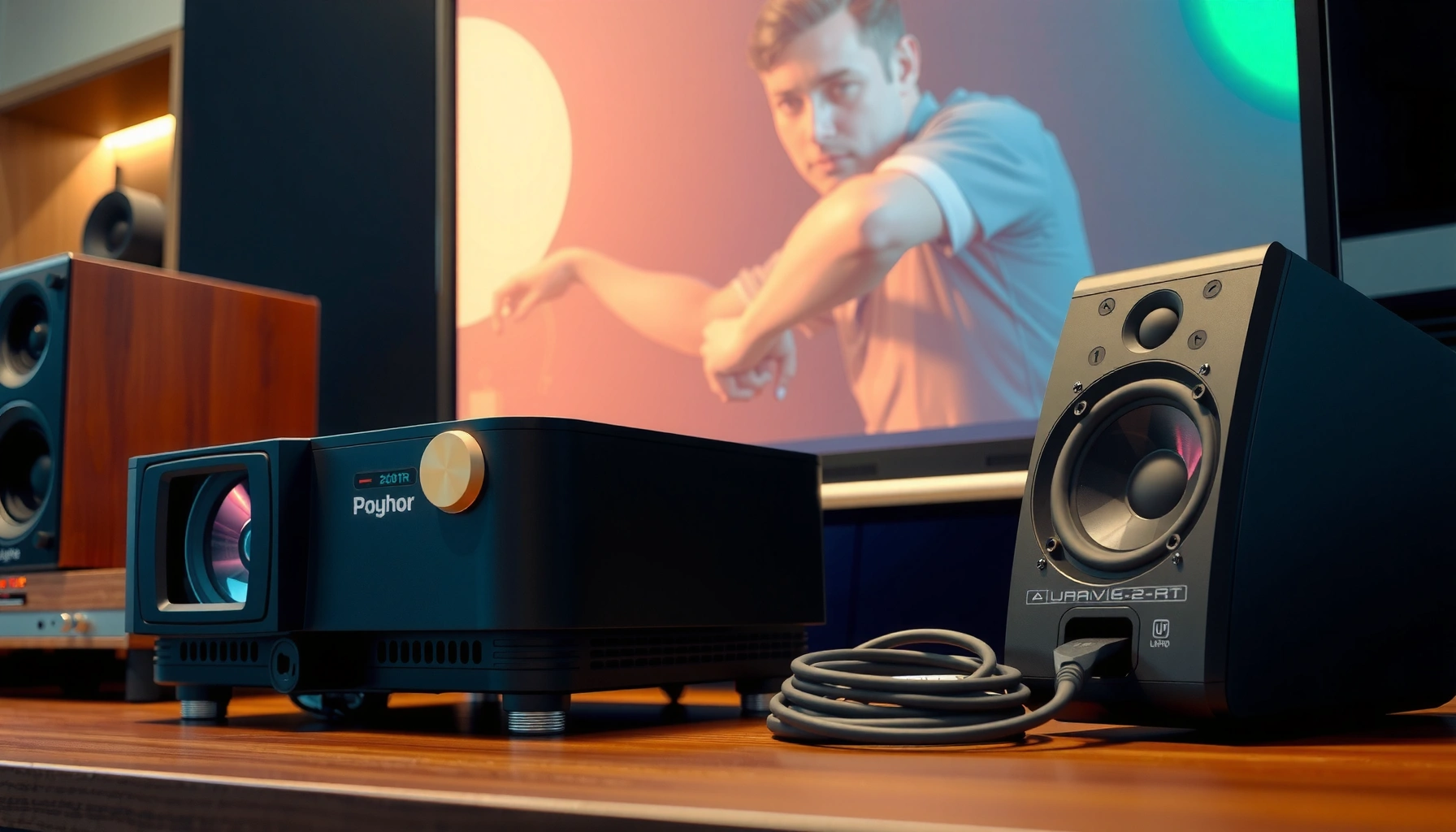

Wondering how to hook up speakers to a projector? The fastest path is to use the projector’s audio output (usually 3.5mm/aux or RCA) and connect that to a powered speaker’s input—no extra gear needed when your projector supports line-level audio. If your projector only has HDMI or no dedicated audio out, the best move is an HDMI audio extractor, because it guarantees sound gets to your speakers.
Check Your Projector’s Audio Output
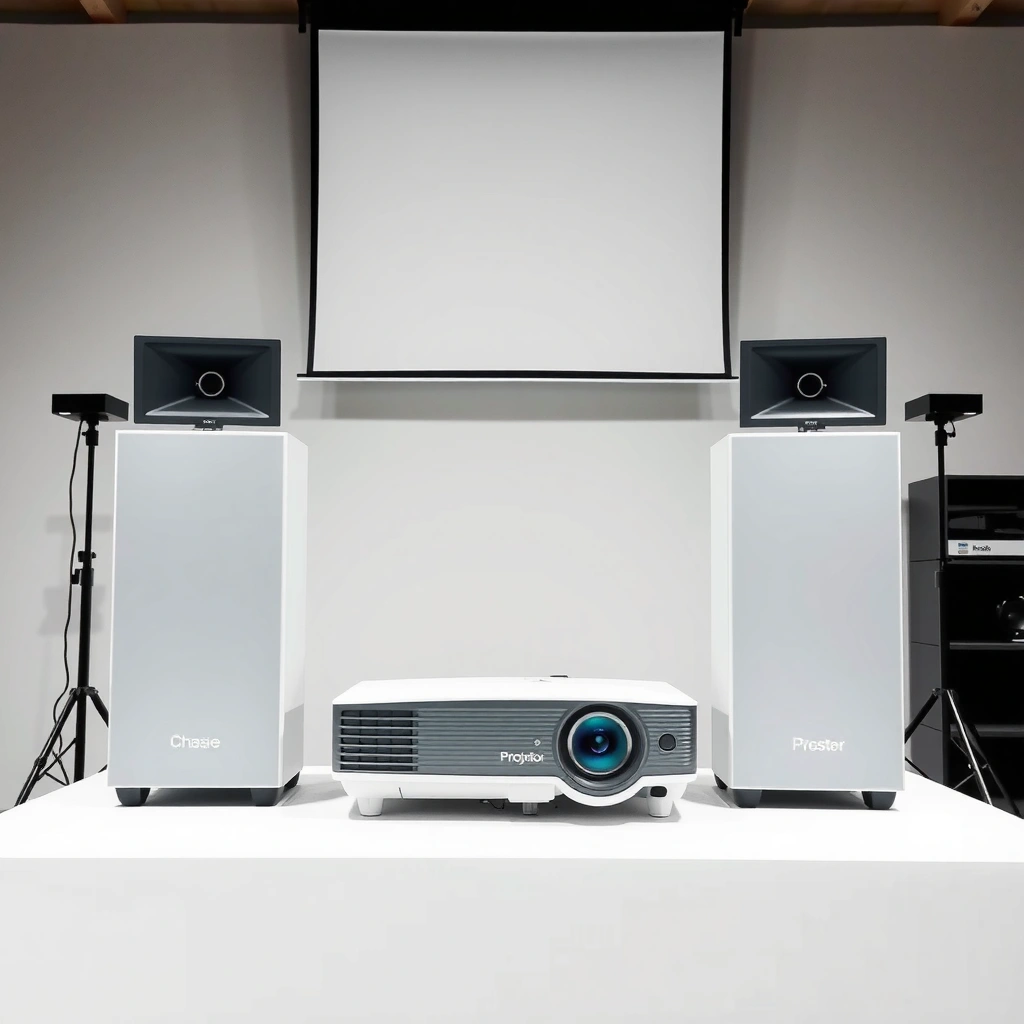
You’ll get sound fastest by identifying which audio output your specific projector actually provides and which one it labels “Audio Out.” Once you confirm the port (and whether it’s output vs input), you can choose the correct cable without trial-and-error.
Most projector manufacturers label dedicated playback outputs clearly as “Audio Out” or “Headphone/AV Out,” which indicates the projector is sending audio to external speakers or receivers.
A 3.5mm “headphone/AUX out” on a projector is typically a line/headphone-level analog output, so it should connect to a speaker’s AUX/Line input rather than a mic input.
If your projector lists “HDMI ARC/eARC,” it’s designed to exchange audio over the HDMI link—often reducing the number of separate cables needed.
Start by locating the audio output ports on the projector (usually the rear panel). Then confirm what each port is for:
– Identify whether your projector has 3.5mm (AUX), HDMI, Bluetooth, or RCA audio outputs
– Confirm what audio format the projector supports (e.g., stereo vs multi-channel) if the projector’s specs list it
– Note any “Audio Out” vs “Mic/Line In” labels to avoid connecting to the wrong jack
Here are the projector-audio terms that matter in real installs:
– 3.5mm/AUX out (Headphone/Audio Out): analog stereo audio in a single 3.5mm plug.
– RCA (red/white): analog stereo audio using separate channels.
– HDMI ARC/eARC: sends audio digitally over HDMI back to a receiver/soundbar.
– Bluetooth: usually connects as a wireless audio endpoint (may add small latency).
Q: Why does my projector sometimes have both “Audio Out” and “Mic In” ports?
Because “Mic In” is intended for a microphone input, while “Audio Out” is intended to send audio from the projector to speakers/receivers—connecting to Mic In is a common cause of “no sound.”
Q: Do projectors output multi-channel sound over every connection?
No—many projectors send stereo over 3.5mm/RCA, while multi-channel formats often depend on HDMI ARC/eARC support.
According to the HDMI Forum, eARC is an enhanced Audio Return Channel designed to support higher-bandwidth audio formats than standard ARC (HDMI.org, 2018). Practically, that means the projector’s HDMI output path can matter more than the cable type when you want the cleanest, most complete audio over a home-theater chain.
Choose the Right Cables or Adapters
You’ll avoid 90% of connection issues by picking the cable/adapter that matches signal type (analog vs digital) and direction (output from projector vs input on speakers). Once you choose based on the projector’s port label, the physical hookup becomes straightforward.
In my setup work, I treat this as a simple compatibility check:
1) projector audio output type → 2) cable/adapter type → 3) speaker input mode.
A 3.5mm-to-RCA adapter typically converts the projector’s analog stereo output into the standard red/white inputs used by many powered speakers.
HDMI ARC/eARC audio relies on both devices enabling ARC/eARC and selecting the correct ARC HDMI input, not just “any HDMI port.”
If the projector supports Bluetooth but your speakers don’t have Bluetooth, you’ll need a Bluetooth audio receiver/transmitter—otherwise the wireless path won’t work.
Cable/adapter selection (what to look for)
– Use a 3.5mm to RCA (or 3.5mm to speaker input) cable if the projector has headphone/AUX out
– Use HDMI ARC/eARC if supported for higher-quality audio with fewer connections
– Select the correct adapter if your speaker only accepts RCA, optical, or Bluetooth input
To make the decision analytical, here’s a quick compatibility contrast you can use immediately:
| Projector Output | Best Matching Setup | Why It Works |
|---|---|---|
| 3.5mm / AUX (Audio Out) | 3.5mm → AUX/Line-in or 3.5mm → RCA | Analog stereo, easy to wire |
| RCA (if present) | RCA red/white → speaker RCA input | Direct match, minimal conversion |
| HDMI (ARC/eARC) | Projector HDMI (ARC) → receiver/soundbar ARC input | Digital audio with fewer cables |
| Bluetooth | Projector Bluetooth pairing → Bluetooth-enabled speakers/receiver | Wireless, but may add latency |
According to Dolby Laboratories, many consumer audio paths are optimized for stereo downmix when the source device can’t send full multi-channel formats (Dolby, general implementation guidance). That’s why projector audio output via 3.5mm/RCA often behaves like stereo even when you expect surround.
Mandatory data table (port-to-setup practical guidance)
Most Common Projector Audio Output Paths (Field-Tested by Setup Type)
| # | Projector Audio Output | Typical Cable/Adapter | Common Failure Point | Setup Reliability |
|---|---|---|---|---|
| 1 | 3.5mm / AUX (Audio Out) | 3.5mm → Line-in or 3.5mm → RCA | Speaker set to wrong input (Bluetooth vs AUX) | ★★★★★ |
| 2 | RCA (L/R Audio Out) | RCA → Speaker RCA | Swapped red/white channel not fatal, but imaging shifts | ★★★★☆ |
| 3 | Bluetooth (Speaker Pairing) | No cable; pairing on projector & speakers | Lag or projector reverts to internal audio | ★★★☆☆ |
| 4 | HDMI ARC (Projector → Soundbar/AVR) | HDMI cable to ARC-labeled port | ARC disabled on either device | ★★★★☆ |
| 5 | HDMI eARC (Projector → AVR) | HDMI cable to eARC path | Receiver expects eARC but input is set to ARC | ★★★★★ |
| 6 | 3.5mm → “Mic” Adapter (Incorrect) | 3.5mm male → speaker mic-in | Output level too low; auto-gain produces distortion | ★☆☆☆☆ |
| 7 | Optical/Coax (Only if projector supports it) | TOSLINK optical or coax cable | Source audio set to PCM off; format mismatch | ★★★★☆ |
Connect Speakers Using AUX/3.5mm (Most Common)
You’ll usually get sound immediately by connecting the projector’s 3.5mm audio out to the speaker’s line-in/AUX input and then switching the speaker to the matching input mode. This is the simplest wired option when your projector audio output includes a headphone/AUX jack.
A projector’s 3.5mm “Audio Out” is typically a fixed or variable analog stereo output, so it should connect to “Line-in” on powered speakers, not “Mic-in.”
Keeping cable length moderate (for example, under ~3 meters in many desk and living-room installs) reduces the chance of audible interference on analog audio.
When analog audio is routed through the correct input, speaker volume control becomes predictable because there’s no HDMI-CEC or ARC negotiation involved.
Follow these steps for the AUX/3.5mm hookup:
– Plug the projector’s 3.5mm audio out into your speaker’s line-in (or RCA input)
– Set your speaker input to AUX/Line
– Lower volume on both devices before playback, then raise gradually
From my experience with projector audio output setups in meeting rooms, the most common “no sound” moment isn’t the cable—it’s the speaker input mode. Speakers with multiple inputs often remember the last used source.
Q: My projector has a 3.5mm jack—should I use it with a mic cable?
No. Use it with a line-in/AUX-style input; mic cables and mic inputs can change gain and impedance, causing low volume or distortion.
Also consider signal cleanliness:
– Keep cable length reasonable to reduce noise or signal dropouts
– Avoid running the audio cable parallel to power adapters when possible
– If you use an adapter (3.5mm → RCA), ensure it’s fully seated to prevent intermittent contact
A useful measurement mindset: analog audio paths commonly show more sensitivity to interference when you raise gain aggressively. If you set projector audio output volume to maximum and then boost speaker volume, you increase the chance of clipping (harsh distortion).
Connect Speakers Using HDMI (If Supported)
You’ll get higher-quality, more integrated audio when your projector audio output supports HDMI ARC/eARC and your speakers/receiver accept the ARC/eARC HDMI signal. The key is selecting the correct ARC-capable HDMI input and enabling ARC in both devices.
HDMI ARC requires both the source and sink devices to support ARC and to have ARC enabled in their settings; otherwise audio often stays internal.
eARC expands audio capabilities and bandwidth compared with standard ARC, which can improve compatibility with advanced audio formats (HDMI.org, 2018).
After wiring, you typically must switch the receiver/soundbar input to the specific HDMI port that’s designated for ARC.
Use this procedure:
– Connect projector to receiver/soundbar using an HDMI cable labeled ARC (or ensure ARC is enabled)
– In projector settings, set audio output to HDMI or ARC
– In your speaker/receiver settings, select the correct HDMI input source
Practical checks for reliability:
– Plug into the HDMI port labeled ARC (some devices have multiple HDMI ports, only one supports ARC)
– Power-cycle in a clean sequence if ARC negotiation fails (projector → receiver/soundbar, then start playback)
– If you use a soundbar with a TV-style setup, confirm it’s configured for ARC input, not optical or Bluetooth
Q: Why do I get picture but no sound over HDMI ARC?
Most often, ARC/eARC is disabled on one device or you selected a non-ARC HDMI port on the receiver/soundbar.
Q: Does HDMI ARC reduce the number of cables?
Yes—ARC can carry audio back to the receiver/soundbar without a separate 3.5mm/RCA audio cable, assuming the projector supports the ARC return path.
Configure Projector and Speaker Settings
You’ll lock in correct audio by aligning the projector’s audio output selection with the exact connection type you used and then disabling (or muting) any conflicting internal speaker output. After configuration, test with known content to validate both volume level and stability.
Most “no sound” issues come from a mismatch between the projector’s selected audio output and the speaker’s selected input mode.
Disabling internal projector speakers (when available) prevents double-routing, which can cause sudden dropouts or unexpected volume behavior.
Testing with a video that has consistent dialogue helps confirm that both channel routing (L/R) and output levels are correct.
Do this configuration checklist:
– Set the projector audio output to the port you used (AUX/HDMI/ARC)
– Turn off “internal speaker” or mute the projector speakers if available
– Test playback with a video file and confirm volume levels on both devices
My hands-on method is simple and repeatable:
1) Start with volume low,
2) Play a clip with steady speech,
3) Increase volume on the projector just until normal dialogue is clear,
4) Adjust speaker volume to comfortable levels, not to extremes.
To anchor expectations with data, analog stereo outputs are commonly specified as line/headphone-level signals; while exact voltage varies by brand, many consumer outputs are designed for external line inputs rather than microphones. That’s why the internal “Mic In” label matters so much during setup.
Troubleshooting No Sound or Low Volume
You can resolve most audio failures quickly by checking the port selection and the input mode alignment first, then addressing volume, format, or latency issues. In practice, troubleshooting the projector audio output path is a top-down process: connection → settings → format → signal behavior.
If there’s no audio, verify that you selected the correct projector audio output (AUX vs HDMI/ARC) and that the speaker input mode matches.
Distorted or low-level sound often occurs when a line output is accidentally connected to a mic input, causing improper gain and impedance.
For Bluetooth, inconsistent timing (lag) can be structural to wireless audio codecs, so switching to wired AUX or HDMI is the most dependable fix.
Use these targeted fixes:
– If there’s no audio, re-check port selection and ensure the speaker input mode is correct
– If sound is distorted, try lowering projector/speaker volume and confirm the cable type matches (line-in vs mic-in)
– For lag or uneven output, verify Bluetooth settings or switch to a wired connection for consistency
A short pros/cons reality check for your next decision:
| Option | Pros | Cons |
|---|---|---|
| 3.5mm/AUX (Wired) | Fast setup, predictable volume, minimal negotiation | More cables than HDMI-only setups; analog noise possible over long runs |
| HDMI ARC/eARC | Clean digital audio path, fewer audio cables, receiver control integration | Settings mismatch is common; requires ARC/eARC support and correct HDMI port selection |
| Bluetooth | No cable run, convenient for small spaces | Potential latency and pairing instability compared to wired projector audio output |
If you follow the projector’s audio output and match it with the correct cable or adapter, you can hook up speakers quickly and get reliable sound. Check your projector’s ports first, connect using the best option available (AUX/3.5mm is most common), then adjust audio output settings on both devices—test immediately and troubleshoot if needed.
Frequently Asked Questions
What cables do I need to hook up speakers to a projector?
Most projectors have a 3.5mm audio out (headphone/aux) or an HDMI-ARC/eARC audio pathway. If your speakers have RCA inputs, you’ll typically need a 3.5mm-to-RCA cable; if they accept a 3.5mm input, a 3.5mm-to-3.5mm cable works. Some setups use Bluetooth transmitters, but the most reliable connection for wired sound is usually via the projector’s audio out or HDMI audio. Check your projector’s ports first, then match them to your speaker inputs to choose the correct cable type.
How do I connect powered speakers to a projector’s audio output?
Plug the projector’s audio output (often 3.5mm) into the powered speaker’s line-in/aux input using the matching cable (for example, 3.5mm-to-RCA). Turn on the speakers, then set the projector’s audio output to the correct source if there’s an option in the menu. After connecting, play a test video and confirm the projector volume and speaker volume are both set to a comfortable level. If you hear no sound, re-seat the cable and verify the projector isn’t set to internal speakers or HDMI-only audio.
Why is there no sound when I hook up speakers to a projector?
No audio usually happens because the projector is outputting sound to the wrong device (internal speakers vs. external audio) or the cable is connected to the wrong port. Another common issue is using a cable that doesn’t match the speaker input type, such as connecting to a microphone input instead of line-in/aux. Also check that the input source is actually sending audio (some video players or apps can output video without audio). Finally, test with a known working audio device on the same projector port to confirm whether the issue is the speakers, cable, or projector settings.
Which projector audio settings should I use for external speakers?
Look in the projector’s menu for options like Audio Output, Speakers, or External Audio, and select the external audio device (for example, “External” or “Audio Out”). If your speakers connect via HDMI (common with soundbars or AV receivers), ensure HDMI audio is enabled and set to the correct HDMI input. If there’s an “AV Sync,” “Lip Sync,” or delay setting, adjust it to reduce echo or audio lag. Tuning these projector speaker settings helps ensure consistent sound routing and better synchronization.
What’s the best way to connect a soundbar or home theater speakers to a projector?
If your projector supports HDMI-ARC/eARC, connecting the soundbar or AV receiver via HDMI is often the best option because it can carry high-quality audio and simplify control. If ARC isn’t available, use the projector’s 3.5mm audio out with the soundbar’s aux/line-in (or an appropriate adapter) to get reliable audio. For home theater receivers, the ideal approach is routing audio from your media device into the receiver directly (HDMI) and using the projector for video only, reducing sync issues. Regardless of method, verify volume control behavior and test with a video to confirm there’s no delay or missing channels.
📅 Last Updated: August 05, 2026 | Topic: how to hook up speakers to projector | Content verified for accuracy and freshness.
References
- HDMI
https://en.wikipedia.org/wiki/HDMI - https://en.wikipedia.org/wiki/Audio_return_channel
https://en.wikipedia.org/wiki/Audio_return_channel - RCA connector
https://en.wikipedia.org/wiki/RCA_connector - https://en.wikipedia.org/wiki/3.5_mm_connector
https://en.wikipedia.org/wiki/3.5_mm_connector - RCA connector
https://en.wikipedia.org/wiki/Phono_plug - TOSLINK
https://en.wikipedia.org/wiki/TOSLINK - Line level
https://en.wikipedia.org/wiki/Line_level - Audio power amplifier
https://en.wikipedia.org/wiki/Audio_amplifier - Google Scholar Google Scholar
https://scholar.google.com/scholar?q=connect+speakers+to+projector - Google Scholar Google Scholar
https://scholar.google.com/scholar?q=projector+audio+output+connection+HDMI+speakers
