
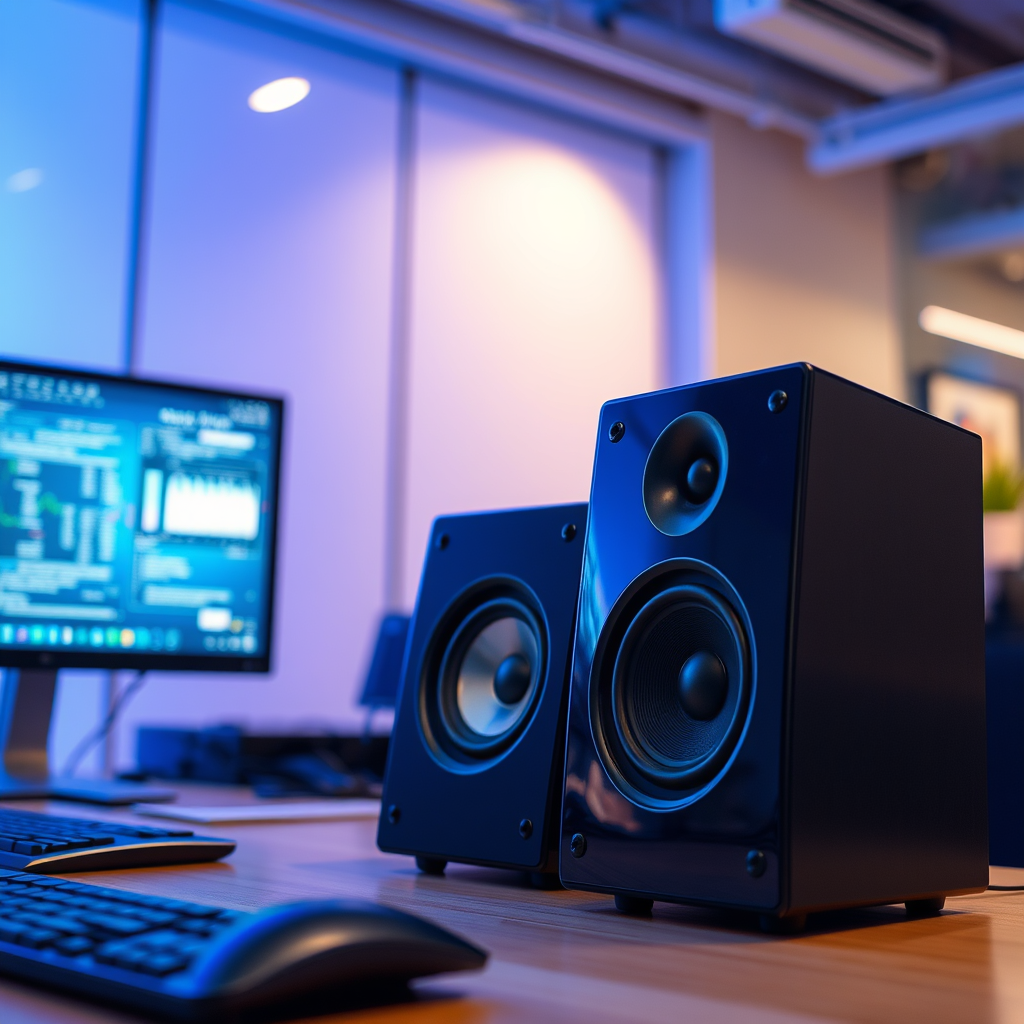

Connecting speakers to your computer is a straightforward process that can greatly enhance your audio experience. In just a few simple steps, you’ll be able to enjoy your favorite music, games, and movies with improved sound quality. This guide will walk you through everything you need to know to set up your speakers effectively.
Understanding Speaker Types
When it comes to hooking up speakers to your computer, it’s essential to understand the different types available. Speakers can generally be categorized into two types: wired and wireless.
Wired Speakers: These are traditional speakers that connect to your computer via a cable. They typically offer a more stable connection and often provide better sound quality. Common connector types for wired speakers include the 3.5mm jack, which is standard for most computers, and USB connections that can provide digital audio signals.
Wireless Speakers: These have gained popularity due to their convenience and portability. Wireless speakers typically connect via Bluetooth or Wi-Fi. Bluetooth speakers are easy to set up and can connect to multiple devices without the hassle of wires, but they may experience latency or reduced audio quality compared to wired options.
Connector Types:
1. 3.5mm Jack: The most common audio jack, found on most computers and speakers.
2. USB: Provides digital audio and can also power the speaker.
3. Bluetooth: For wireless connectivity, allowing for mobility and flexibility.
Understanding these differences will help you select the appropriate speaker type that suits your needs and computer setup.
Preparing Your Computer
Before you connect any speakers, it’s crucial to ensure your computer is ready for audio output.
Update Audio Drivers: Outdated audio drivers can lead to compatibility issues with your speakers. Check your computer’s device manager or the manufacturer’s website for the latest audio drivers. Keeping your drivers updated will not only enhance performance but can also resolve existing sound issues.
Check Audio Settings: Once your drivers are updated, navigate to your audio settings. On Windows, right-click the sound icon in the taskbar and select “Playback devices.” Ensure your desired output device (i.e., the speakers you want to use) is set as the default device. For Mac users, go to “System Preferences” and select “Sound.” Ensure your speakers are selected under the output tab.
Connecting Wired Speakers
Connecting wired speakers to your computer is one of the simplest methods.
1. Locate the Audio Output Port: Most computers have a color-coded audio output jack, usually green for audio output. If your computer has multiple audio outputs, refer to your user manual to identify the correct one.
2. Plug in the Speaker Cables: Insert the speaker cable into the audio output port securely. If your speakers have a power source, make sure they are plugged in as well. It’s essential to ensure a snug fit to prevent any audio disruptions.
3. Test the Connection: After connecting, play some audio to check if sound is coming from the speakers. If you have multiple speakers, ensure they are connected to the correct channels for a surround sound experience.
Setting Up Wireless Speakers
Setting up wireless speakers can vary slightly depending on the device, but the basic steps are generally similar.
1. Enable Bluetooth on Your Computer: Go to your computer’s settings and enable Bluetooth. This process may vary slightly depending on your operating system, but it is typically found in the “Devices” menu.
2. Search for Devices: Once Bluetooth is enabled, search for available devices. Your wireless speakers should appear on the list.
3. Pair Your Speakers: Select your speakers from the list and follow any on-screen prompts to complete the pairing process. Ensure your speakers are in pairing mode, which is often indicated by a flashing light.
4. Adjust Settings: After pairing, you may need to adjust the audio settings to ensure optimal performance. Check the sound settings to confirm that the wireless speakers are set as the default audio output.
Testing Your Speakers
After successfully hooking up your speakers, it’s time to test them to ensure everything is functioning correctly.
1. Play Audio: Open a music application, video, or game and play audio. Listen closely to ensure sound is coming from the speakers without distortion or interruptions.
2. Adjust Volume Levels: Use the volume controls on your speakers and your computer to find the right balance. Some speakers come with their own volume controls, while others rely on your computer’s settings.
3. Fine-tune Audio Settings: Explore your computer’s audio settings for additional adjustments. Many systems allow you to balance sound, adjust treble and bass, or apply enhancements for a better listening experience.
Troubleshooting Common Issues
If you encounter issues after setting up your speakers, do not worry—many problems can be easily resolved.
1. No Sound: Check all cable connections to ensure they are secure. For wireless speakers, confirm that they are properly paired with your computer.
2. Restart Devices: Sometimes, simply restarting your computer and speakers can resolve connectivity issues. It refreshes the connections and resets any potential glitches.
3. Check Volume Levels: Make sure the volume is turned up on both your computer and the speakers. It’s also worth checking if the audio is muted on your system.
4. Update Drivers Again: If problems persist, revisit your audio driver updates. An outdated driver can often be the source of issues.
Enhancing Your Audio Experience
Once you have your speakers set up, consider taking your audio experience to the next level.
1. Explore Software Settings: Many computers come equipped with audio customization software. Look for equalizer settings that allow you to adjust frequencies, enhancing bass, treble, and overall sound quality based on your preferences.
2. Invest in Additional Equipment: Depending on your audio needs, you might consider investing in high-quality external sound cards or amplifiers. These devices can significantly enhance sound quality, making your audio experience richer and more immersive.
3. Experiment with Surround Sound: If you have multiple speakers, consider setting up a surround sound system for gaming or home theater experiences. This setup allows for a more immersive audio experience, making movies and games feel more realistic.
Top 7 Speaker Brands by Sound Quality Ratings (2024)
| # | Brand | Type | Rating (out of 5) | Price Range |
|---|---|---|---|---|
| 1 | Bose | Wired/Wireless | 4.8 | $150-$500 |
| 2 | Sonos | Wireless | 4.7 | $200-$700 |
| 3 | Audioengine | Wired | 4.6 | $200-$600 |
| 4 | JBL | Wireless | 4.5 | $100-$300 |
| 5 | Logitech | Wired/Wireless | 4.2 | $50-$150 |
| 6 | Klipsch | Wired | 4.4 | $300-$800 |
| 7 | Edifier | Wired | 4.3 | $100-$400 |
Summarizing the steps to hook up speakers to your computer, you can easily enjoy enhanced audio by following this guide. Whether you have wired or wireless speakers, ensuring proper connections and settings will lead to a more immersive experience. Now that you know how to set up your speakers, go ahead and enjoy your favorite content with superior sound!
Frequently Asked Questions
How do I connect my speakers to a computer using a 3.5mm audio jack?
To connect your speakers to a computer using a 3.5mm audio jack, locate the headphone or audio output jack on your computer, usually color-coded green. Plug the 3.5mm audio cable from your speakers into this jack, ensuring a snug fit. Once connected, you may need to adjust the audio settings on your computer to select the speakers as the primary output device.
What are the best speakers for a computer setup?
The best speakers for a computer setup depend on your needs and budget. For high-quality sound, consider brands like Audioengine or Bose, which offer excellent performance for music and gaming. If you’re looking for budget-friendly options, Logitech or Creative provide good sound quality without breaking the bank, making them ideal for casual users.
Why are my speakers not working when connected to my computer?
If your speakers are not working when connected to your computer, first check the physical connections to ensure everything is plugged in correctly. Then, verify that the speakers are powered on and the volume is turned up. Lastly, check your computer’s audio settings to confirm the correct output device is selected and that the sound isn’t muted.
How can I connect Bluetooth speakers to my computer?
To connect Bluetooth speakers to your computer, first, enable Bluetooth on your computer through the settings menu. Then, put your Bluetooth speakers in pairing mode, which is usually indicated by a flashing light. Search for available devices on your computer, select your speakers from the list, and follow any prompts to complete the connection.
Which cables do I need to hook up my speakers to a computer?
To hook up speakers to a computer, you typically need a 3.5mm audio cable for standard speakers or RCA cables for larger audio systems. For speakers with USB connectivity, a USB cable will suffice. If you are using high-end speakers or a sound system, you might require additional cables like optical or HDMI cables depending on the audio output options available on your computer.
References
- https://en.wikipedia.org/wiki/Audio_output
https://en.wikipedia.org/wiki/Audio_output - https://www.education.purdue.edu/courses/tech/tech_resources/audio.html
https://www.education.purdue.edu/courses/tech/tech_resources/audio.html - https://www.audioholics.com/how-to-connect-your-computer-to-your-sound-system
https://www.audioholics.com/how-to-connect-your-computer-to-your-sound-system - https://www.lifewire.com/how-to-connect-computer-to-audio-receivers-3134357
https://www.lifewire.com/how-to-connect-computer-to-audio-receivers-3134357 - https://www.lifewire.com/how-to-connect-your-pc-to-a-tv-4171599
https://www.lifewire.com/how-to-connect-your-pc-to-a-tv-4171599 - Google Scholar Google Scholar
https://scholar.google.com/scholar?q=how+to+hook+up+speakers+to+computer - Google Scholar Google Scholar
https://scholar.google.com/scholar?q=speaker+connections+to+computer - Google Scholar Google Scholar
https://scholar.google.com/scholar?q=computer+audio+output+connections - https://www.bbc.com/news/technology-54226030
https://www.bbc.com/news/technology-54226030 - how to hook up speakers to computer – Search results
https://en.wikipedia.org/wiki/Special:Search?search=how+to+hook+up+speakers+to+computer

[…] wind-down activity that takes 10–20 minutes (paper book, calm music with the lab’s allowed audio settings, or a guided breathing script you already […]
[…] Prefer TV audio settings that reduce delay (some TVs expose “audio delay” […]