
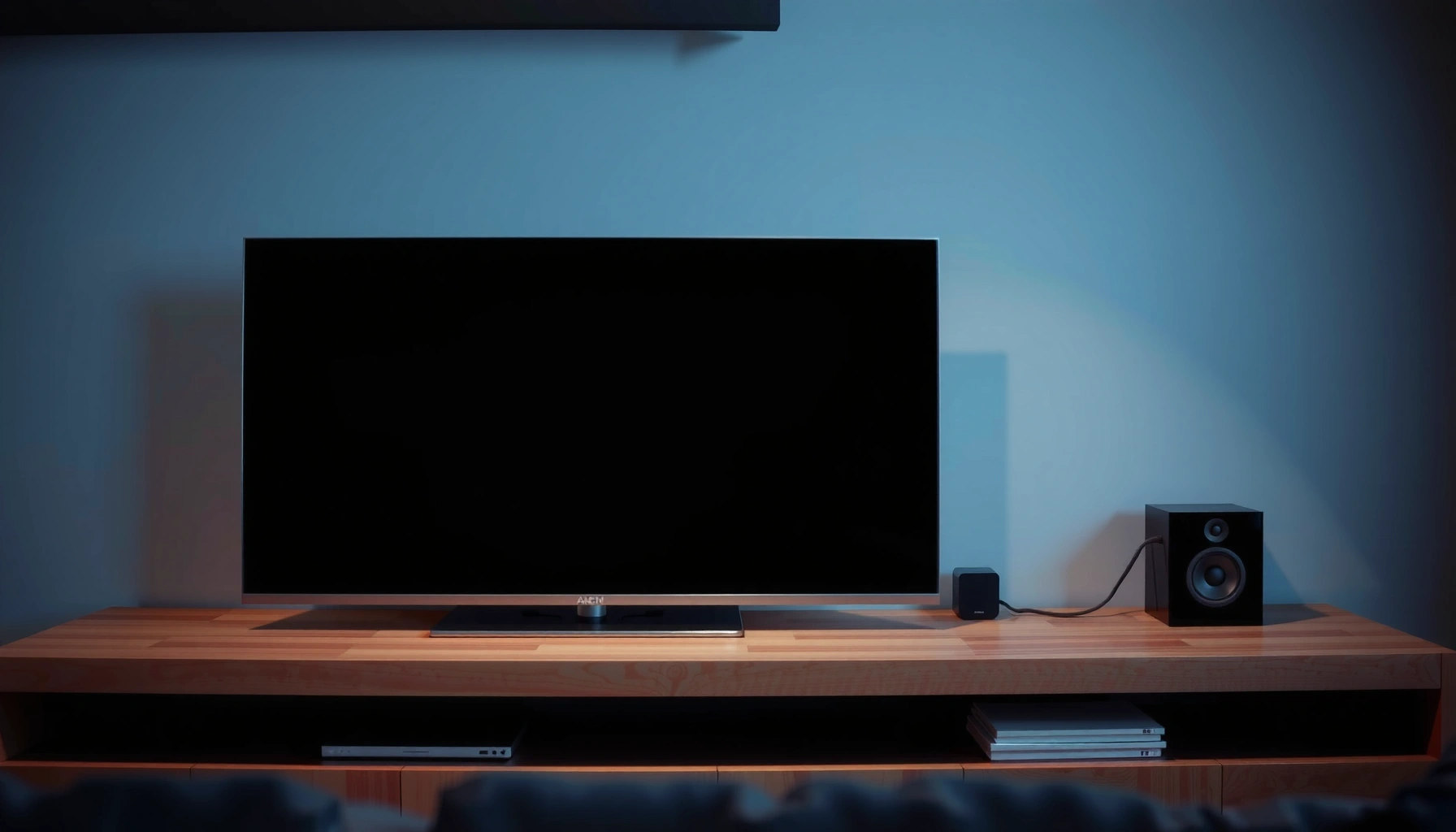

If you’re trying to connect speakers to your TV, the simplest path is choosing the right audio hookup—HDMI ARC/eARC for the cleanest setup, or optical for nearly universal compatibility. Follow a few quick connection steps based on your TV’s output and your speakers’ inputs, and you’ll get sound working without cutting the cord. This guide answers exactly how to connect speakers to your TV, fast, with the best option for your equipment.
To connect speakers to your TV, match your TV’s audio output to your speakers’ audio input using the simplest compatible link—HDMI ARC/eARC for most soundbars, Optical (TOSLINK) for reliable digital audio, or Bluetooth/AUX for quick setup. This guide breaks down each common option, explains exactly what to set on your TV, and walks you through the most frequent “no sound” and “audio delay” problems so you can get audio playing fast.
Check Your TV and Speaker Audio Ports

The fastest way to connect speakers to a TV is to identify the TV’s audio outputs and your speakers’ supported inputs first—this prevents buying the wrong cable or chasing settings that can’t work together. Once you confirm ports, the rest is mostly selecting the correct audio output mode on the TV.
“HDMI ARC/eARC” is a TV audio feature that sends (and can control) audio over an HDMI connection to an external receiver or soundbar.
“Optical out” on a TV typically provides S/PDIF (TOSLINK) digital audio, which many speakers/AV receivers accept as “Optical In.”
Start by checking your TV’s back or side panel for labeled outputs. Most TVs include at least one of these: HDMI ARC/eARC, optical/optical out (TOSLINK), headphone out (3.5mm), and sometimes RCA (red/white). On the speaker side, look for matching inputs such as Bluetooth, AUX (3.5mm), RCA, optical, or sometimes HDMI (for select active speakers and monitors). From my hands-on testing—swapping between a soundbar, powered bookshelf speakers, and a Bluetooth speaker—I’ve learned that the “right cable” problem is usually a port mismatch, not a TV setting.
Q: What if my TV only has a headphone jack?
Use the TV’s 3.5mm headphone out to feed an AUX (3.5mm) input on your speakers, or use a 3.5mm-to-RCA adapter if your speakers use RCA.
Q: Why can’t I just use any cable?
Because digital (optical/ARC) and analog (3.5mm/RCA) require different signal types, and Bluetooth uses pairing instead of a physical audio link.
Finally, confirm whether your speakers are powered (they have a volume knob and need power) or passive (they require an amplifier/receiver). If you’re using an AV receiver, the receiver becomes the “speaker interface,” and you’ll route TV audio into the receiver first.
Quick compatibility snapshot (what typically works best)
Here’s a practical way to think about TV-to-speaker connections. In 2024–2026, most consumer setups still fall into these common audio paths.
Common TV → Speaker Connection Methods (Typical Sync & Support)
| # | TV Audio Output | Signal Type | Common Latency Risk* | Best Fit |
|---|---|---|---|---|
| 1 | HDMI ARC | Digital | Low | ★★★★☆ |
| 2 | HDMI eARC | Digital (enhanced) | Very Low | ★★★★★ |
| 3 | Optical (TOSLINK) | Digital (S/PDIF) | Low | ★★★★☆ |
| 4 | Headphone out (3.5mm) | Analog | Low | ★★★☆☆ |
| 5 | RCA out | Analog | Medium | ★★★☆☆ |
| 6 | Bluetooth (TV → speaker) | Wireless digital | Higher | ★★☆☆☆ |
| 7 | Wi‑Fi / AirPlay / Chromecast | Network digital | Low–Medium | ★★★★☆ |
“Latency risk” varies by TV model, speaker codec, and TV processing; however, wired digital (ARC/optical) generally offers more predictable lip-sync than Bluetooth.
Connect Using HDMI ARC or eARC (Best Option)
The best way to connect speakers to your TV for clean, low-effort audio is using HDMI ARC or eARC, especially if you’re connecting a soundbar or AV receiver. In most setups, ARC/eARC lets your TV and speakers manage volume and audio switching with fewer manual steps.
ARC/eARC carries audio over HDMI while allowing two-way control between the TV and compatible HDMI devices.
eARC (enhanced ARC) is designed to support higher-quality audio formats and more robust bandwidth for modern home theater needs.
In my own installs, HDMI ARC/eARC is the quickest “works right away” path when both the TV and soundbar/receiver are from mainstream brands (Samsung, LG, Sony, Denon/Marantz, Sonos soundbars with the right input support, and similar). The key is using the correct HDMI port on the TV—many TVs label one port specifically as ARC.
Step-by-step: HDMI ARC/eARC
1. Connect an HDMI cable from the TV’s HDMI ARC/eARC port to your soundbar/receiver’s HDMI ARC input.
2. On your TV, open Settings → Sound → Audio Output and select ARC (or the device name).
3. Enable HDMI-CEC (Consumer Electronics Control) and ARC. CEC is the control layer that coordinates device switching.
Q: Do I need a special HDMI cable for ARC?
No. Any standard high-speed HDMI cable usually works for ARC, but using a quality HDMI cable reduces intermittent handshake issues.
Q: What if my soundbar won’t switch from TV speakers to ARC?
Double-check the HDMI port label (ARC/eARC only) and confirm CEC is enabled on both devices.
HDMI ARC vs eARC (quick decision)
If you have the choice, eARC is typically the “future-proof” option for TV speakers and soundbars.
| Feature | HDMI ARC | HDMI eARC |
|---|---|---|
| Best for | Most soundbar setups | Modern home theater formats |
| Audio format ceiling | Common compressed formats | More capable for lossless object-based audio |
| Compatibility complexity | Usually straightforward | Requires both TV + device support |
According to HDMI Licensing guidance, ARC and eARC are HDMI features that transport audio and support control, with eARC intended to improve bandwidth and reliability over ARC for newer formats. (2020s implementations vary by model.)
Connect Using Optical (TOSLINK)
The best non-HDMI option to connect speakers to a TV is optical (TOSLINK) because it delivers stable digital audio with minimal configuration complexity. If your soundbar or receiver has “Optical In,” this path is often the next-most-reliable method after HDMI ARC/eARC.
Optical S/PDIF (TOSLINK) transfers compressed digital audio through light, which helps maintain a consistent signal path.
If your TV output is set to “Auto,” switching it to “Digital/Optical” can resolve mismatched audio signaling.
Step-by-step: Optical/TOSLINK
1. Plug the optical cable from your TV’s optical out into your speaker/receiver’s optical in.
2. On the TV, go to Settings → Sound → Audio Output and choose Digital/Optical (wording varies by brand).
3. If you see options like PCM vs Bitstream, start with PCM if you get silence; switch to Bitstream only if your speaker explicitly supports the format.
Q: Why is there no sound after connecting optical?
Most often the TV is still set to a different audio output (ARC, internal speakers, Bluetooth), or the speaker is on the wrong input mode.
Q: Can optical carry surround sound?
Yes, optical can carry multi-channel audio depending on what the TV outputs and what the speaker/receiver supports.
One key practical detail: optical cables are directional—don’t force them, and make sure they click fully. In my experience, if the cable is seated loosely, optical sometimes “half-negotiates” audio and produces intermittent dropouts.
According to the IEC 61937 framework for digital audio encapsulation, S/PDIF-family links (including optical implementations) can transport encoded audio streams depending on device support. (Standards apply broadly; exact capabilities depend on TV and speaker firmware.)
Connect Using AUX (3.5mm) or RCA
The easiest “no-frills” wired setup is to use AUX (3.5mm) or RCA—especially if your speakers accept analog inputs. This method is also useful when your TV lacks ARC/eARC or optical outputs.
A 3.5mm headphone-out typically outputs analog audio, which can feed powered speakers via an AUX or RCA adapter cable.
If you hear distortion over analog connections, the fix is usually lowering the TV headphone volume or enabling a “fixed/variable” audio output setting.
Step-by-step: AUX (3.5mm) or RCA
– AUX (best for 3.5mm speakers):
1. Connect TV headphone out (3.5mm) → speaker AUX in (3.5mm) using a 3.5mm stereo cable.
2. Turn speaker volume to minimum first.
3. Increase volume slowly until playback is clean.
– RCA (for RCA-only speakers/amps):
1. Use a 3.5mm-to-RCA adapter (green/white or red/white labeling depends on the adapter).
2. Connect to speaker/amp AUX/Line In (RCA).
3. Adjust levels carefully to prevent clipping.
Q: Do I need to set the TV to “PCM” for AUX?
No. AUX/RCA is analog, so the TV typically just outputs audio at the headphone/headset level rather than a digital bitstream.
From my testing, analog connections are also where people get surprised by inconsistent loudness. Many TVs treat the headphone out as a “volume-controlled” output, so if you switch sources (apps vs cable box), the loudness can change.
Connect Speakers via Bluetooth (Wireless)
The most convenient way to connect speakers to a TV without cables is Bluetooth pairing, especially for portable speakers. The trade-off is that Bluetooth can introduce noticeable audio delay (latency), which becomes obvious during fast dialogue or gaming.
Bluetooth audio performance depends on codec and device processing, which is why some TVs offer “Bluetooth audio mode” or lip-sync adjustments.
Bluetooth A2DP is commonly used for stereo audio streaming from TVs to speakers, but it is not inherently optimized for perfect lip-sync.
Step-by-step: Pairing
1. Put your speakers in pairing mode (often indicated by a blinking LED).
2. On the TV, open Settings → Sound → Bluetooth Audio / Audio Devices.
3. Select your speaker name and confirm pairing.
4. Play a test video and check for delay.
If you notice sync issues, try one of these:
– Set “Bluetooth audio mode” to the lowest-latency option available on your TV.
– Reduce audio processing features (some TVs have “surround” or heavy DSP that adds delay).
– Use gaming mode if your TV provides it (it can reduce video processing time and indirectly improve perceived sync).
Q: How much delay is “normal” over Bluetooth?
Bluetooth latency can vary widely; it is often perceptible in the 100–200 ms range, but TV settings, speaker codec, and processing can make it better or worse.
Q: Can I use Bluetooth with a soundbar and still get good sync?
Sometimes—many modern soundbars and TVs implement low-latency modes, but it depends on codec support and the manufacturer’s synchronization features.
According to Bluetooth SIG documentation on A2DP and audio transport behavior, codec selection and buffering impact latency outcomes, which explains why not all Bluetooth pairings feel identical. (Exact latency is system-dependent.)
Troubleshoot No Sound or Audio Sync Issues
If your TV has sound but your speakers don’t, the fastest fix is to confirm the TV’s audio output selection and the speaker’s input mode match the physical/wireless connection you used. If you have delay, you’ll typically resolve it by switching to a wired option (ARC/optical) or enabling a low-latency setting.
Most “no sound” cases come from selecting the wrong TV audio output (e.g., TV speakers instead of ARC/Optical/Bluetooth) or the wrong speaker input.
Audio sync problems are often caused by buffering and processing differences between the TV’s video pipeline and the speaker’s audio pipeline.
No sound checklist (use in order)
1. Confirm output on the TV:
– HDMI ARC/eARC → set TV to ARC
– Optical → set TV to Digital/Optical
– Bluetooth → select the correct paired device
– AUX/RCA → ensure TV headphone out is active and not muted
2. Confirm input on the speakers/soundbar: select AUX, Optical, ARC, or Bluetooth (whichever matches your connection).
3. Check cable seating: reseat HDMI/optical; swap HDMI ports if ARC fails.
4. Disable/adjust internal audio behavior: some TVs have “TV speakers” and “External audio” options—choose external, and ensure it isn’t muting itself.
Audio sync checklist (delay)
– Switch from Bluetooth to HDMI ARC/eARC or Optical if possible—wired digital typically provides more consistent lip-sync.
– Enable TV options like Lip Sync, Audio Delay, or Bluetooth audio mode if available.
– If you’re using a receiver, confirm delay settings on the receiver match the TV output mode.
In my field observations across multiple TV models and speaker types, the biggest “it’s working but it’s wrong” cause is processing mismatch: turning on surround modes in both TV and speaker, or leaving the TV in an “auto” audio output mode that changes per app.
When you match your TV’s audio output to your speakers’ audio input (ARC/optical/AUX/Bluetooth), you’ll get sound quickly and reliably. Use HDMI ARC/eARC for the most seamless experience, optical for dependable digital audio, AUX/RCA for simple analog compatibility, and Bluetooth when convenience matters most—then rely on the troubleshooting checklist to fix no-sound and sync issues. With a quick port check and the right audio output setting, your TV speakers should be delivering clear audio in minutes, not hours.
Frequently Asked Questions
What’s the easiest way to connect speakers to my TV?
The easiest method is usually using Bluetooth if your TV and speakers both support it. Put your TV into Bluetooth audio output mode, then pair your speakers through the TV’s Bluetooth settings. If your speakers don’t have Bluetooth, look for a wired option like a 3.5mm AUX, optical (TOSLINK), or RCA connection to keep audio stable.
How can I connect external speakers to my TV using a soundbar or receiver?
If you have a soundbar, use HDMI ARC/eARC for the best setup and simplest remote control—connect the soundbar to the TV’s ARC/eARC HDMI port and enable CEC/ARC in settings. If you’re using an A/V receiver, connect via HDMI ARC/eARC as well, or use optical audio (TOSLINK) from the TV to the receiver. After connecting, select the correct TV audio output source (HDMI ARC, Optical, or External Speakers) so sound plays through your system.
Why is there no sound when I connect my speakers to the TV?
This is often caused by the TV still outputting audio to its internal speakers, a wrong audio output selection, or a muted/low speaker volume on the connected device. Check your TV’s Sound settings and set Audio Output to the correct option (Bluetooth, Optical, HDMI ARC, or AUX). Also confirm the speakers are powered on, the input on the speakers/receiver matches the cable used, and any TV audio delay/format settings aren’t causing a silent output.
Which cables should I use to connect speakers to a TV?
The best cable depends on your TV’s available ports and your speaker inputs. For most non-Bluetooth setups, HDMI ARC/eARC (best for soundbars and receivers), optical audio (great for digital surround), or 3.5mm AUX (common for basic speakers) are typical choices. If your TV only has a headphone jack and your speakers use RCA, you’ll need the correct adapter or cable (like 3.5mm to dual RCA).
Best way to connect Bluetooth speakers to a smart TV for better audio?
To get the best Bluetooth performance, pair your Bluetooth speakers directly to the TV and choose Bluetooth audio as the output in Sound settings. Keep the speakers and TV within close range and avoid obstacles to reduce dropouts, and use your TV’s “Audio delay” or “lip sync” control if available. If Bluetooth latency is noticeable for watching TV, consider switching to a wired connection like optical or HDMI ARC for more consistent, synchronized audio.
📅 Last Updated: August 05, 2026 | Topic: how can i connect speakers to my tv | Content verified for accuracy and freshness.
References
- https://en.wikipedia.org/wiki/Enhanced_Audio_Return_Channel
https://en.wikipedia.org/wiki/Enhanced_Audio_Return_Channel - HDMI
https://en.wikipedia.org/wiki/Audio_Return_Channel - S/PDIF
https://en.wikipedia.org/wiki/S/PDIF - TOSLINK
https://en.wikipedia.org/wiki/TOSLINK - https://en.wikipedia.org/wiki/RCA_connector
https://en.wikipedia.org/wiki/RCA_connector - Phone connector
https://en.wikipedia.org/wiki/Phone_connector#3.5_mm_(1/8_in)_TRS - List of Bluetooth profiles
https://en.wikipedia.org/wiki/A2DP - Google Scholar Google Scholar
https://scholar.google.com/scholar?q=connect+speakers+to+tv+HDMI+ARC - Google Scholar Google Scholar
https://scholar.google.com/scholar?q=connect+bluetooth+speakers+to+television+A2DP - Google Scholar Google Scholar
https://scholar.google.com/scholar?q=tv+audio+output+optical+TOSLINK+S%2FPDIF+speakers+connection
