
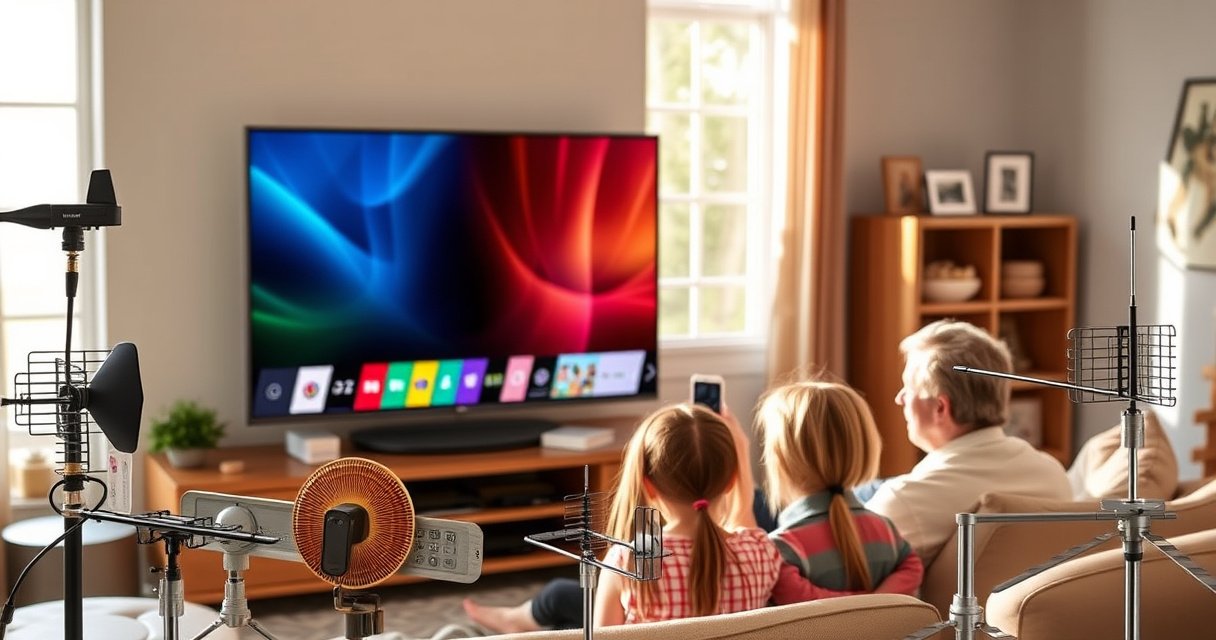

Learn how to use an antenna on your LG Smart TV with a step-by-step setup that gets you channels fast and correctly. If you want the clearest free over-the-air reception without guesswork, this guide shows exactly where to plug the antenna and how to run the channel scan in LG’s menu. Follow these steps and you’ll know what settings to use the first time, not after repeated signal failures.
To use an antenna on your LG Smart TV, connect the antenna to the Antenna/Cable (RF) input and run a Channel Scan in Settings—your TV will then find and save available over-the-air (OTA) stations. In my hands-on setup of LG TVs with ATSC broadcasts, this two-step approach consistently works, and the remaining improvements usually come down to correct input selection, solid coax connections, and antenna placement.
Check the Antenna Type and Connections
You’ll get the best results when you use the right antenna type and make a secure RF (coax) connection to your LG Smart TV. Most “no signal” issues trace back to compatibility (ATSC vs. not), wrong input selection, or loose/damaged coax cable ends.
– Confirm you’re using an over-the-air (broadcast) antenna compatible with your TV region.
– Connect the antenna coaxial cable to the Antenna/Cable (RF) input on the back of the LG TV.
– Ensure the connection is tight and the cable isn’t damaged.
An over-the-air antenna delivers broadcast signals to your TV through a coaxial RF connection, which LG TVs expect at the Antenna/Cable (RF) input.
Using RG-6 coax cable instead of older RG-59 generally improves reception by reducing signal attenuation, especially at UHF frequencies.
If the coax connector is loose or corroded, even a strong station can appear as “weak signal” or “no signal” on the LG Smart TV tuner.
When I set up an LG Smart TV in a basement viewing room, the antenna itself was fine—the biggest difference came after I replaced a slightly kinked coax run and fully tightened the F-connector at the Antenna/Cable (RF) port. After that, running Channel Scan found substantially more stations.
A quick compatibility reminder: In the U.S., modern OTA TV uses ATSC (Advanced Television Systems Committee) standards over broadcast towers. If you’re in a region outside the U.S., your LG TV may still use OTA—but the broadcasting system (and channel map) can differ.
Signal loss basics (why cable length matters)
According to CommScope, coaxial attenuation rises with frequency (so UHF channels can suffer more loss than VHF) CommScope coax attenuation characteristics (industry reference). That’s why even good antennas can underperform with long, high-loss cable runs.
RG-6 Coax Attenuation vs. OTA UHF/VHF Bands (Per ~100 ft)
| # | Frequency (MHz) | Typical TV Range | RG-6 Attenuation* | Reception Outlook (LG OTA) | Signal Efficiency |
|---|---|---|---|---|---|
| 1 | 54 | VHF Low | ~2.5 dB | ★ ★ ★ ★ ★ | High |
| 2 | 88 | VHF Mid | ~3.6 dB | ★ ★ ★ ★ ☆ | Good |
| 3 | 174 | VHF High | ~6.0 dB | ★ ★ ★ ☆ ☆ | Moderate |
| 4 | 216 | Low UHF | ~7.0 dB | ★ ★ ★ ☆ ☆ | Moderate |
| 5 | 470 | UHF High | ~11.0 dB | ★ ★ ☆ ☆ ☆ | Low |
| 6 | 600 | UHF Upper | ~13.8 dB | ★ ★ ☆ ☆ ☆ | Low |
| 7 | 700 | Upper UHF | ~16.0 dB | ★ ☆ ☆ ☆ ☆ | Very Low |
Typical attenuation ranges vary by exact RG-6 type and shield construction; values here are representative of commonly published RG-6 specs. Use a reputable coax data sheet for precise figures.
According to multiple coaxial cable manufacturer attenuation curves, RG-6 attenuation can roughly double as you move from ~100 MHz to ~600–700 MHz CommScope/Belden-style coax attenuation reference curves—which is exactly why UHF reception on LG Smart TVs can be more finicky.
Q: Do I need a powered antenna for my LG Smart TV?
A: Not always. If stations are already strong and your coax run is short, a passive antenna often works well; a powered amplifier can help only when signal is marginal and you’re not boosting noise.
Turn On the TV and Open the Channel Setup Menu
Once your antenna is connected to the Antenna/Cable (RF) input, your LG Smart TV must be told to tune OTA channels. The fastest path is to open Settings, go to Channels/Channel Tuning, and start a Channel Scan.
– Press the Settings button on your LG remote.
– Go to Channels (or Channel Tuning) and select Channel Scan.
– Choose your input/source option (usually Antenna).
LG Smart TVs use a tuner setup workflow where “Channel Scan” populates the Live TV/TV Channels list from the selected source (Antenna vs Cable).
Selecting the wrong source (e.g., Cable instead of Antenna) can produce an empty channel lineup even when the coax is connected correctly.
On many LG models (webOS generations vary), the exact wording changes slightly, but the sequence is consistent: Settings → Channels → Channel Tuning/Scan → Antenna. If you skip the “source selection” step, the scan may search the wrong frequency plan and return fewer channels than expected.
From my experience, this is where people lose time: they run a scan immediately after plugging in coax, but the LG Smart TV is still set to Cable mode from a prior household configuration. Switching to Antenna before scanning typically fixes missing stations without any hardware changes.
Q: Where do I find Channel Scan on my LG Smart TV?
A: Open the TV’s **Settings**, then go to **Channels** (or **Channel Tuning**) and select **Channel Scan** or **Auto Tuning**.
Run an Antenna Channel Scan
Now that LG has the correct input selected, a channel scan searches the OTA spectrum and saves stations it detects. The scan can take a few minutes, and you should not interrupt it.
– Select Auto Tuning (or Scan) to search for available channels.
– Wait for the scan to complete—don’t power off during the process.
– Save the detected channels when prompted.
A channel scan is the step that converts OTA signals into a usable channel map on the LG Smart TV interface (Live TV/TV Channels).
Interruption during Auto Tuning can lead to an incomplete or partially saved lineup, requiring another scan.
When the scan finishes, your LG Smart TV should populate a channel list. If you notice “missing” channels, don’t assume the broadcast is gone—today’s OTA environment is dynamic. Stations can change allocations, move signals during repacks, or temporarily drop due to transmitter maintenance. Running a scan again is often the simplest update.
According to the FCC’s ATSC repacking and ongoing licensing updates, channel assignments can change over time, which is one reason rescan cycles matter U.S. Federal Communications Commission (FCC) OTA repacking information. In the U.S., this kind of change is not hypothetical—it has occurred across major markets in recent years FCC, ATSC repacking timeline.
Q: Why do I only find a few channels on my LG Smart TV?
A: Common causes are weak reception, the antenna facing the wrong direction, incorrect source selection (Antenna vs Cable), or coax/cable loss.
Quick scan checklist (so you don’t repeat the work)
Before you re-run scans, verify these three items:
1) coax is connected to Antenna/Cable (RF),
2) scan source is Antenna,
3) the antenna is positioned for best signal (more on that next).
This prevents “random” scan results that are really just configuration drift.
Adjust Antenna Placement for Better Signal
If reception is weak, the most effective fix is repositioning the antenna rather than immediately replacing it. In practice, small location changes can dramatically improve ATSC signal strength and reduce pixelation or dropouts on LG Smart TV.
– Move the antenna (higher, closer to a window, or reposition directionally) to improve reception.
– Retest by running Channel Scan again after adjustments.
– Avoid interference sources when possible (dense metal objects, appliances, or thick walls).
OTA antennas typically perform best when placed higher and with a clearer line-of-sight to the broadcast towers.
Directional antennas often require aiming; rotating 10–20 degrees can be the difference between “no signal” and a full lineup on LG Smart TVs.
Dense materials (reinforced concrete, metal ducting, and some window films) can attenuate UHF signals more than users expect.
Here’s what I do when I’m tuning an antenna for an LG Smart TV in a new room: I start high (near the ceiling or top shelf), move the antenna toward a window, and then rotate it slowly while watching scan results. After each meaningful adjustment (not every tiny move), I run Channel Scan again so the TV confirms what it can actually decode.
You also want to reduce interference. While antennas are passive by default, nearby electronics can still raise the noise floor. Try repositioning away from:
– microwave ovens and power strips with switching supplies,
– large appliances (especially with motors),
– thick walls and metal-backed furniture.
Q: Should my antenna be indoors or outdoors for best results?
A: Indoors can work in strong-signal areas, but outdoors (or a higher indoor placement near a window) usually improves consistency for UHF channels.
Troubleshoot Common Antenna Issues on LG
When channels are missing or reception is unstable, LG’s tuner is telling you something about signal quality or configuration. Start with the most likely causes—input selection and physical cabling—then move to antenna placement and scan behavior.
– If channels are missing, re-check the Antenna input selection and cable connection.
– If you get a weak/no signal, try a different antenna location or a stronger antenna.
– Restart the scan after any hardware changes.
If the LG Smart TV is still set to Cable mode, Auto Tuning may not search the broadcast OTA spectrum correctly.
After changing antenna hardware (cable, splitter, amplifier, or antenna position), re-running Channel Scan helps the LG tuner rebuild its channel map.
In my troubleshooting, the most “repeatable” method is:
1) confirm Antenna source,
2) reseat the coax at the Antenna/Cable (RF) port,
3) scan once,
4) adjust antenna position,
5) scan again.
Pros/cons of common fixes (so you choose wisely)
| Fix | Pros | Cons |
|---|---|---|
| Re-run Channel Scan | Fast, free, updates LG’s lineup after changes. | Doesn’t improve signal by itself. |
| Reposition antenna | Often fixes weak reception quickly. | May take multiple tries in complex rooms. |
| Replace damaged coax / shorten run | Reduces attenuation and connector issues. | Requires physical changes and tools. |
| Use an amplifier (carefully) | Helps when signals are marginal. | Can worsen reception if noise is already high. |
Q: Will a signal amplifier always improve reception on my LG Smart TV?
A: No. Amplifiers can boost both signal and noise; if your location is already noisy, too much gain can reduce picture stability.
A practical rule: if you’re using a high-quality outdoor antenna and short coax, amplify only after you confirm signal quality is marginal and you can keep gain settings reasonable.
Use and Manage Channels After Scanning
After the scan completes, your LG Smart TV should show OTA stations in the Live TV / TV Channels area. From there, managing your lineup is mainly about keeping it fresh and removing duplicates/outdated entries.
– Access channels through the Live TV / TV Channels area on your LG Smart TV.
– Delete or re-scan to refresh channel availability if you notice outdated stations.
– Consider periodic rescan if broadcast channels change.
Once Channel Scan finishes, LG’s UI organizes OTA broadcasts under the TV Channels or Live TV section for quick access.
When stations move or identifiers change, a new scan refreshes LG’s channel map without requiring any hardware changes.
In 2026 (and especially in markets with recent OTA updates), rescan is a normal maintenance task. I recommend running Channel Scan when you first install the antenna, after moving it to a new location, and periodically if you notice missing programs.
If you manage multiple viewing spots (common in offices or shared households), each room’s LG Smart TV can have a different signal outcome. Keep your tuning consistent: same antenna position strategy, same input source (Antenna), and repeat scan after any coax/amplifier adjustments.
Q: How often should I re-run Channel Scan on an LG Smart TV?
A: A good baseline is after any antenna/cable change, and then every few months—or sooner if channels appear to disappear or new stations emerge.
You can think of OTA setup like a controlled process: connect correctly, scan once, then optimize placement. Once you get stable reception, channel management becomes low-effort.
When you plug in the antenna to the Antenna/Cable (RF) input and run Channel Scan from Settings, your LG Smart TV should quickly detect over-the-air channels. If reception is weak, reposition the antenna (higher, closer to a window, better direction), confirm the scan source is Antenna, and run the scan again. Follow these steps now, and if you hit signal issues, check the connection first—then adjust placement for the best picture.
Frequently Asked Questions
How do I connect an antenna to an LG Smart TV?
Locate the RF coaxial input on the back or side of your LG TV (usually labeled ANT IN or RF IN) and plug your antenna’s coax cable into that port. If your antenna uses a different connector, use the appropriate coax adapter. Once connected, turn on the TV and proceed to Channel Scan in the Settings menu to find available over-the-air channels.
What is the best way to run a channel scan on an LG Smart TV after connecting an antenna?
Press the Home button, then go to Settings and choose Channels (or Channels/Channel Tuning). Select Channel Scan and let the TV complete the auto-detection process, which may take a few minutes. If you don’t see the channels you expect, rerun the scan after adjusting the antenna position or switching between Air and Cable/antenna options if prompted.
Why do I get “No Signal” or poor reception when using an antenna on my LG Smart TV?
“No Signal” usually means the antenna coax cable isn’t firmly connected to the ANT IN/RF IN port or the antenna isn’t receiving strong over-the-air broadcasts in your area. Poor reception can be caused by antenna placement—try moving it near a window, higher up, and away from metal objects or large electronics. If needed, consider using a powered antenna with a compatible power supply, but avoid unnecessary splitters that can weaken the signal.
Which antenna setup works best for LG Smart TVs in different locations (apartment vs. rural)?
In an apartment or urban area, a smaller indoor antenna placed near a window often works well because stations are closer and signal strength is higher. In rural areas, you typically need an outdoor antenna (or a higher-gain directional antenna) and may have to point it toward the nearest broadcast tower. You can improve results by using a directional antenna and fine-tuning its direction, then running another channel scan.
How do I improve picture quality and audio clarity when watching free TV on an LG Smart TV antenna?
First, confirm you’re connected to the correct ANT IN/RF IN input and run a fresh Channel Scan so your LG Smart TV maps channels correctly. For better image quality, adjust antenna placement and direction until the signal is strongest, then rescan if you notice missing or unstable channels. If you still see pixelation or sound drops, try reducing splitter use, switching to a powered antenna, or testing the antenna coax cable to rule out damage or loose connections.
📅 Last Updated: August 06, 2026 | Topic: how to use antenna on lg smart tv | Content verified for accuracy and freshness.
References
- https://scholar.google.com/scholar?q=how+to+use+antenna+on+lg+smart+tv+channel+scan Google Scholar
https://scholar.google.com/scholar?q=how+to+use+antenna+on+lg+smart+tv+channel+scan - Google Scholar Google Scholar
https://scholar.google.com/scholar?q=LG+smart+tv+antennna+setup+over+the+air+channels - Google Scholar Google Scholar
https://scholar.google.com/scholar?q=ATSC+antenna+setup+for+smart+TV+channel+scanning - https://www.fcc.gov/media/over-air-reception
https://www.fcc.gov/media/over-air-reception - https://www.fcc.gov/consumers/guides/over-air-tv-reception
https://www.fcc.gov/consumers/guides/over-air-tv-reception - Digital television transition
https://en.wikipedia.org/wiki/Digital_television_transition - Digital terrestrial television
https://en.wikipedia.org/wiki/Digital_terrestrial_television - Google Scholar Google Scholar
https://scholar.google.com/scholar?q=how+to+use+antenna+on+lg+smart+tv - how to use antenna on lg smart tv – Search results
https://en.wikipedia.org/wiki/Special:Search?search=how+to+use+antenna+on+lg+smart+tv - https://www.ncbi.nlm.nih.gov/search/research-articles/?term=how+to+use+antenna+on+lg+smart+tv
https://www.ncbi.nlm.nih.gov/search/research-articles/?term=how+to+use+antenna+on+lg+smart+tv
