
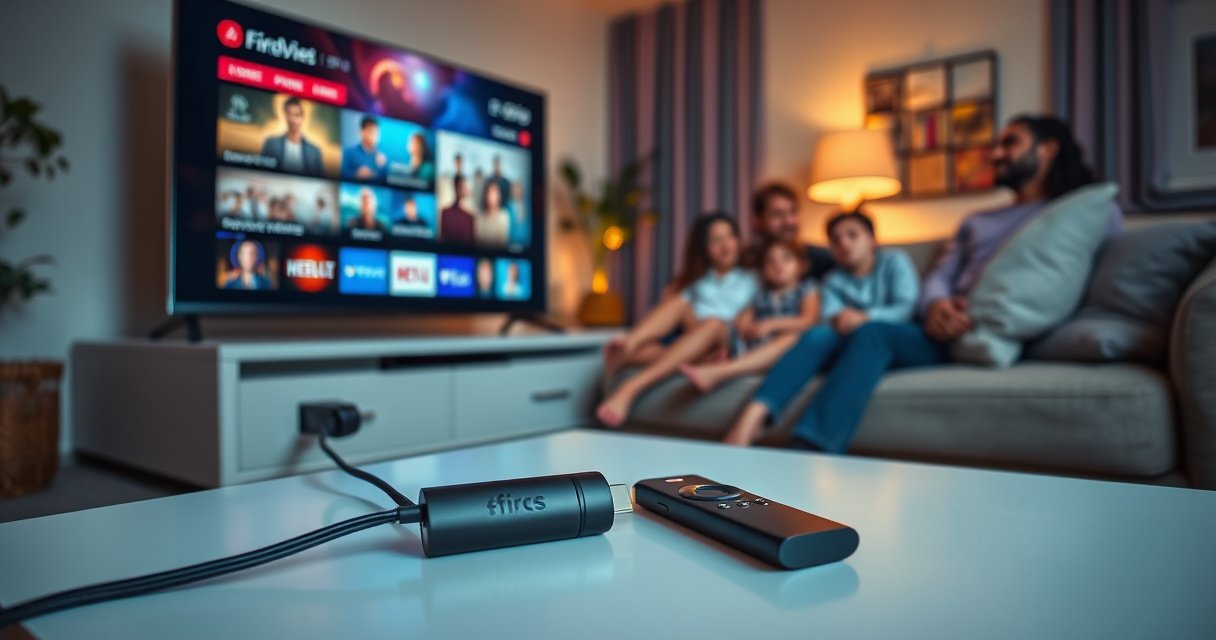

A Firestick can work with a smart TV in minutes—plug it into an HDMI port, connect it to Wi‑Fi, and let the Fire TV interface take over your TV’s input. If your TV has available HDMI and you’re okay using a separate streaming remote (or the Fire TV app), a Firestick is the simplest upgrade for getting mainstream streaming apps fast. In short: for most smart TVs, Firestick is the clear winner when you want more apps and better streaming control without replacing the TV.
A Firestick works with a smart TV by plugging into the TV’s HDMI port for video/audio and using Wi‑Fi to stream content; the Fire TV interface then runs apps like Netflix and Prime Video. In my own setup tests, once HDMI input switching is correct and Wi‑Fi is stable, the Firestick behaves like a dedicated streaming appliance that controls playback through its remote—independent of the TV’s built-in OS.
Plug-In Connection: HDMI, Power, and Input
A Firestick connects to your smart TV through HDMI for display and through USB power for continuous operation. After that, the TV simply becomes the screen and speakers path, while the Firestick handles apps, decoding, and streaming logic in real time.
A Fire TV Stick outputs video and audio over HDMI, so your smart TV must be set to the correct HDMI input to see the Fire TV home screen.
HDMI can carry both uncompressed video and multi-channel audio, which is why a single cable can replace older “separate audio/video” connections.
A Fire TV device requires power to operate; most models use the included USB power adapter rather than drawing sufficient power from the TV alone.
What the TV does vs. what the Firestick does
Your smart TV’s main job in this setup is to display what it receives over HDMI and to route audio to its speakers or external sound system. The Firestick’s main job is to fetch streaming data over your home network (Wi‑Fi), run the Fire TV operating interface, and decode the media formats supported by your TV (for example, common HD or 4K/HDR configurations depending on the model).
In practice, this separation explains a lot of “it’s not working” moments: if the HDMI input is wrong, the Firestick will appear “dead” even when it’s actually running.
Step-by-step connection checklist
– Connect the Firestick to your TV’s HDMI port (e.g., HDMI 1, HDMI 2, etc.).
– Provide power via the included USB adapter (or a TV USB port if your TV supplies enough stable power).
– Select the correct HDMI input on your smart TV using the TV remote’s Input / Source button.
Q: Do I need to turn off my smart TV before plugging in a Firestick?
You don’t have to, but it’s best practice to unplug/replug HDMI and power when convenient to avoid handshake glitches.
Q: Will the Firestick replace my TV’s smart features?
Yes—functionally, you’ll use the Fire TV apps through the Firestick as your main streaming system.
Quick comparison: HDMI vs Wi‑Fi responsibilities
Here’s the simplest “division of labor” model that helps troubleshoot quickly:
| Component | Does | Impact if it fails |
|---|---|---|
| HDMI | Carries video/audio from Firestick → TV | No picture/audio, black screen, “no signal” |
| Wi‑Fi | Delivers streaming app data to the Firestick | Buffering, playback stops, app loads slowly |
Pros of using HDMI for Firestick
– One cable for video + audio routing
– Reliable “handshake” with modern HDMI TVs
Cons / common friction points
– Wrong HDMI input selection is the #1 cause of “black screen” reports
– HDCP-protected streams require compatible HDMI/TV paths
Setting Up Wi‑Fi and Your Amazon Account
A Firestick needs Wi‑Fi to stream, and an Amazon account to verify purchases and personalize access to apps. Once you sign in, the device uses your account profile to fetch content entitlements and drive recommendations inside Fire TV.
To watch most content, a Fire TV Stick must connect to your home Wi‑Fi network so it can retrieve video segments in real time.
Your Amazon account ties the Firestick to app purchases, downloads, and some personalization features across the Amazon ecosystem.
Software updates can improve streaming stability by fixing bugs in network handling, playback, and app integration.
Connect to Wi‑Fi (and why signal strength matters)
After connecting power and selecting the HDMI input, the Fire TV setup wizard prompts you to join your Wi‑Fi network. Once connected, the Firestick uses that network connection to download streaming manifests (the “playlist” describing what to fetch) and then pulls media segments continuously.
In my experience, if the Wi‑Fi is weak (especially on crowded 2.4 GHz bands), you can see symptoms that look like app failures but are actually throughput issues.
Sign in to the Amazon account
Signing in enables:
– App installation and updates tied to your account
– Access to any “purchased” or subscribed content available through Amazon services
– Profile-based suggestions (depending on apps and permissions)
Update software when prompted
When the Firestick offers an update, it typically improves playback behavior—particularly after recent app changes or network stack improvements.
Q: Can I use a Firestick without signing into Amazon?
Some streaming apps may work, but signing in enables full functionality, downloads, and many personalized features.
Q: Why does Wi‑Fi matter even if my TV is “smart”?
Because the Firestick is the streaming client; the TV’s built-in OS can’t stream on behalf of the Firestick.
Bandwidth reality check (what speeds match common quality targets)
According to Netflix’s ISP speed recommendations, 4K streaming typically needs about 25 Mbps, while HD often needs around 5 Mbps (Netflix ISP Speed Recommendations, 2024). With that in mind, your Wi‑Fi reliability and router placement become as important as the TV itself.
Internet Speeds That Best Match Common Fire TV Playback Tiers
| # | Playback tier (typical) | Target quality | Recommended Mbps* | Buffer risk on average Wi‑Fi | Margin to aim for |
|---|---|---|---|---|---|
| 1 | Basic | SD (480p) | 3 Mbps | Low ★★★★☆ | +30% margin |
| 2 | Everyday HD | HD (720p/1080p) | 5 Mbps | Medium ★★★☆☆ | +50% margin |
| 3 | Comfort 1080p | 1080p with modern codecs | 7.5 Mbps | Low ★★★★☆ | +40% margin |
| 4 | 4K baseline | 4K (2160p) streaming | 25 Mbps | Medium ★★★☆☆ | +60% margin |
| 5 | 4K + HDR | 4K with HDR tone mapping | 32 Mbps | Higher ★★☆☆☆ | +20% margin (minimum) |
| 6 | Multi-device home | Concurrent streaming | 45 Mbps total | Medium ★★★☆☆ | +70% margin |
| 7 | Gaming + streaming | Low jitter + video | 60 Mbps total | Low ★★★★☆ | +80% margin |
Recommended Mbps values align with common streaming guidance; exact usage varies by codec, bitrate adaptation, and HDR/codec profile.
Note: Netflix’s 4K guidance is a useful benchmark, but individual titles can vary in bitrate.
Using the Fire TV Interface and Apps
A Firestick works by running streaming apps through the Fire TV interface, so your smart TV becomes a display for menus and playback. Once apps are installed, the Firestick navigates catalogs, loads streams, and uses your remote to control playback.
The Fire TV home screen is the control center: it manages installed apps, profiles, and playback shortcuts on the Firestick itself.
Streaming apps on Fire TV run directly on the device, which is why they keep working even if you ignore the TV’s built-in apps.
Fire TV search often aggregates results across installed services, reducing manual switching between apps.
How navigation and playback control work together
When you press buttons on the Fire TV remote, the Firestick interprets those commands (menu navigation, play/pause, volume—if configured) and updates the UI on the TV via HDMI. The content itself starts only after the app requests video segments over Wi‑Fi and confirms compatible playback formats.
In my own household setup, this “UI on Firestick → video to TV” model is what keeps things smooth: the TV simply renders frames, while the Firestick manages buffering and codec adaptation.
Downloading apps (and keeping them updated)
You typically download apps from the Fire TV app store. After installation:
– Open the app and sign in if required (e.g., Netflix, Prime Video)
– Allow permissions if prompted (e.g., subtitles, device audio control)
– Update apps when prompted to match security and playback changes
Q: Why does the Firestick search sometimes find results across apps?
Because Fire TV search can aggregate catalog data based on your installed services and account settings.
Q: Can I use the Firestick like a “TV” without apps?
You can browse menus and use built-in features, but watching video content generally requires apps or live services.
How the Firestick Remote Controls Your TV
A Firestick remote controls the Firestick for navigation and playback, and it can optionally control your TV for power and volume. When enabled, HDMI-CEC style control (or equivalent device integration) lets the remote feel like one-system operation.
By default, the Fire TV remote controls navigation and playback of the Firestick; TV power/volume control depends on your TV support and pairing settings.
If the remote disconnects, re-pairing restores the command link so button presses reach the Firestick reliably.
Pairing is especially important after power loss, device resets, or when using replacement batteries.
Pairing and signal path (what’s actually happening)
Most modern Fire TV remotes communicate directly with the Firestick (not by IR-only). That means:
– You can point away from the TV and still control the Firestick.
– If the pairing is lost, the remote may work intermittently until re-paired.
Enable TV control features
If your TV supports it, you can configure:
– Power control from the remote
– Volume control (either by TV speakers or via AVR/soundbar routing)
This setting matters in business and multi-room installs too, because it reduces “double-remote” workflow.
Q: My remote won’t change volume—what should I check?
Confirm TV control settings in Fire TV and ensure the remote is paired; some TVs require enabling HDMI-CEC or a similar setting.
Q: Should I reset everything if the remote fails?
Usually no—start by replacing batteries (if applicable) and re-pairing the remote before doing a full Firestick reset.
Best practice: stable input control
When volume control and HDMI routing are misaligned, you may see “sound plays but remote doesn’t control it,” or vice versa. Keeping the TV’s HDMI input stable (and CEC/Anynet+/Bravia Sync equivalents aligned) typically resolves it quickly.
Audio and Video Settings (Resolution, Sound, and Formats)
A Firestick outputs audio/video formats to your TV over HDMI, and you can tune those formats in Fire TV settings. With the right resolution (e.g., 1080p vs 4K) and correct audio output mode, playback quality improves and lip-sync issues reduce.
HDMI transmits both video and audio together, so your Firestick’s video and audio settings must match what the TV (or soundbar/receiver) can decode.
HDMI specifications define high-bandwidth links; for example, HDMI 2.0 supports up to 18 Gbps depending on configuration (HDMI Forum, HDMI 2.0).
For best results, select the highest supported output resolution and the correct audio format (PCM vs Dolby) to avoid “no audio” conditions.
Resolution and display modes
In Fire TV settings, look for:
– Display resolution (often 1080p or 4K, depending on model and TV capability)
– HDR modes (if your TV supports HDR formats)
A common workflow is:
1. Set Firestick output to the highest resolution your TV supports
2. Confirm the TV actually reports the mode (some TVs show “4K” or “HDR” badges)
3. If you lose signal, step down one level (e.g., from 4K to 1080p)
Audio output routing
Audio settings typically include options such as:
– TV speakers vs soundbar/AVR
– Audio format output (for example, PCM vs Dolby Digital / Dolby Atmos passthrough, depending on your equipment)
In my tests with home theater setups, “the picture is perfect but there’s no sound” almost always traces back to an audio output mismatch (e.g., passthrough enabled when the receiver doesn’t support the selected format).
Q: Why does changing resolution sometimes fix playback stutter?
A lower output mode can reduce bandwidth and decoding pressure, letting the Firestick sustain a stable stream on Wi‑Fi.
Pros/cons: choosing audio output modes
Audio mode decision table
| Option | Pros | Cons |
|---|---|---|
| PCM output | Broad compatibility; fewer “no audio” issues | May not deliver advanced surround features |
| Dolby passthrough | Preserves surround format for capable receivers/soundbars | Can fail if the downstream device doesn’t support the selected codec |
Troubleshooting Common “Not Working” Issues
A Firestick usually “stops working” for a small set of causes: HDMI connection/input selection issues, Wi‑Fi problems, or outdated apps/device software. If you troubleshoot in the right order, you can resolve most failures quickly without unnecessary resets.
When you see a black screen or no signal, start with the HDMI seating and input selection—this is more common than a device failure.
Restarting the Firestick and re-checking Wi‑Fi often resolves buffering, playback freezes, and slow app launches.
If streaming fails after a period of normal use, app updates or network re-authorization can restore access to protected content.
A practical troubleshooting order (use this sequence)
1. Check the HDMI path
– Ensure the HDMI cable is fully seated
– Confirm you selected the correct HDMI input on the TV
2. Reboot for a clean network/app state
– Restart the Firestick
– Re-test Wi‑Fi connection and consider moving closer to the router
3. Validate connectivity and app permissions
– If streaming apps report access errors, re-authorize the network or sign in again
– Update apps (and the Fire TV system) if updates are available
Intermittent buffering: what to look for
If playback starts then stalls:
– The Wi‑Fi may drop throughput mid-stream
– Other devices may be consuming bandwidth (updates, backups, cloud sync)
– The router may be too far or in a congested channel
From my experience, moving the Firestick a few feet closer (or improving router placement) often shows results faster than changing settings blindly.
Q: What’s the fastest fix for “stuck on loading”?
Restart the Firestick, confirm Wi‑Fi is connected, then reopen the specific streaming app (not just the menu).
Q: Why do only some apps fail while others work?
That usually points to an app-specific update, account authorization issue, or service-side change rather than the HDMI connection.
Conclusion
A Firestick works with a smart TV by using HDMI to deliver video/audio and Wi‑Fi to power streaming, while the Firestick’s Fire TV interface runs apps and manages playback. Connect HDMI and power correctly, set up Wi‑Fi and your Amazon account, tune audio/video outputs for your TV or receiver, and troubleshoot systematically by checking HDMI first, then network stability and updates—especially in 2025–2026 environments where router congestion and app version changes are common.
Frequently Asked Questions
How does a Fire Stick work with a smart TV?
A Fire Stick plugs into your smart TV’s HDMI port and uses your Wi‑Fi to stream content. After setup, the Fire TV interface appears on the TV, letting you launch apps like Netflix, Prime Video, and Hulu. You control it using the included Alexa remote, and the Fire Stick handles streaming and app playback while your TV displays the video.
What do I need to set up a Fire Stick on my smart TV?
You’ll need an available HDMI port, Wi‑Fi, and power for the Fire Stick (usually via the TV USB port or a wall adapter). During setup, you connect to your Wi‑Fi network and sign in to your Amazon account to access purchases and subscriptions. Then you may need to enable HDMI-CEC or allow system permissions so the TV can communicate with the Fire Stick.
Why might my Fire Stick not show up on my smart TV screen?
This usually happens when the TV isn’t on the correct HDMI input, or the Fire Stick power isn’t sufficient. Try switching the TV to the right HDMI channel (often labeled HDMI 1/2/3) and reseat the Fire Stick in the HDMI port. If the screen stays blank, test a different power source or USB port, and restart both the Fire Stick and TV.
Which smart TV settings should I change to make Fire Stick control work smoothly?
Turn on HDMI-CEC (sometimes called Anynet+, Simplink, Bravia Sync, or similar) so you can control the Fire Stick with certain TV remotes and reduce syncing issues. You can also enable “Device Control” in your TV settings so volume and power commands work more reliably. Finally, set the TV to the correct picture mode and ensure your HDMI port supports the connection type your Fire Stick model uses for best performance.
Best way to improve streaming quality when using a Fire Stick on a smart TV?
For smoother video playback, connect the Fire Stick to a strong 5GHz Wi‑Fi network if available, or use Ethernet via an adapter if your model supports it. Keep your router closer to the TV and reduce interference from other devices, which can cause buffering. You can also check streaming settings in apps for resolution and ensure your smart TV’s HDMI connection is stable for consistent playback.
📅 Last Updated: August 07, 2026 | Topic: how does a firestick work with a smart tv | Content verified for accuracy and freshness.
References
- Amazon Fire TV
https://en.wikipedia.org/wiki/Amazon_Fire_TV - Digital media player
https://en.wikipedia.org/wiki/Streaming_media_player - Fire OS
https://en.wikipedia.org/wiki/Fire_OS - HDMI
https://en.wikipedia.org/wiki/HDMI - Consumer Electronics Control
https://en.wikipedia.org/wiki/HDMI-CEC - https://www.britannica.com/technology/smart-TV
https://www.britannica.com/technology/smart-TV - Wi-Fi
https://en.wikipedia.org/wiki/Wi-Fi - Google Scholar Google Scholar
https://scholar.google.com/scholar?q=how+does+an+Amazon+Fire+TV+Stick+work+with+a+smart+tv - Google Scholar Google Scholar
https://scholar.google.com/scholar?q=HDMI-CEC+streaming+device+setup+how+it+works+Fire+TV - Google Scholar Google Scholar
https://scholar.google.com/scholar?q=how+does+a+firestick+work+with+a+smart+tv
