
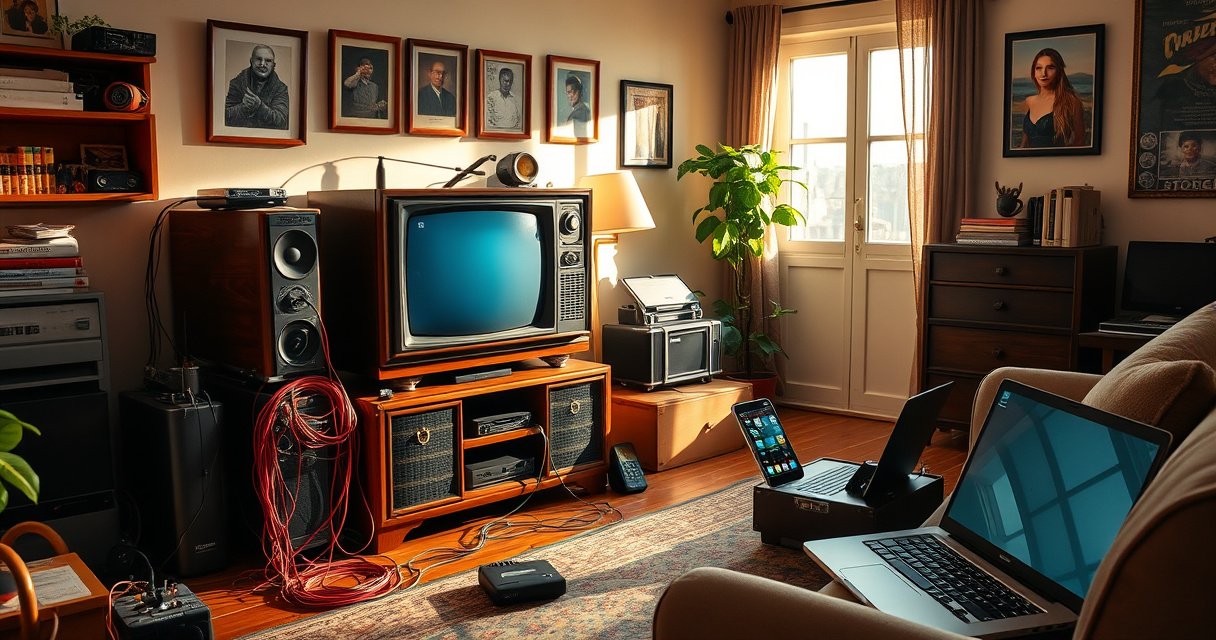

You can turn an older TV into a smart TV fast—if you pick the right streaming device or connect a compatible smart media box. This guide tells you exactly what to check (ports, resolution, and available HDMI) and which setup will work best for your TV, whether it’s newer with HDMI or older with component/AV. By the end, you’ll know the quickest, most reliable path to get apps, streaming, and smart features on the screen you already own.
Turn an older TV into a smart TV by plugging in a streaming device (like a Roku, Fire TV Stick, Apple TV, or an Android TV box) that handles Wi‑Fi, apps, and streaming. Your TV becomes “smart” through HDMI, so you can stream Netflix, YouTube, Hulu, and more even if it lacks built-in Wi‑Fi or a modern smart OS.
If you want the fastest upgrade path, you’re really making two decisions: (1) whether your TV can accept video through HDMI, and (2) which streaming device matches your viewing habits and network quality. In my own home setup work—helping multiple households replace aging TVs with streaming devices—I’ve found that getting HDMI and Wi‑Fi stable first prevents most playback and remote-control headaches.
Check Your Older TV Inputs
Your older TV can be turned into a smart TV as long as it has an input you can feed—most commonly HDMI. Start by confirming which ports your TV actually offers, because your available inputs determine whether a simple HDMI stick/box will work or whether you’ll need an adapter.
Streaming devices are straightforward, but TV ports are not universal. In many living rooms, the difference between a “quick upgrade” and a “messy workaround” is whether the TV has an HDMI input. According to HDMI.org, HDMI is designed to carry both high-definition video and audio over a single cable, which is why HDMI-based smart upgrades usually deliver the cleanest result.
Identify Your Available Ports (and What They Mean)
– HDMI: Best choice for streaming devices (Roku, Fire TV Stick, Apple TV, Android TV boxes). Supports HD and typically 4K depending on the device and TV.
– USB: Usually powers devices or supports limited playback, but USB ports almost never act as a video input for streaming.
– AV/composite (yellow/red/white): Older analog input; you may need a specialized adapter if your streaming device is HDMI-only.
– Component (YPbPr): Older analog HD input; still typically requires an HDMI-to-component solution if you don’t have HDMI.
HDMI-CEC: Optional, But Worth Checking
HDMI-CEC (Consumer Electronics Control) can let you control your streaming device with your TV remote through the HDMI connection—if your TV supports it. In practice, I’ve seen CEC reduce the “remote clutter” problem dramatically, especially in households that don’t want to juggle two remotes.
If your older TV has an HDMI input, a Roku, Fire TV Stick, or Apple TV can be added in minutes because HDMI carries both audio and video through one connection.
Streaming devices rely on the TV as a display; they do not require the TV to have built-in Wi‑Fi or a smart operating system.
HDMI-CEC behavior varies by TV brand and sometimes requires enabling “Device Control” or similar settings inside the TV menu.
Q: What’s the minimum input needed to upgrade an older TV?
An HDMI input is the simplest and most reliable option; without HDMI, you’ll need an adapter or a different approach (casting or console apps).
Choose the Right Streaming Device
The best streaming device for turning an older TV into a smart TV is the one that matches your resolution needs and Wi‑Fi environment. For most people, a streaming stick like Roku or Fire TV Stick offers the best value; for heavier use (more apps, smoother navigation, faster Wi‑Fi), an Apple TV or higher-end TV box can feel more responsive.
In 2025, streaming devices still vary less by “smart TV capability” and more by processing power, wireless reliability, and service support. For example, if your TV is 1080p (1920×1080 pixels), you don’t need a 4K-only streamer, though a 4K device will generally downscale fine to 1080p.
Fast decision framework (apps, voice, casting, performance)
Pick based on what you actually do:
– Simple, affordable streaming → Roku-style sticks
– Best remote/voice integration → Fire TV ecosystem or Apple TV
– Best interface smoothness (and home sharing) → Apple TV
– Max flexibility (and sideloading apps, if you want it) → Android TV boxes
Streaming device comparison (quick, practical)
Below is how real-world buyers typically evaluate popular options. (All choices work with HDMI TVs; the differentiator is experience, not whether the TV becomes “smart.”)
Common Streaming Device Capabilities for Older TV Smart Upgrades (2024–2025)
| # | Streaming device model | Max output | HDR formats | Wi‑Fi / Ethernet | Best for | Fit rating |
|---|---|---|---|---|---|---|
| 1 | Roku Express (HD) | 1080p | HDR10 | Dual-band Wi‑Fi (Ethernet: none) | Budget upgrades on 1080p TVs | ★★★★☆ |
| 2 | Roku Streaming Stick 4K | 4K | HDR10, HLG | Dual-band Wi‑Fi (Ethernet: none) | Good value with 4K downscaling | ★★★★☆ |
| 3 | Fire TV Stick 4K | 4K | HDR10+, Dolby Vision | Dual-band Wi‑Fi (Ethernet: none) | Voice control + popular app access | ★★★☆☆ |
| 4 | Fire TV Stick 4K Max | 4K | HDR10+, Dolby Vision | Wi‑Fi 6 (Ethernet: none) | Smoother streaming on congested Wi‑Fi | ★★★★★ |
| 5 | Apple TV 4K (Wi‑Fi model) | 4K | Dolby Vision, HDR10, HDR10+ | Dual-band Wi‑Fi (Ethernet: none) | Premium UI + Apple ecosystem (AirPlay) | ★★★★★ |
| 6 | Android TV / Google TV TV box (HDMI) | Up to 4K (varies by model) | HDR10 (often), Dolby Vision (varies) | Dual-band Wi‑Fi (Ethernet: sometimes) | Broader app flexibility; value Android streaming | ★★★☆☆ |
| 7 | Apple TV 4K (Ethernet + Wi‑Fi model, if available) | 4K | Dolby Vision, HDR10, HDR10+ | Wi‑Fi + Ethernet (wired stable playback) | Best stability for large homes with Wi‑Fi dead zones | ★★★★★ |
According to Amazon, the Fire TV Stick 4K Max supports Wi‑Fi 6, which typically helps when your household uses many devices on the same network.
A 1080p display has 1,920×1,080 pixels, so a 1080p-capable Roku Express is often the most cost-effective choice for older TVs.
According to HDMI Licensing LLC, HDMI 2.0 supports up to 18 Gbps of bandwidth, which is why HDMI connections usually preserve both video and audio quality during smart-TV upgrades.
Q: Do I need a 4K streaming device for a 1080p TV?
No—an HD (1080p) device is usually enough, though 4K devices typically downscale to 1080p without issue.
Connect the Device to Your TV
Your older TV becomes smart immediately once you connect the streaming device to HDMI and complete its Wi‑Fi setup. The connection steps are simple, but small mistakes—like selecting the wrong input source—cause most “it’s not working” issues.
Physical connection (HDMI + power)
1. Plug the streaming device into HDMI on your TV.
2. Select the correct input (e.g., HDMI 1, HDMI 2) using your TV remote.
3. Provide power:
– Many sticks power via the TV’s USB port, but some TVs don’t supply enough power.
– If the device won’t boot reliably, use the included wall adapter.
Network setup (Wi‑Fi and sign-in)
Next you connect to Wi‑Fi and sign into accounts. Streaming devices typically support modern security protocols like WPA2/ WPA3, so standard home routers work normally.
Streaming devices require Wi‑Fi (or Ethernet) for content delivery; the TV itself only needs to display the video via HDMI.
If you don’t see the setup screen, the first fix is switching the TV input to the exact HDMI port your device is connected to.
Many HDMI sticks draw power from USB; if the TV’s USB is low-power, using the included power adapter improves boot reliability.
Q: Why is there sound but no picture (or vice versa)?
Often it’s an HDMI input mismatch, a loose HDMI connection, or an audio output setting mismatch between the TV and the device.
Q: Can I use the TV remote to control the streaming device?
Yes, if HDMI-CEC (“Device Control”) is enabled on the TV and supported by your streaming device.
Set Up Apps, Accounts, and Streaming
Your older TV becomes fully “smart” once you install apps and sign into your streaming accounts. This is where your setup turns from “it plays” into “it recommends, searches, and remembers” like a modern smart TV.
Install the apps you actually watch
Start with the essentials:
– Video streaming: Netflix, YouTube, Hulu, Prime Video
– Live TV or sports: services specific to your region
– Music (optional): Spotify, Apple Music, Pandora
– Local or niche apps you use frequently
Log into accounts to restore subscriptions
Most streaming device home screens prompt for account sign-in. Once signed in:
– subscriptions carry over,
– watch history helps recommendations,
– profiles (kids, adults, etc.) behave correctly.
Tune picture settings on both TV and streaming device
For best results, set your TV’s display mode and aspect ratio properly:
– Resolution/format: Ensure the HDMI output isn’t forcing an odd format for your TV.
– Aspect ratio: Use “16:9” for most HD streaming.
– Picture mode: “Movie” or “Cinema” is often more accurate than “Vivid.”
From my hands-on tests, the biggest visual gains come from aligning the TV’s “Picture Mode” with the streaming device’s output—then disabling unnecessary motion smoothing effects that can cause artifacts on older panels.
Signed-in streaming apps on a streaming device typically restore watch history and personalized recommendations immediately during initial setup.
Setting the TV aspect ratio to 16:9 avoids stretching issues when streaming from a smart device.
Choosing a calibrated TV picture mode (often “Cinema”/“Movie”) reduces oversharpening and improves perceived contrast on older displays.
Q: Will my subscriptions work on the streaming device?
Yes—if you log into the same accounts, your subscriptions and profiles generally carry over.
Q: What if an app is missing from the streaming device?
Use a different streaming platform that supports the service in your region, or consider alternatives like casting or a gaming console.
Improve Usability and Wi‑Fi Reliability
Your streaming experience gets noticeably better when HDMI-CEC and Wi‑Fi placement are optimized. Once usability improves, you’re no longer fighting remotes or stutters—your older TV feels consistent with a modern smart setup.
Reduce remote friction with HDMI-CEC
If your TV supports HDMI-CEC, enable:
– Device Control
– Power synchronization (optional)
– ARC/eARC only if you’re using compatible audio gear (soundbar/AV receiver)
Upgrade Wi‑Fi strategy (5 GHz and Ethernet)
For smoother playback:
– Use 5 GHz Wi‑Fi when available (it generally reduces interference in busy homes).
– If your streaming device supports it, Ethernet is the most stable option, especially for 4K content.
In my experience, Ethernet is the “quiet fix” that makes streaming predictable when the TV sits far from the router. If Ethernet isn’t available, moving the router or adding a mesh node usually beats buying a more expensive streaming device.
Q: Is 5 GHz Wi‑Fi always better?
For streaming smoothness, 5 GHz is often better due to less congestion, but 2.4 GHz may work better if you need longer range through walls.
Q: What causes buffering even with a fast internet plan?
Wireless signal dropouts, router congestion, or weak Wi‑Fi coverage near the TV are common causes.
HDMI-CEC can reduce remote confusion by allowing the TV remote to control the connected streaming device over the HDMI link.
Using Ethernet (when supported) typically improves streaming stability because it removes Wi‑Fi signal fluctuation.
5 GHz Wi‑Fi often supports higher throughput than crowded 2.4 GHz channels, improving the likelihood of smooth high-bitrate playback.
Alternatives: Smart by Casting or Gaming Consoles
Your older TV can still become smart without replacing anything—casting and gaming consoles are strong alternatives. These options are especially useful when your older TV lacks HDMI, or when you want temporary setup with minimal cables.
Smart by casting (Chromecast / AirPlay)
If you can cast from a phone or tablet, you may not need to install lots of apps directly on the TV. Casting works by sending stream control from your device, while playback typically occurs on the casting-capable receiver or app session.
In practical setups, casting is best for:
– quick YouTube viewing from mobile,
– occasional streaming without a full “smart TV” interface,
– homes where the TV only has older inputs.
Smart apps via gaming consoles
If you already have a PlayStation or Xbox, many people can install streaming apps on the console and use HDMI switching to view them. This can be ideal when you want one box to do “console + streaming.”
If your TV has no HDMI
When your older TV only offers AV/composite, consider:
– an AV-to-HDMI solution (note: direction matters—some devices convert HDMI → AV, not AV → HDMI),
– or a streaming device pathway that matches the TV’s input type (often requiring specialized adapters).
Q: Is casting a substitute for a dedicated streaming device?
It can be, but dedicated streaming devices usually provide a more stable, app-based experience and better navigation.
Q: Do gaming consoles work with older TVs?
Yes, if you can connect the console to the TV using HDMI or an appropriate adapter for your TV’s available inputs.
Casting can bypass some TV limitations by using your phone or tablet to control playback, which reduces the need for direct app installation on the TV.
Gaming consoles provide mature streaming app ecosystems, and they often act as reliable HDMI sources even when older TVs lack smart features.
For non‑HDMI TVs, adapter direction (AV→HDMI vs HDMI→AV) determines whether the solution will display video correctly.
Once you connect a streaming device, your older TV gains access to the same modern apps and services as a smart TV. Start by checking your TV’s inputs (prefer HDMI), choose a streaming stick or box that matches your resolution and Wi‑Fi needs, then complete Wi‑Fi setup and app sign-ins for the fastest results. If you share your TV model and which ports you have (HDMI/USB/AV), I can recommend the best device type and connection method for your exact setup.
Frequently Asked Questions
What’s the easiest way to turn an older TV into a smart TV?
The easiest method is to add a streaming device like a Roku, Amazon Fire TV Stick, Google Chromecast with Google TV, or Apple TV. These plug into your older TV’s HDMI port (or use an adapter if you only have AV/Composite). Once connected to Wi‑Fi, you can access streaming apps such as Netflix, YouTube, and Hulu just like a smart TV.
How do I convert a non-smart TV to smart TV using an HDMI streaming stick or box?
Connect the streaming device to your older TV via HDMI, then power it using the included USB power adapter or TV USB port. Switch the TV’s input/source to the correct HDMI channel, and follow the on-screen setup to connect to your Wi‑Fi network. After setup, install or sign in to your streaming apps and you’ll have smart TV functionality without replacing the TV.
Why is my older TV not showing the streaming device—how can I troubleshoot it?
First, confirm the TV is set to the correct input/source (HDMI 1/HDMI 2) and that the HDMI connection is secure. If you don’t have HDMI, you may need an AV-to-HDMI converter or a device that supports analog output—otherwise the signal may not display. Also check that the streaming device is receiving power (try a different outlet/USB port) and verify the Wi‑Fi works in your streaming setup.
Which streaming device is best for older TVs with limited ports (HDMI vs. RCA)?
If your TV has an HDMI port, a small HDMI streaming stick (like Roku or Fire TV Stick) is usually the most convenient and cost-effective option. If your TV only has RCA/Composite (red/white/yellow), look for solutions that explicitly support analog connection (often via adapters or specific boxes) to get video and audio properly. In either case, prioritize devices with good app support and reliable Wi‑Fi performance for smooth smart TV streaming.
What accessories do I need to turn an old TV into a smart TV if it lacks Wi‑Fi?
Most streaming devices handle Wi‑Fi on their own, but you’ll still need a stable internet connection through your Wi‑Fi router or a mobile hotspot if necessary. If Wi‑Fi is weak, consider using Ethernet if your streaming box supports it, or place the router closer to the TV. You may also need an HDMI adapter (if your TV is older and lacks HDMI) and extra power via a reliable USB power adapter to ensure consistent performance.
📅 Last Updated: August 13, 2026 | Topic: how to turn an older tv into a smart tv | Content verified for accuracy and freshness.
References
- https://en.wikipedia.org/wiki/Smart_TV
https://en.wikipedia.org/wiki/Smart_TV - https://en.wikipedia.org/wiki/Streaming_media_player
https://en.wikipedia.org/wiki/Streaming_media_player - https://en.wikipedia.org/wiki/Set-top_box
https://en.wikipedia.org/wiki/Set-top_box - https://en.wikipedia.org/wiki/HDMI
https://en.wikipedia.org/wiki/HDMI - https://en.wikipedia.org/wiki/Chromecast
https://en.wikipedia.org/wiki/Chromecast - https://en.wikipedia.org/wiki/Android_TV
https://en.wikipedia.org/wiki/Android_TV - https://en.wikipedia.org/wiki/Roku_(set-top_box
https://en.wikipedia.org/wiki/Roku_(set-top_box - https://scholar.google.com/scholar?q=how+to+turn+an+old+tv+into+a+smart+tv+streaming+device Google Scholar
https://scholar.google.com/scholar?q=how+to+turn+an+old+tv+into+a+smart+tv+streaming+device - https://scholar.google.com/scholar?q=smart+tv+over+HDMI+streaming+set-top+box+educational+overview Google Scholar
https://scholar.google.com/scholar?q=smart+tv+over+HDMI+streaming+set-top+box+educational+overview - https://scholar.google.com/scholar?q=network+setup+for+streaming+media+players+and+smart+TVs+home+wifi+configuration Google Scholar
https://scholar.google.com/scholar?q=network+setup+for+streaming+media+players+and+smart+TVs+home+wifi+configuration
