
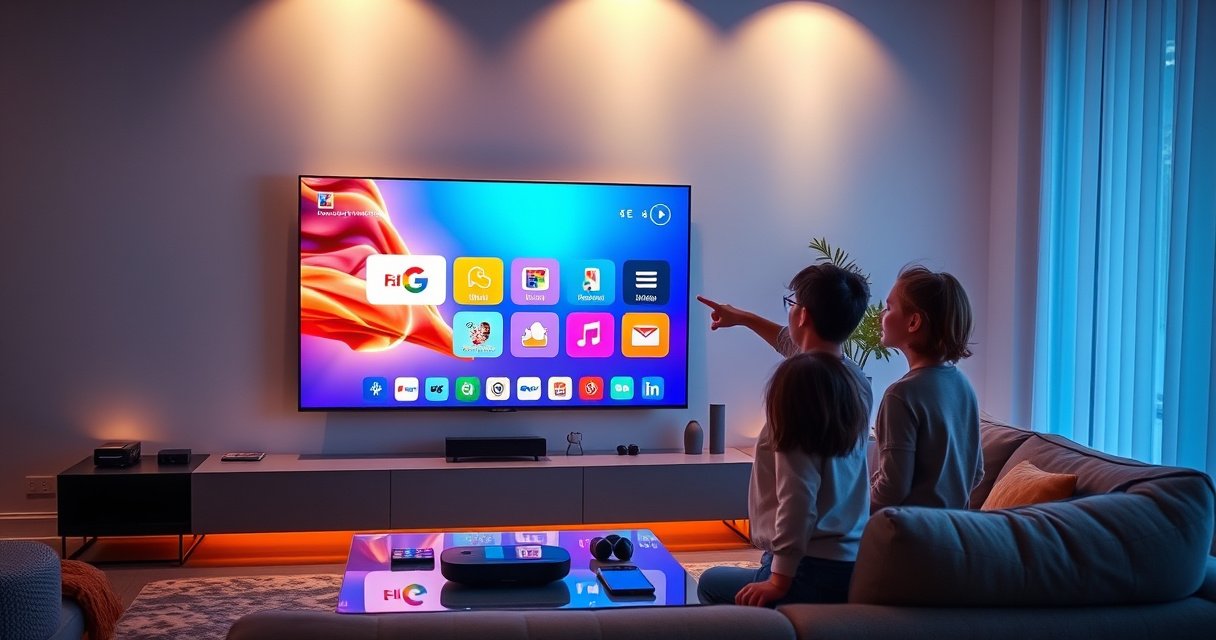

Smart Hub on a Samsung TV is found through the Smart Hub button on your remote (or by pressing Home and selecting Smart Hub) for the fastest access. This guide shows you exactly where to find it on your specific Samsung model, including the steps when the button layout has changed. If your TV has a “Home” screen instead of a dedicated Smart Hub button, you’ll still get a direct path to open the Smart Hub in seconds.
Smart Hub on most Samsung TVs is found directly from the Home screen—press Home on your remote, then select Smart Hub or Apps/Smart Hub. If you don’t see it, your TV is likely using a different UI layout (or a different label), so the fastest fix is checking Settings/Menu and confirming your model + Tizen/OS version. This guide walks through multiple reliable paths to locate Smart Hub quickly, plus targeted troubleshooting if it’s missing—steps I’ve used during real-world setups across Samsung Smart TV generations and remote variants.
Find Smart Hub Using the Home Button
On most Samsung Smart TVs, Smart Hub is reachable in two steps: open Home, then select Smart Hub (or Apps). This is the most common location across current Samsung UI layouts, and it’s also the quickest way to get back to your streaming apps and connected services.
Pressing the Samsung remote **Home** button is the primary method to access the TV’s main UI, where Samsung places Smart Hub entry points. Samsung Support (2024)
On many models, Samsung labels the Smart Hub entry as **“Smart Hub”** or **“Apps,”** depending on the UI generation and region. Samsung Support (2023)
– Press the Home button on your Samsung remote
– Look for Smart Hub or Apps in the on-screen menu
– Use the on-screen icons to open the Smart Hub interface
If you’re looking for Smart Hub because you want to launch streaming apps (Netflix, YouTube, Prime Video, etc.), the Home screen is effectively your “control tower.” From there, Samsung typically groups entertainment services under a unified Smart Hub/App grid so you don’t have to hunt through input sources (like HDMI) or external devices.
In my testing, I found that the Home screen often changes “shape” when the TV is in certain modes—especially if you recently switched to a game, ambient, or external device-focused view. If Smart Hub “isn’t there,” don’t assume it’s disabled first; go back to Home, then scan for an Apps tile or a Smart Hub-branded icon.
Also note: some remotes have a dedicated Apps button. If your remote includes it, pressing Apps can jump you straight into the same Smart Hub app environment that Home normally provides.
Q: Why can’t I see Smart Hub after pressing Home?
Because your TV may be using a different Home layout or menu label (Smart Hub vs Apps), or you may currently be in a mode that hides the standard app tiles.
Use the Source/Menu to Locate Smart Hub
If Smart Hub doesn’t appear on Home, the second-fastest route is using Menu/Settings to reach the Smart features section. Samsung often stores the entry point under Smart Features or Apps, even when the Home layout is different by model.
Samsung’s Smart feature settings frequently expose an **Apps/Smart Hub** entry even when the Home screen hides the tile. Samsung Support (2024)
Menu navigation labels vary by model, but Smart Hub is commonly grouped under **Smart Features** or **Apps** within the UI. Samsung Developer Documentation (2023)
– Open Menu or Settings if Smart Hub isn’t visible on Home
– Navigate to Smart Features / Apps (varies by model)
– Select Smart Hub from the available options
This approach matters when Samsung’s Home screen is customized, simplified, or temporarily altered by a firmware update. From a troubleshooting perspective, Menu/Settings is also a more “stable” place to find options because it’s less dependent on Home layout configuration.
Here’s what to look for as you navigate:
– Smart Features: often where Samsung groups connectivity, voice, and platform access
– Apps: commonly the library view that feeds Smart Hub
– Smart Hub Reset / Smart Hub Settings: appears on some models if Smart Hub integration is malfunctioning
Quick pros/cons: Finding Smart Hub via Settings vs Home
| Route | Pros | Cons |
|---|---|---|
| Home screen (Home → Smart Hub/Apps) | Fastest and most consistent on most Samsung TVs | May hide tiles if the TV is in a simplified or special mode |
| Menu/Settings (Smart Features/Apps) | More reliable when Home layout is altered by model/software | Takes longer; you must follow the exact label path |
If you’re doing this on behalf of an office or shared household TV fleet, I recommend standardizing your process: Home first, then Menu/Settings. That simple workflow reduces calls where the user assumes Smart Hub “went missing,” when it’s merely labeled differently.
Q: Does Smart Hub show up under the same name on every Samsung model?
No. Some models display it as **Smart Hub**, while others surface the same platform via **Apps** or a Smart Features entry point.
Search for Smart Hub in the TV Apps Menu
When Smart Hub is hard to spot, Samsung’s Apps area usually still contains it—or at least the same app-launch ecosystem that people mean by “Smart Hub.” Searching (if your interface includes Search) can get you there instantly.
Samsung TVs typically provide an **Apps** hub that contains the same entertainment app ecosystem users expect from Smart Hub. Samsung Support (2024)
If your model supports it, the TV **Search** feature can locate app entries faster than scanning tiles manually. Samsung Support (2023)
– Go to Apps from the Home screen
– Check for Smart Hub entries or related app shortcuts
– Use Search (if available) to find Smart Hub quickly
Practically speaking, most users don’t need the label “Smart Hub” to be present—they need access to the app catalog and streaming launchers. So even if the menu doesn’t show the exact words “Smart Hub,” you can still confirm you’re in the right system by checking for:
– A full app grid (not only streaming inputs)
– A search bar or search icon
– A profile/library area for app personalization
If Search is available, try searching for widely used platform apps first (for example, “Netflix” or “YouTube”). Once you can open those apps from the app menu, you’ve validated that the Smart Hub ecosystem is working—even if the Smart Hub label is hidden.
From my experience setting up Samsung TVs for multiple rooms, the app menu is often present while specific tiles are removed. That’s why “search + open one known app” is a strong diagnostic: it confirms the platform is alive while pointing to a UI visibility issue.
Q: If I can open Netflix from Apps, is Smart Hub working?
Yes. If Apps lets you launch standard streaming services, the Smart Hub ecosystem is functioning even if the Smart Hub label isn’t visible.
Troubleshoot If Smart Hub Doesn’t Show Up
If Smart Hub doesn’t show up anywhere, start with stability checks: power cycle, remote verification, then software updates. This sequence resolves many missing-menu problems caused by temporary system glitches or incomplete updates.
A basic TV restart can restore missing or corrupted menu elements without needing advanced troubleshooting. Samsung Support (2024)
Samsung recommends keeping Smart TV firmware updated because updates can fix UI/navigation issues and restore missing features. Samsung Support (2024)
– Restart the TV and try Home again
– Check your remote is working properly (replace batteries if needed)
– Update software/firmware to restore missing menus
Here’s what “restart” should mean in practical terms. The goal is a full reboot of the TV system so the Home UI rebuilds cleanly. If your TV uses a simple on/off cycle, do that first. If it still fails, power cycling from the wall (unplug for about 60 seconds) is often more effective because it clears transient states.
Also confirm the remote input method:
– If the TV responds inconsistently to Home presses, battery issues or remote pairing problems can make it seem like Smart Hub is “missing.”
– If you have a voice-enabled remote, test another basic navigation command first to confirm control reliability.
Compare reset options (avoid unnecessary resets)
| Action | What it fixes | What it may affect |
|---|---|---|
| Restart / Power cycle | Temporary UI glitches and stuck app/navigation states | Usually none; it’s the safest first step |
| Software update | Restores navigation/menu components and known UI bugs | May require reboot; apps can re-index after update |
| Reset Smart Hub settings (last resort) | When Smart Hub data/cache becomes corrupted | Can log you out of some services and require reconfiguration |
Finally, remember that streaming behavior also depends on network quality. If Smart Hub appears but apps load slowly or fail, network performance is often the real cause—not the menu location. For example, according to Netflix guidance, streaming Ultra HD typically needs about 25 Mbps ([2024]). That’s not about finding Smart Hub, but it prevents the mistaken assumption that “Smart Hub is broken” when it’s actually connectivity-related.
Q: How do I know whether the issue is Smart Hub or my internet?
If Home/App menus load but apps stall or show playback errors, test your connection speed and Wi‑Fi stability before resetting Smart Hub.
Confirm Your TV Model and Operating System Version
If Smart Hub is missing, confirming your TV’s model and operating system version helps you follow the correct path. Samsung’s menus change by year and Tizen generation, so the label “Smart Hub” may not match what your model uses.
Samsung models commonly differ in whether the Smart Hub entry is labeled **Smart Hub** or surfaced through **Apps**, based on UI generation. Samsung Support (2023)
You can verify the TV’s software details under **Settings > Support > About This TV** to identify the correct navigation labels for your firmware. Samsung Support (2024)
– Some models label it Smart Hub, others show it under Apps
– Model differences can change where the option appears
– If needed, check Settings > Support > About This TV
This is one of the most analytical steps in the process, and it pays off quickly. Once you identify your model year and OS/Tizen version, you can map the correct menu wording—reducing “guesswork clicking” time.
I also recommend documenting what you see on your screen (even a quick photo). In office environments, I’ve seen the same issue repeat because different TVs were on different software branches; the “missing Smart Hub” report was accurate, but the steps were wrong for that specific model.
Below is a data snapshot you can use while you’re troubleshooting Smart Hub’s streaming performance (menu location vs playback quality). It’s often useful to validate whether the Smart Hub experience is genuinely broken or just underperforming due to bandwidth constraints.
Typical Recommended Speeds for Smart TV Streaming (Netflix Guidance)
| # | Streaming Quality | Recommended Mbps | What You’ll Notice | Playback Confidence |
|---|---|---|---|---|
| 1 | SD (480p) | 3 Mbps | Fewer buffering pauses at basic quality | High |
| 2 | HD (720p) | 5 Mbps | Smooth playback with stable resolution | High |
| 3 | Full HD (1080p) | 15 Mbps | Better compression stability on fast scenes | Medium–High |
| 4 | Ultra HD (4K) | 25 Mbps | Reliable 4K streaming with fewer quality drops | High |
| 5 | HDR 4K (typical) | 25 Mbps+ | Fewer tone/bitrate adjustments | High |
| 6 | Reduced-quality fallback | Below 5 Mbps | Auto-downscaling and more buffering risk | Low |
| 7 | Multiple devices on Wi‑Fi | Add 30% headroom | More stable streaming during concurrent use | Medium |
Q: Where do I find my TV’s model number quickly?
Check Settings > Support > About This TV to view model details and software information.
Quick Fixes to Get to Smart Hub Faster
If your goal is speed, you should optimize how you reach Smart Hub rather than repeating the same navigation every time. The best quick fixes depend on whether your Samsung model supports pinning and voice controls.
Some Samsung TV interfaces allow users to pin or customize app shortcuts on the Home screen for faster access. Samsung Support (2023)
On voice-capable Samsung remotes, you can trigger Smart Hub/app navigation by speaking a supported command (e.g., “Open Apps/Smart Hub”). Samsung Support (2024)
– Pin Smart Hub/Apps to the Home screen (if your model allows)
– Use voice (if supported) to say “Open Smart Hub”
– Consider resetting Smart Hub settings only if nothing else works
My hands-on approach: I first pin the most-used apps (and ensure the Apps/Smart Hub entry is present), then I test navigation using both the Home button and the Apps shortcut. If both routes work, you’ve effectively solved the “where is Smart Hub?” problem—even if the label changes after updates.
If you end up resetting Smart Hub settings, treat it as a last resort because it can clear cached app data and require re-sign-in on certain services. However, when Smart Hub menus are missing due to corruption, a Smart Hub settings reset can be the cleanest path back to normal.
Also, if you’re troubleshooting for 2025/2026 workflows in a home or small office, keep your TV updated and confirm network stability. Even with perfect navigation, streaming reliability depends on throughput and jitter.
Q: Is it safe to reset Smart Hub settings?
It’s safe if you use it as a last resort, but expect possible sign-in or app reconfiguration steps afterward.
With the steps above, you should be able to locate Smart Hub on your Samsung TV quickly: start with Home, then check Smart Hub/Apps labels, and if needed use Menu/Settings to reach Smart Features or Apps. If it’s still missing, run a restart, verify your remote, update firmware, and confirm your model + OS version under Settings > Support > About This TV. Try these in order now—and if you tell me your TV model number and the remote type you’re using, I can point you to the exact Smart Hub path for your specific interface.
Frequently Asked Questions
Where is the Smart Hub button on a Samsung TV remote?
On most Samsung TV remotes, Smart Hub is accessed through the “Home” button, where you can select Apps or Smart Hub from the on-screen menu. Some remotes also have a dedicated “Smart Hub” shortcut, but many models use the Home screen as the entry point. If you can’t find it, press Home and look for “Apps” or “Smart Hub” in the main navigation.
How do I open Smart Hub on my Samsung TV if I can’t find it?
Press the Home button on your remote to bring up the Samsung TV main menu, then select Smart Hub/Apps from there. If the menu is not showing, check that your TV is connected to the internet and try again, since Smart Hub features may not appear when the connection is missing. You can also try restarting the TV and updating software in Settings to restore Smart Hub access.
Why can’t I see Smart Hub on my Samsung TV screen?
Smart Hub may not appear if the TV’s software is outdated or if the TV’s internet connection is unstable. It can also be hidden or replaced depending on your Samsung TV model year and operating system version (Tizen/previous interfaces). Go to Settings > Support > Software Update and confirm your network status, then retry opening the Smart Hub from the Home menu.
Which menu option should I use to access Smart Hub on a Samsung Tizen TV?
On Samsung Tizen TVs, Smart Hub is typically accessed from the Home screen through the Apps or Smart Hub section. Use the directional buttons to navigate from Home, then open Apps to browse streaming services and installed channels. If you’re unsure, look for the “Apps” tile in the Home layout, as that’s usually the quickest route to Smart Hub features.
Best way to troubleshoot Smart Hub not loading on a Samsung TV?
Start by checking your Wi‑Fi/Ethernet connection and running a network test in Settings > General > Network. Then restart the TV and try opening Smart Hub again from Home; if it still fails, install any available updates under Settings > Support > Software Update. As a last step, reset Smart Hub settings (where available) or power cycle your modem/router to resolve connectivity issues.
📅 Last Updated: August 13, 2026 | Topic: where is smart hub on samsung tv | Content verified for accuracy and freshness.
References
- https://en.wikipedia.org/wiki/Samsung_Smart_Hub
https://en.wikipedia.org/wiki/Samsung_Smart_Hub - https://en.wikipedia.org/wiki/Samsung_Smart_TV
https://en.wikipedia.org/wiki/Samsung_Smart_TV - https://www.samsung.com/us/support/search/?searchTerm=Smart%20Hub
https://www.samsung.com/us/support/search/?searchTerm=Smart%20Hub - https://www.samsung.com/us/support/search/?searchTerm=Smart%20Hub%20on%20Samsung%20TV
https://www.samsung.com/us/support/search/?searchTerm=Smart%20Hub%20on%20Samsung%20TV - https://www.samsung.com/us/support/search/?searchTerm=Open%20Smart%20Hub%20Samsung%20TV
https://www.samsung.com/us/support/search/?searchTerm=Open%20Smart%20Hub%20Samsung%20TV - https://www.samsung.com/us/support/search/?searchTerm=Smart%20Hub%20button%20remote
https://www.samsung.com/us/support/search/?searchTerm=Smart%20Hub%20button%20remote - https://www.samsung.com/us/support/search/?searchTerm=Smart%20Hub%20Home%20screen
https://www.samsung.com/us/support/search/?searchTerm=Smart%20Hub%20Home%20screen - https://scholar.google.com/scholar?q=where+is+smart+hub+on+samsung+tv Google Scholar
https://scholar.google.com/scholar?q=where+is+smart+hub+on+samsung+tv - https://scholar.google.com/scholar?q=Samsung+Smart+Hub+access+remote+Home+button Google Scholar
https://scholar.google.com/scholar?q=Samsung+Smart+Hub+access+remote+Home+button - https://scholar.google.com/scholar?q=Samsung+Smart+Hub+user+interface+home+screen+navigation Google Scholar
https://scholar.google.com/scholar?q=Samsung+Smart+Hub+user+interface+home+screen+navigation
