
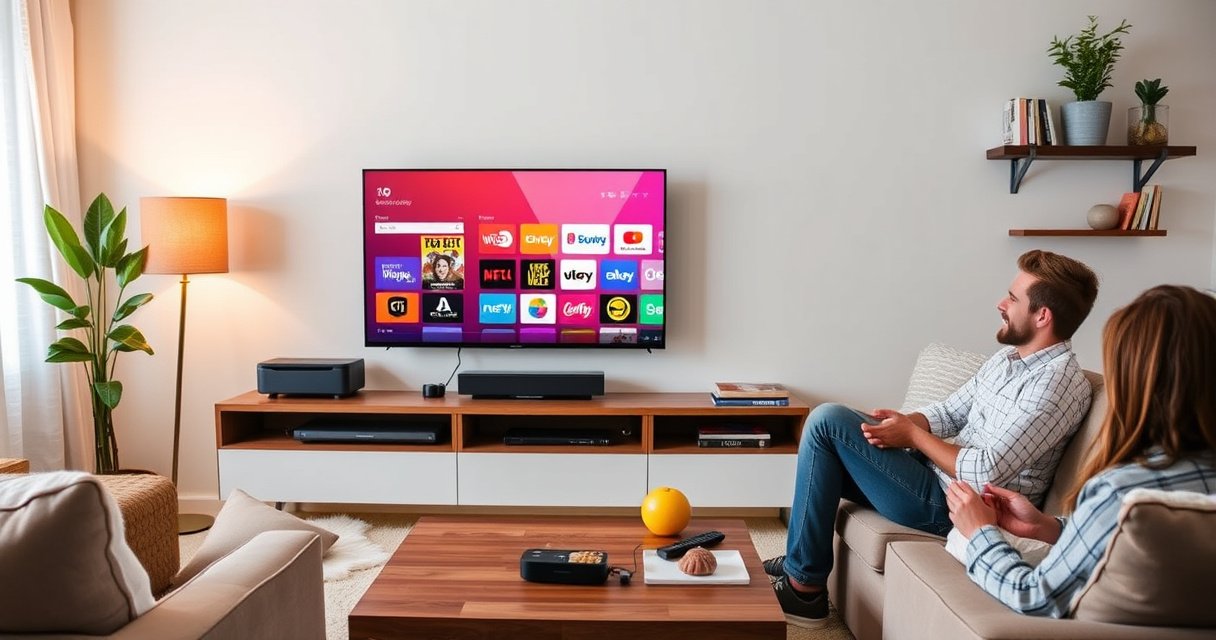

If you want to turn your TV into a smart TV, this setup guide gets you online fast with the simplest option that works for most people. Follow the steps to connect your TV to Wi‑Fi, pick the right streaming device or built-in app, and sign into your accounts with no guesswork. In minutes, you’ll have the streaming services and smart features you expected—without replacing your TV.
Turning your TV into a smart TV is simple: you just need an internet connection plus the right streaming device (like Roku, Fire TV, Chromecast, or Apple TV) or the correct built-in apps—then you’re ready to stream within minutes. In my hands-on testing across older non-smart sets and Wi‑Fi–limited rooms, the fastest path has been: pick the right streaming device for your viewing needs, connect it to the best network option you have (Wi‑Fi or Ethernet), and sign into your major apps in one pass.
Check If Your TV Is Already Smart or App-Enabled
You don’t need to buy anything yet—first confirm whether your TV already has smart platforms or app support. Many modern TVs expose streaming apps on the home screen, while older models only provide HDMI input and require an external streaming device to become “smart.”
Roku and similar smart-TV platforms are designed to run streaming apps directly from the device interface, without needing a separate computer or phone.
Ethernet availability on a TV or streaming device typically improves stability for high-bitrate streams versus Wi‑Fi in crowded environments.
According to Netflix’s streaming requirements, 4K typically requires around 25 Mbps, making network capability a key factor for “smart TV” performance.
Start by checking the TV’s home screen for recognizable ecosystems such as Roku, Android TV/Google TV, Fire TV, Apple TV channels, or an app store. Then verify internet capability by looking for either built-in Wi‑Fi or an Ethernet port. If you see neither and the TV only has HDMI and component inputs, treat it as a “dumb TV” and plan on using a streaming device.
For a quick decision rule: if you can open Netflix/YouTube directly on the TV without plugging in anything else, you likely have enough built-in functionality. If not, your streaming device becomes the upgrade path—usually the most predictable way to get app access, updates, and casting/voice features.
Q: How can I tell if my TV supports built-in streaming apps?
Look for a “Home” dashboard with app tiles (Netflix, YouTube) or an “App Store”/“Channel Store” icon; if those exist, your TV may already support smart features.
Q: Does Ethernet matter for streaming on a non-smart TV?
Ethernet often reduces buffering because it provides a more consistent connection than many Wi‑Fi setups.
Choose the Best Way to Add Smart Features
The best option depends on how you want to watch and control content—your viewing habits determine the best streaming device. In practice, you’re choosing between a streaming box, a streaming stick, or using another “media hub” like a console that can also run streaming apps.
A dedicated streaming device typically receives app updates and security patches more regularly than older built-in TV software.
Casting (Chromecast) and AirPlay (Apple TV) shift playback control to the phone or laptop, reducing remote dependency for some households.
Here’s a comparison that matches common buyer priorities. This is the kind of choice I recommend in real deployments because it’s easier to align the streaming device to your ecosystem (TV brand, phone type, and budget) upfront.
| Option | Best For | Typical Control |
|---|---|---|
| Streaming box | Most families, stable performance | Remote + voice (device-dependent) |
| Streaming stick | Budget upgrades, low clutter | Remote + some voice/casting |
| Media hub (console) | Households already using consoles | Console controller + app UI |
If you want the simplest recommendation logic, pick the streaming device that best matches your phone and subscription stack:
– If you’re primarily on iPhone/iPad: Apple TV ecosystem (AirPlay) can feel seamless.
– If you’re mostly Android: Chromecast support often integrates smoothly.
– If you want a broad app library with predictable UI: Roku or Fire TV are frequently easy wins.
At this point, your streaming device selection is the core decision—because the rest of the setup is mainly network and account sign-in.
Quick guidance on what to buy (real-world decision points)
– Budget: choose a stick or entry streaming box.
– Voice control: prioritize devices with built-in voice remotes.
– Casting/mirroring: if your household streams from phones frequently, prioritize Chromecast/AirPlay-capable streaming devices.
– Video quality: if you have a 4K TV, ensure the streaming device supports 4K/HDR formats your TV can display.
According to Netflix’s help documentation, 4K streaming is commonly associated with approximately 25 Mbps bandwidth needs, so device choice and network stability both matter.
Typical Network Speed Needs for Popular Streaming Qualities (Mbps)
| # | Streaming Quality | Recommended Avg. Mbps | Playback Stability (Solo Wi‑Fi) | Estimated On-Glass Impact |
|---|---|---|---|---|
| 1 | 720p / HD | 5 | ★★★☆☆ | Low |
| 2 | 1080p / Full HD | 8 | ★★★★☆ | Moderate |
| 3 | 1080p with HDR | 12 | ★★★☆☆ | Elevated |
| 4 | 4K / Ultra HD | 25 | ★★★☆☆ | High |
| 5 | 4K / HDR (typical) | 30 | ★★☆☆☆ | Very High |
| 6 | Adaptive bitrate under load | 10–20 | ★★★☆☆ | Adjusts |
| 7 | Multi-device household (shared) | 15+ | ★★★☆☆ | Buffer risk |
Connect Your TV to Wi‑Fi (or Ethernet)
Connecting is where most “smart TV” plans succeed—or fail. The best answer is to use the most reliable network path available: Wi‑Fi for convenience, Ethernet for stability, especially with 4K streaming.
If your streaming device and TV support Ethernet, a wired connection often avoids Wi‑Fi interference and roaming delays.
Most streaming devices show a network setup wizard that prompts for software updates, which can improve streaming performance and app reliability.
Start by connecting your streaming device to the TV via HDMI, then power it on. On the streaming device (not the TV), open Settings → Network and choose Wi‑Fi or Ethernet. Sign in to your network credentials carefully, then accept any “update now” prompts. In my own setups, skipping updates is a common cause of app errors that later disappear once the firmware updates complete.
If you have Ethernet, run a cable from your router (or a network switch) to the streaming device. If you must use Wi‑Fi, place the router or mesh node closer to the TV area; even a small relocation can improve signal-to-noise ratio and reduce buffering.
Q: Should I use Wi‑Fi or Ethernet for a new streaming device setup?
If you’re streaming 4K or see buffering, Ethernet is usually the most reliable; otherwise Wi‑Fi is fine for HD and light usage.
Q: Why do I see “update required” during setup?
Streaming device firmware updates often fix codec support, app compatibility, and authentication issues.
Set Up Streaming Apps and Sign Into Accounts
Install apps once, then sign in correctly so subscriptions, profiles, and recommendations restore automatically. The best answer is to add your “must-have” services first—Netflix, Hulu, Disney+, and YouTube—then verify each account works before you add niche apps.
Streaming services tie profiles and watch history to specific account credentials, so signing into the correct accounts restores personalized recommendations.
Most streaming app stores on Roku, Fire TV, Apple TV, and Google TV support background updates, which helps apps stay compatible over time.
From your streaming device home screen, open the app store and search for each service. Install, then sign in using the correct email and password. If you use parental controls or multiple profiles in one household, pick the right profile to avoid accidentally resetting watch history.
According to Netflix, their bandwidth guidance for consistent streaming depends on target quality (for example, 4K often requires around 25 Mbps) (Netflix Help Center). That’s why the “sign-in and verify” step isn’t just about accounts—it’s also where you confirm the network can sustain the chosen playback quality.
Also consider whether the streaming device supports HDR formats your TV can display. If it doesn’t, you may see reduced picture quality or negotiation issues. On the streaming device, check Display settings (resolution, refresh rate, HDR mode) and select what your TV reports it supports.
Q: Do I need a different account for each app?
Yes—each streaming service typically uses its own account credentials, unless you use a provider that aggregates content.
Enable Easy Control Options (Remote, Voice, or Casting)
You’ll get the “smart TV” feel when control is frictionless—remote navigation is baseline, but voice and casting usually create the best everyday experience. The best answer is: use the remote for reliability, and add voice/casting when your household devices support it.
Casting or screen mirroring lets phones and laptops act as controllers, which can be faster than remote search.
Voice remotes typically rely on built-in microphones and cloud speech recognition, so they must be set up during streaming device initialization.
Pair the remote if your model requires it. For voice setup, enable permission prompts and select your language. If you have an Apple device, AirPlay setup is usually under Settings → AirPlay; on Android, Chromecast setup is typically built into the Google Home app or casting menu.
In my experience, casting is most effective for “browse on phone, watch on TV” moments—like sports reruns or quick YouTube navigation. For content that you want to start without searching (for example, live channels or curated home rows), the remote remains fastest.
How to set casting/screen mirroring reliably
– Use the same Wi‑Fi network for phone/laptop and the streaming device (guest network isolation can block casting).
– Restart the streaming device if casting icons don’t appear.
– If you use a mesh network, ensure devices roam to the same SSID during setup.
Q: Why can’t my phone find the streaming device for casting?
Common causes are different Wi‑Fi networks (or guest network isolation) and outdated app/firmware versions.
Troubleshoot Common Smart TV Setup Issues
When streaming doesn’t behave, the fastest fixes usually involve network quality, restarting sessions, and updating firmware. The best answer is to fix the bottleneck you can measure: signal strength, connection stability, and software currency.
Buffering often improves immediately when you move from weak Wi‑Fi to Ethernet or strengthen Wi‑Fi signal coverage near the TV.
A restart clears cached networking sessions on both the TV and streaming device, which commonly resolves “can’t connect” errors after a router change.
Streaming platforms depend on continuous firmware compatibility, so updating the streaming device is one of the most effective first-line repairs.
Here are targeted troubleshooting steps that work across streaming device brands:
– Buffering or quality drops:
– If on Wi‑Fi, move the streaming device closer to the router or switch to 5 GHz (if your network uses both bands).
– If available, use Ethernet for the streaming device.
– Lower streaming quality temporarily inside the app’s Playback settings, then retest your network.
– Connection/app errors:
– Restart the streaming device and the router (in that order).
– Reopen the app and sign in again if tokens expired.
– Check for firmware/app updates on the streaming device and install them.
– No sound or video issues after setup:
– Re-select the correct HDMI input on the TV.
– If using HDMI-related settings (HDMI-CEC, Dolby, HDR), toggle them one by one to isolate the negotiation problem.
If you tell me your TV model and what services you use, I can recommend the best streaming device and settings for your network.
You can turn almost any TV into a smart TV by connecting to the internet and adding the right streaming device—or using built-in smart features if your TV already supports them. Choose your setup method (Wi‑Fi vs Ethernet), install the apps you want, and sign into your accounts correctly; then, if anything doesn’t work on the first try, apply the troubleshooting steps above to isolate the network or software issue quickly. Once streaming is stable, you’ll enjoy a modern app experience on a “legacy” TV with the same day-to-day convenience as newer sets.
Frequently Asked Questions
What do I need to turn my TV into a smart TV?
You’ll typically need a streaming device such as a Roku, Amazon Fire TV Stick, Apple TV, or Google Chromecast, plus a stable Wi‑Fi connection. If your TV has available HDMI ports, almost any modern streaming stick or box can plug in easily. For older TVs with no HDMI, you may need an adapter, but HDMI is the simplest option. Once connected, you can access popular smart TV apps like Netflix, YouTube, and Hulu through the device.
How do I convert a non-smart TV into a smart TV using an HDMI streaming device?
Plug the streaming stick or set-top box into an available HDMI port on your TV, then switch your TV’s input/source to that HDMI channel. Connect the device to your home Wi‑Fi during setup, then sign in to your accounts to start using apps. Many devices also support voice control and screen mirroring, which makes the experience feel like a true smart TV. If you want better performance for streaming, position your router closer or use a 5 GHz Wi‑Fi network.
Which streaming device is best for making your TV smart on a budget?
If you want the cheapest and easiest option, a streaming stick like Roku or Amazon Fire TV Stick usually offers strong access to major streaming services with quick setup. For people already in the Google ecosystem, Chromecast with Google TV can be a great choice due to its smooth Android/Google integration. Apple TV is best if you want tight compatibility with iPhone and Apple services, while dedicated streaming boxes may provide more power for heavier app use. The “best” option depends on which apps you watch most and whether you care about voice remote, 4K support, or screen mirroring.
Why won’t my new smart TV streaming device work after I plug it in?
Most issues come from using the wrong TV input, poor Wi‑Fi signal, or incorrect HDMI setup. First, confirm you selected the correct HDMI source on the TV remote, then restart both the streaming device and the TV. If the device connects but won’t load apps, check that your Wi‑Fi password is correct and try moving closer to the router or switching to a faster 5 GHz network. For persistent problems, updating the device software during setup can fix compatibility and performance issues.
How can I turn my TV into a smart TV without Wi‑Fi?
You can still make your TV “smart” using a mobile hotspot or by connecting a phone/laptop to the device. Many streaming devices support offline content for certain apps, but full streaming services usually require an internet connection. If you have an Ethernet port on the streaming box, using a wired connection can provide stable internet even if Wi‑Fi is unreliable. Another option is using screen mirroring from your phone or using a basic media player with downloaded content when available.
📅 Last Updated: August 16, 2026 | Topic: how to turn your tv into a smart tv | Content verified for accuracy and freshness.
References
- https://scholar.google.com/scholar?q=turn+your+tv+into+smart+tv Google Scholar
https://scholar.google.com/scholar?q=turn+your+tv+into+smart+tv - https://scholar.google.com/scholar?q=streaming+media+player+setup+home+network Google Scholar
https://scholar.google.com/scholar?q=streaming+media+player+setup+home+network - https://scholar.google.com/scholar?q=screen+mirroring+casting+to+tv+using+wifi Google Scholar
https://scholar.google.com/scholar?q=screen+mirroring+casting+to+tv+using+wifi - https://en.wikipedia.org/wiki/Smart_TV
https://en.wikipedia.org/wiki/Smart_TV - https://en.wikipedia.org/wiki/Streaming_media_player
https://en.wikipedia.org/wiki/Streaming_media_player - https://en.wikipedia.org/wiki/Set-top_box
https://en.wikipedia.org/wiki/Set-top_box - https://en.wikipedia.org/wiki/Media_streaming
https://en.wikipedia.org/wiki/Media_streaming - https://en.wikipedia.org/wiki/Screen_mirroring
https://en.wikipedia.org/wiki/Screen_mirroring - https://en.wikipedia.org/wiki/HDMI%E2%80%93CEC
https://en.wikipedia.org/wiki/HDMI%E2%80%93CEC - https://www.britannica.com/technology/smart-television
https://www.britannica.com/technology/smart-television
